
How to Use Drip Settings in Your Course
Drip settings allow you to control when your students and members gain access to specific modules within your course. Instead of releasing all content at once, you can schedule modules to become available after a set number of days, hours, or on a specific date. This tutorial will walk you through each drip option and how to configure them.
Table of Contents
- How to Access and Set Up Your Course Drip Settings
- Important Notes About Drip Timing (12 PM UTC)
- Setting Drip Days
- Setting Drip Hours
- Setting a Drip Specific Date
- How Drip Settings Interact with Student Access
- Example Setup: Dripping One Module Per Week
- FAQ
ℹ️ Keep in Mind: Drip settings can only be applied to course modules or sub-modules. You cannot apply drip settings to individual lessons within a module. If you need to control the release timing of a specific lesson, consider placing that lesson in its own module or submodule so you can apply drip settings to it.
💡 Good to Know: When you add a student to a course, they will progress through the course based on the drip settings you had configured at the time they were granted access. If you update your drip settings after a student has already been added, those changes will not retroactively apply to that student's access schedule.
How to Access and Set Up Your Course Drip Settings
- Navigate to Memberships in the left side menu.
- Hover over Courses and click on Products.
- In the Products section, select the course you want to configure.
- Once your course outline is open, you will see the status (e.g., "Published") displayed next to each module and lesson.
To change a module's availability to drip:
- Click where it says Published next to the module you want to adjust.
- Select Drip from the drop-down menu.
- Select one of the 3 drip options (e.g. Drip Days, Drip Hours, Drip Specific Date)
📝 Note: If you have applied drip settings to the entire module as well, the number of drip days for sub-modules cannot be greater than the drip days set for the parent module.
Important Notes About Drip Timing (12 PM UTC)
💡 Good to Know: For Drip Days and Drip Specific Date settings, the system will always release dripped content at 12:00 PM (midday) UTC.
Key points to remember:
- This applies regardless of the student's time zone.
- This applies regardless of your own time zone.
- The system will always default to 12:00 PM UTC for these drip releases.
Drip Hours is the exception. When using Drip Hours, the content is released exactly the specified number of hours after the student is granted access. The release time is relative to each individual student's access time, not tied to the 12 PM UTC default.
Setting Drip Days
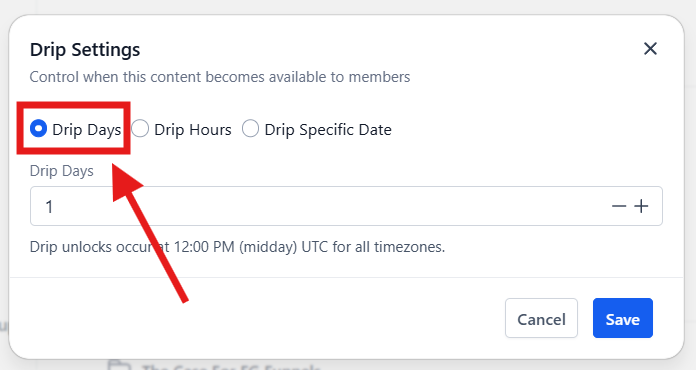
The Drip Days option allows you to release a module a certain number of days after a student has been granted access to the course.
- Click Published next to the module you want to drip.
- Select Drip from the drop-down menu.
- Leave the setting on Drip Days.
- Enter the number of days you want the system to wait before granting access. For example, entering "1" means the module becomes available one day after the student is granted access to the course.
- Click Save.
After saving, the module will display the updated drip status (e.g., "Drip: 1 Day").
Example Pattern:
- Module 1: Published (available immediately upon access)
- Module 2: Drip 1 Day
- Module 3: Drip 2 Days
- Module 4: Drip 3 Days
- Module 5: Drip 4 Days
You can continue this pattern for as many modules as your course contains.
Setting Drip Hours
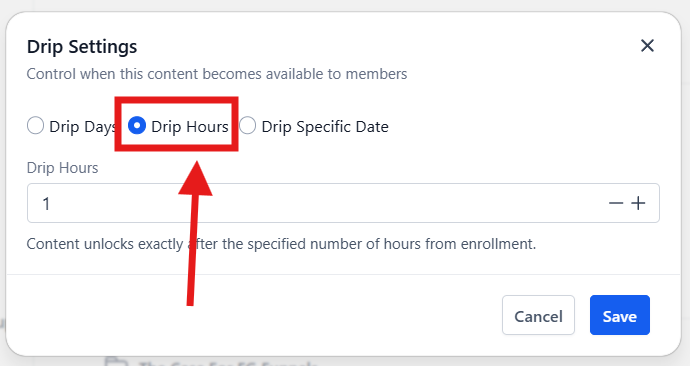
The Drip Hours option allows you to release a module a certain number of hours after a student has been granted access to the course. You can set the content to drip 1-23 hours after the member is granted access to the course.
- Click Published next to the module you want to drip.
- Select Drip from the drop-down menu.
- Choose Drip Hours from the available options.
- Enter the number of hours you want the system to wait (1-23 hours). For example, entering "3" means the module becomes available exactly three hours after the student is granted access.
- Click Save.
After saving, the module will display the updated drip status (e.g., "Drip: 3 Hours").
How Drip Hours Timing Works
Unlike Drip Days and Drip Specific Date (which release content at 12 PM UTC), the Drip Hours option releases content exactly the specified number of hours after the student is granted access to the course. This means the release time will vary from student to student depending on when they were given access. For example, if a student is granted access at 2:00 PM UTC and you have a module set to Drip 3 Hours, that module will become available to them at 5:00 PM UTC.
Setting a Drip Specific Date
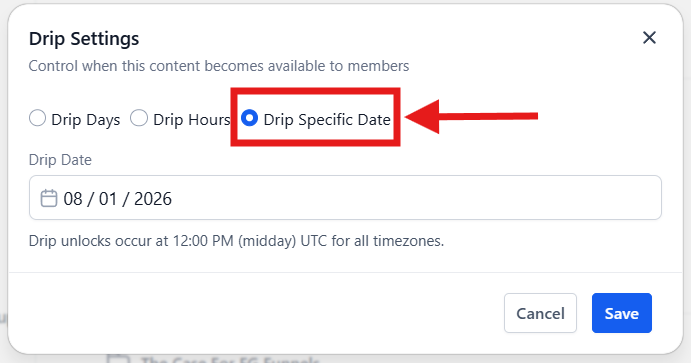
The Drip Specific Date option allows you to release a module on a specific calendar date. This is ideal for courses where you are releasing content on set days, or creating content as you go.
- Click Published next to the module you want to drip.
- Select Drip from the drop-down menu.
- Choose Drip Specific Date from the available options.
- Click the date field to open the calendar picker.
- Select the date you want the module to become available (e.g., August 7, 2026).
- Click Confirm.
- Click Save.
After saving, the module will reflect the chosen drip date (e.g., "Drip on August 7, 2026").
How Drip Specific Date Works for New Students
With this option, all students and members will gain access to the module on the same date, regardless of when they joined the course.
💡 Good to Know: If a student joins the course after a drip specific date has already passed, they will automatically have access to that module immediately. For example, if you have a 10-module course and you drip one module per week, a student who joins during week four will have access to all previously released modules right away.
How Drip Settings Interact with Student Access
Understanding when you apply drip settings in relation to when you grant student access is key to getting the results you expect. Below are three common scenarios to help illustrate how this works.
Scenario 1: Drip Settings Are Configured Before Granting Access
You set the content within your course to drip every 7 days. Then, you grant a student/member access to the course. In this scenario, the student/member will receive access to new dripped content every 7 days, and they will receive a drip notification email every 7 days as new content becomes available to them.
Scenario 2: Content Is Published First, Then Changed to Drip After Access Is Granted
You set the content in your course to "Published" first, then you grant a new student/member access to the course. Later on, you decide to update the course settings to drip content every 7 days.
In this scenario, students/members who were added before you updated the drip settings will already have access to all course content that was set to "Published" at the time they were granted access. They will not receive drip notification emails because they already have access to the content.
Scenario 3: Drip Settings Are Updated After Access Has Already Been Granted
You originally set the course content to drip every 4 days, then you grant a student/member access to the course. New content becomes available to them every 4 days.
Later on, you decide to update the drip settings to drip new content every 7 days instead. In this scenario, students who were added to the course before you made this update will continue to progress through the course based on the original drip setting of 4 days. The updated 7 day schedule will only apply to students who are granted access after the change is made to the course.
Example Setup: Dripping One Module Per Week
If you want to release one module per week after a student is granted access to your course, here is how you would configure the drip days for each module:
| Module | Drip Setting |
|---|---|
| Module 1 (Welcome) | Published (available immediately) |
| Module 2 | Drip 7 Days |
| Module 3 | Drip 14 Days |
| Module 4 | Drip 21 Days |
| Module 5 | Drip 28 Days |
Each drip day value represents the number of days after the student is granted access to the course. So if a student is granted access on a Monday, Module 2 would become available the following Monday, Module 3 the Monday after that, and so on.
If you want one new module to become available to the student/member each week, you would enter 7 in the "Drip Days" field for the second week of course content.
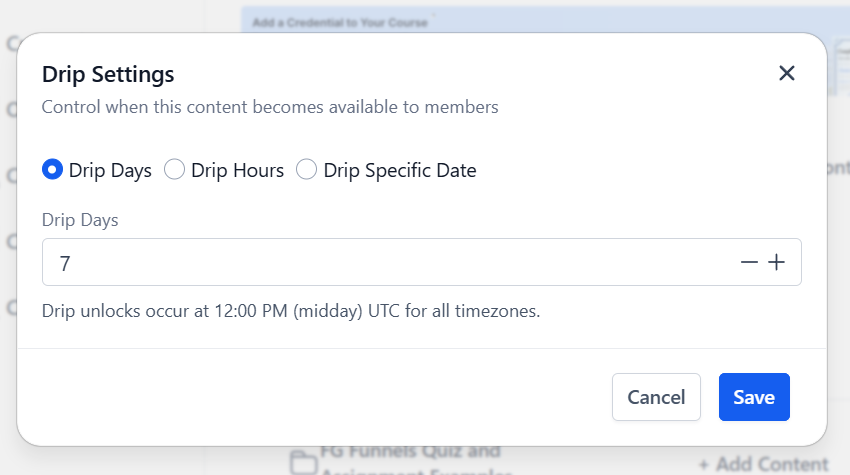
For the next module to become available to the student/member two weeks after they are granted access to the course, you would set the "Drip Days" field to 14.
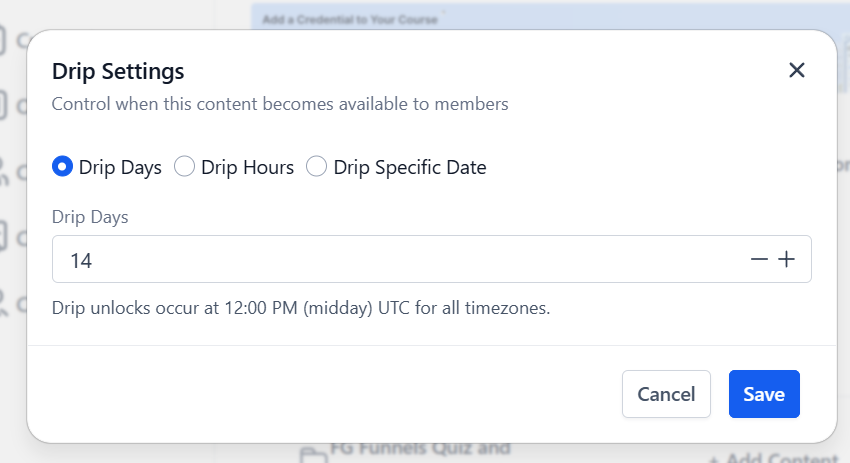
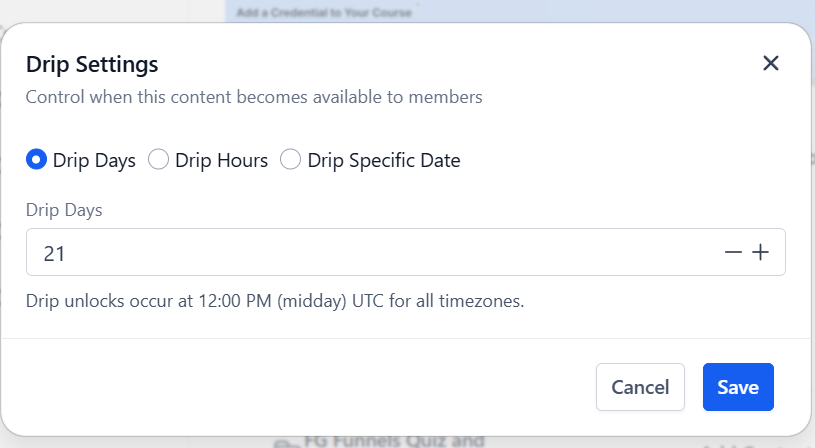
You will continue adding 7 for each following module of course content. So week 4's content would be set to 21 days.
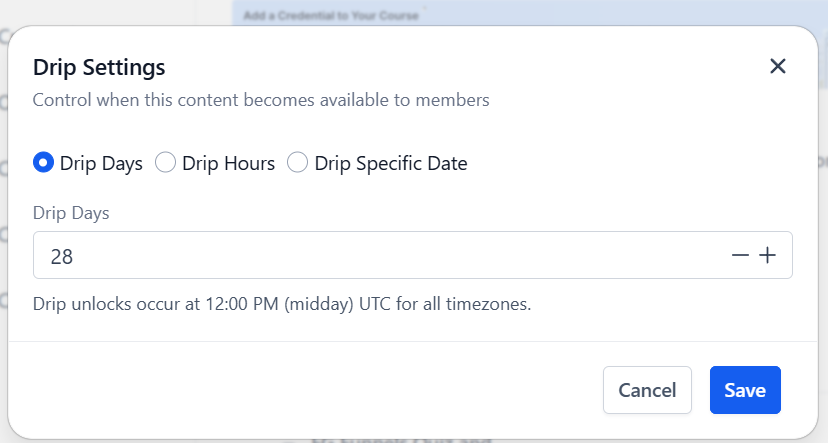
week 5 would be set to 28 days, and so on.
FAQ
- Can I set individual lessons to drip?
- Drip settings can only be applied at the module and sub-module level. You cannot set individual lessons within a module to drip. The drip option will not appear for individual lessons.
- If you need to control the release of specific content, consider organizing that content into its own module so you can apply drip settings to it.
- If I have the modules in my course set to drip, can I grant just one specific student access to the course content ahead of my set drip schedule?
- No, you cannot grant early access to dripped content on an individual contact basis. The drip settings are applied universally to everyone who has access to the course. There is no way to grant one specific student access to a dripped module ahead of your set drip schedule.
- If you decide to release a dripped module ahead of schedule (for example, by changing it from "Drip" back to "Published"), that change will apply to every person who has access to the course, not just one individual student.