
Community Events
Get ready to take your community engagement to the next level! With Community Events, group admins and owners can create events, manage them, and bring members together. Members can find, join, and get reminders for the events they care about.
Still on the classic look? See Moving to the New Client Portal Experience. The notice in your community shows Dec 1, 2026. That's when the switch-back window closes. Every account moves to the new community permanently on Dec 31, 2026.
In this article:
What Are Community Events?
Community Events are event posts that live inside your community. Each event holds the details, lets members register, and gives them one-click ways to add it to their calendar. You choose whether an event is free or paid, whether it repeats, and who can attend. It's great for local meetups, online workshops, and celebrations.
Note: Community Events are separate from your booking Calendars. They live in your community group's Events tab.
How to Create a Community Event
Group admins and owners can create events.
- Open your group. Go to Memberships > Communities > Groups, find your group, and click Login.
- Start an event. Click the Events tab, then click Create Event. The Events tab shows your events on a calendar.
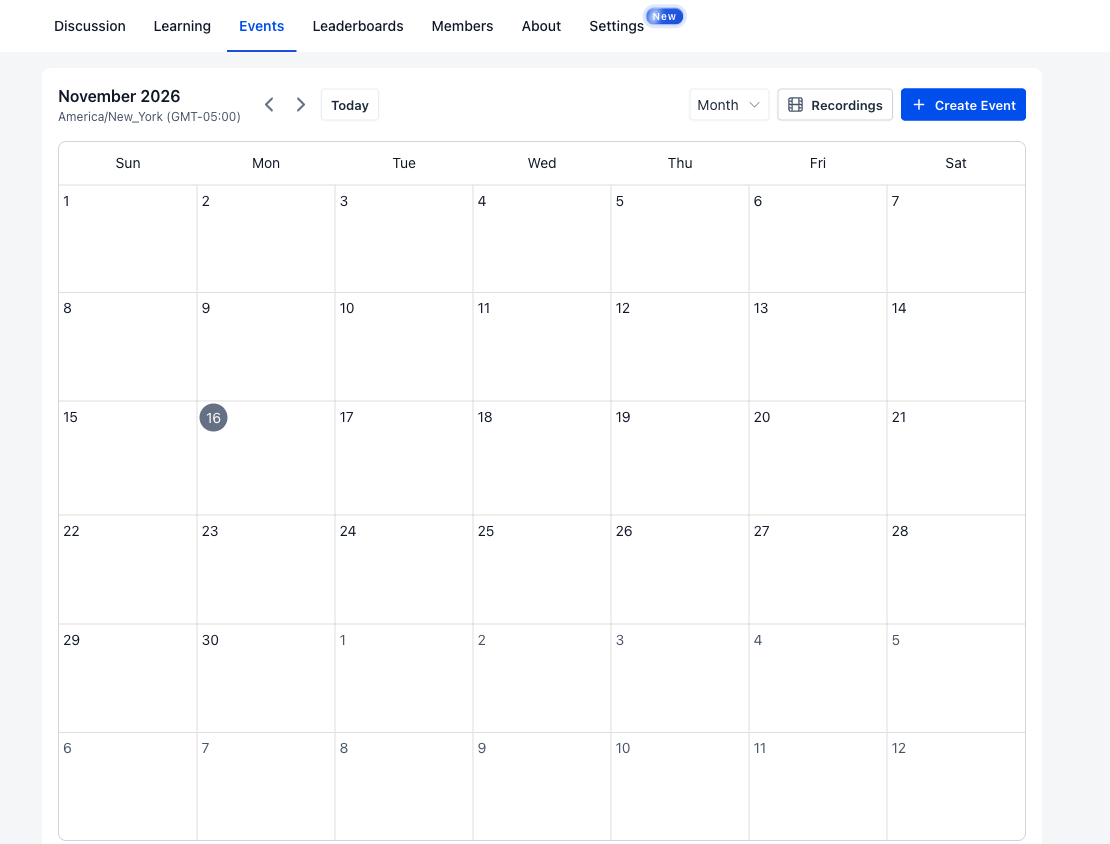
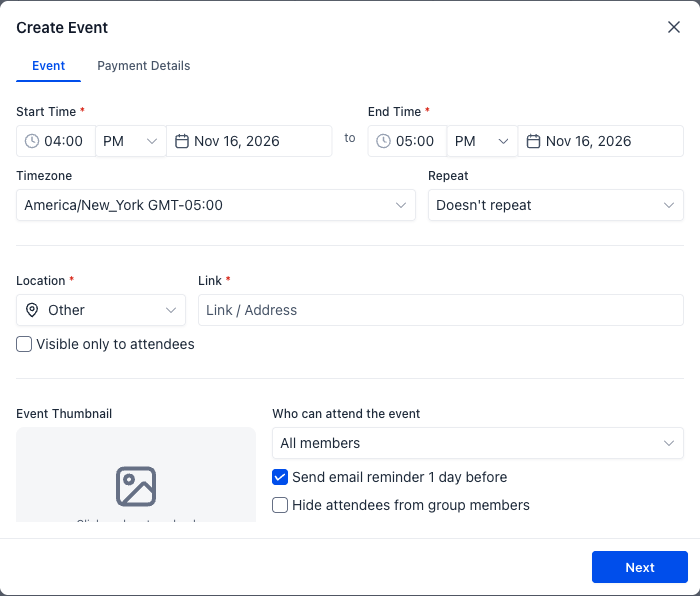
- Add the details. On the Event tab, enter a Title and a Description (up to 1,000 characters). You can also pick a Color for the event.
- Set the date and time. Choose the Start Time and End Time and the Timezone. To repeat the event, choose an option under Repeat: Daily, Weekly, Monthly, Yearly, or Custom.
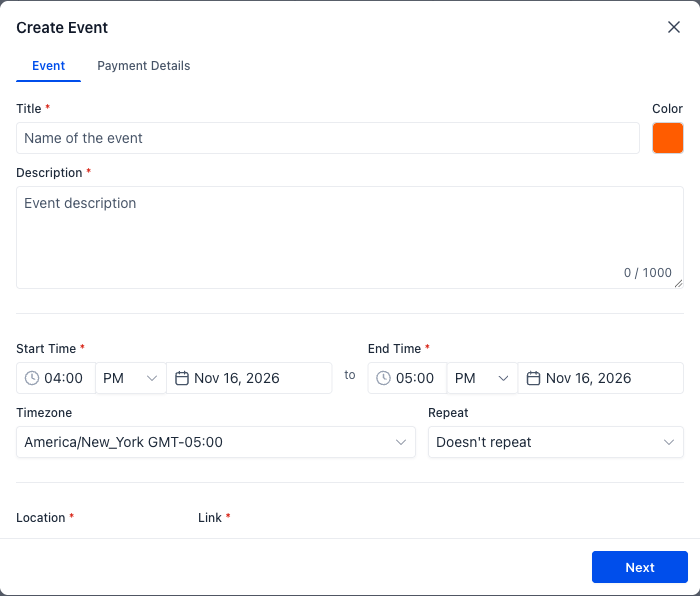
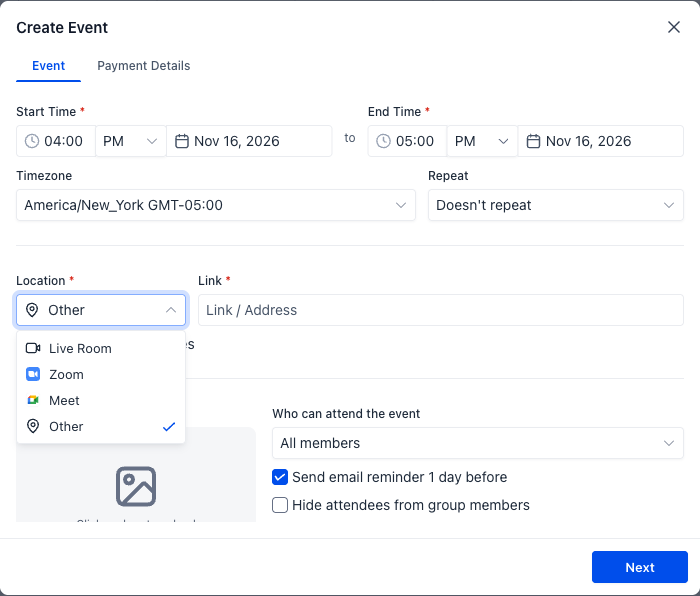
- Choose where it happens. Under Location, choose Live Room, Zoom, Meet, or Other, then add the Link / Address. Select Visible only to attendees if you only want people who registered to see the link or address.
- Add a thumbnail. Under Event Thumbnail, upload an image. The recommended size is 1280×720.
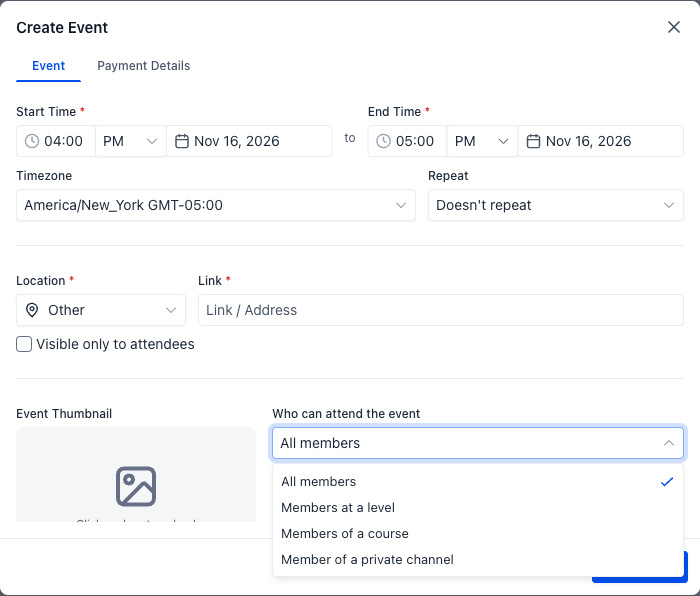
- Choose who can attend. Under Who can attend the event, choose All members, Members at a level, Members of a course, or Member of a private channel.
- Choose your reminder and privacy options. Send email reminder 1 day before is turned on by default. Select Hide attendees from group members if you don't want members to see who's attending.
- Set up payment. Click Next to go to Payment Details. Under Event Type, choose Free (no payment required) or Paid (add charges to the event). For a paid event, choose the Currency, enter the Price (it has to be more than 0), and turn on Test Mode if you want to test a payment first.
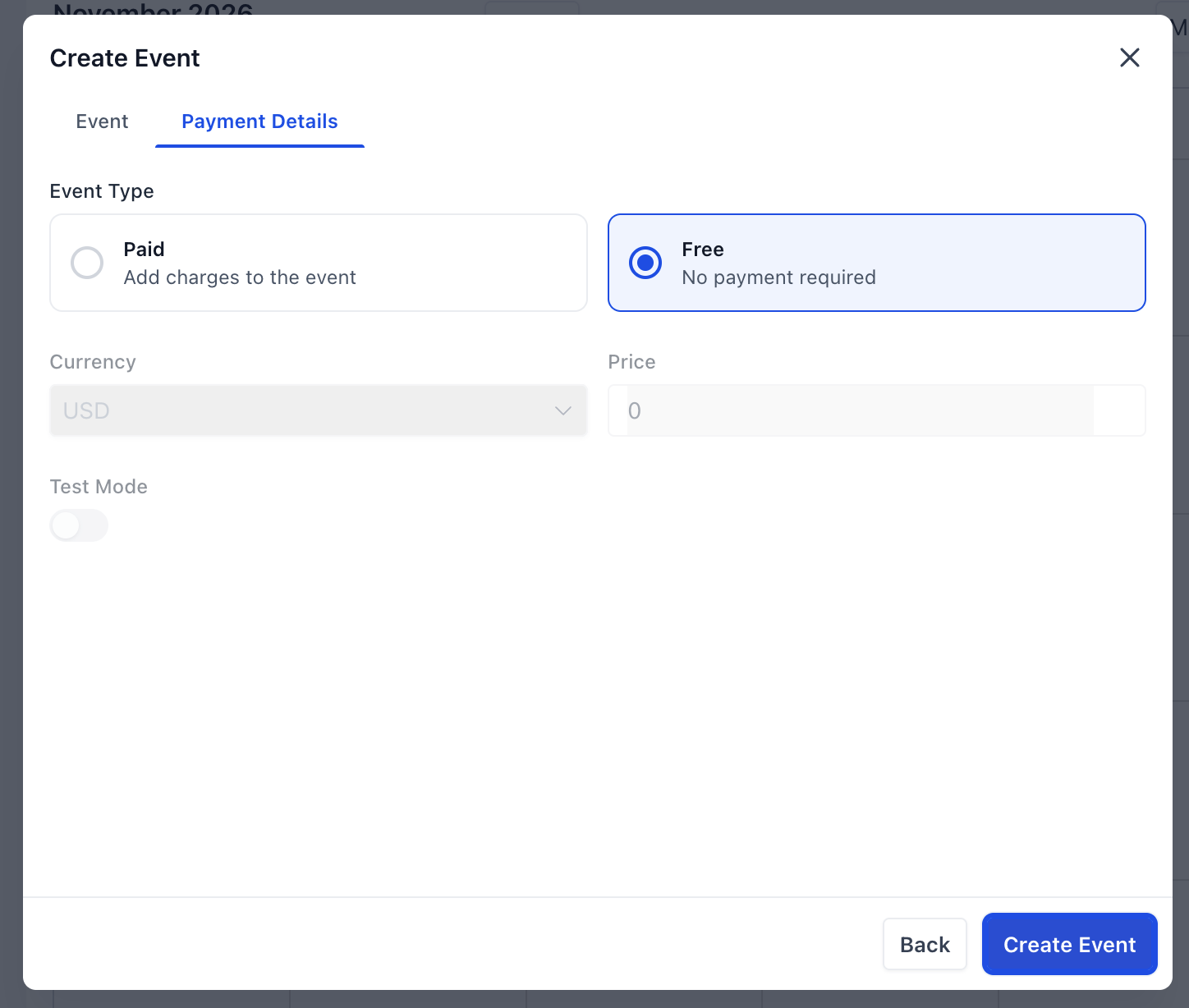
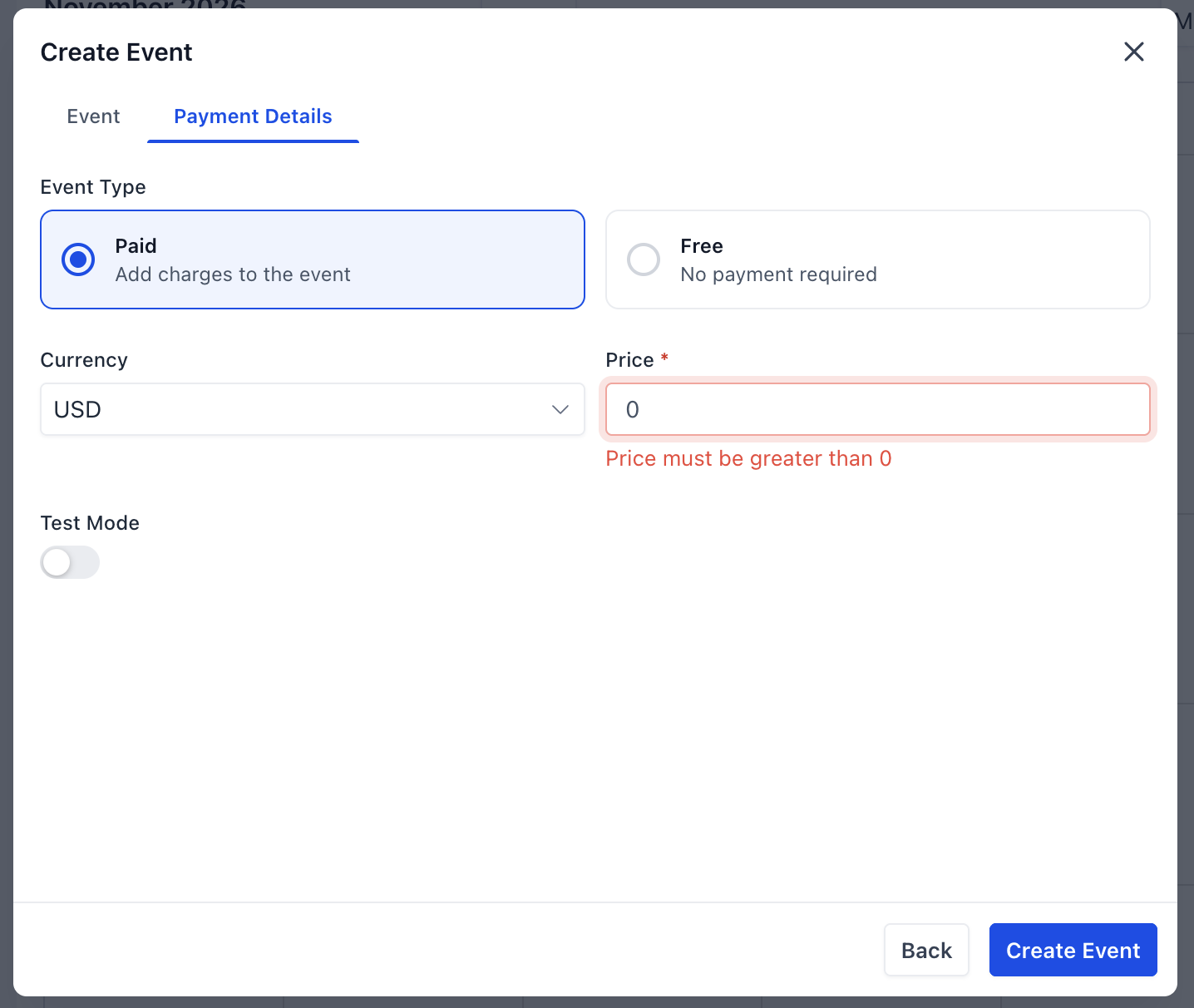
- Create the event. Click Create Event (or Back to change your details), then share your event with a community post, an announcement, an email, or an SMS.
Hosting a Live Room event
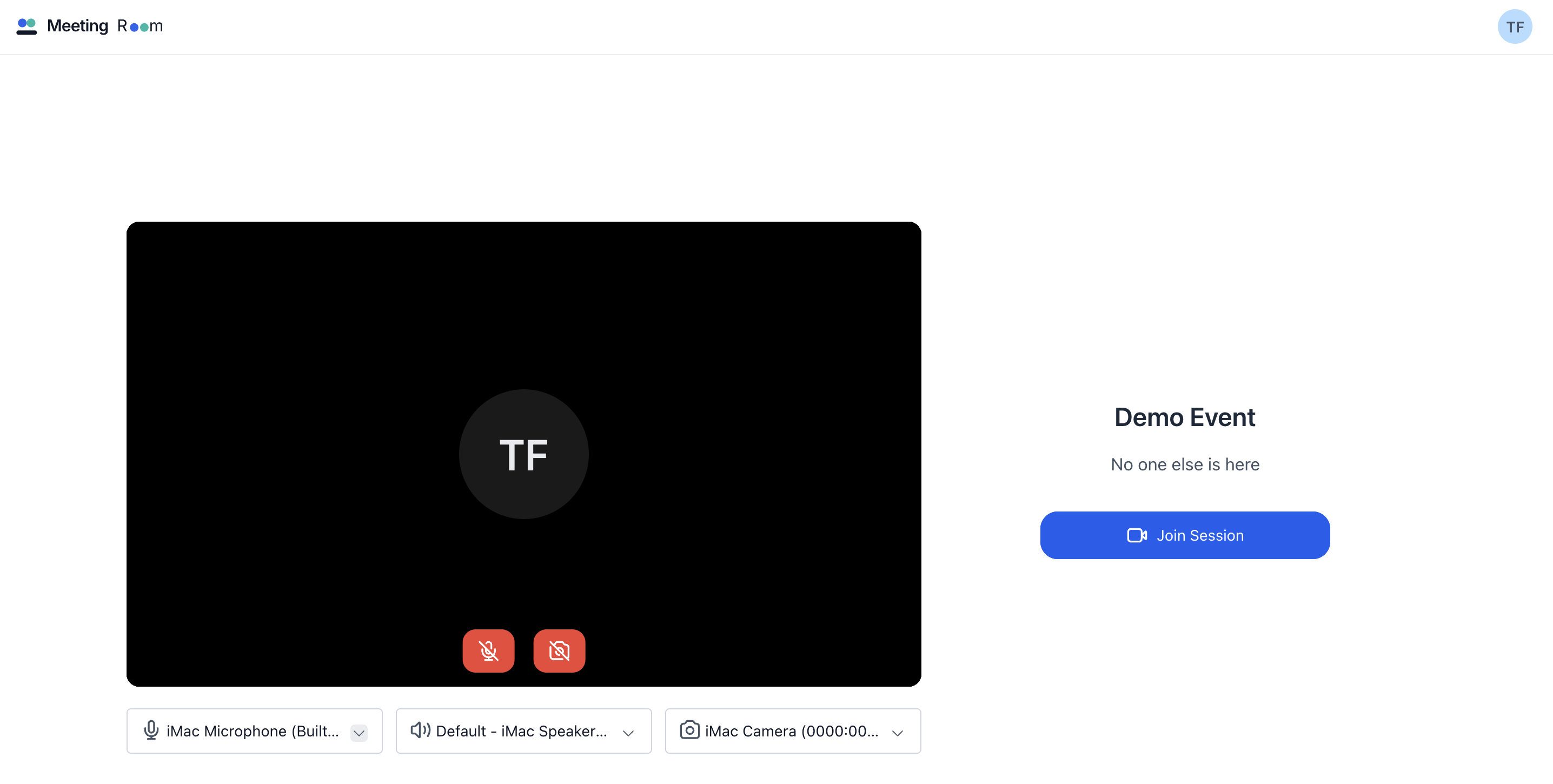
When you choose Live Room as the location, your event gets its own meeting link, so you don't need an outside meeting tool. The link shows under Location on the event, and you can copy it. Click it to open the Meeting Room. There you can check your microphone, speaker, and camera, and then click Join Session to start.
At the scheduled time, open the event from the Events tab and click its Live Room link. Members join the same way from the event page, with nothing to install. The room includes video and audio, screen sharing, chat, emoji reactions, raise hand, and host controls.
To go live without scheduling an event, see How to Livestream or Host a Meeting in a Community Group.
Viewing an event
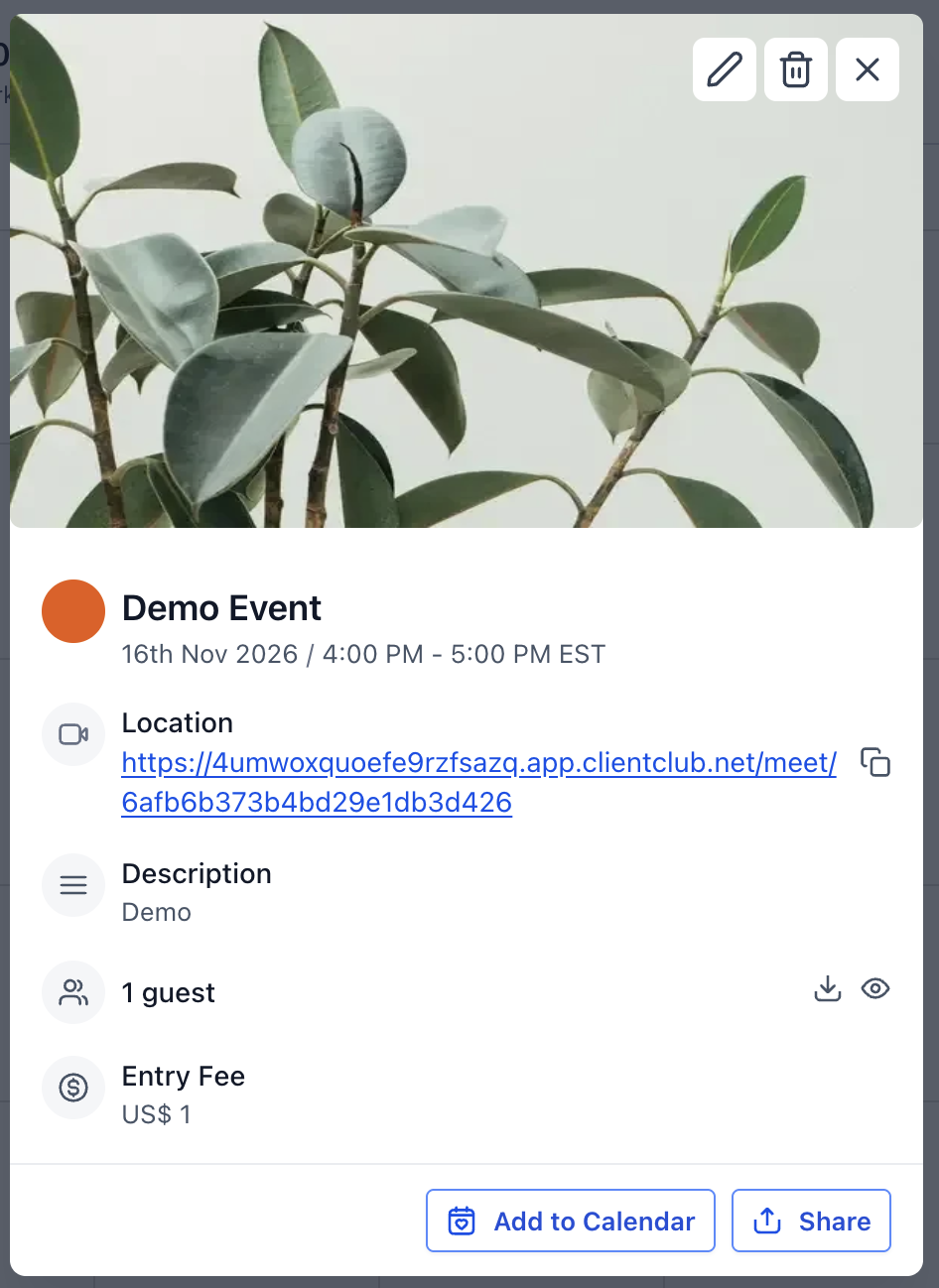
Click an event on your calendar to see its details: the title, date and time, location, description, number of guests, and the entry fee for a paid event. At the bottom you'll find Add to Calendar and Share. As an admin, you can also edit (pencil icon) or delete (trash icon) the event, and copy the location link.
Session recordings
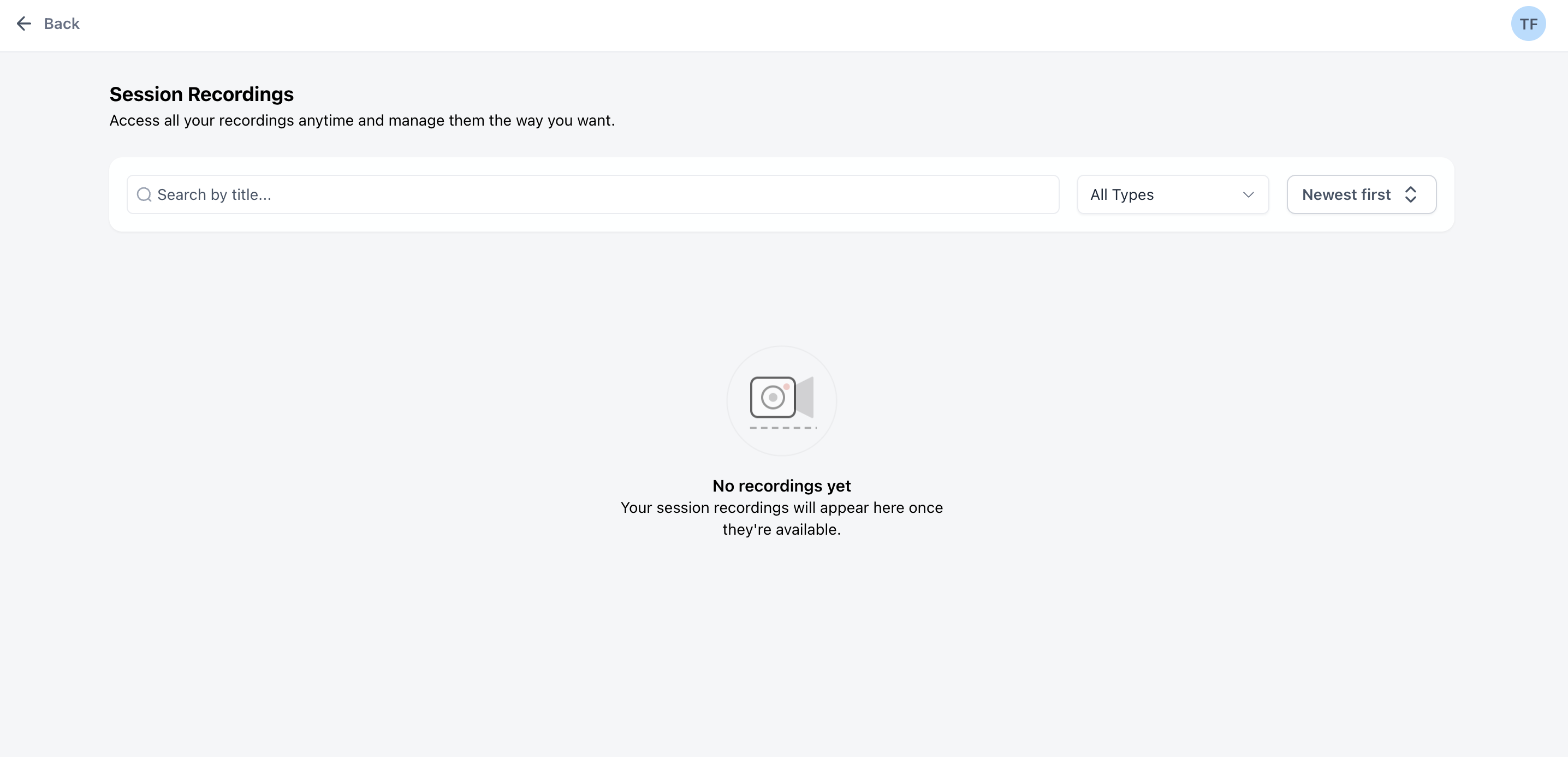
Click Recordings on the Events tab to open Session Recordings. You can search your recordings by title, filter by type, and sort them (for example, Newest first). Your session recordings appear here once they're available.
Include Paid Events in a Pricing Plan
You can include paid events in a pricing plan, so members who join the plan get access to those events.
- Create your event and set it to Paid on the Payment Details tab. Only paid events show up for plans.
- Go to Settings > Subscriptions and click Add plan (or Edit on a plan you already have).
- On the Access tab, find your event under Events and select its checkbox. The Unlocks counter shows how many items the plan unlocks.
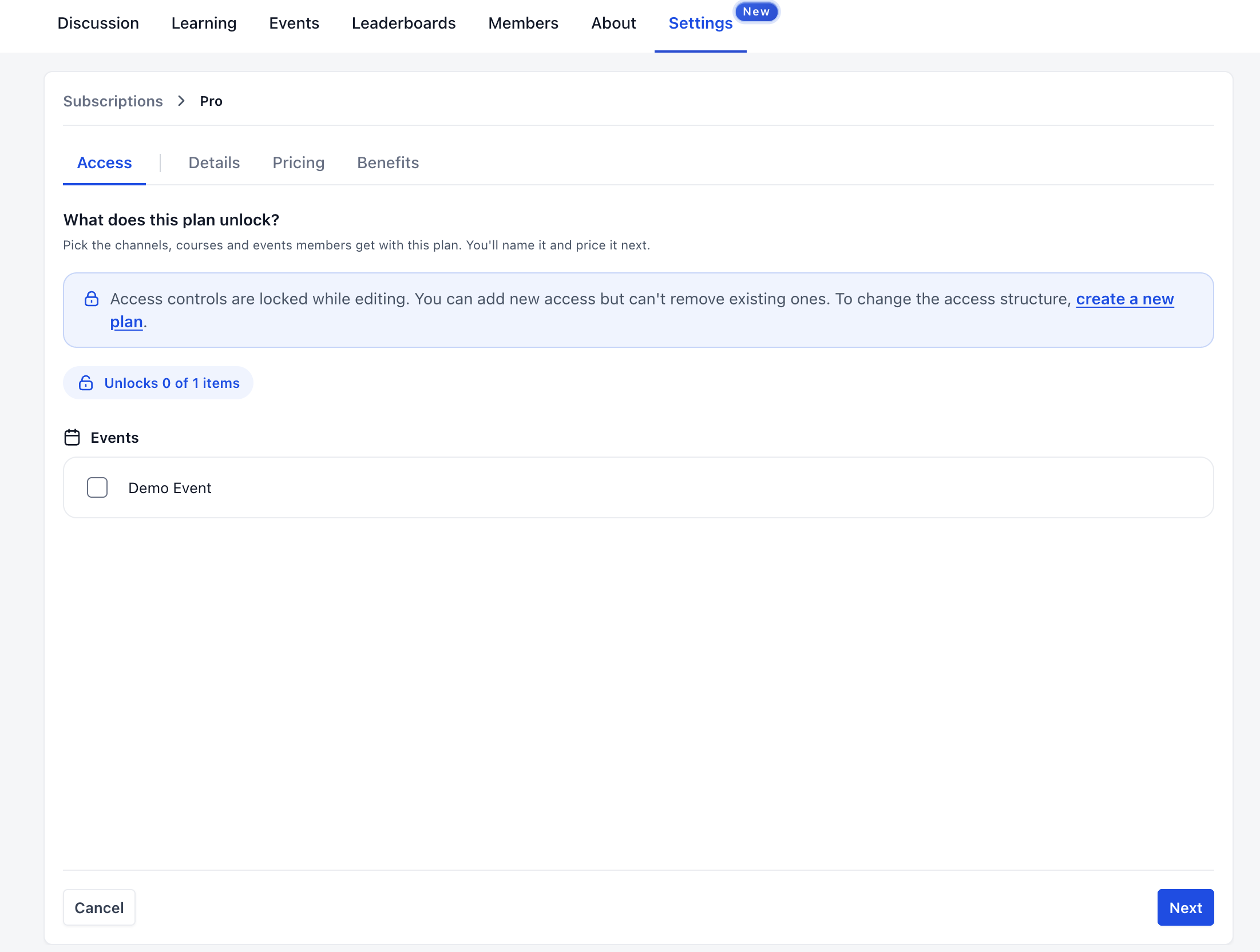
- Click Next to name and price the plan on the Details, Pricing, and Benefits tabs.
Please Note: When you edit an existing plan, you can add new access but you can't remove access that's already there. To change a plan's access, create a new plan.
For the full plan setup, see Create and Manage Multiple Pricing Plans in Communities.
For Members
Members can:
- Find events in their community on the Events tab.
- Register for the events they like.
- Add an event to their Google or iCal calendar in one click.
- Get in-app notifications and email reminders.
- See new-event alerts in the Discussions tab.
- Join Live Room events right from the event page.
On Mobile
Members can also find and register for events in the mobile app. See Mobile App for Members to Access the Client Portal, Community Groups, and Courses.
FAQs
Q: Do I get notified when someone registers for an event?
A: No. Attendees get email and in-app notifications, but admins and event creators aren't notified when someone registers. To track registrations, use a custom registration form and a workflow.
Q: Can I limit who can see and attend an event?
A: Yes. Under Who can attend the event, choose All members, Members at a level, Members of a course, or Member of a private channel.
Q: Can I make an event repeat?
A: Yes. Under Repeat, choose Daily, Weekly, Monthly, Yearly, or Custom.
Q: Can I charge for an event?
A: Yes. On the Payment Details tab, set Event Type to Paid, choose the currency, and enter a price. You can also include paid events in a pricing plan.
Q: Can I use Zoom or Google Meet?
A: Yes. Under Location, choose Zoom or Meet and add your link. You can also choose Live Room or Other. For a Zoom link you can reuse, see Zoom's article on your personal meeting link.
Q: Can I turn off the reminder email?
A: Yes. Clear Send email reminder 1 day before when you create the event.
Q: Can members cancel their registration?
A: There isn't an official cancel button right now.