Creating an Email Signature within FG Funnels
This article goes over the different ways to create an email signature within FG Funnels.
Content:
Option #1: Email Builder [ Recommended ]
Option #2: User Profile Email Signature Field
We do not recommend copying and pasting an email signature from Canva, since the links in your email signature will not be clickable.
1) Email Builder [ Recommended ]
- You can create an email signature within the email builder in the Marketing > Emails section.
Creating an Email Signature in the Emil Builder of FG Funnels
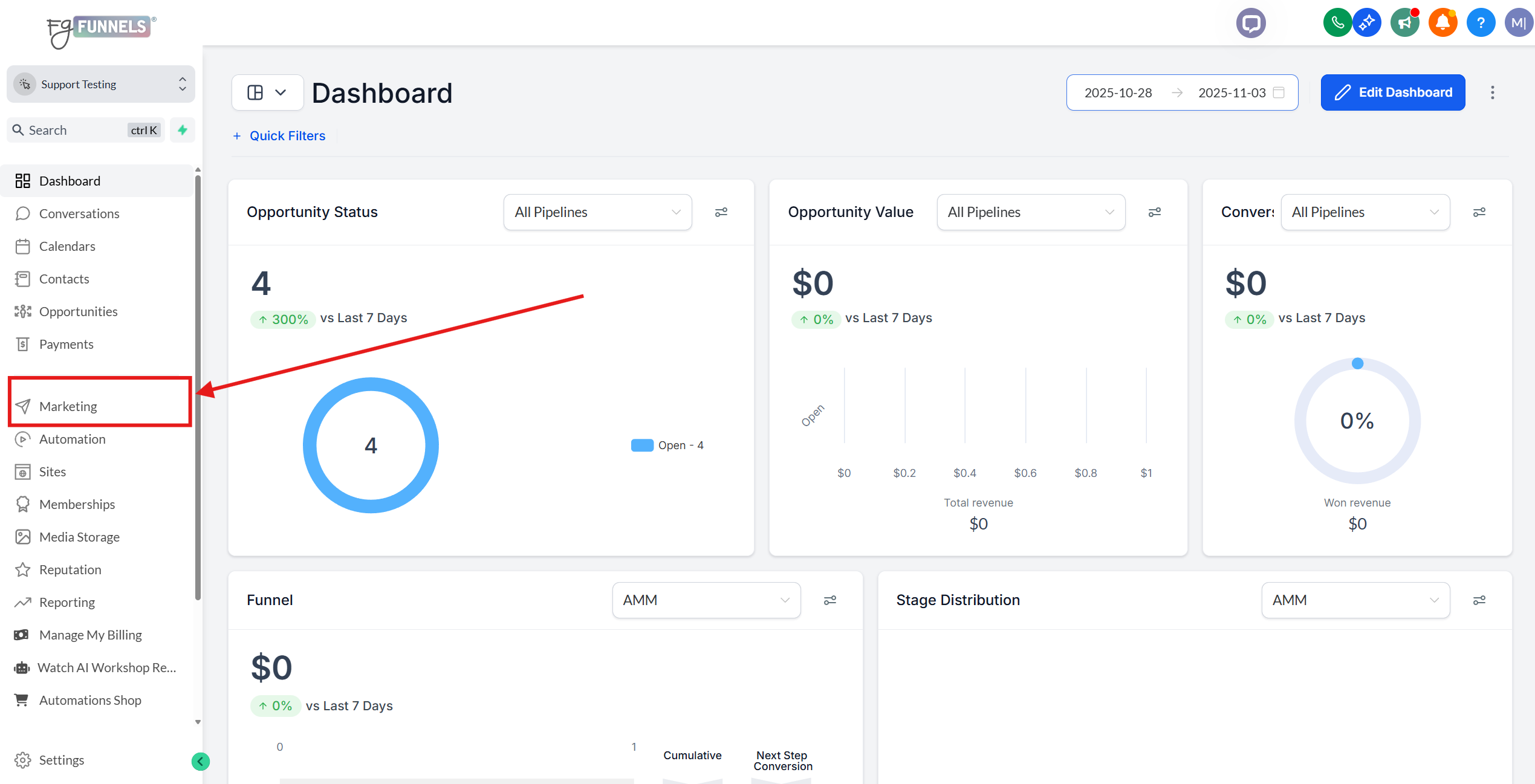
- Go to the left side menu and click on Marketing.
- Click on Emails at the top.
Create a New Campaign
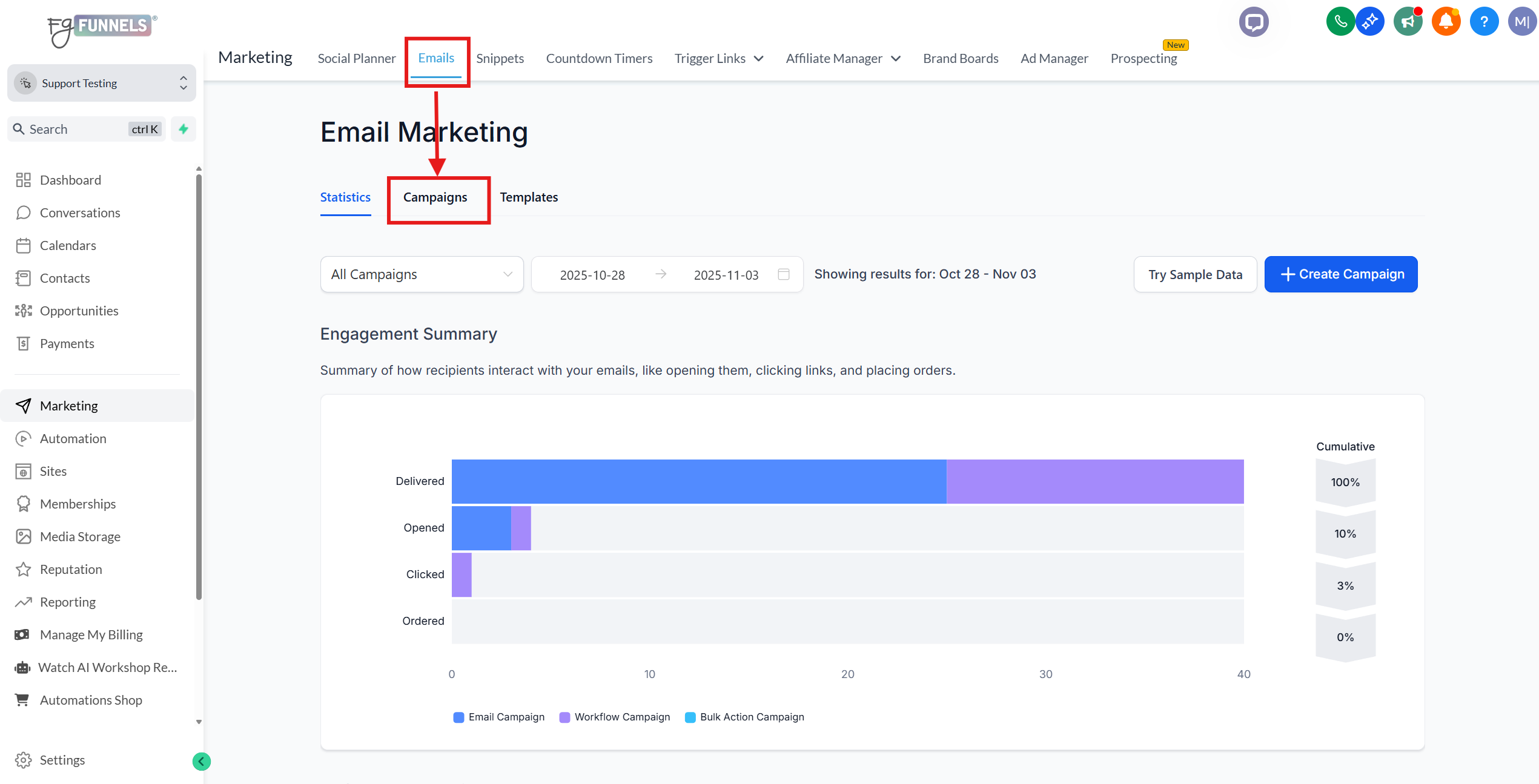
- Click on Campaigns.
- Click on the plus new button and select blank.
Choose Layout
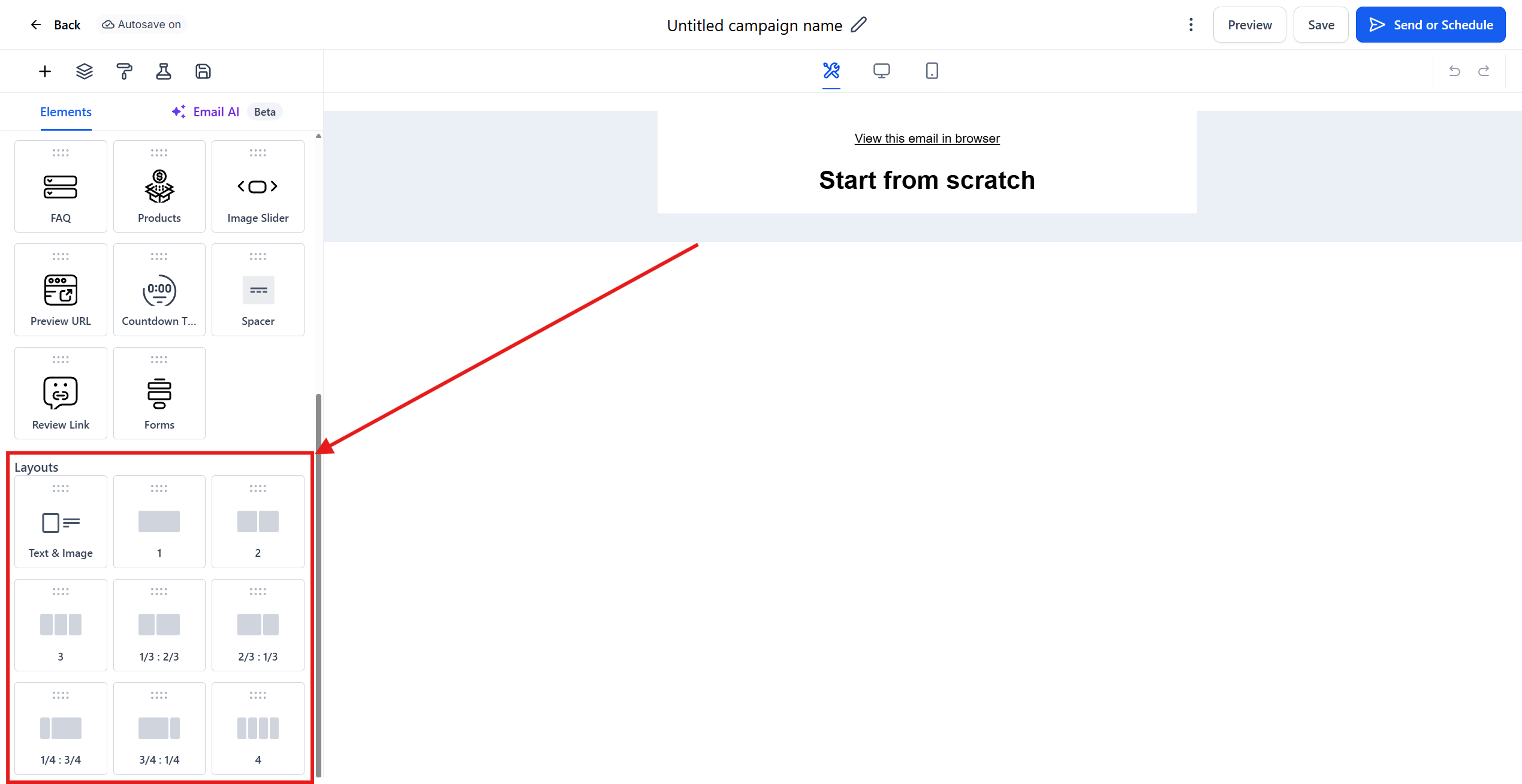
- In the email builder, scroll down to the layout options.
6.Choose a layout (e.g., one-third and two-thirds layout) by dragging and dropping it into the email template.
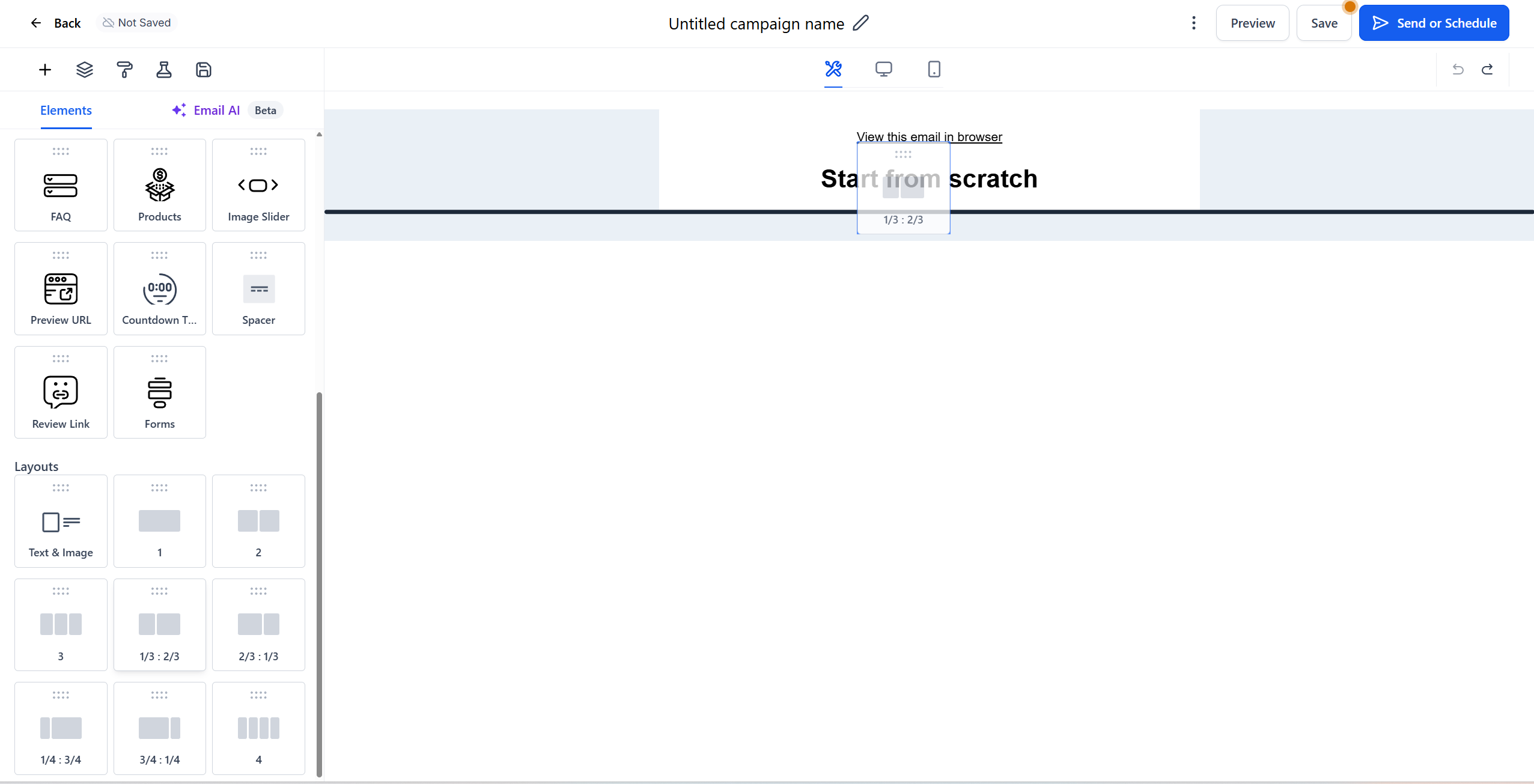
Add Image Element

- Click the plus symbol to add elements.
- Drag and drop an image element to the left side of the layout.
Upload or Select Image
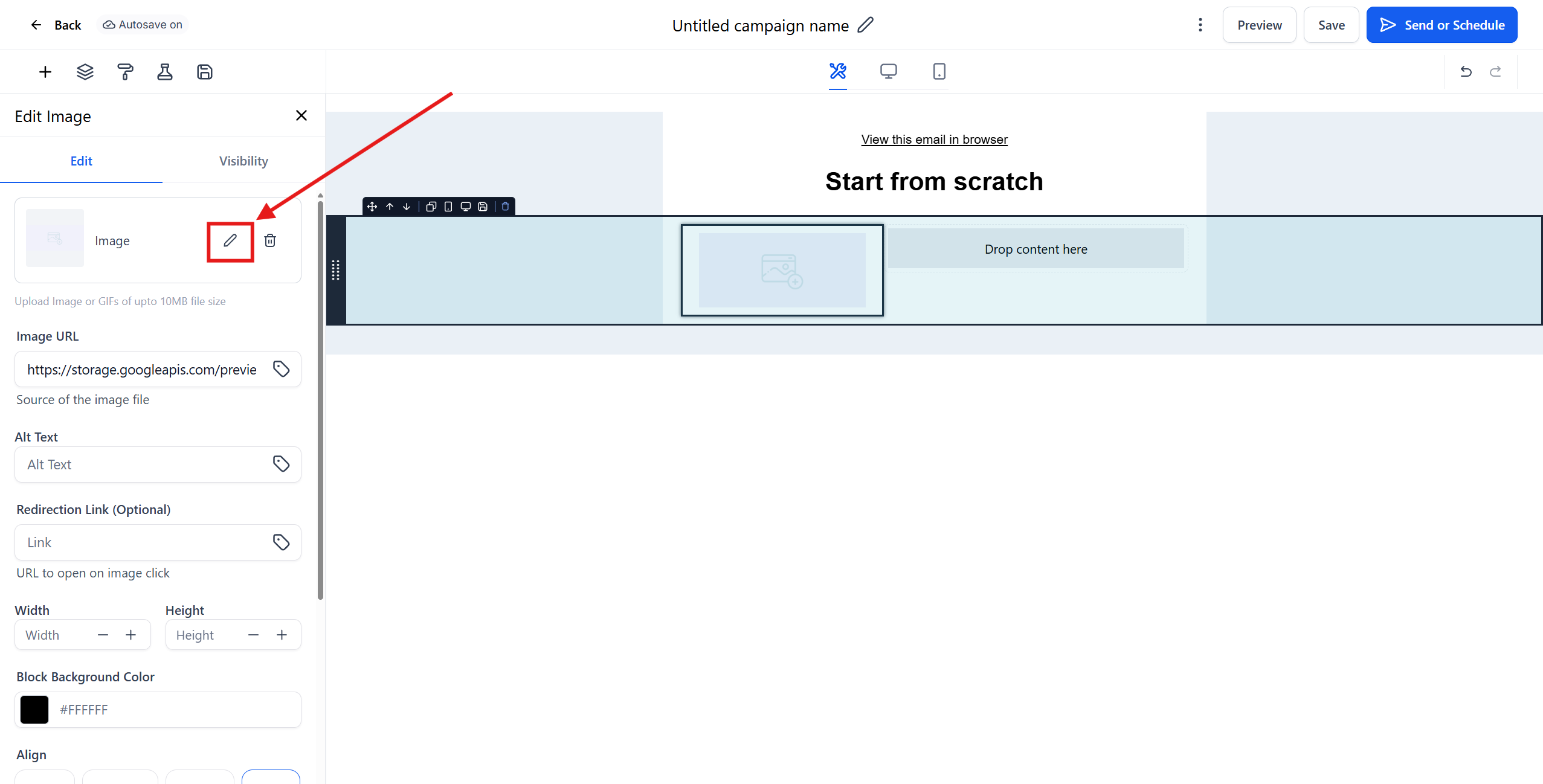
- Click the pencil icon to choose an image from your media storage or upload a new image from your computer.
Add Text Element
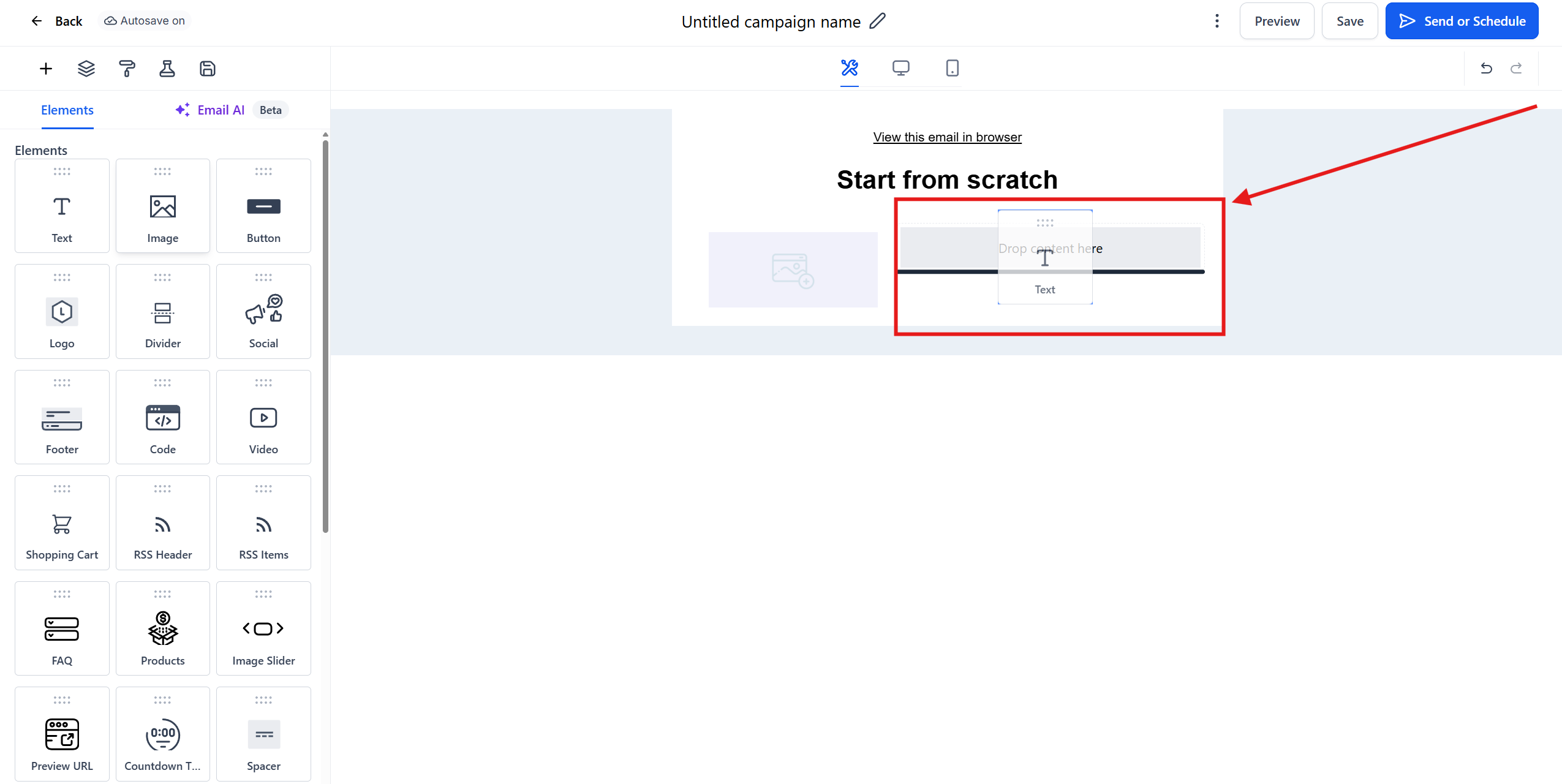
- Click the plus symbol again and drag and drop a text element to the right side of the layout.
Step 7: Customize Text
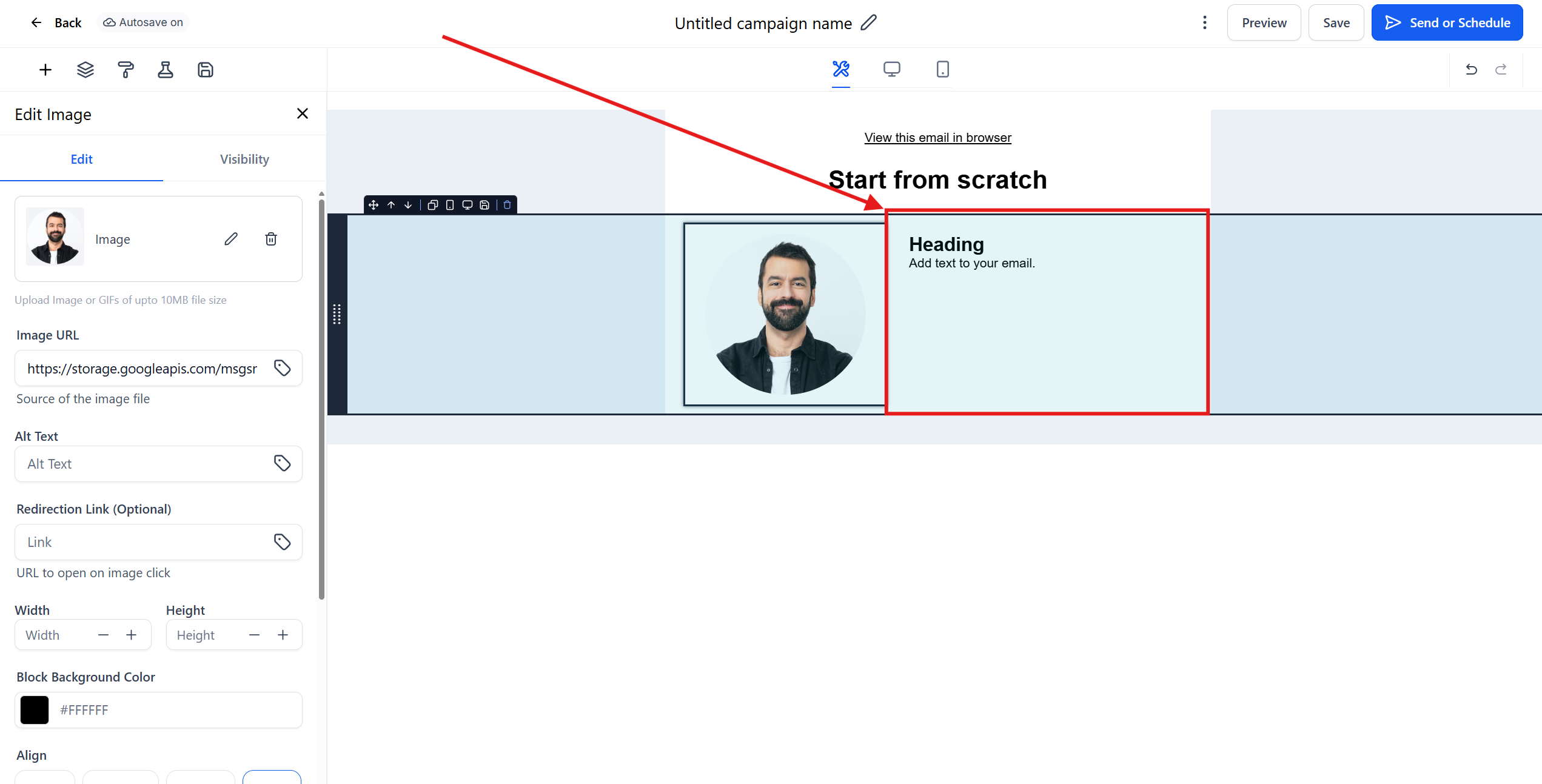
- Change the font style (e.g., to Oswald).
- Enter your name, title, business name, phone number, and email address.
Adjust Line Spacing
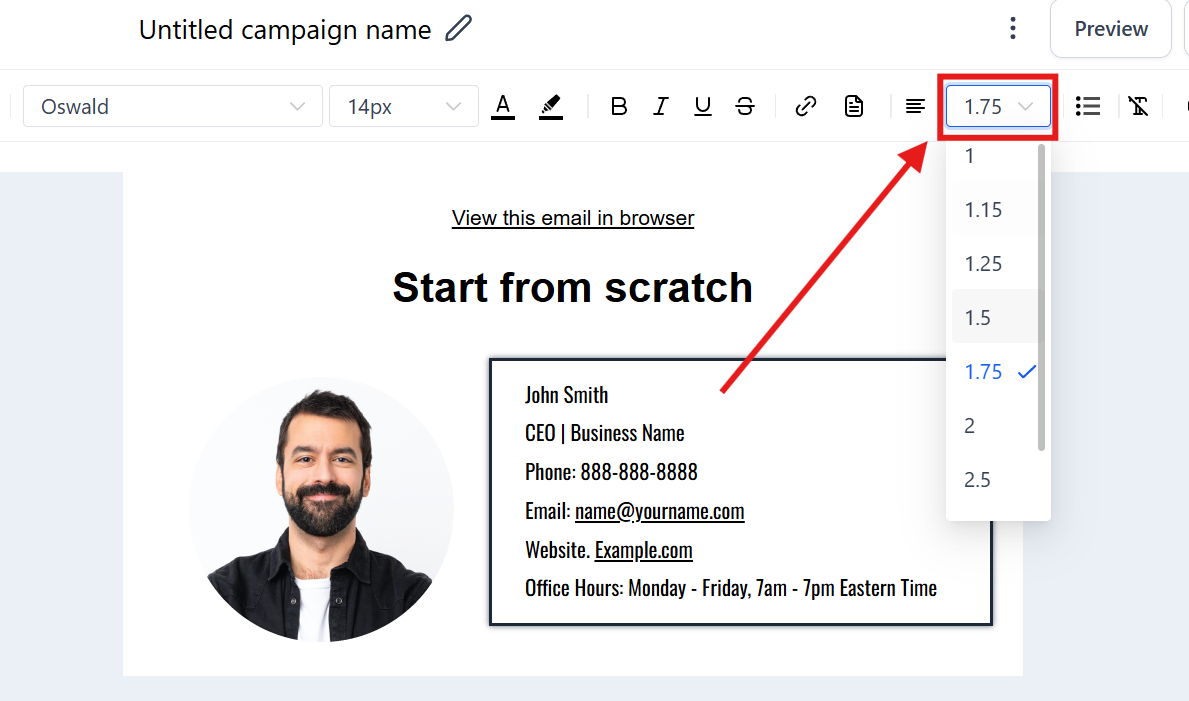
- Highlight the text and adjust the line height (e.g., change to 1.75 for more spacing).
Social Links

- Hyperlink text to social media profiles (e.g., TikTok, Instagram, Facebook).
- Click the plus symbol and add a social element at the bottom.
- Click on each social media icon to enter URLs and customize styles.
Change Background Color
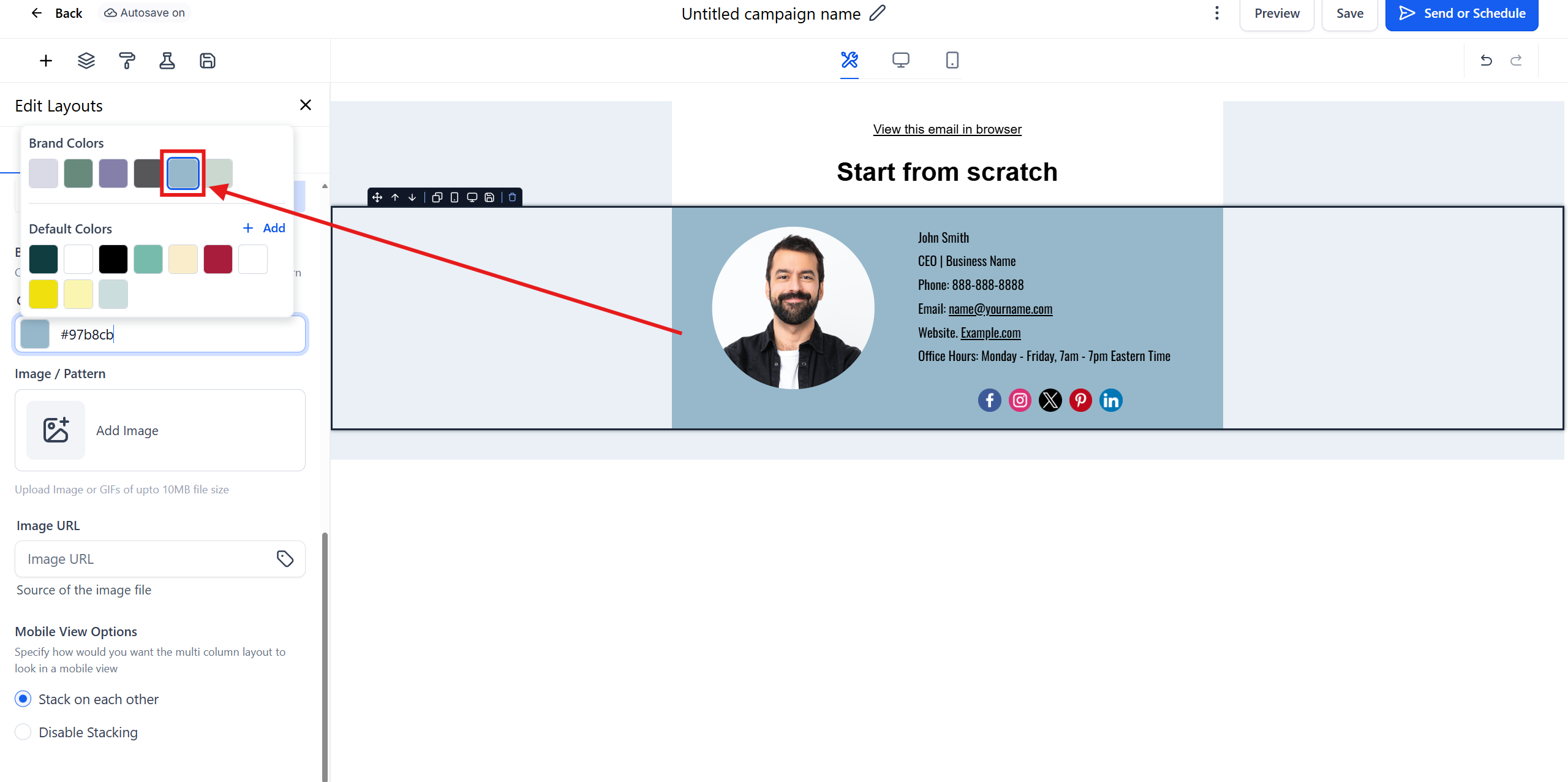
- Click on the section containing your signature.
- Change the background color to match your brand.
Save Email Signature
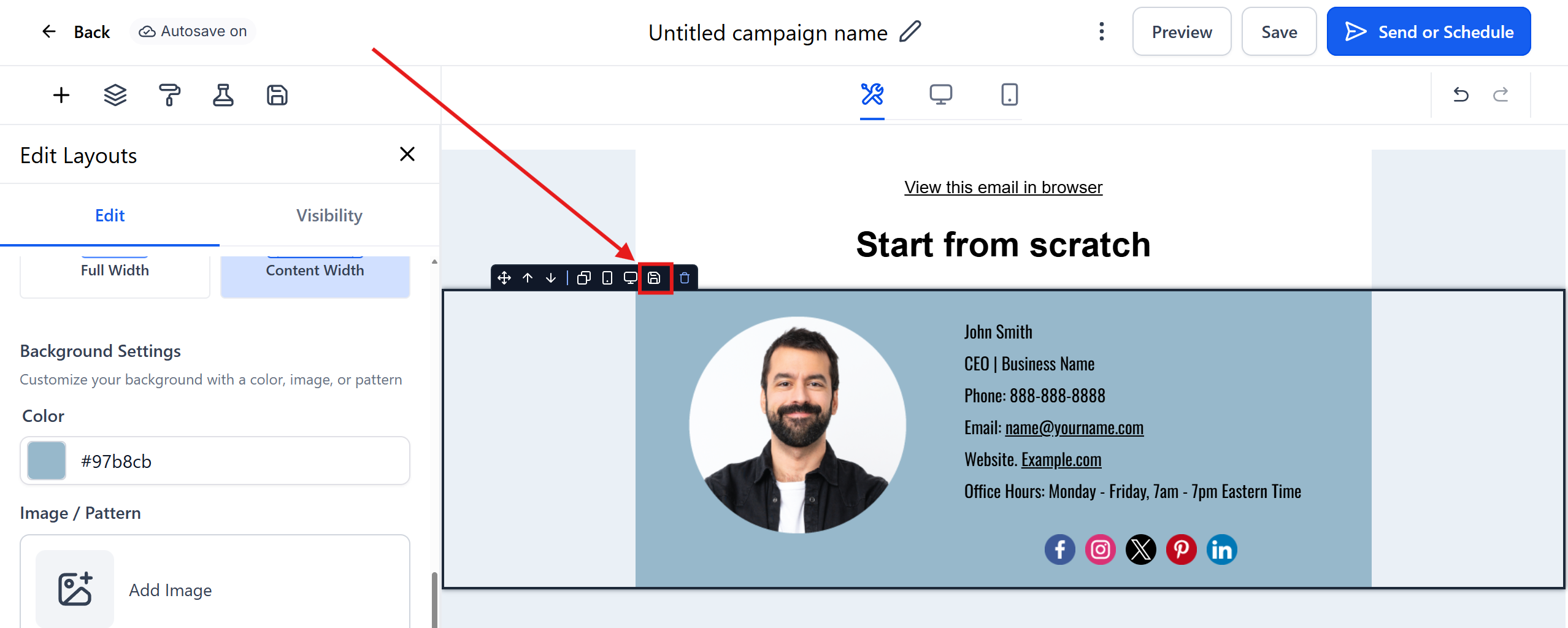
- Save the email as a template for future use.
- Click on the floppy disk icon to save the section.
Rename Signature
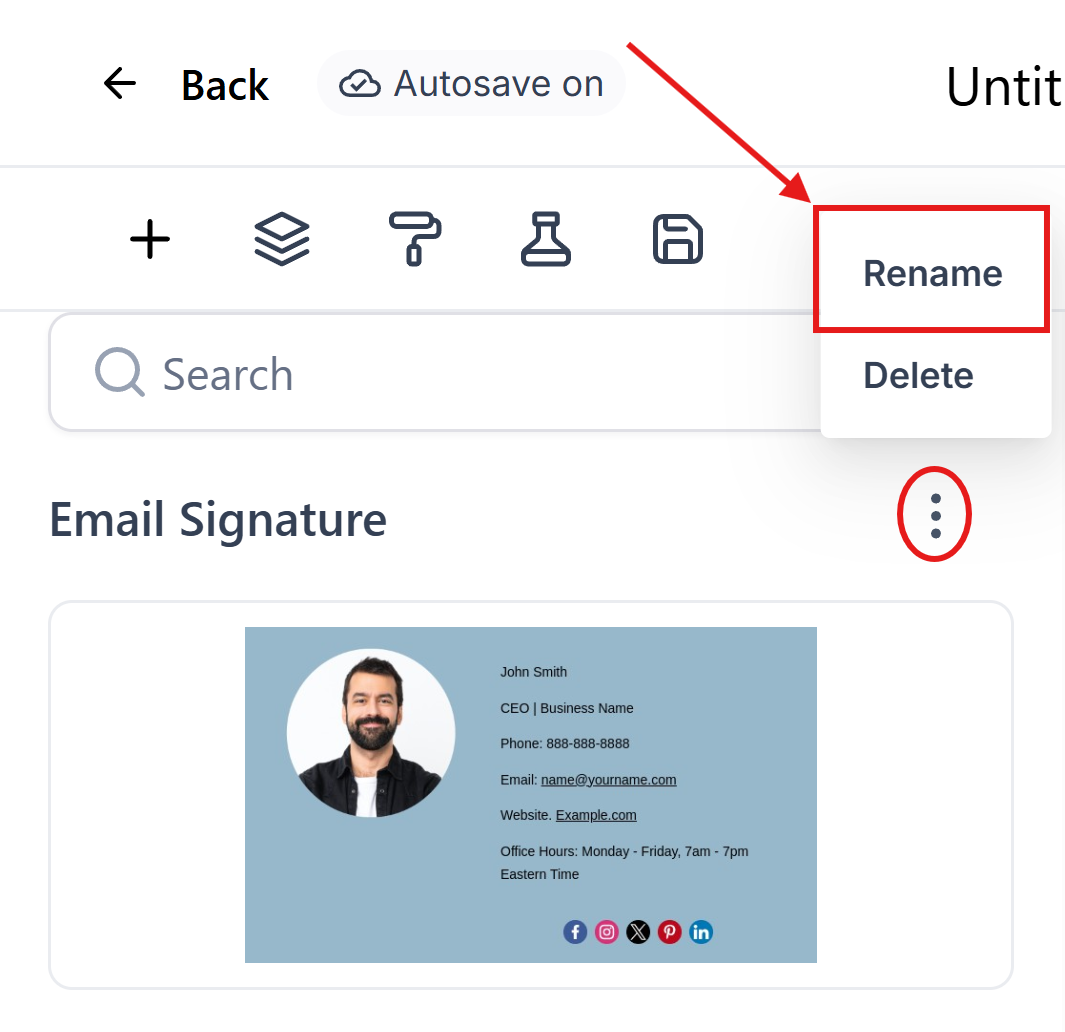
- Click on the three dots next to the saved section to rename it as your email signature.
- Now you can drag and drop the saved email signature into any other emails where you want to use it.
2) User Profile Email Signature Field
- You can create an email signature within your user profile settings. This option is not as customizable as a signature created within the email builder (as shown in the video above).
Here is the link to the Google doc template you can copy this and customize: https://docs.google.com/document/d/113TEBRQXLF-9W3b3qbW_mzl3pDLuor7Yx1YUxiwFTh4/copy
-
Once you open the copied document.
Highlight all of the content:
- Use Control + A (Windows) or Command + A (Mac).
Copy the Content:
- Use Control + C (Windows) or Command + C (Mac).
Copying the Signature Template
- A link to a Google Doc template will be provided below the video.
- Instructions to make a copy of the document:
- Click on the link.
- Select 'Make a copy'.
Navigating to User Profile Settings
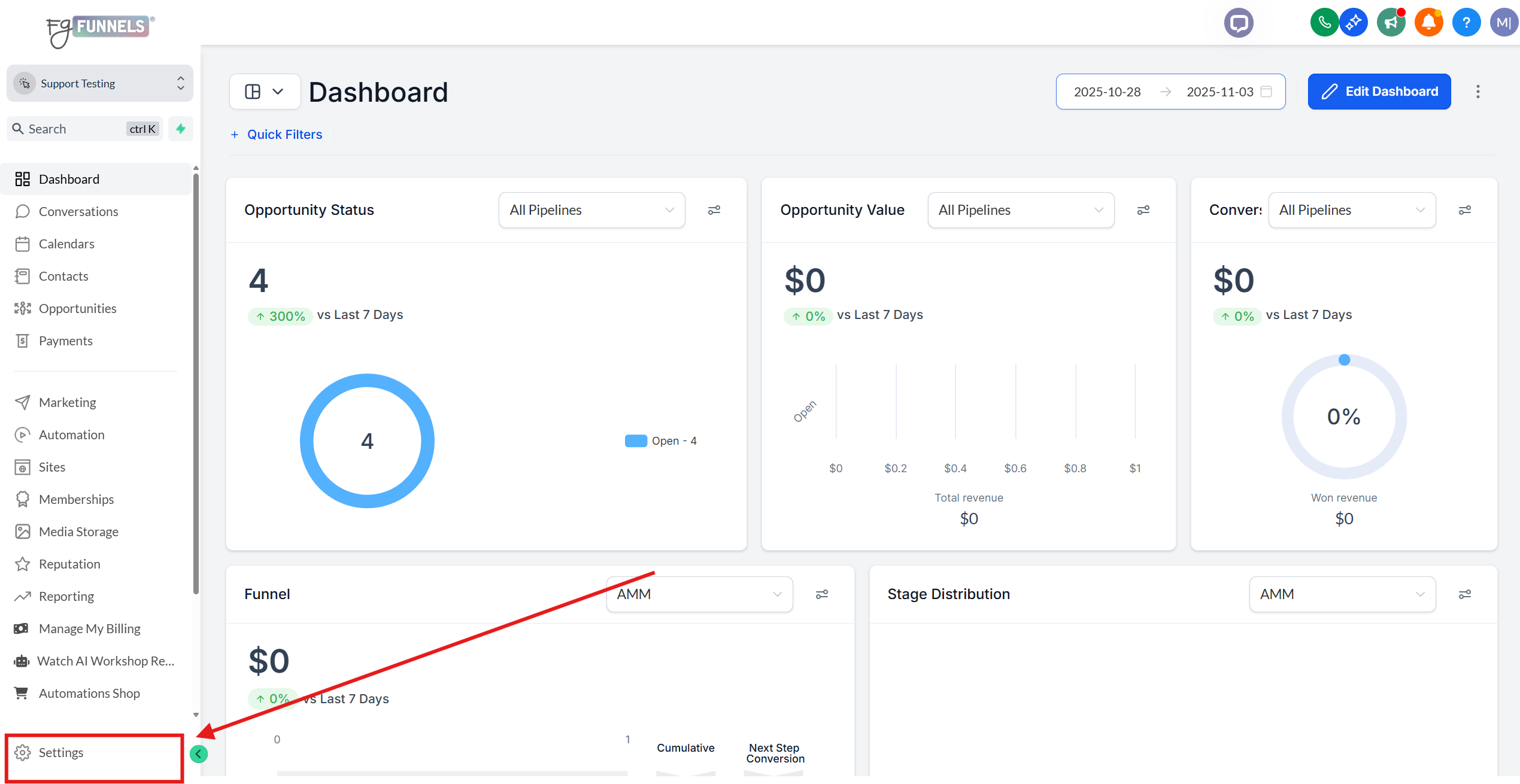
- From the dashboard of your account, click on 'Settings' the bottom left corner.
- Select 'My Staff' from the left menu.
Editing User Profile for Signature
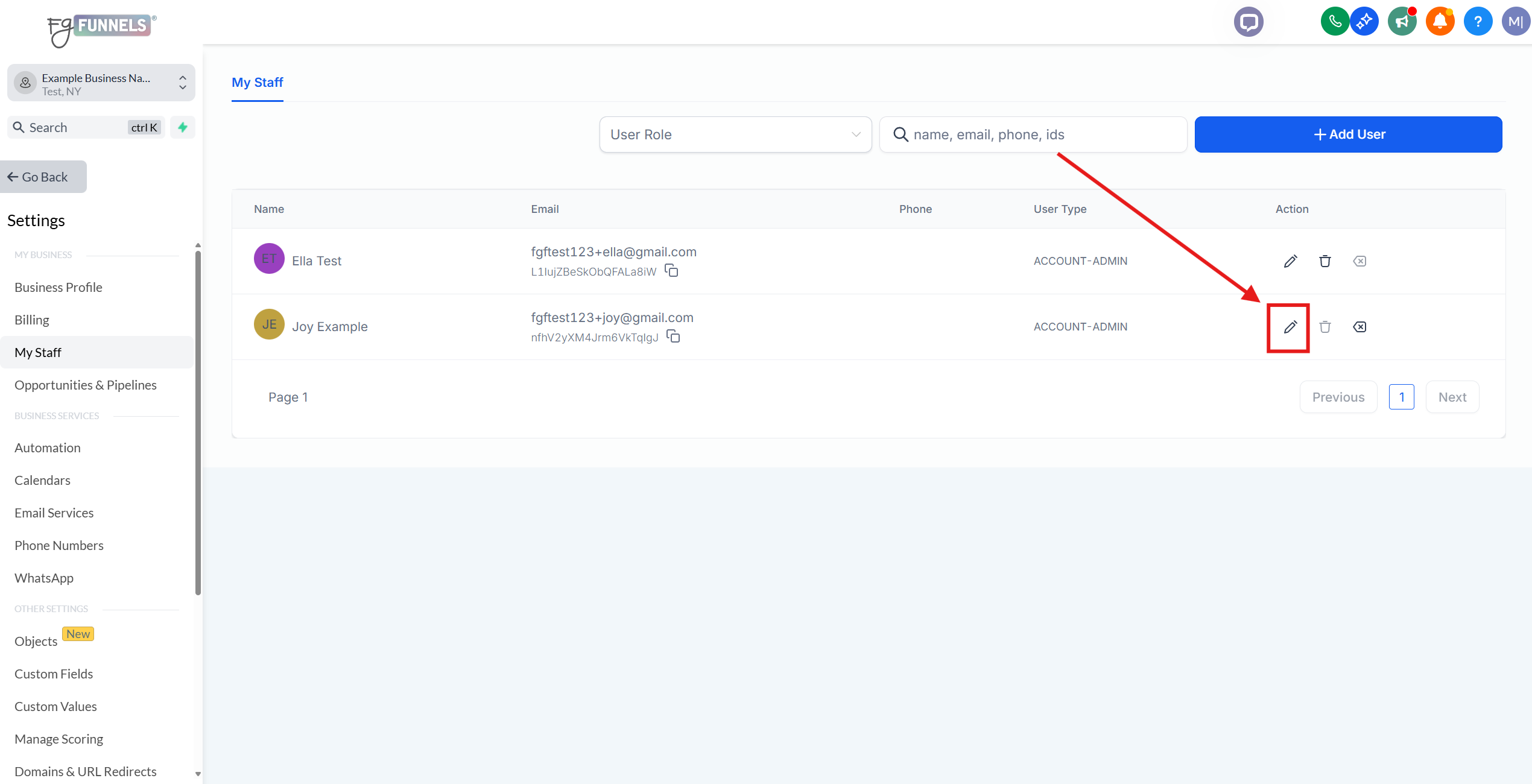
- Click the pencil icon next to your user profile.
Pasting the Signature
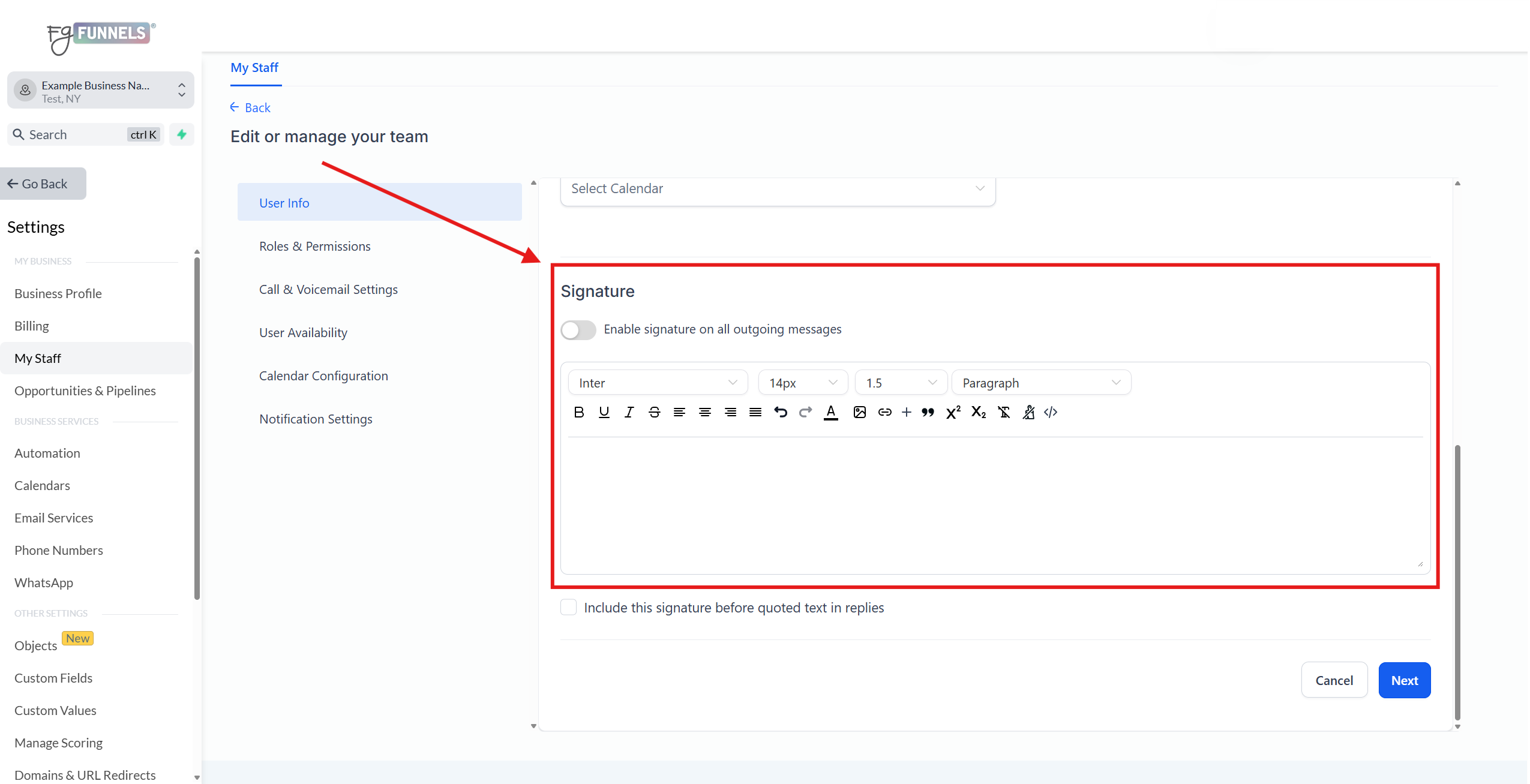
- Scroll down to the 'Signature' section.
- Paste the copied content from the Google Doc into the signature field.
Adding an Image to the Signature
- Highlight the text that says 'Add your image here'.
- Click on the image icon to add an image:
- Paste the URL of an uploaded image or upload an image from your computer.
Adjusting Image Size and Alt Text
- Set the image width and height (e.g., 220px).
- Enter alt text for the image (e.g., 'signature image').
- Click 'Save'.
Final Adjustments to Signature
- Adjust the size of the image if necessary.
- Change font size and line height as desired.
Saving Changes
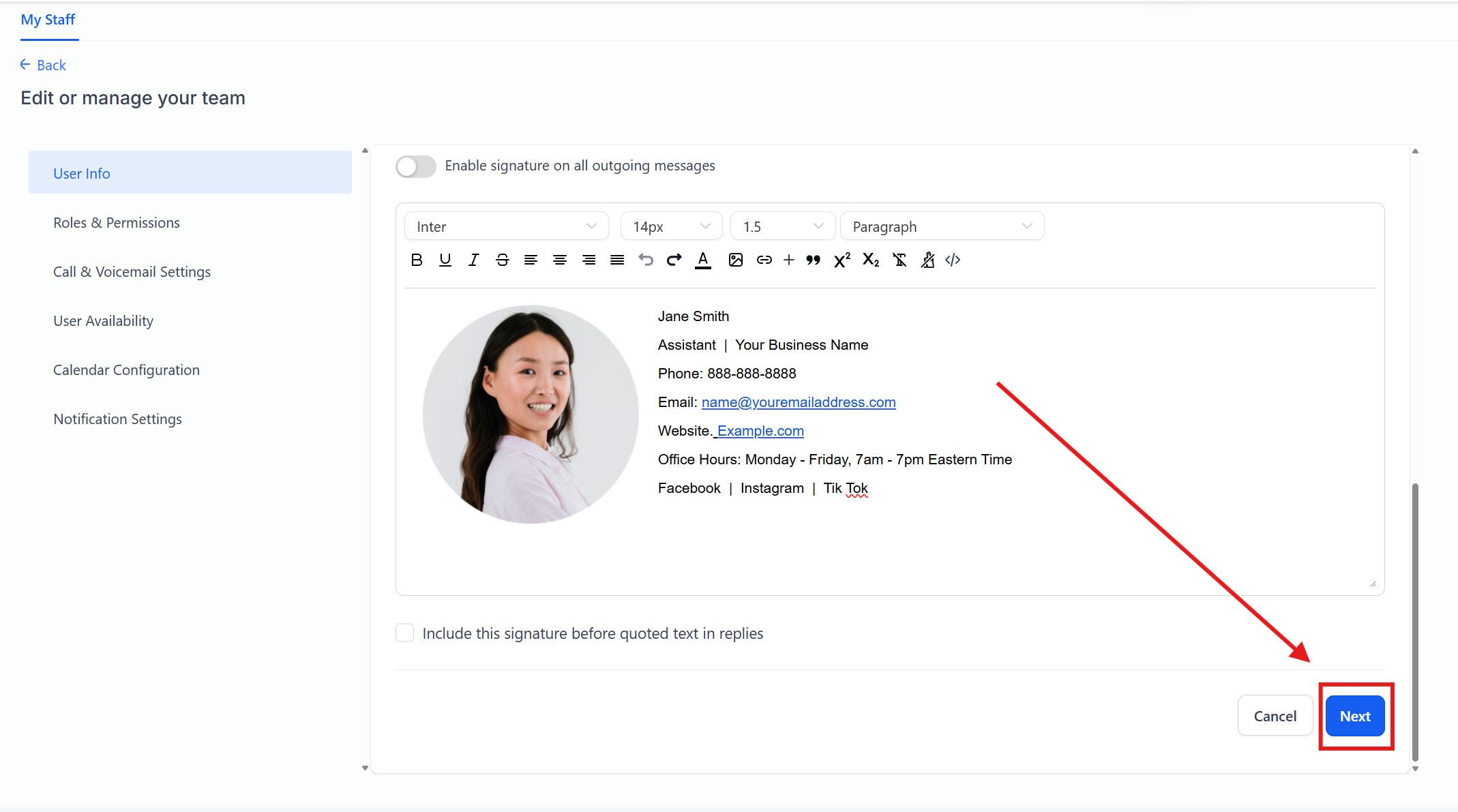
- Click 'Next' and then 'Save' to update the signature in your user profile.