
Math Calculations Using the Score Field in Forms and Surveys
The "Score" field now offers expanded math calculation capabilities, giving you more flexibility to build dynamic, score-based experiences in your forms and surveys. Whether you’re creating a budgeting form, self-assessment, or lead scoring tool, this update allows you to assign custom scores to a broader set of field types—without needing any complex workarounds.
With real-time score previews and support for multiple field types, you can now deliver more interactive and intelligent forms that adapt to user input.
Important Note: If you are attempting to create a quiz, please use the quiz builder under Sites > Quizzes. Here is our article breaking down the process for setting up a personality style quiz: Setting Up Personality-Style Quizzes
TABLE OF CONTENTS
How to Use Math Calculations
-
Add Supported Fields
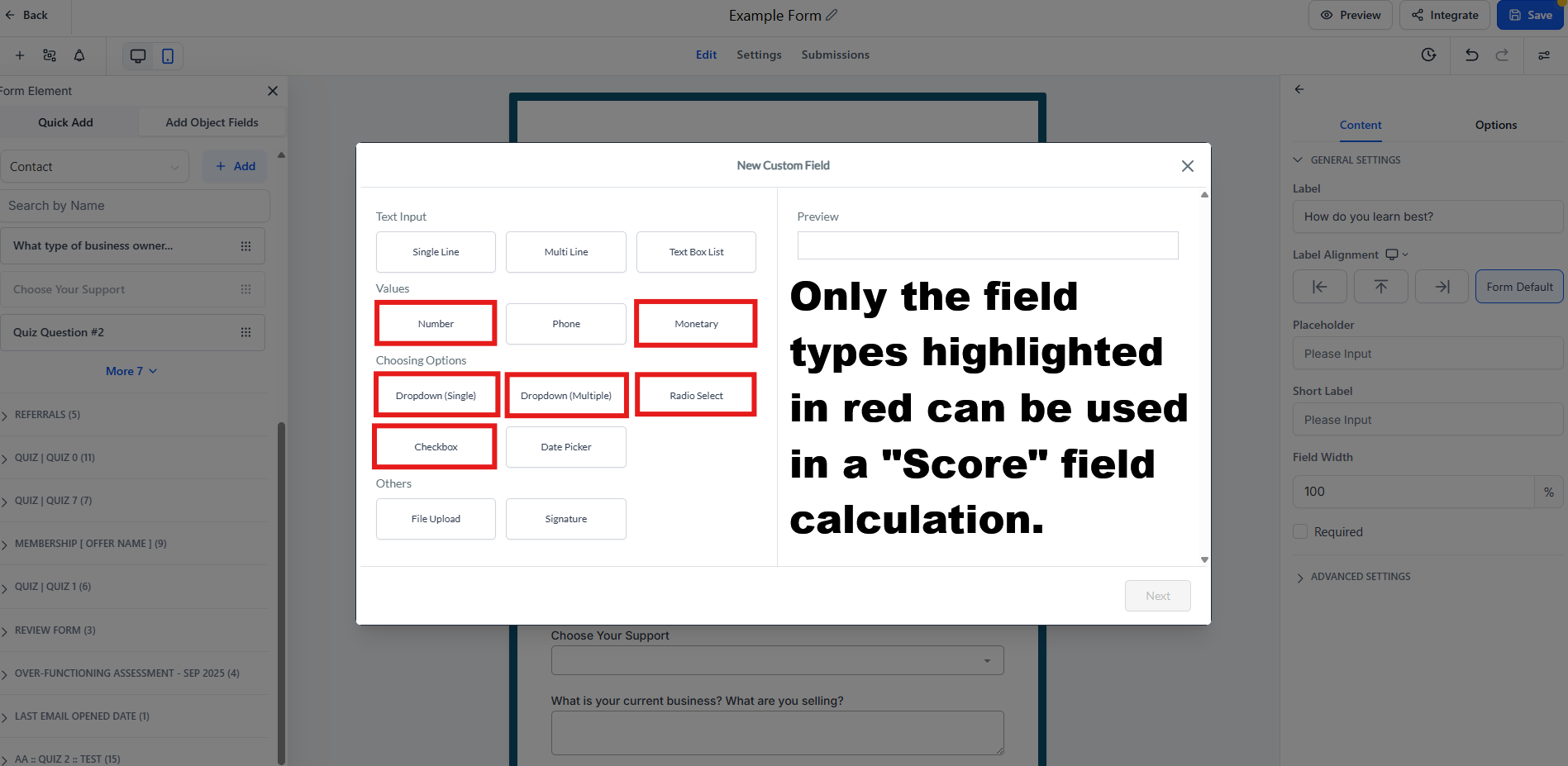
Open your form or survey and use the Quick Add menu to drag and drop any of the following fields on to your form, or survey:
- Number
- Monetary
- Checkbox
- Radio Select
- Dropdown (Single) [ Single Dropdown ]
-
Dropdown (Multiple) [ Multi-Dropdown ]
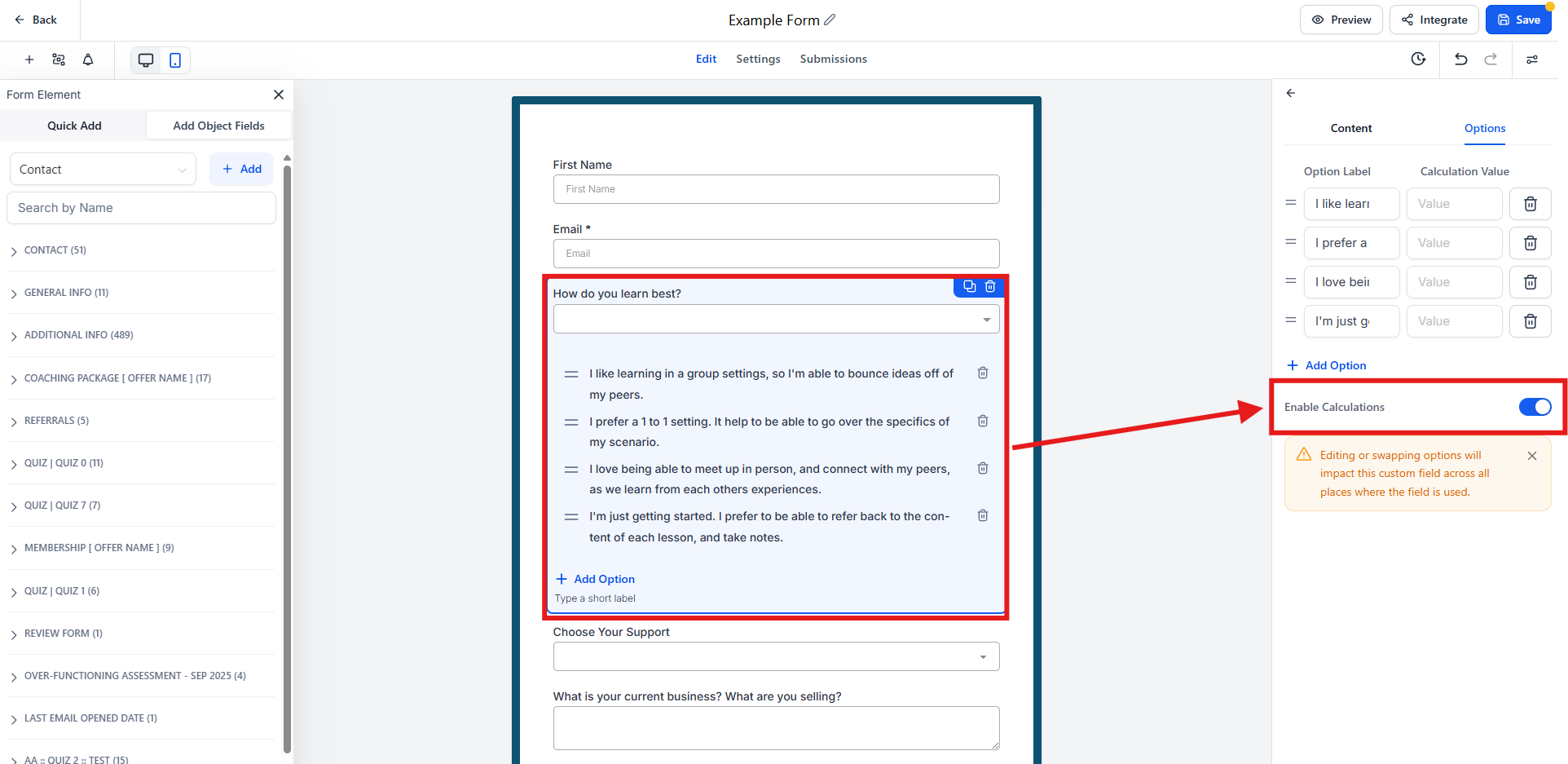
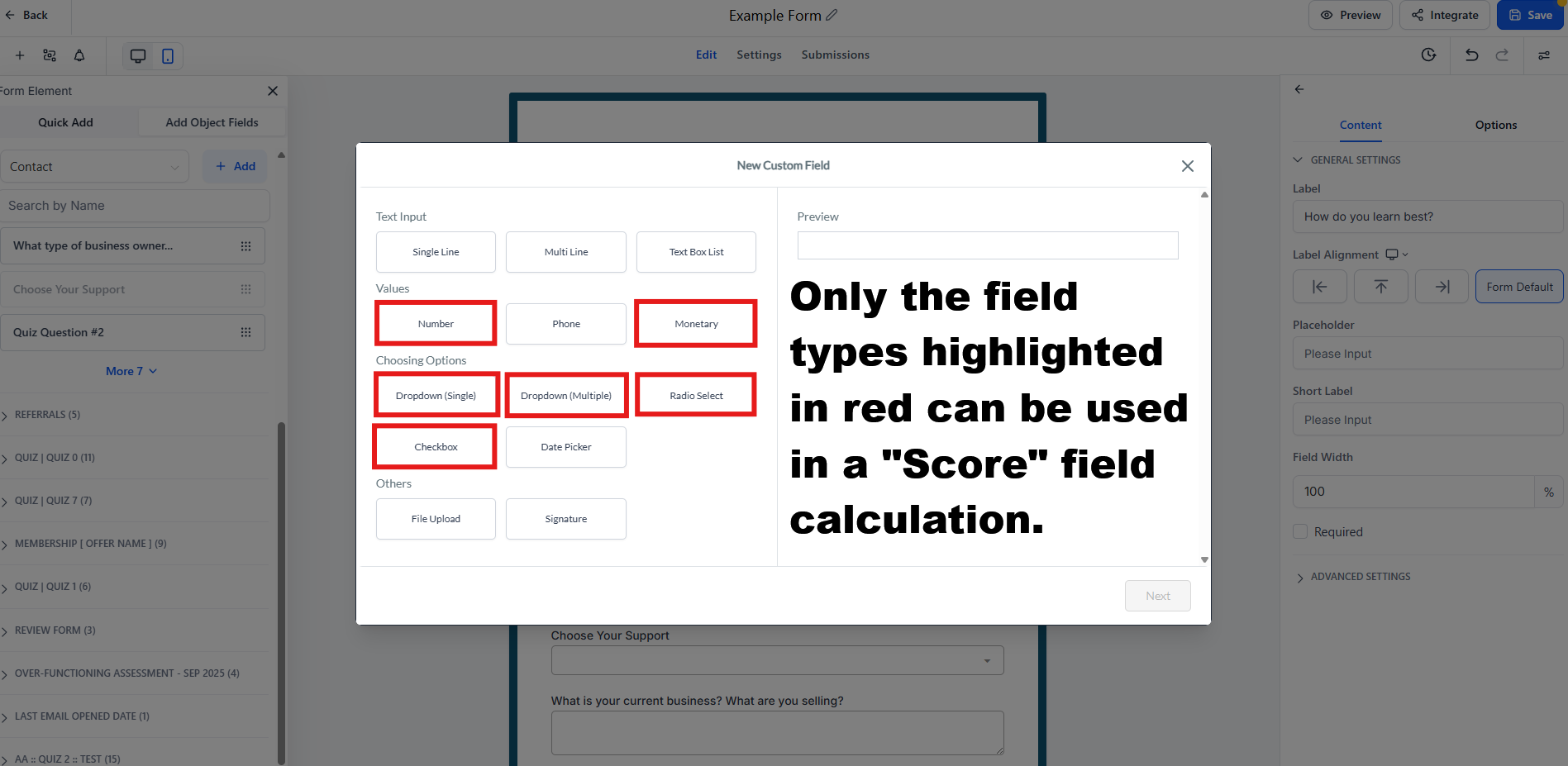
- You can only assign custom numeric scores to the fields above. Each selectable option in these fields can have a unique score.
- Assign Option Scores
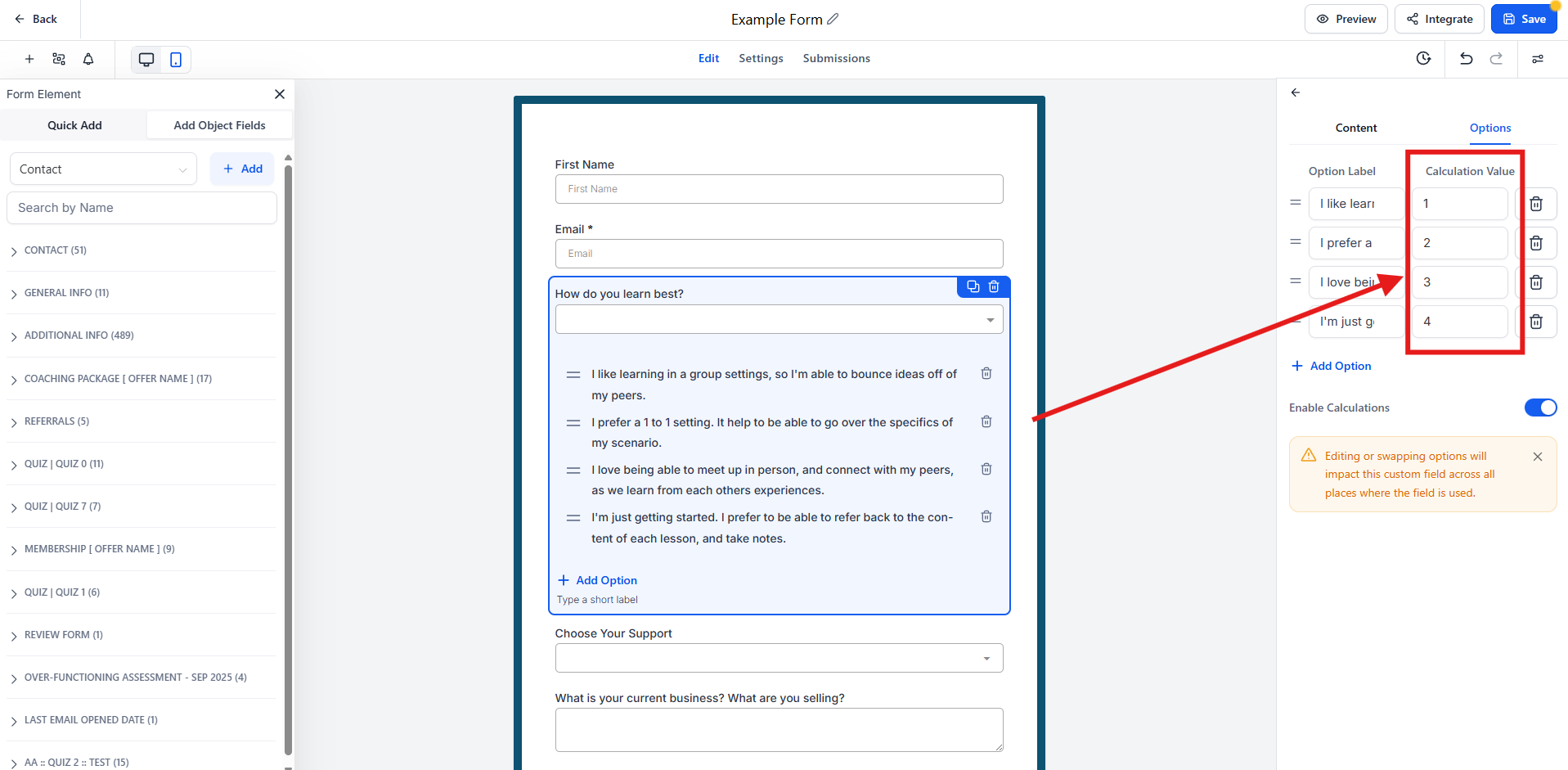
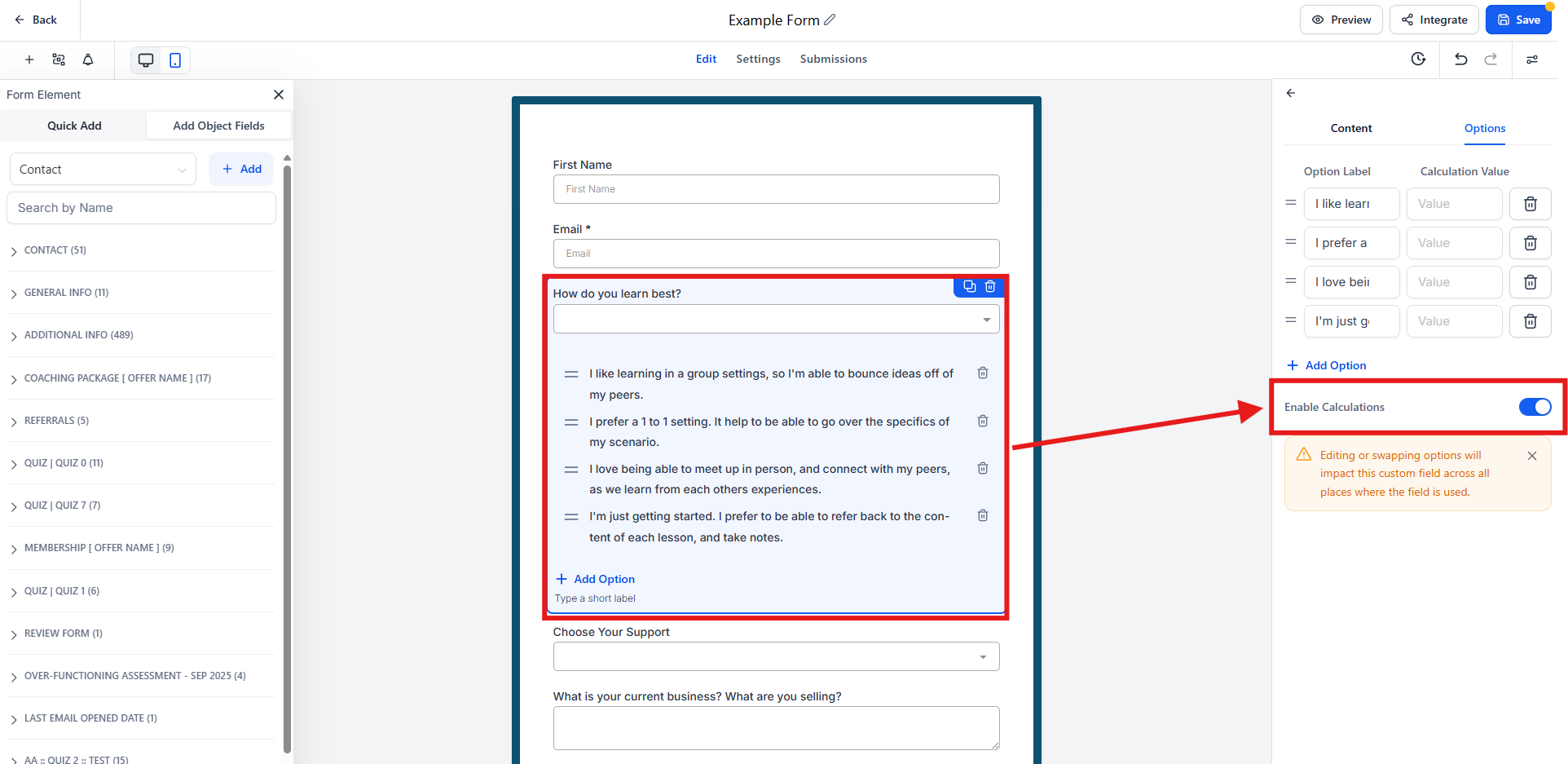
Click into each field and assign a score to each option. These values will contribute to the total calculation.
- Configure Calculation Logic
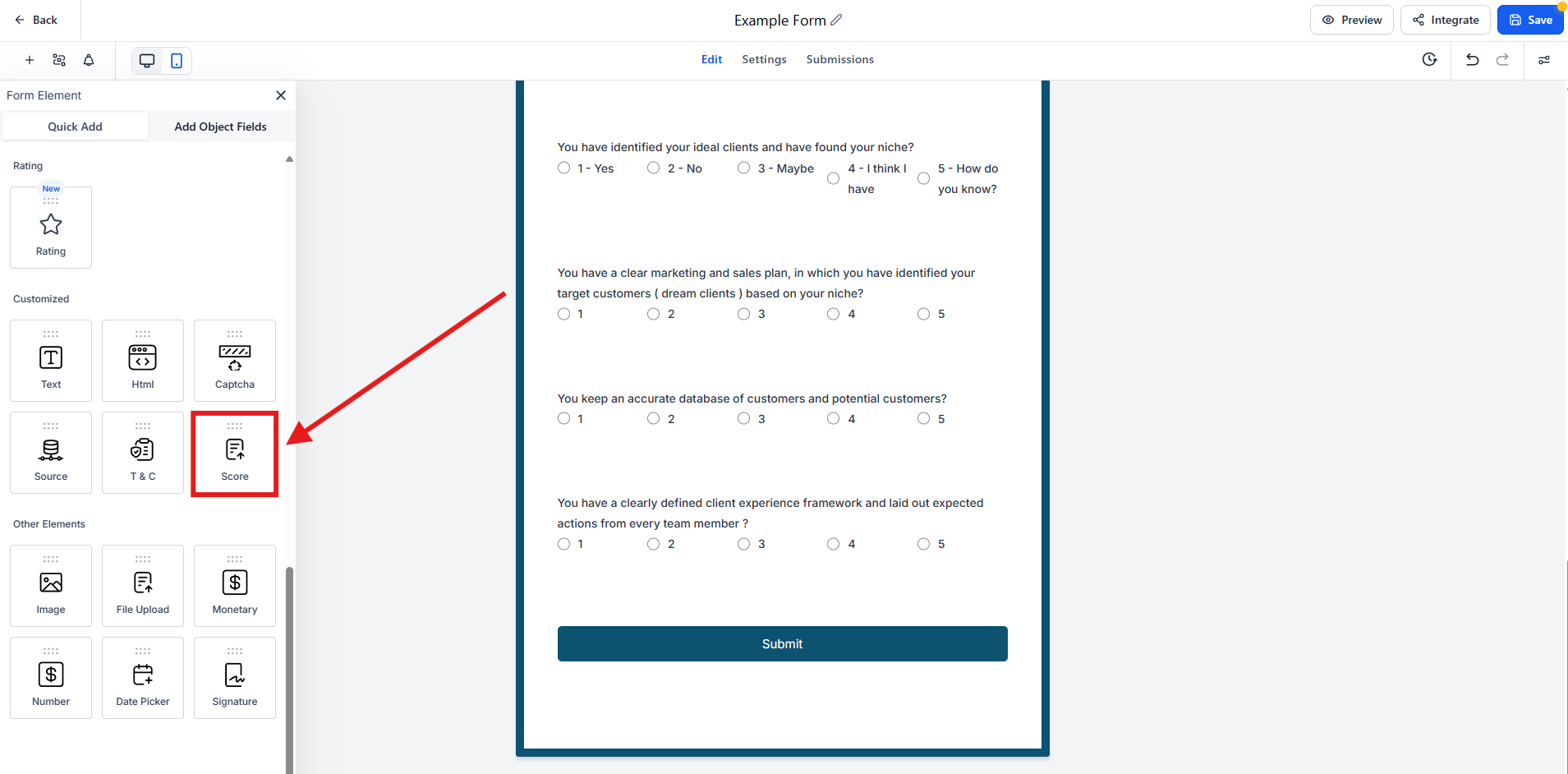
- Drag and drop the score field onto the form.
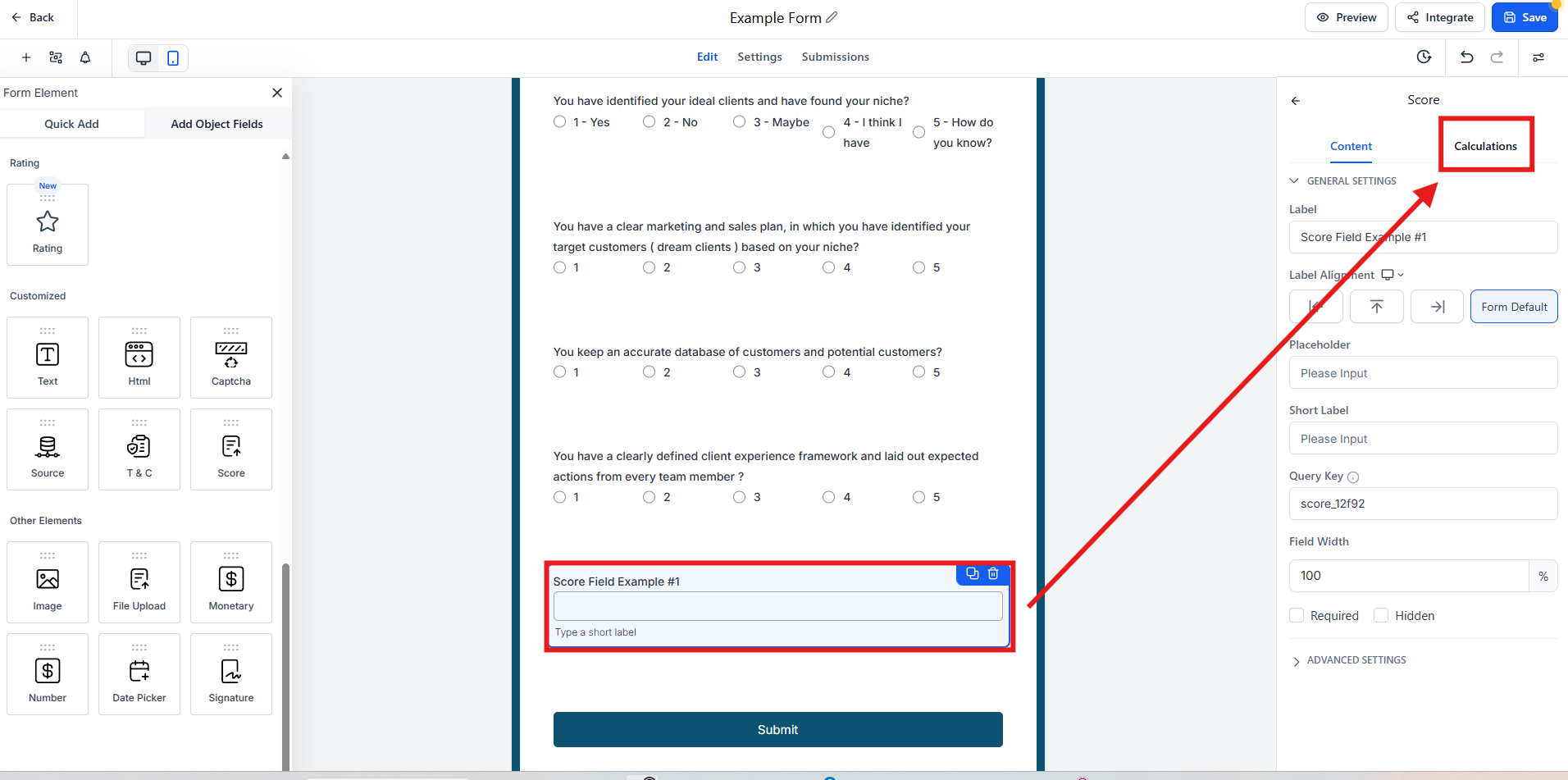
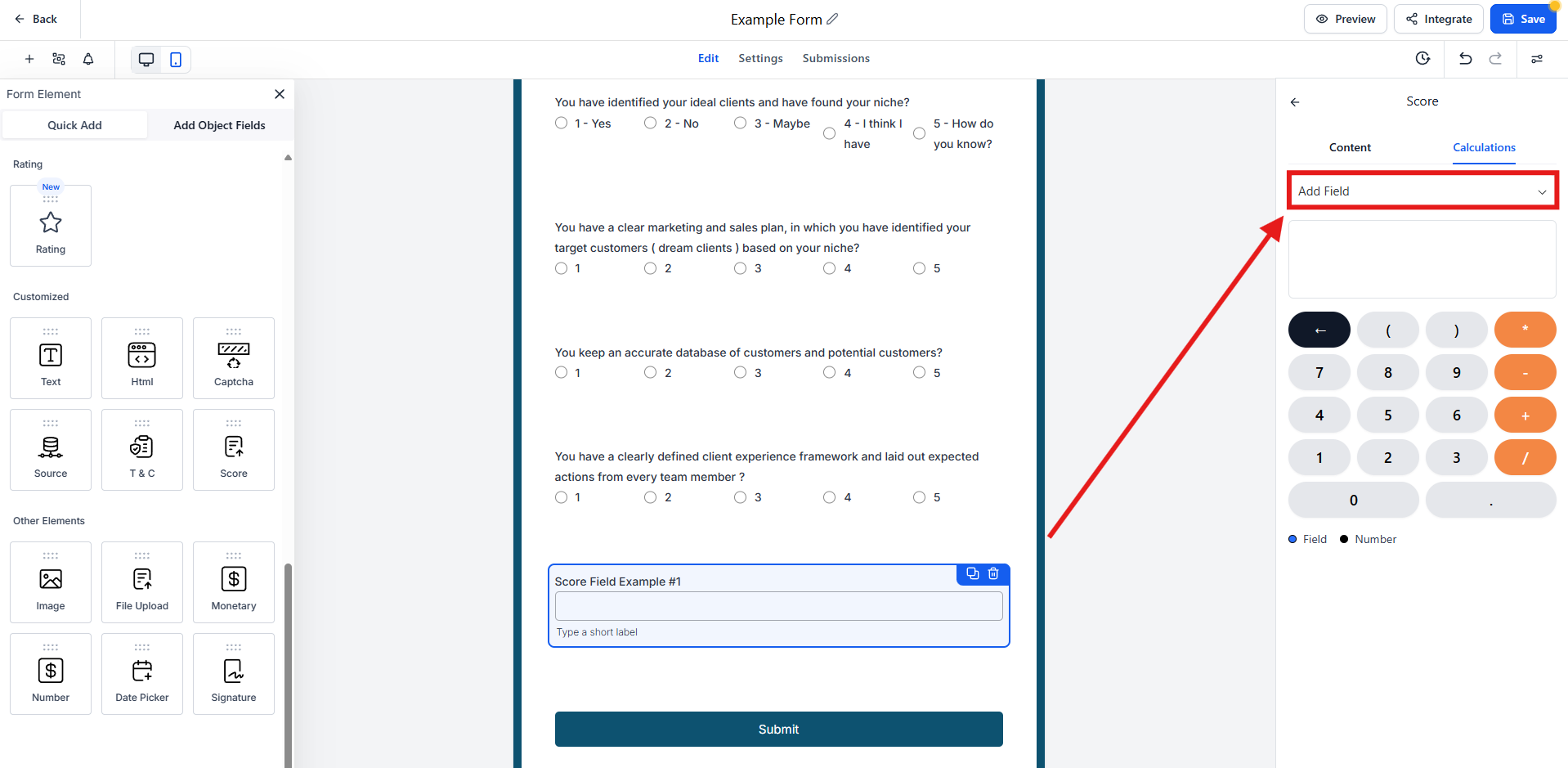
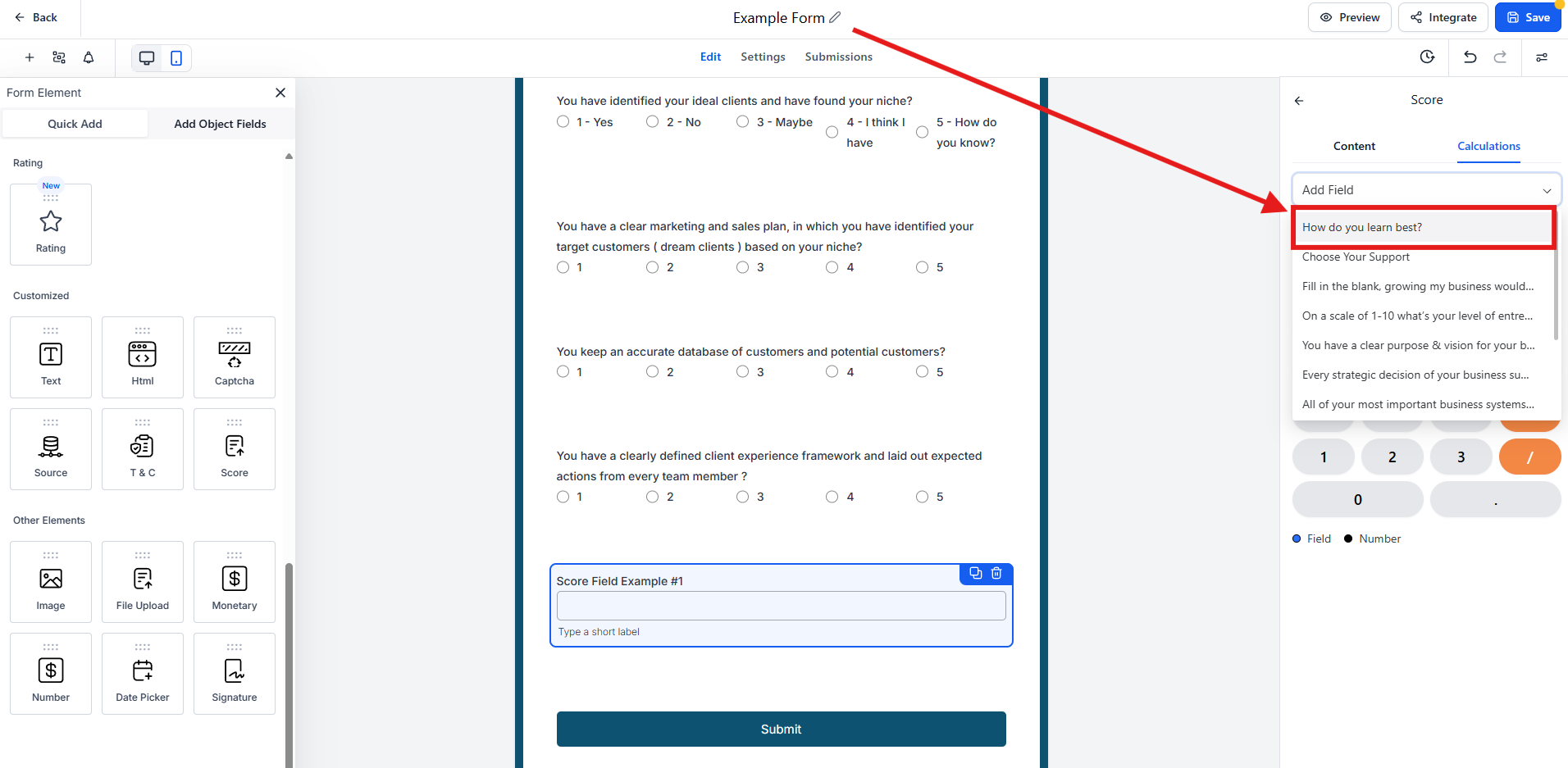
- Use the "Add Field" dropdown to select fields on the from.
-
You can select fields from the dropdown to use them in the calculation.
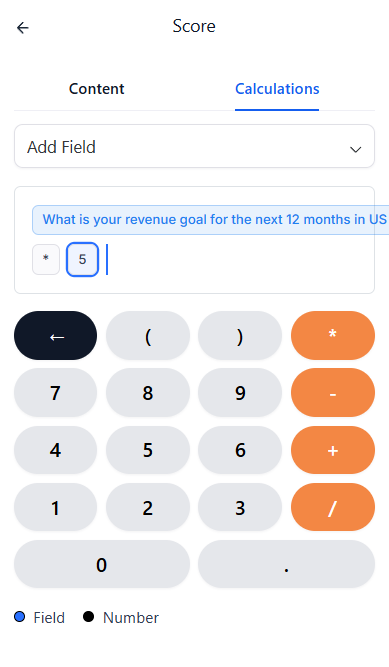
- Use the form builder’s calculation settings to define how scores from different fields should be totaled, added, or otherwise processed.
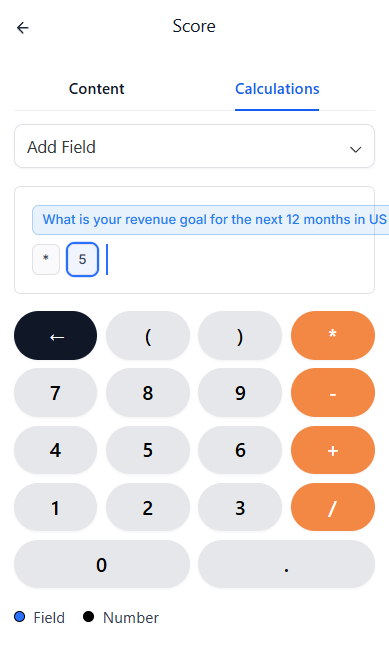
- You can select fields, entered numbers, then add, subtract, divide, and multiple, the value in this field.
- Preview in Real Time
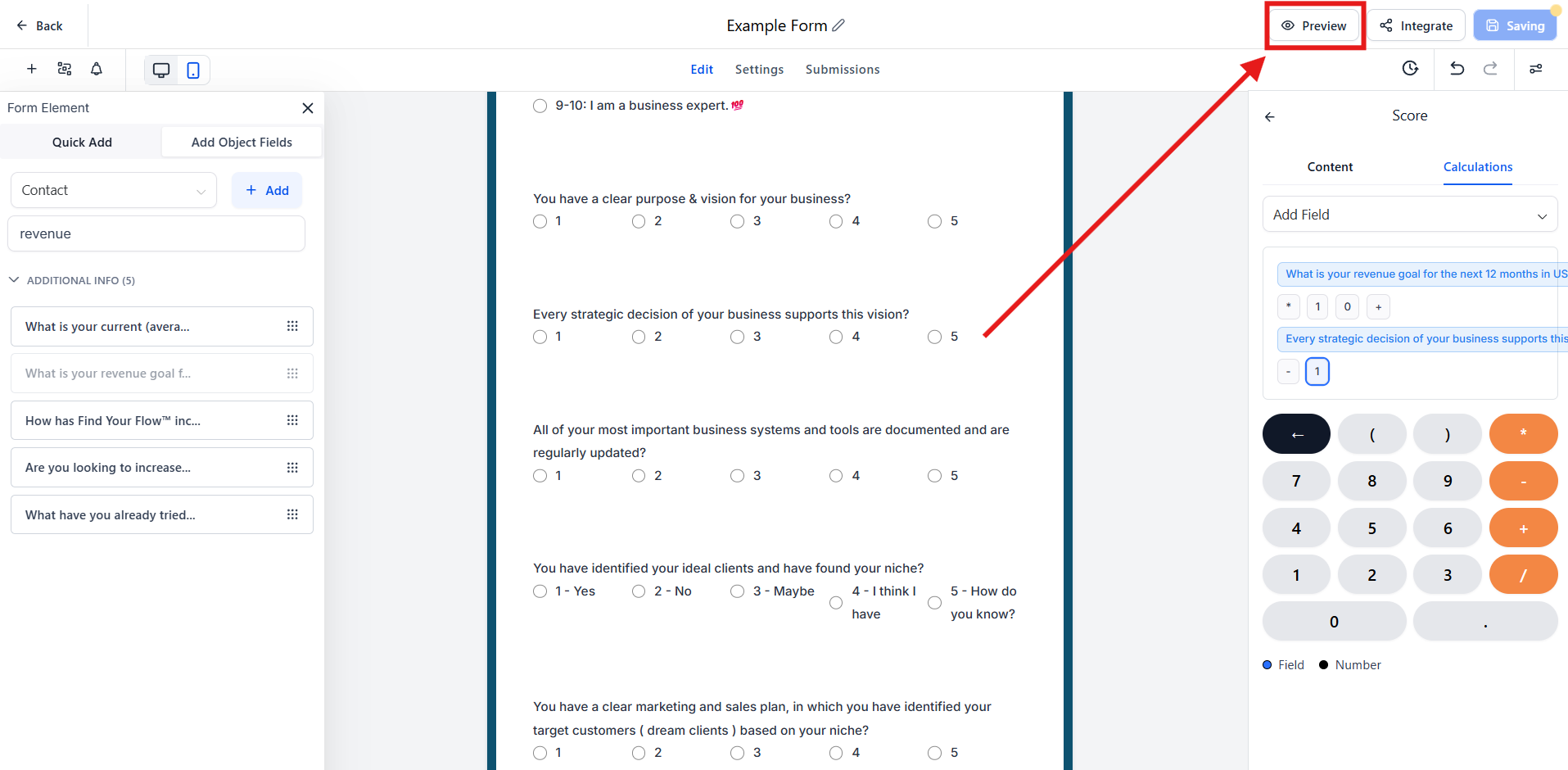
Click the preview button inside the builder to view your form or survey, so you can test your form or survey. The total score will update immediately as you select different options. Scores are calculated instantly in preview mode, helping you validate and test your form’s logic before going live.
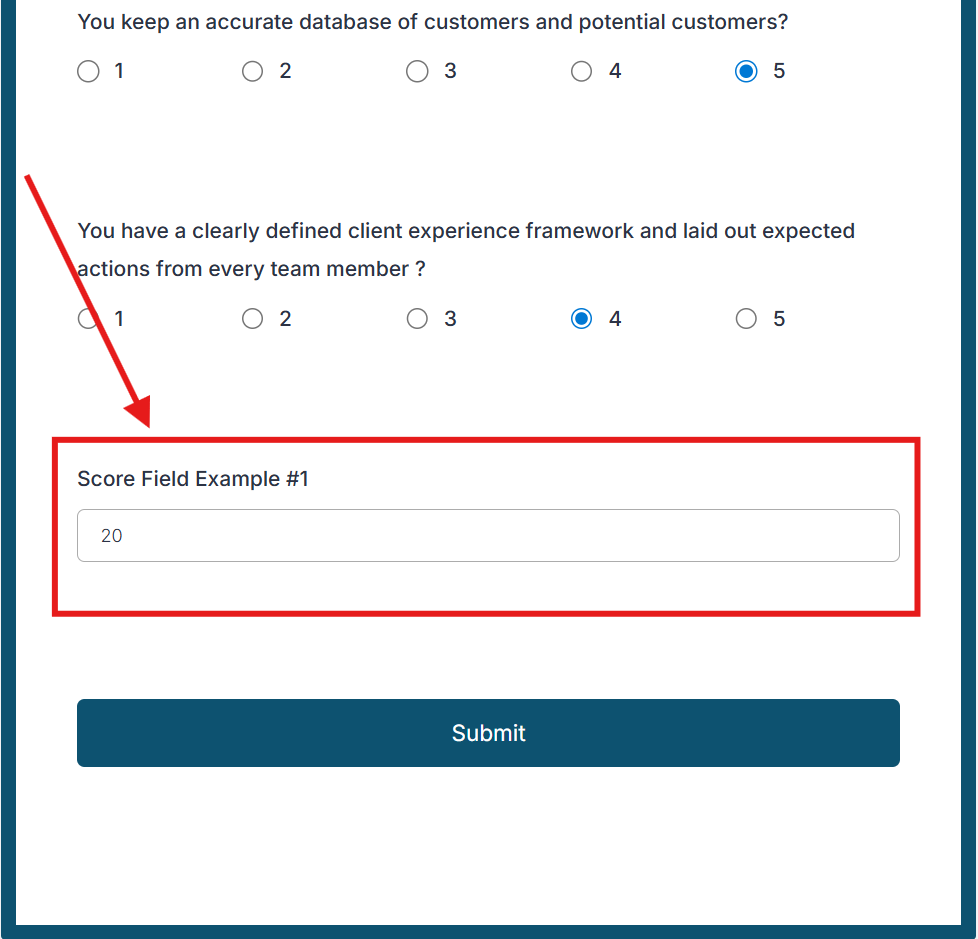
Example Use Cases
• Knowledge Checks: Automatically calculate a user’s score based on their answers.
• Budgeting Tools: Sum up user-selected services or products to provide a running total.
• Lead Qualification: Score responses to qualify leads based on their input.
• Self-Assessments: Give users instant feedback based on their choices.
Frequently Asked Questions
- Can I assign decimal or negative scores to options?
- Yes, you can assign both decimal and negative values to field options for more flexible scoring.
- Do calculations work on live forms or just in preview?
- Calculations are shown in Preview Mode during setup. For live forms, you’ll need to configure how scores are displayed or used (e.g., passed to custom fields, hidden fields, or confirmation pages).
- Can I use conditions or logic based on the calculated score?
- While the form builder itself supports calculations, conditional logic based on score output may require using workflows or custom automation for follow-up actions.
- Are older forms affected by this update?
- No. Existing forms will continue to function as before. You’ll need to manually update any forms to take advantage of the new calculation features.
- Is this available in surveys as well as forms?
- Yes, this update applies to both Forms and Surveys.
- Can I use the score field inside of a quiz?
- Yes, but the score field can only be used with Number fields and Monetary fields within a quiz.