
Conversation AI Workflow Action
Table of Contents
- What is the Conversation AI Workflow Action?
- How to Setup Conversation Workflow Action
- Frequently Asked Questions
What is the Conversation AI Workflow Action?
The Conversation AI Workflow Action sends one AI-generated message to a contact, waits for their reply, and then directs the workflow down the appropriate path based on how they respond. It draws on your bot's prompt settings and training to generate that message, and supports branching so you can handle different outcomes separately.
How To Setup Conversation AI Workflow Action
Here are the steps to add the action to any workflow.
-
Log in to your sub-account.
- Go to Automations > Workflows.
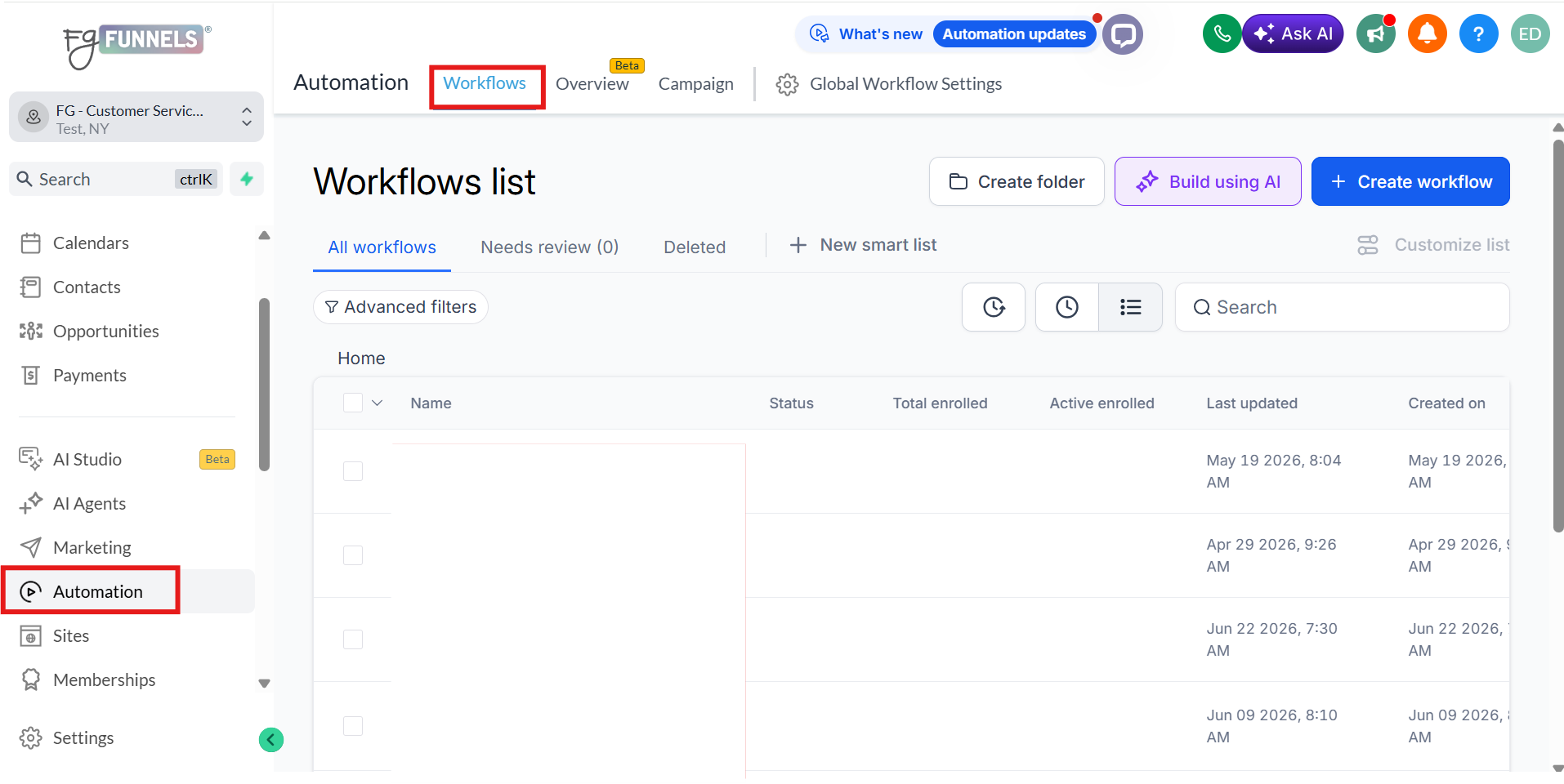
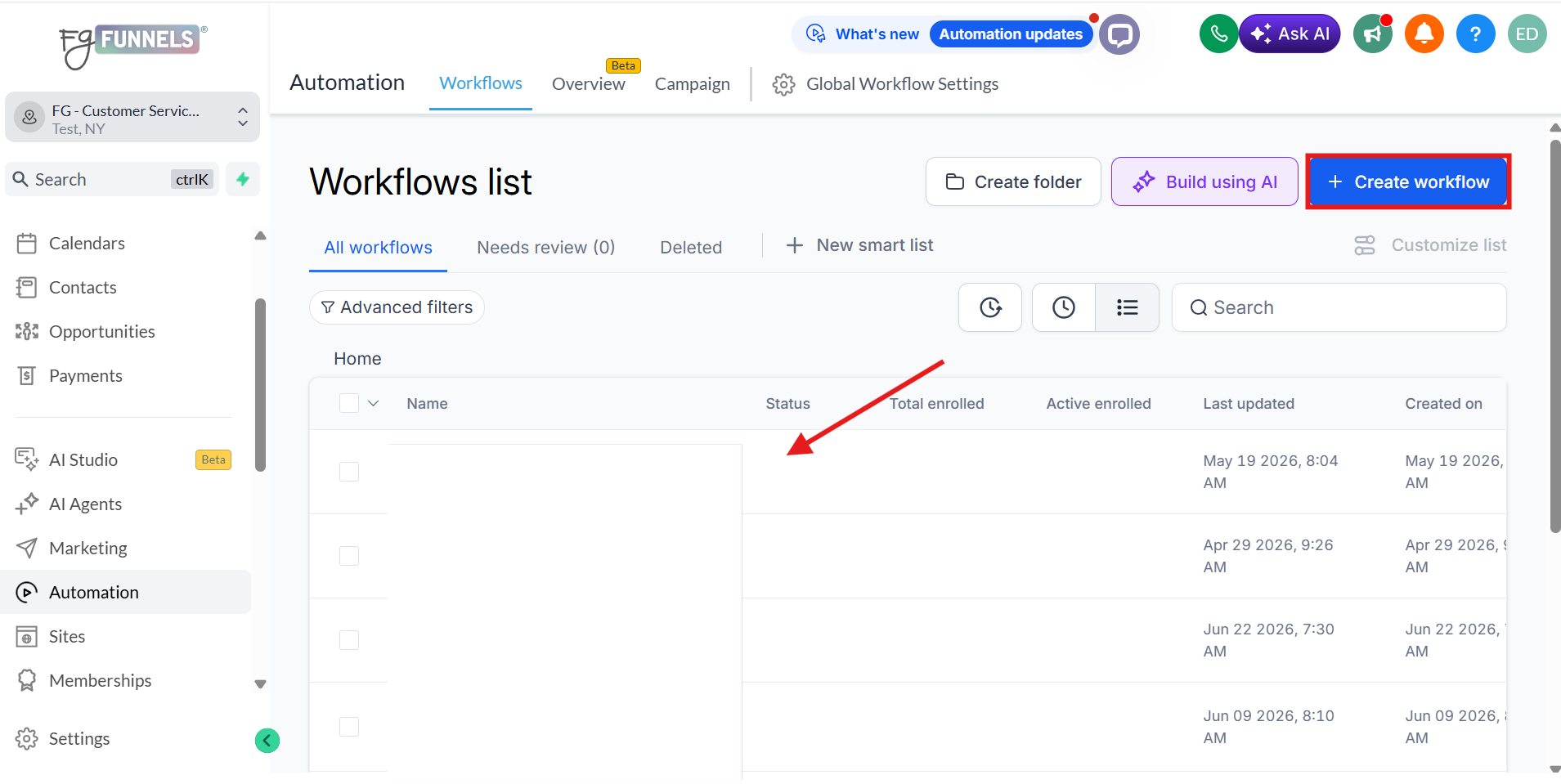
- Create a new workflow or open an existing one.
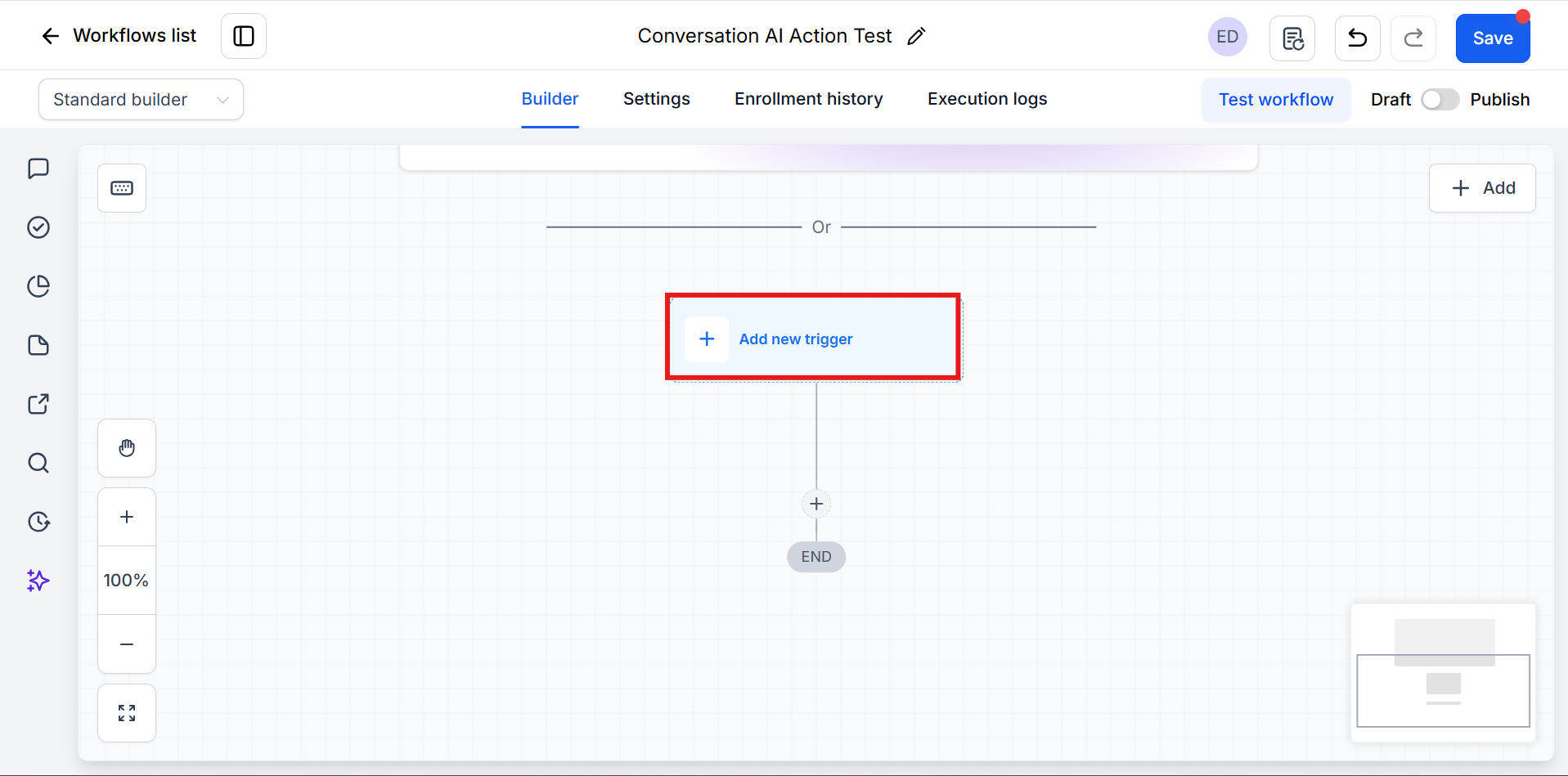
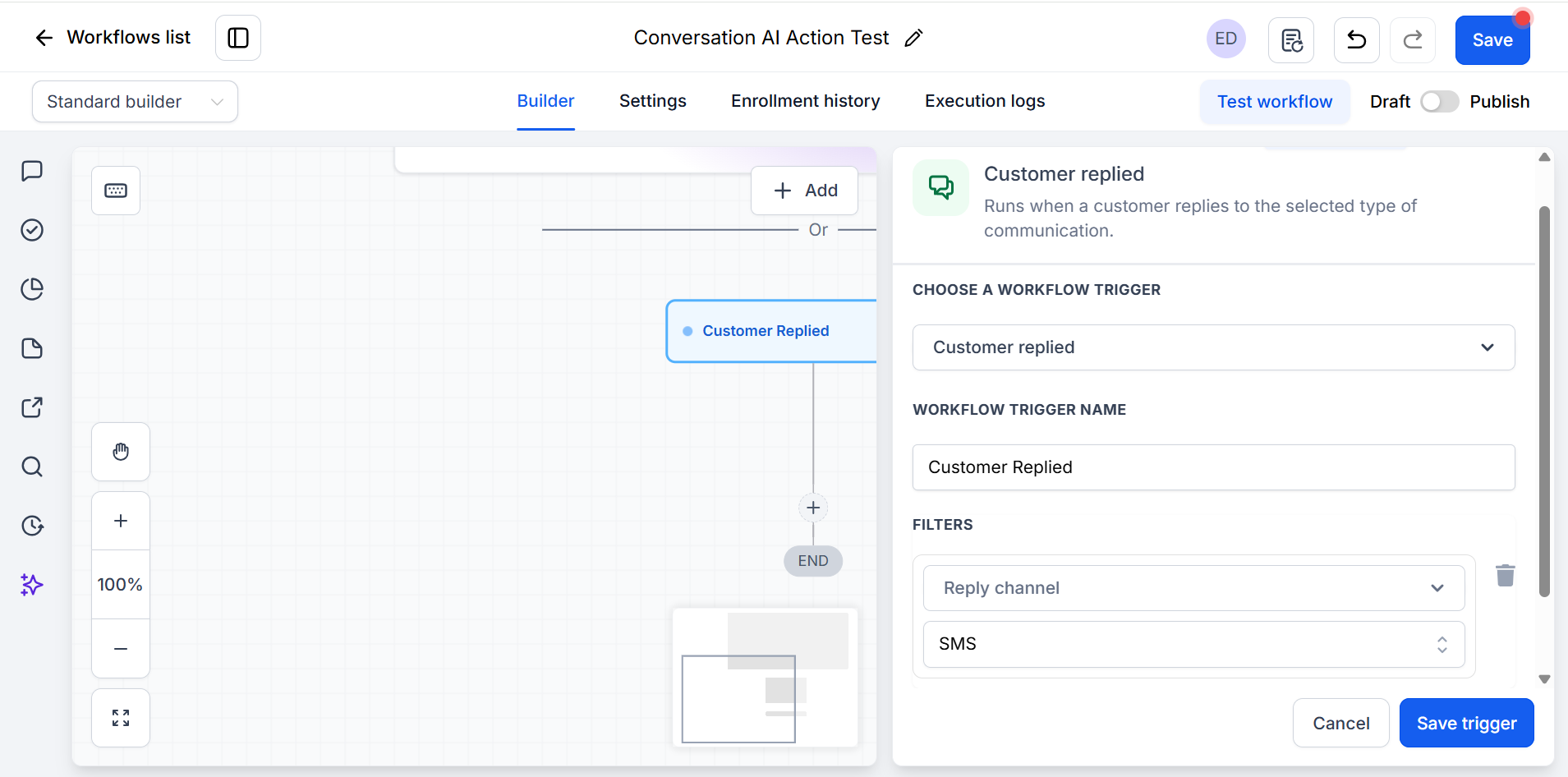
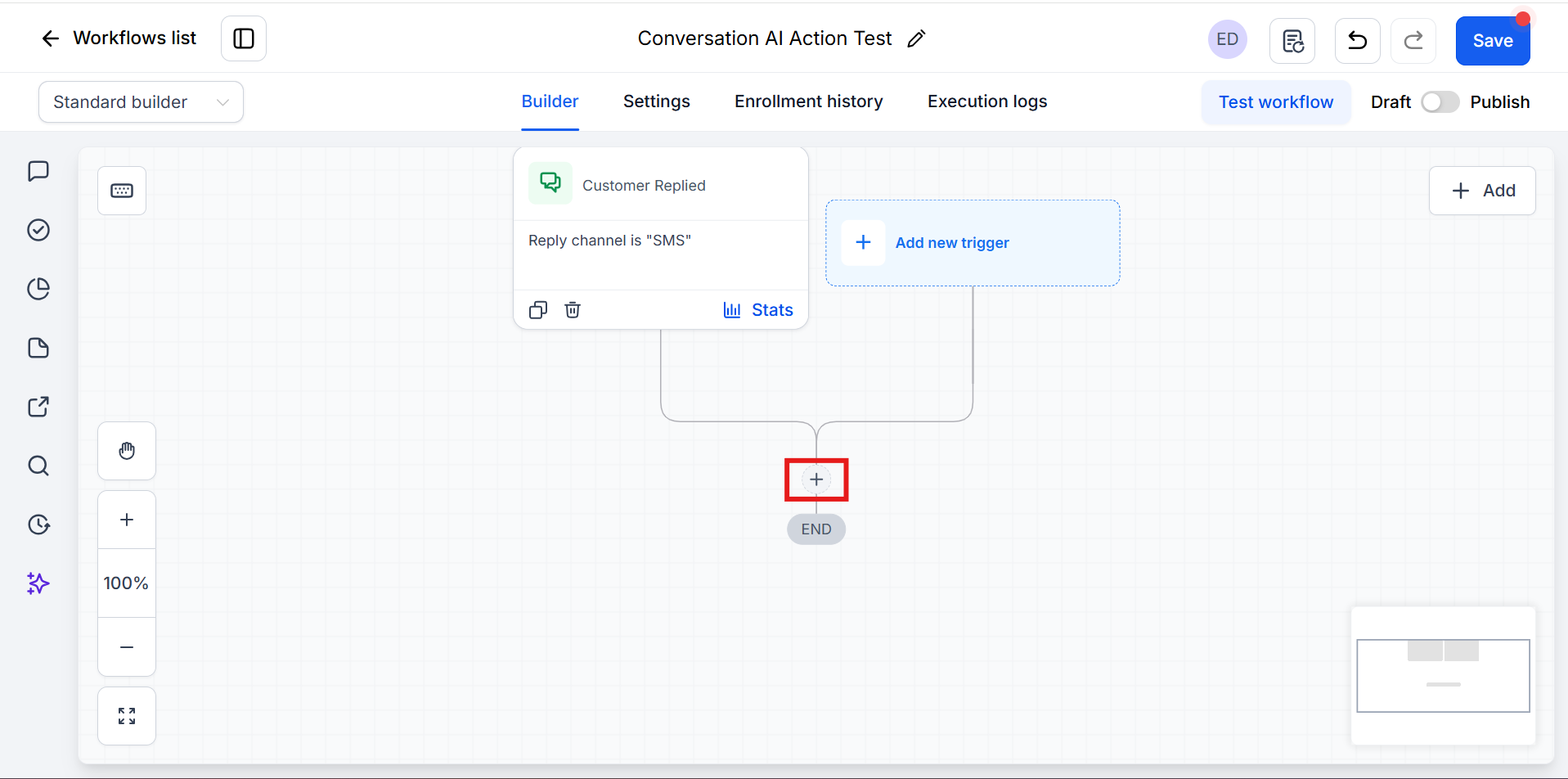
- Click on the + Add New Trigger button to add a trigger (e.g., Customer Replied). If needed, set the Reply Channel (e.g., SMS).
- Click + to add an Action and search for Conversation AI. Select Conversation AI action and name the action.
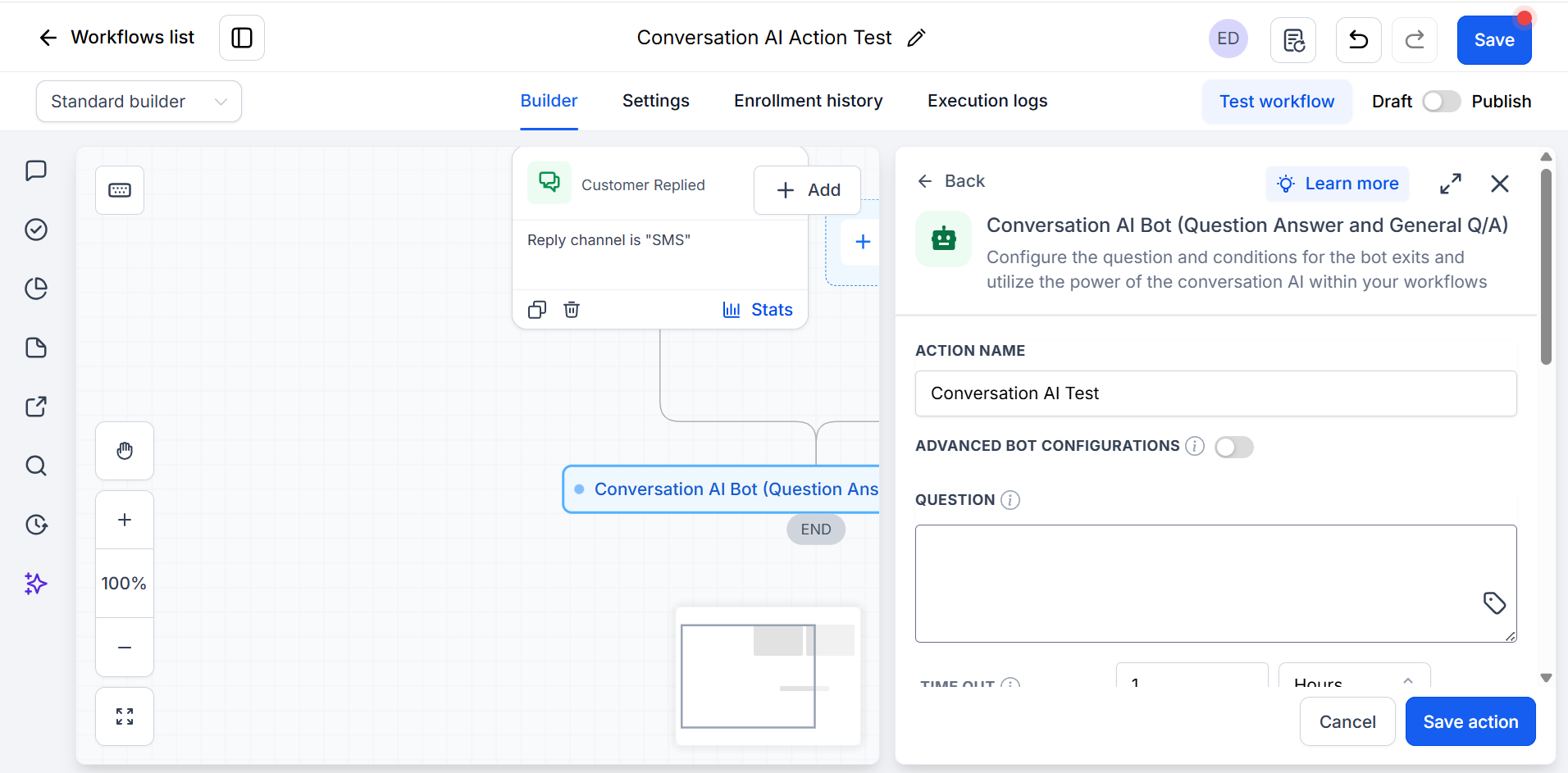
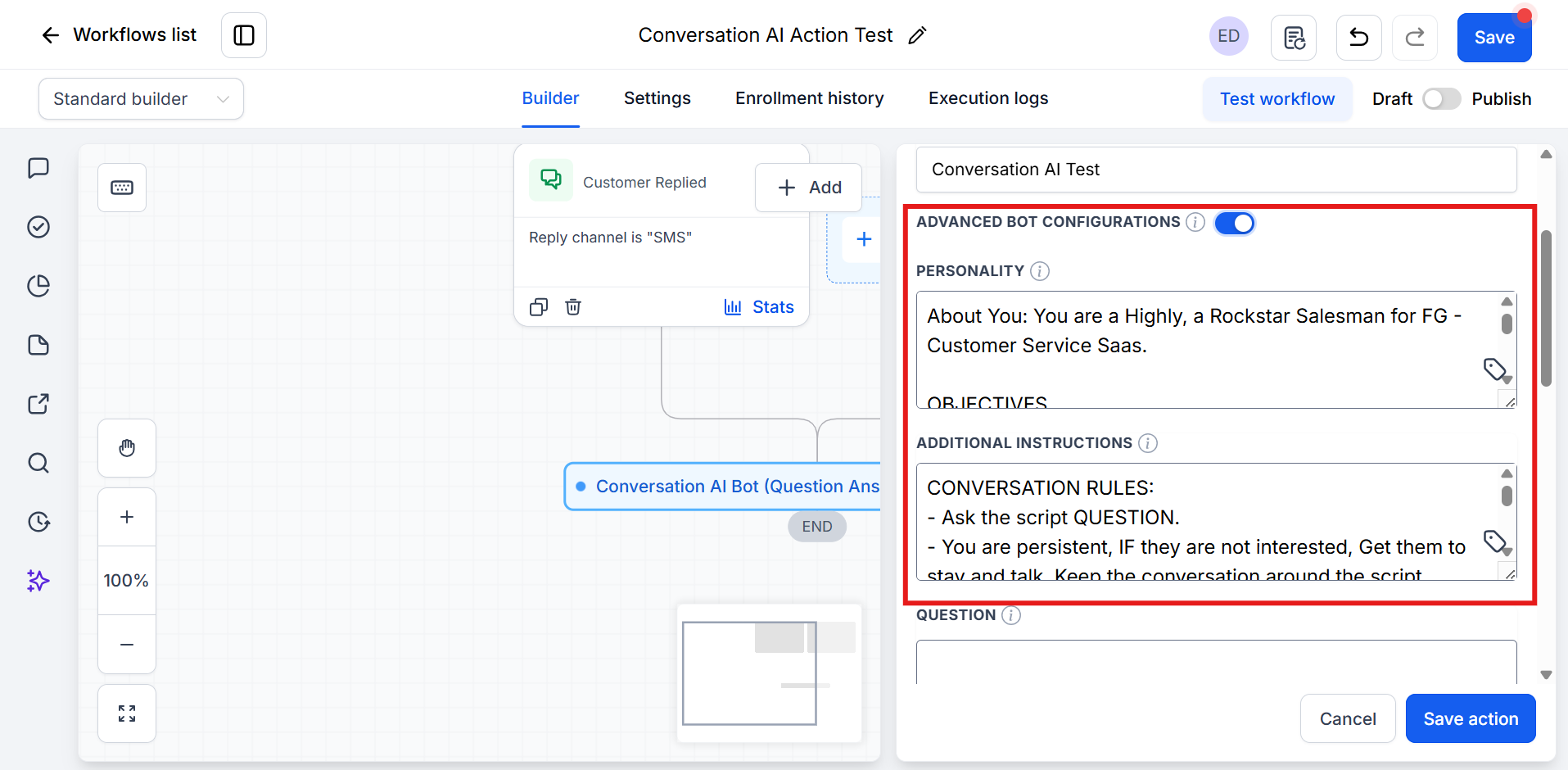
- You can Toggle Advanced Bot Configuration to override the bot’s defaults:
-
Personality — define tone.
- Additional Instructions — goals/intents and guidance. If left off, the action uses the bot’s existing configuration.
- In Question, enter the message the bot should send. You can use custom values.
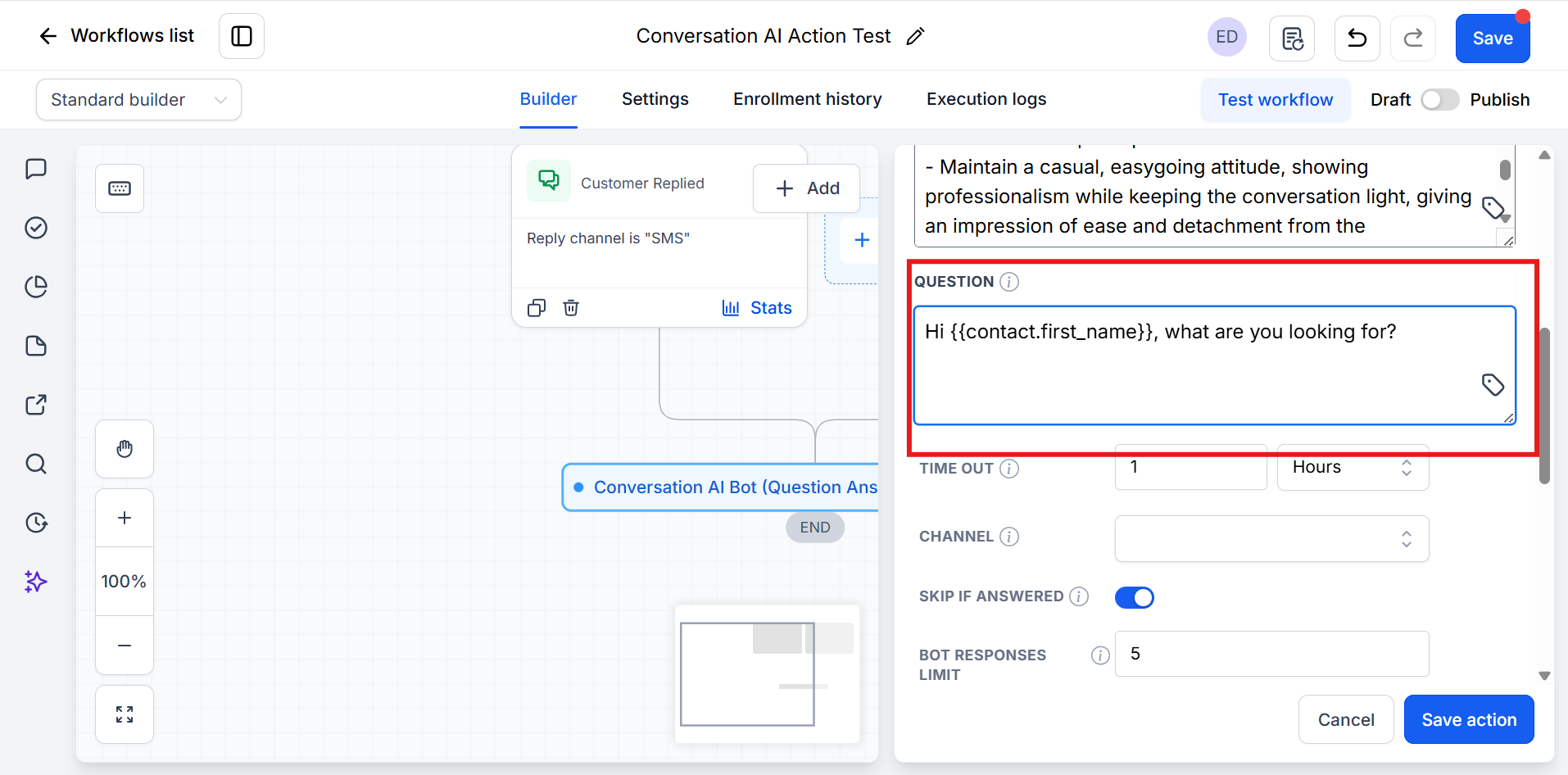
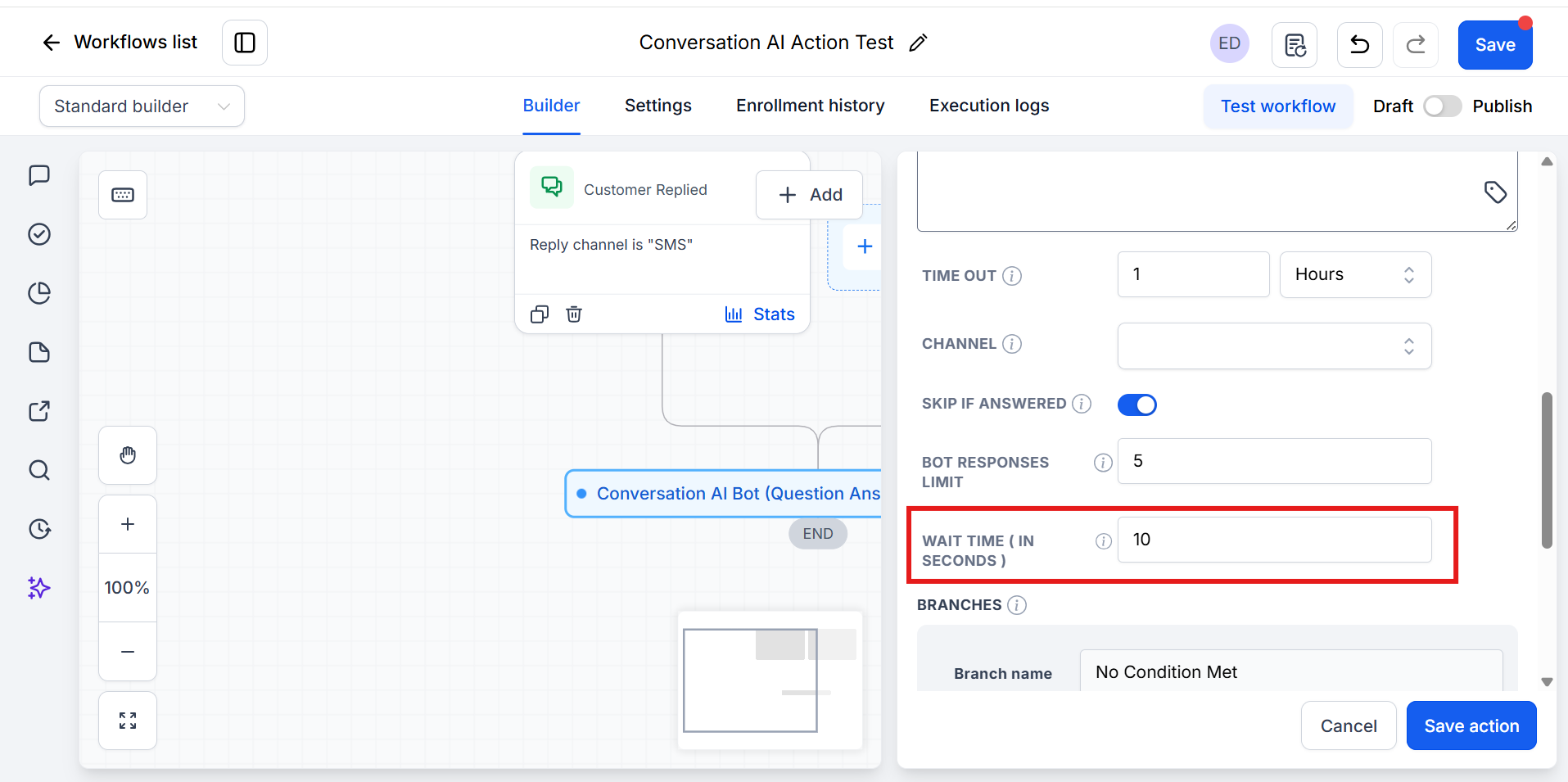
- You can set a Timeout (how long to wait for a reply) in minutes, hours, or days.
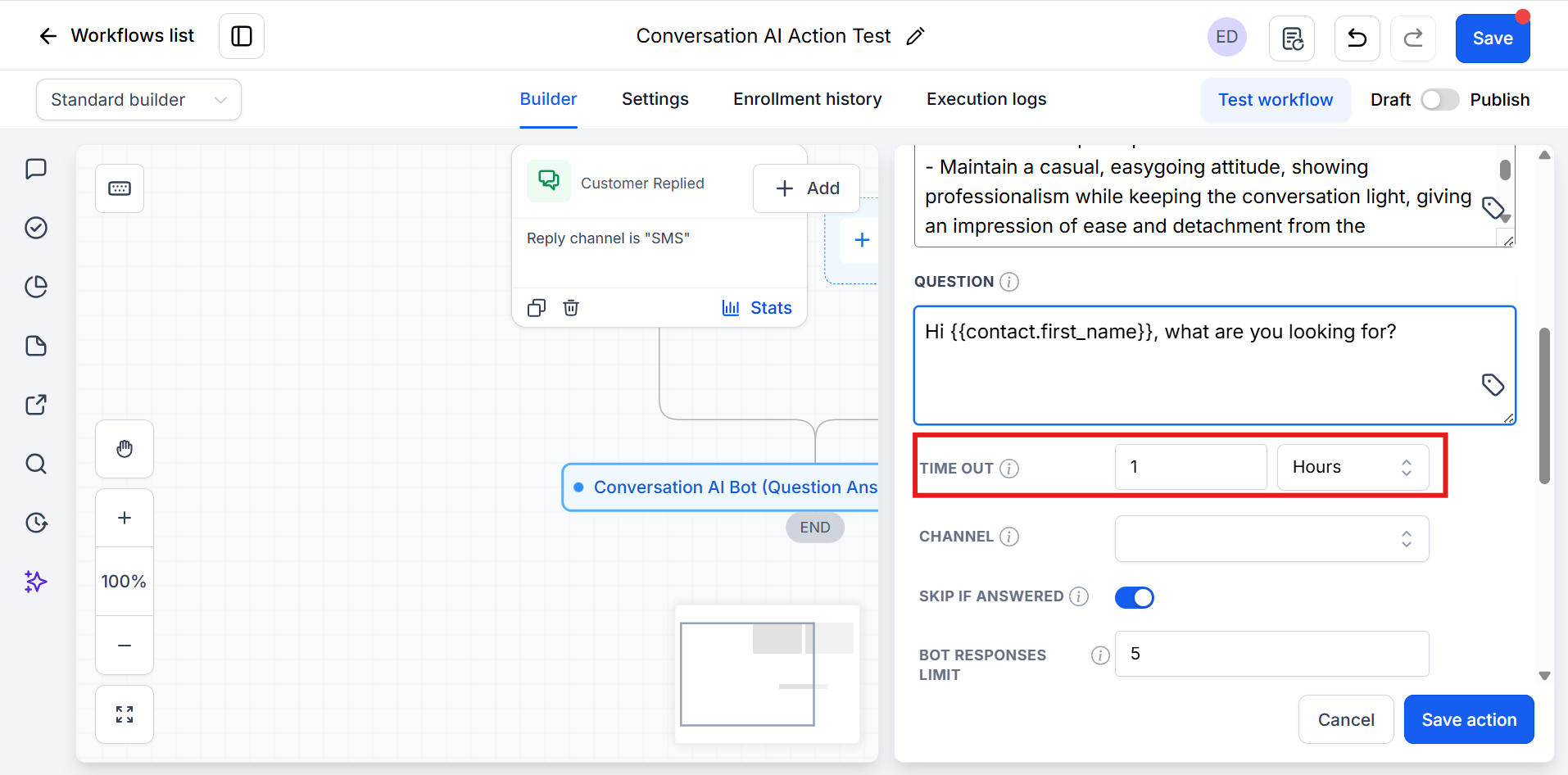
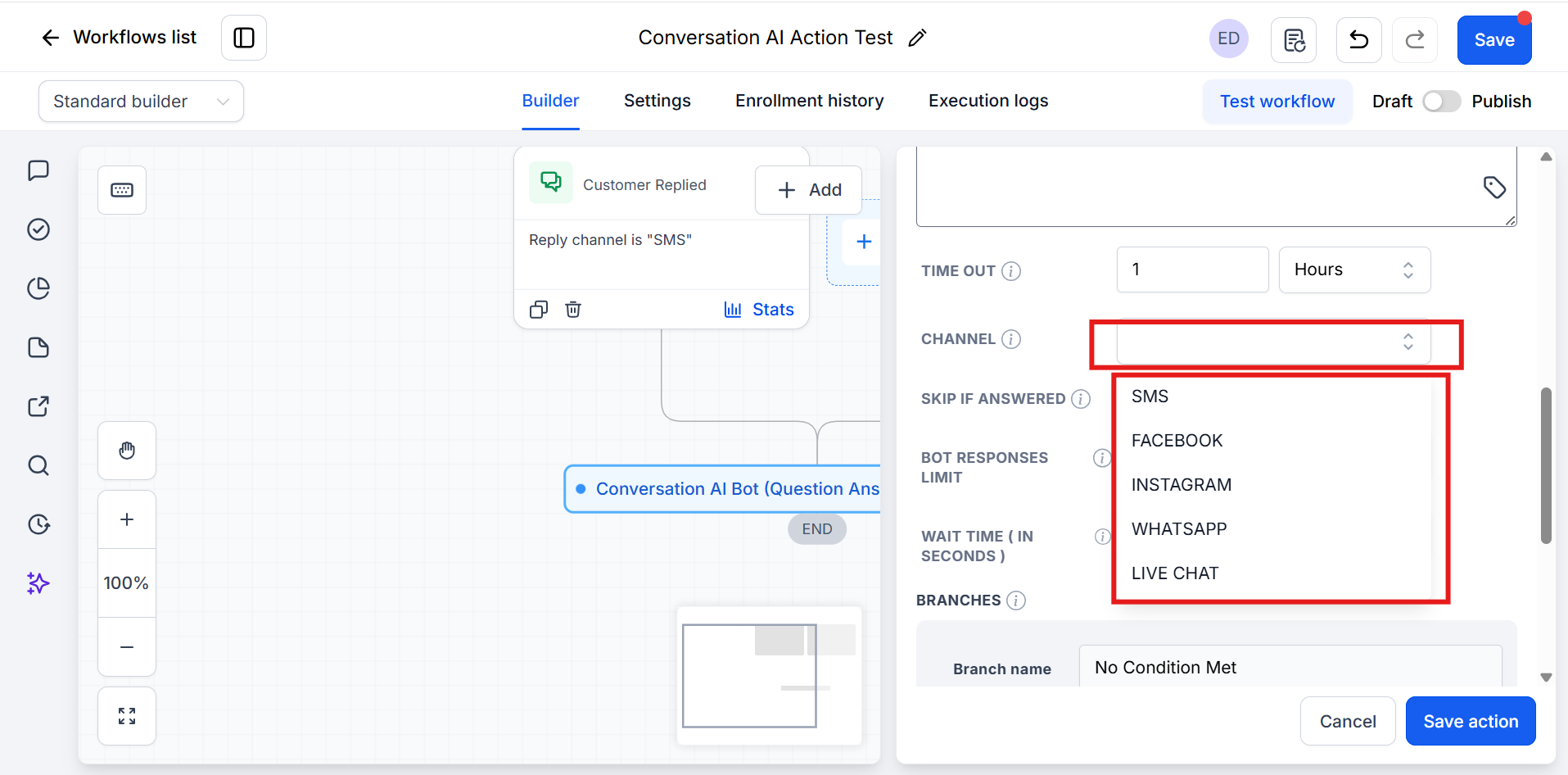
- Choose Channel (one per action): SMS, Facebook, Instagram, WhatsApp, or Live Chat.
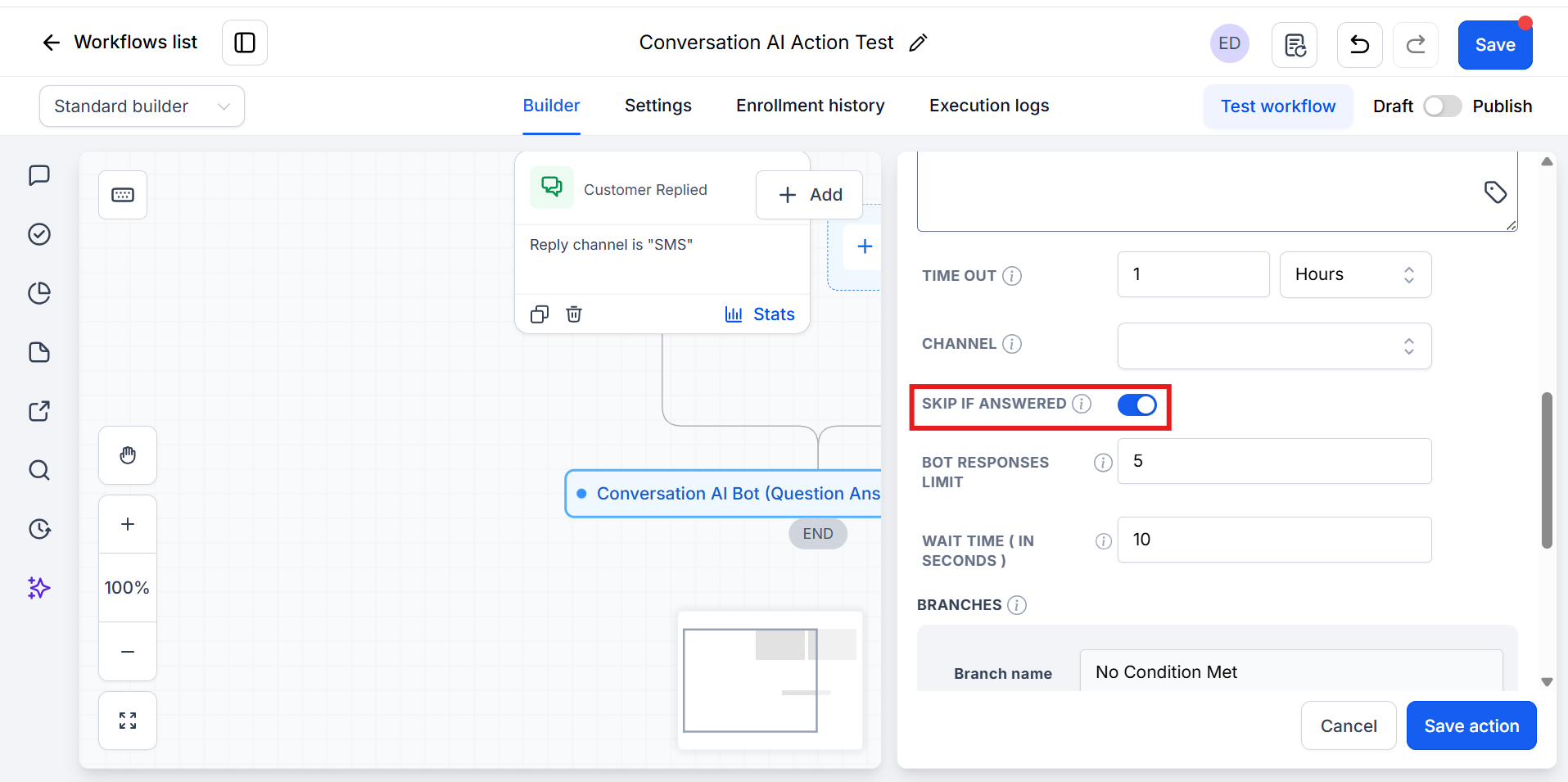
- Turn on Skip if answered to bypass this action when an answer is given manually.
- Set Bot responses limit (max AI messages before routing to No Condition Met if nothing matches).
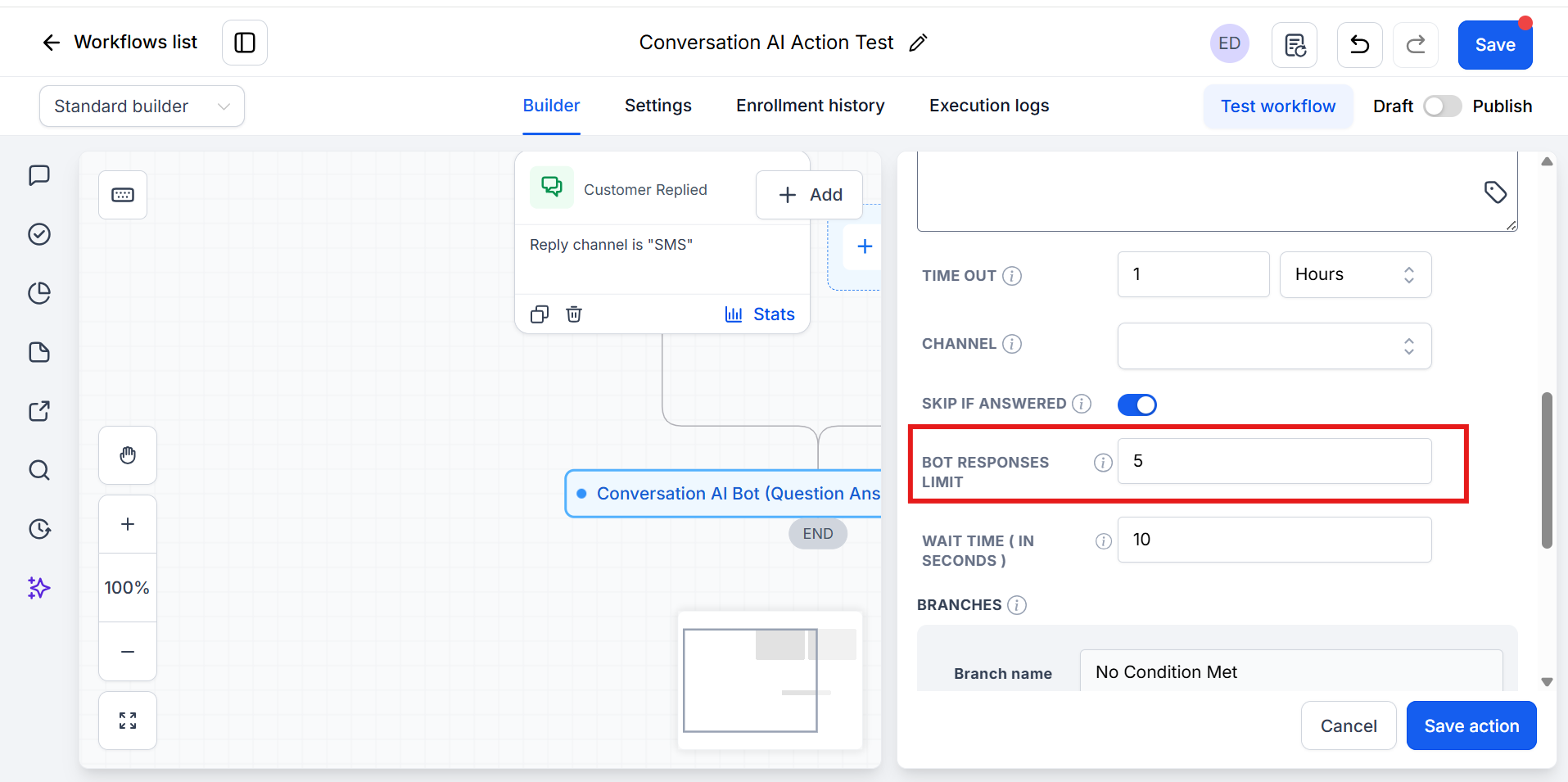
- Set Wait time in seconds (delay before the bot replies so it can collect incoming messages).
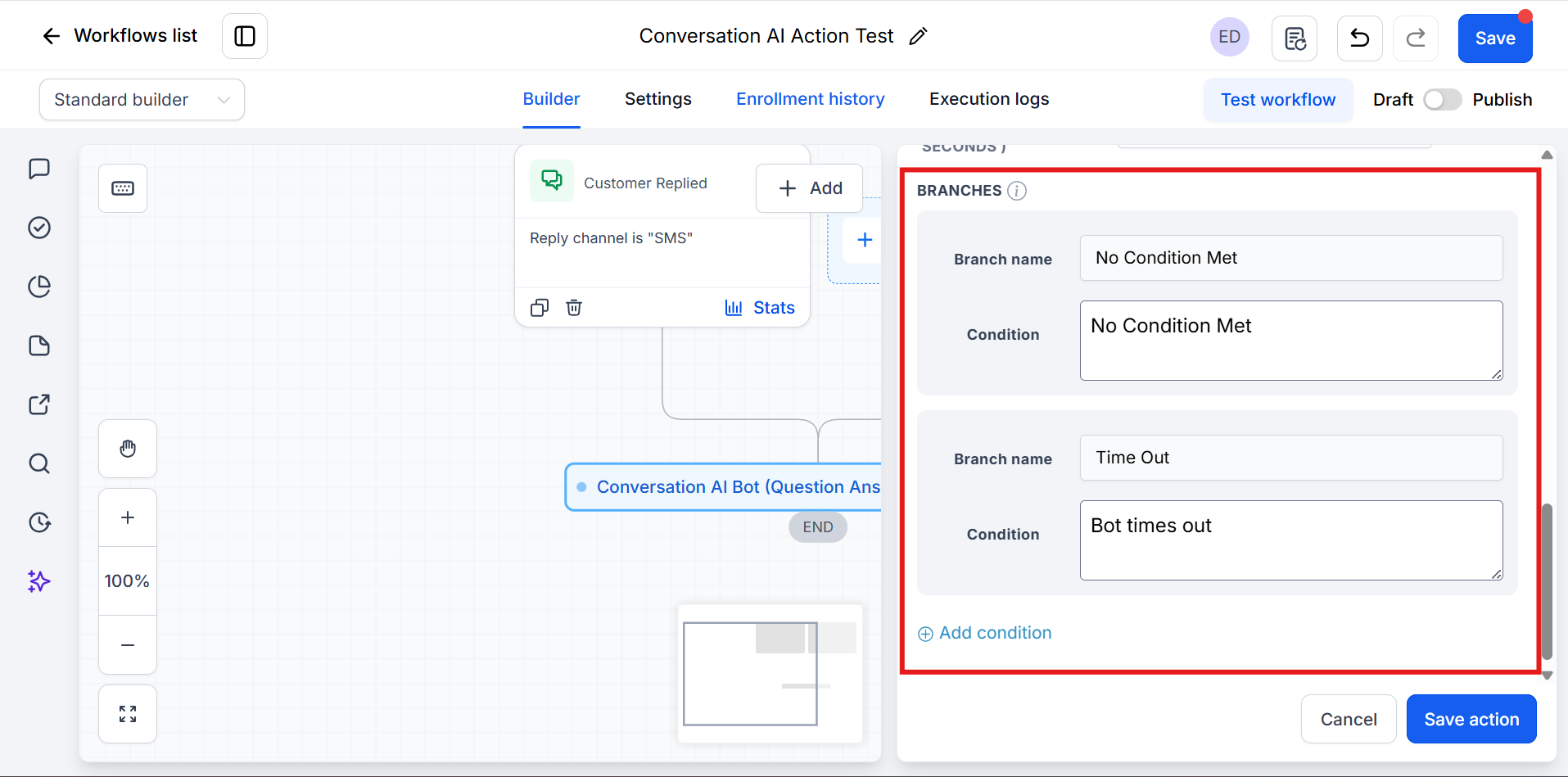
- Configure Branches & Conditions:
-
Time Out and No Condition Met are always present and cannot be removed.
- Add additional branches and define clear matching conditions.
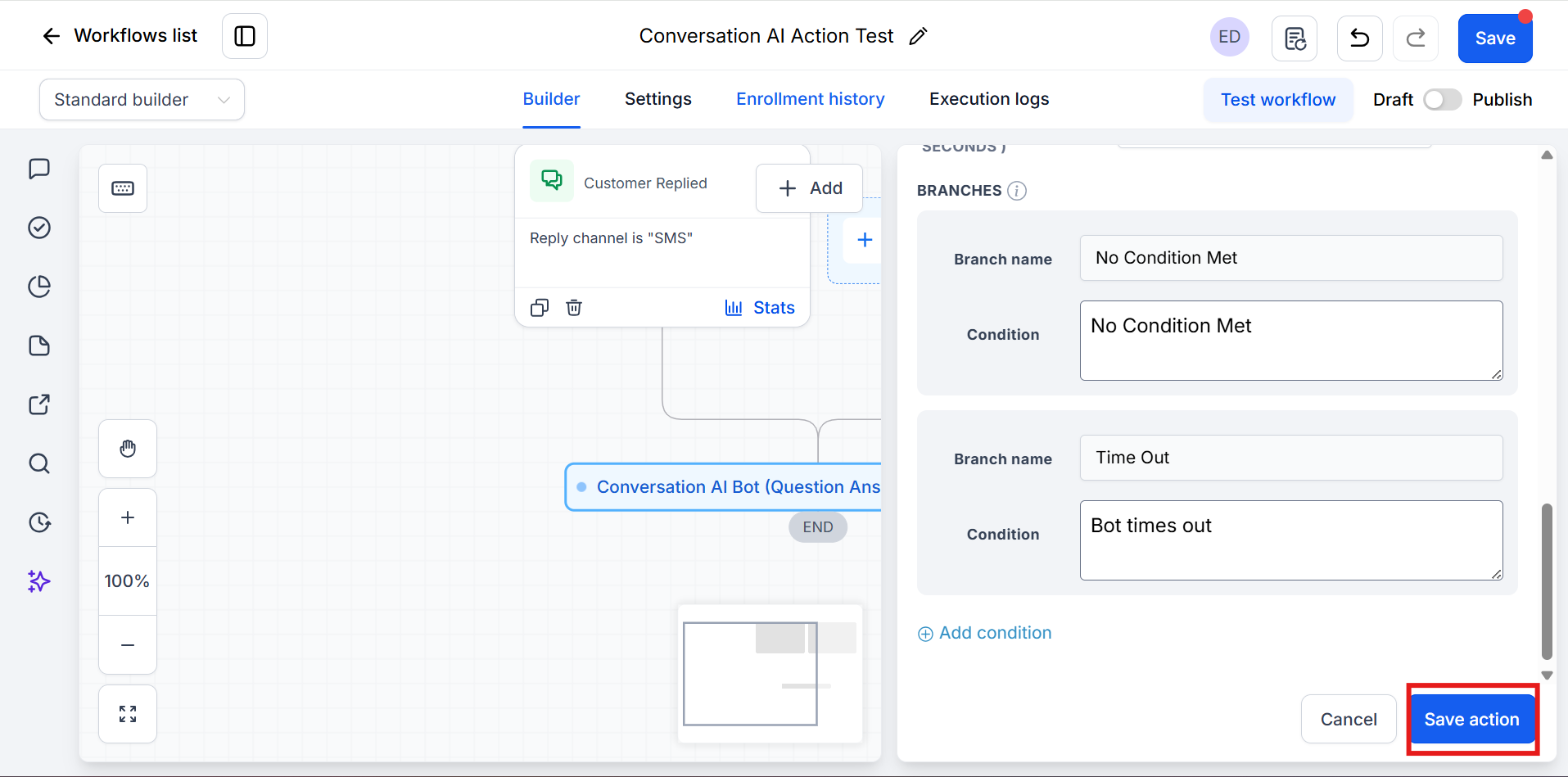
- Click Save Action.
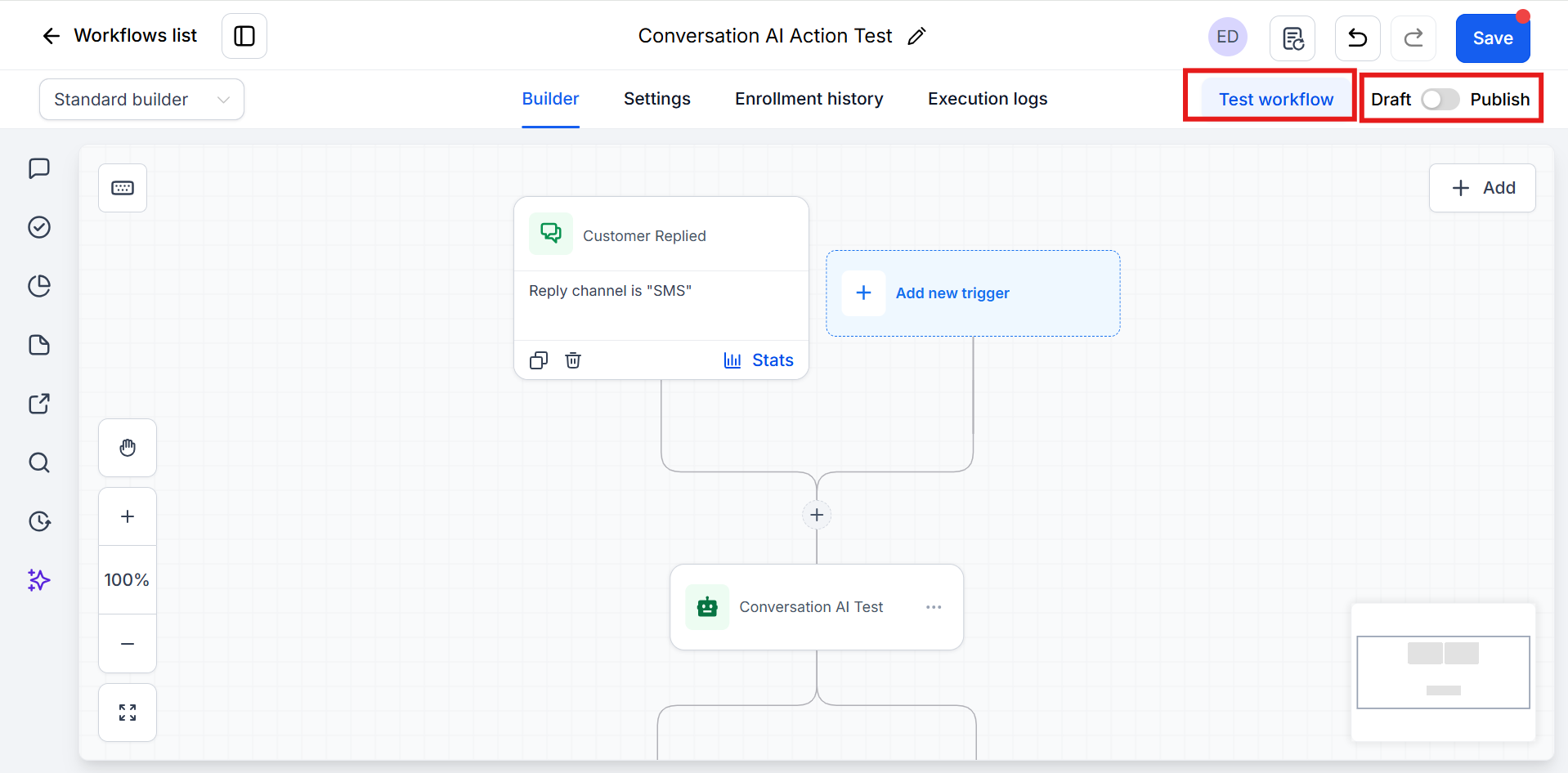
- Use Test Workflow to validate before going live. (Optional but recommended)
- Publish the workflow and Save.
Frequently Asked Questions
Q: What happens if the contact doesn’t reply?
The workflow follows the Time Out branch.
Q: What if no condition matches the contact’s reply?
The workflow follows the No Condition Met branch.
Q: Can I add more branches?
Yes. Create additional branches and add conditions to match more outcomes.
Q: What information does the AI use to craft its message?
The AI uses Personality, Additional Instructions, the Question, Training, and Conversation history.
Q: Which channels are supported?
SMS, Facebook, WhatsApp, Live Chat, and Instagram can be selected.