
Resend a Login Magic Link Using Trigger Link
A magic link is a one-time-use login link sent to your members via email so they can access your course or community without needing a password. Since magic links automatically expire after 24 hours, your members may occasionally need a fresh one.
In this tutorial, we'll walk you through a simple way to set up an automated system that lets your members request a brand new magic link with just one click. No more back-and-forth support messages. They click a link, and a new magic link lands in their inbox.
How to Set Up a Trigger Link for Requesting a New Magic Login Link
ℹ️Important Note: Please first follow the steps on our Course Wizard or Community Wizard before completing the steps in the video below.
1. Create a simple confirmation page for the new-link request
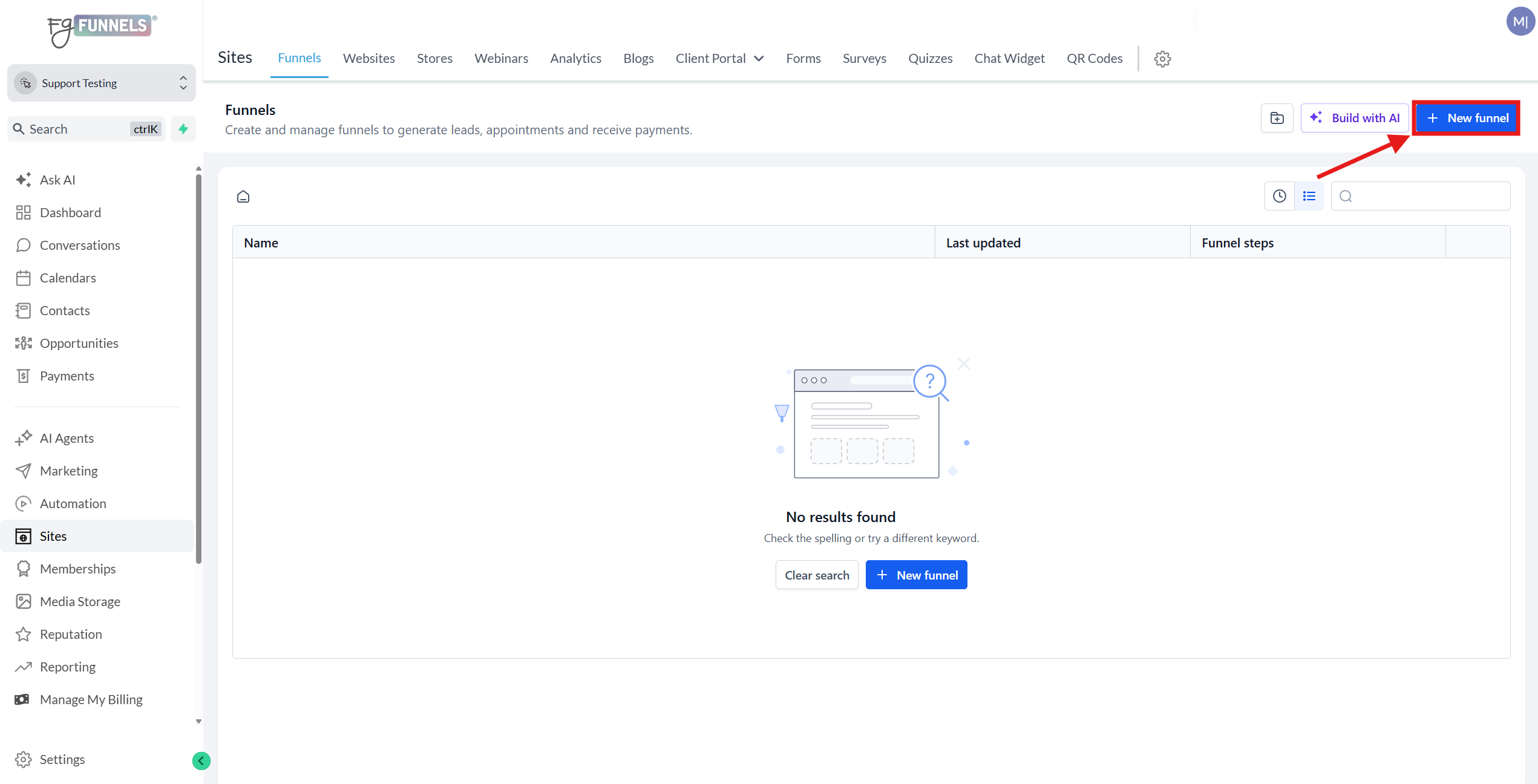
- Start by cloning an existing thank-you or confirmation page.
- Go to Sites in the left menu and create a new funnel.
- Name it something like Magic Link Confirmation Page.
- Add a new funnel step or import an existing confirmation/thank-you template.
- Keep the page very simple: its only job is to tell users to check their inbox for a new magic link.
2. Customize the page message and save it
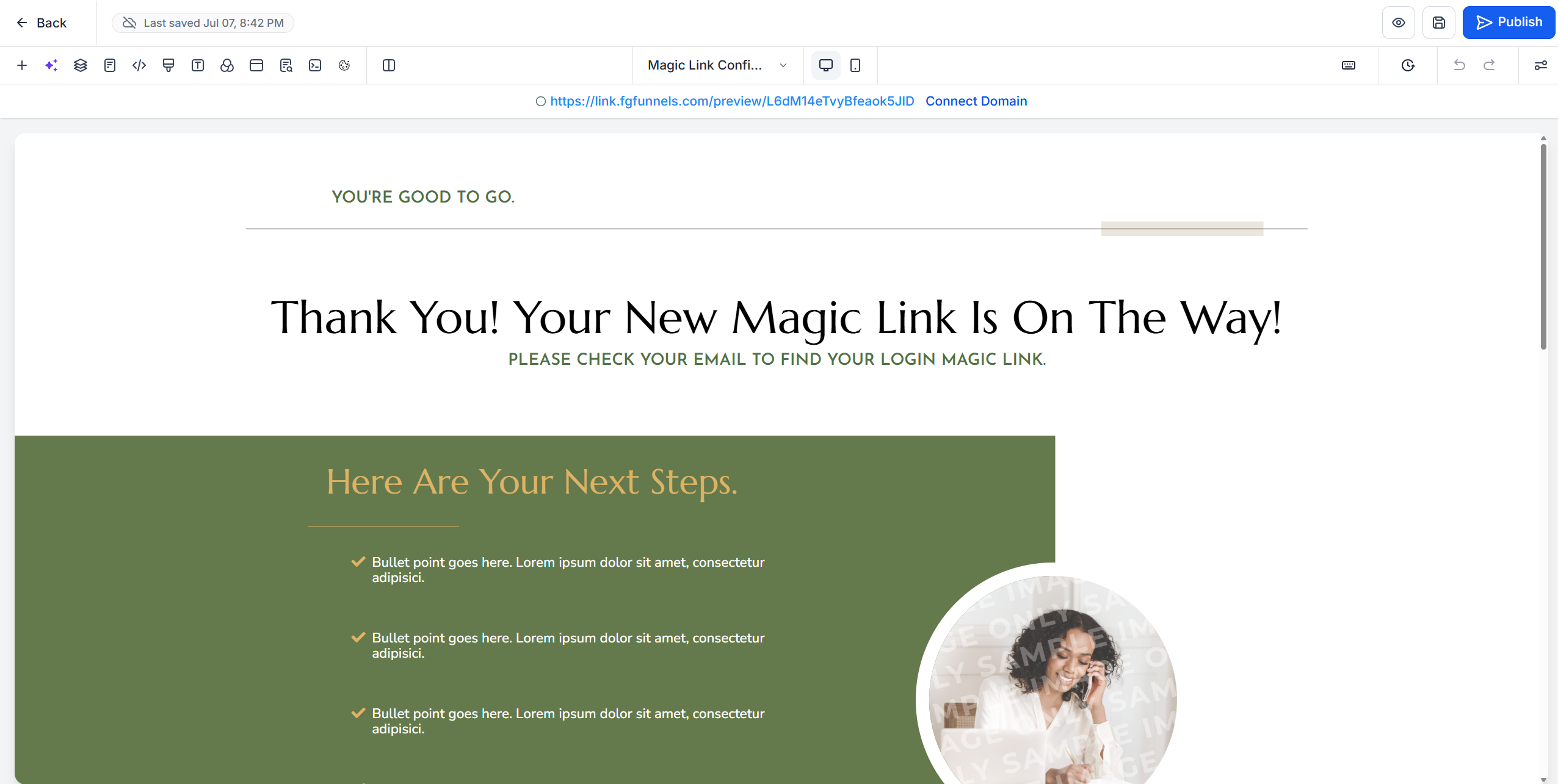
-
Open the page editor in a new tab.
Replace the default headline/body copy with something like:
- Your magic link is on the way
- Please check your email to find your magic link
- Adjust any other text if needed, but keep the page focused on this one message.
- Save the page.
- If your domain is connected, you would normally publish it; for this demo, saving is enough.
3. Copy the page URL and create a trigger link
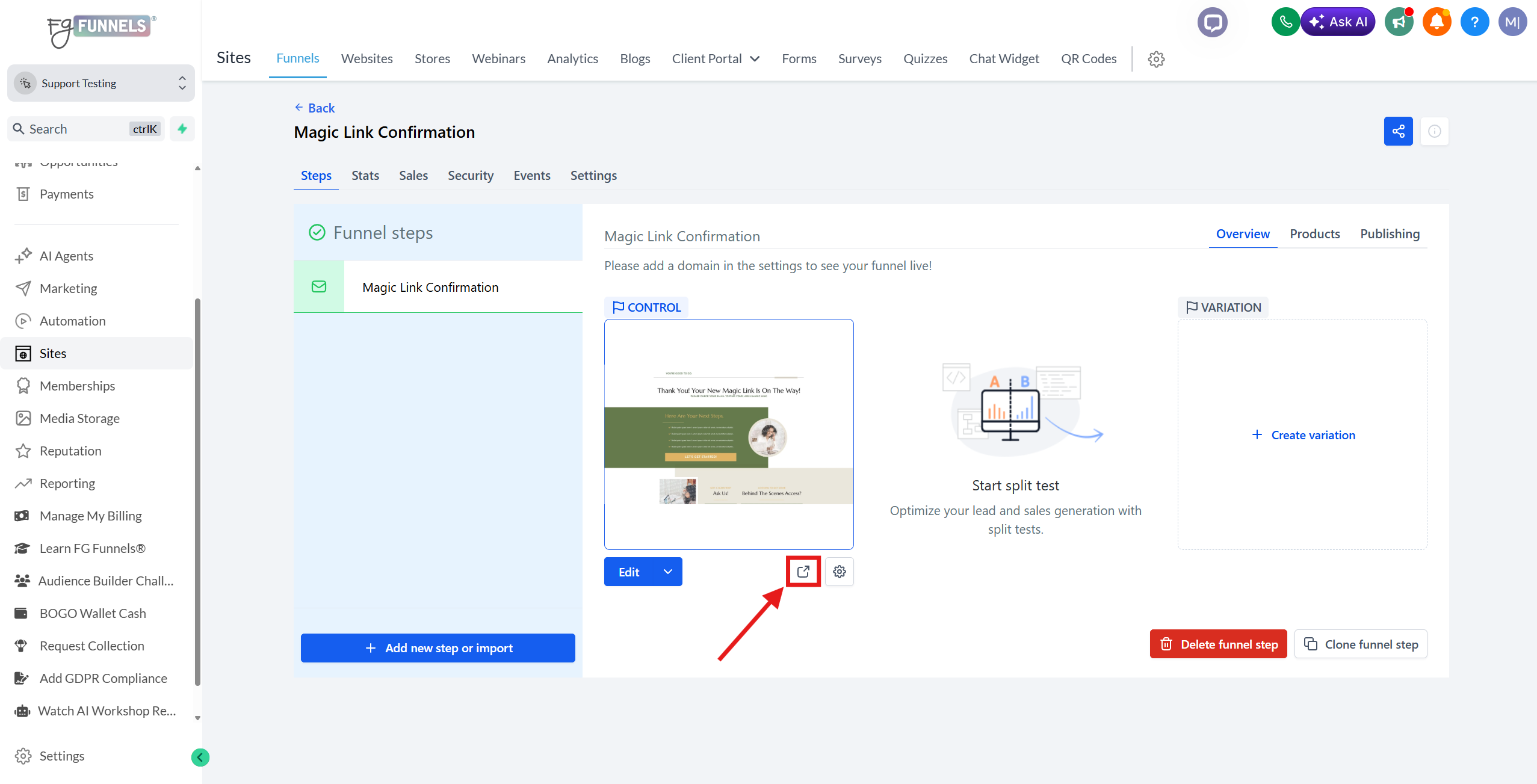
- Use the page’s View Page option to copy its URL.
- Go to Marketing → Trigger Links.
- Click Add Link and paste in the URL.
- Give the trigger link a clear name, such as New Login Magic Link Requested.
- Save the trigger link.
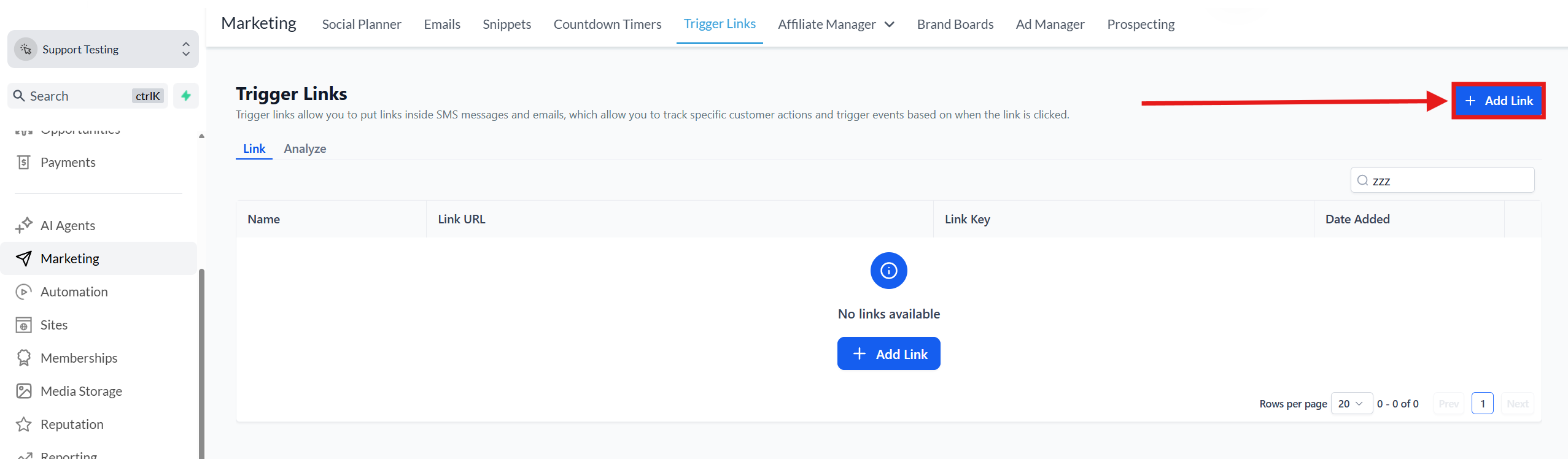
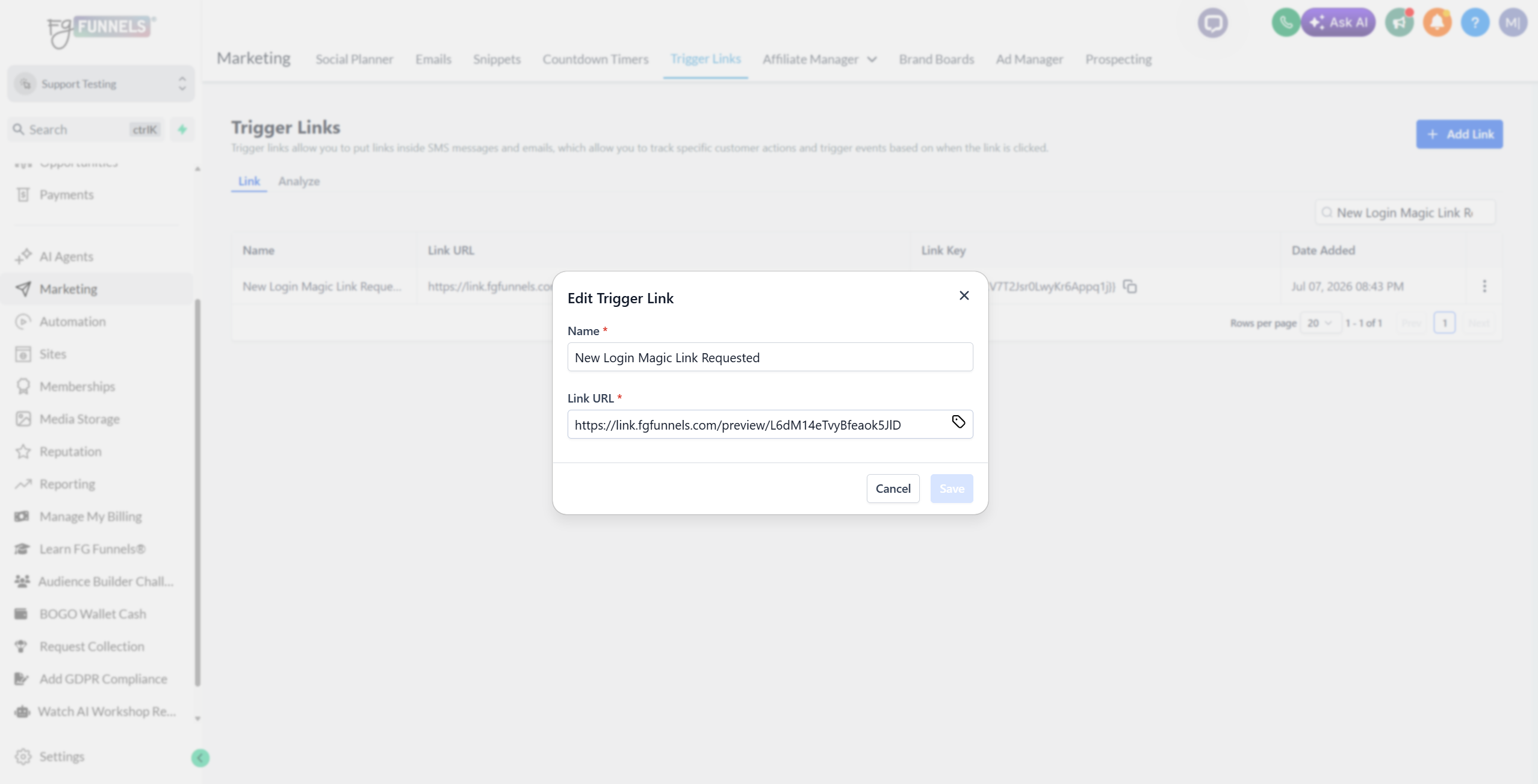
- Use the page’s View Page option to copy its URL.
- Go to Marketing → Trigger Links.
- Click Add Link and paste in the URL.
- Give the trigger link a clear name, such as New Login Magic Link Requested.
- Save the trigger link.
4. Build a workflow that sends a new magic link when the trigger link is clicked
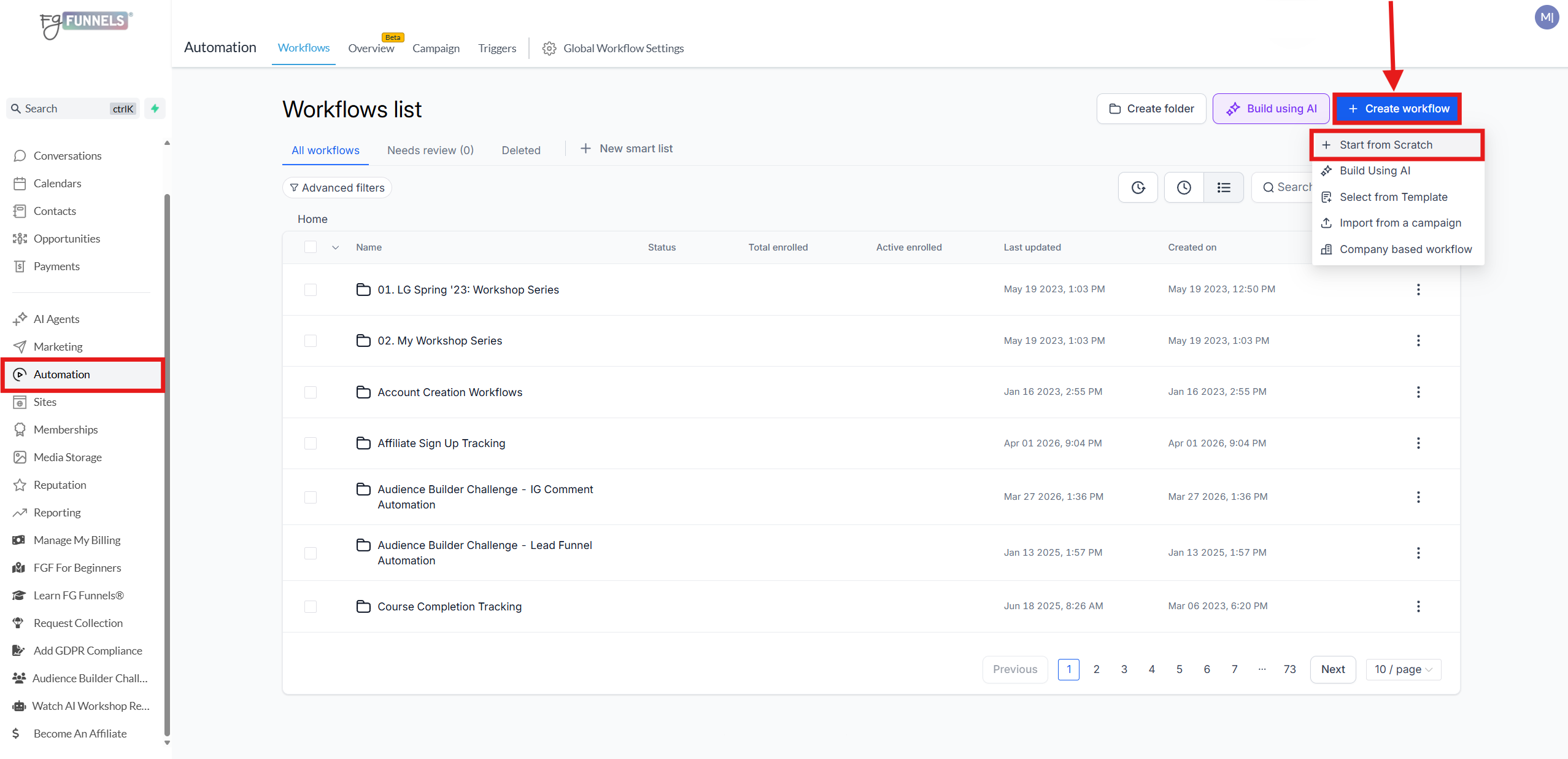
-
Go to Automation → Workflows.
Click Create Workflow and start from scratch.
Add a trigger:
- Choose Trigger Link Clicked
- Filter by the trigger link you just created (for example, the one you named for the new login magic link request)
- Save the trigger.
- Add an action to Send Email.
5. Add the request link into the email that sends the new magic link
-
Use your existing email template for sending the magic link.
Keep the main email content the same.
Add a short note explaining that the login link expires after a set time for security.
Add a line like:
- Click here if you need a new magic link sent to you
- Highlight the text you want users to click.
- Insert the trigger link URL into that text.
- Set the link to open in a new window if desired, then save.
Here is the email template used in the video above:
Hi {{contact.first_name}},
Congratulations and welcome to [[[ Type In Your Course Product Name Here ]]]! We're thrilled to have you join our learning community. You can access this course, and any future purchases, anytime by using the link below:
>> Click Here to Log In Now <<
The magic link above will expire 15 minutes after this email is sent to you. If you are unable to click on the link within this timeframe, simply click here to request a new magic link to be emailed to you. [[[ LINK YOUR TRIGGER LINK HERE ]]]
On your first visit, you’ll be prompted to set up a password for your account. Please choose a secure password and store it safely in your password manager, as you’ll use it to access all of your purchased content in the future.
Please bookmark the membership login page link above for quick and easy access.
Once you're logged in, you’ll find your course dashboard and can begin right away!
Need Help?
If you have any questions or need help, reply to this email or contact us at {{location.email}} [[[ Insert Your Support Email Address Here ]]]]. We’re here for you!
If you ever forget your password, simply click the “Forgot Password” link on the login page and follow the instructions to reset it.
Stay Connected:
We’ll be sending you helpful tips, updates, and exclusive resources throughout your course journey. Make sure to whitelist our email so you don’t miss out!
Copyright © {{right_now.year}} {{location.name}}. All rights reserved.
You are receiving this email because you signed up or made a purchase from {{location.name}}.
If you wish to stop receiving emails from us, you can unsubscribe here.
Important Note: Unsubscribing will remove you from all future communications, including important updates about your purchased products such as this course.
6. Name and save the workflow
- Give the workflow a clear name, such as Resend Login Magic Link.
- Save the email action.
- Save the workflow.
- This workflow now handles the case where someone clicks the request link to get a fresh magic link.
7. Add the same trigger link to your original course access email
- Open the workflow that sends the original course access email.
- Edit the email template used for new members.
- Add the same request-link text to the email.
- Highlight the text you want to make clickable.
- Paste in the trigger link URL.
- Make sure there are no extra spaces before or after the URL, then save.
8. Final result: users can request a new magic link anytime
- Save the email template.
- Save the email action and the workflow.
- Now, when a user clicks the trigger link in the email, it sends them to the confirmation page and triggers a workflow that emails them a fresh magic login link.
- This gives users a simple self-service way to recover access if their original link expires.