
Instagram Direct Integration
The Instagram Direct Integration lets you connect your Instagram account to your FG Funnels account to manage Instagram Direct Messages (DMs), automate conversations, and streamline customer communication from a single platform.
Table of Contents
- Before You Begin
- Important Notes
- 1. If No Instagram Account Is Connected
- 2. If Instagram Was Already Connected Through a Facebook Page
- 3. Switching from a Facebook-Based Connection to a Direct Connection
- FAQ
With this integration, you can:
- Respond to Instagram DMs directly inside FG Funnels.
⏱️ About the 24-hour messaging window: Meta allows businesses to reply to an Instagram DM only within 24 hours of the customer's most recent message. After that window closes, you won't be able to send a reply until the customer messages you again. This applies to all platforms using Meta's Messaging API and is not specific to FG Funnels.
- Trigger automations and workflows based on customer interactions, such as a comment on one of your Instagram posts or a DM they send you.
- Centralize messaging operations for faster response times and better engagement.
Before You Begin
- Your Instagram account must be a Professional account (Business or Creator). Personal accounts are not supported.
- You must have admin access to the Instagram account you're connecting.
- Unlike the older method, a Direct Instagram Connection does not require a linked Facebook Page, so you authenticate with Instagram only.
Important Notes
- Existing Facebook-linked connections will continue to work. No immediate action is required.
- You can connect the same Instagram account both ways. Both connections will remain listed, but only one can be active at a time.
- The active connection is determined by the "Enable Messaging + Automation" toggle.
- We recommend switching to the Direct Instagram Connection, as this is the new preferred method.
- The integration is shared between the Social Planner and Settings → Integrations. An Instagram account connected in one location is automatically connected in the other.
1. If No Instagram Account Is Connected
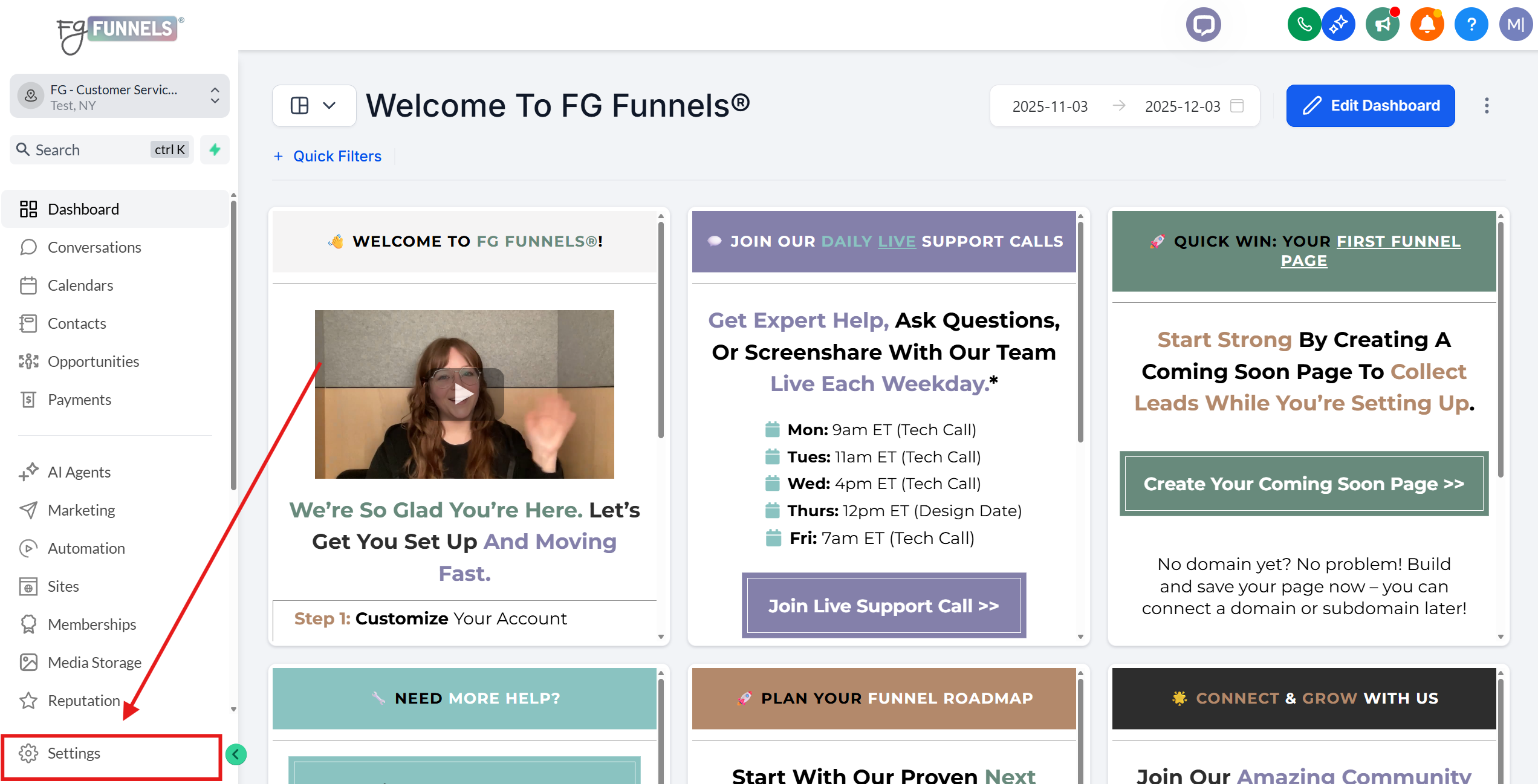
- Navigate to Settings → Integrations.
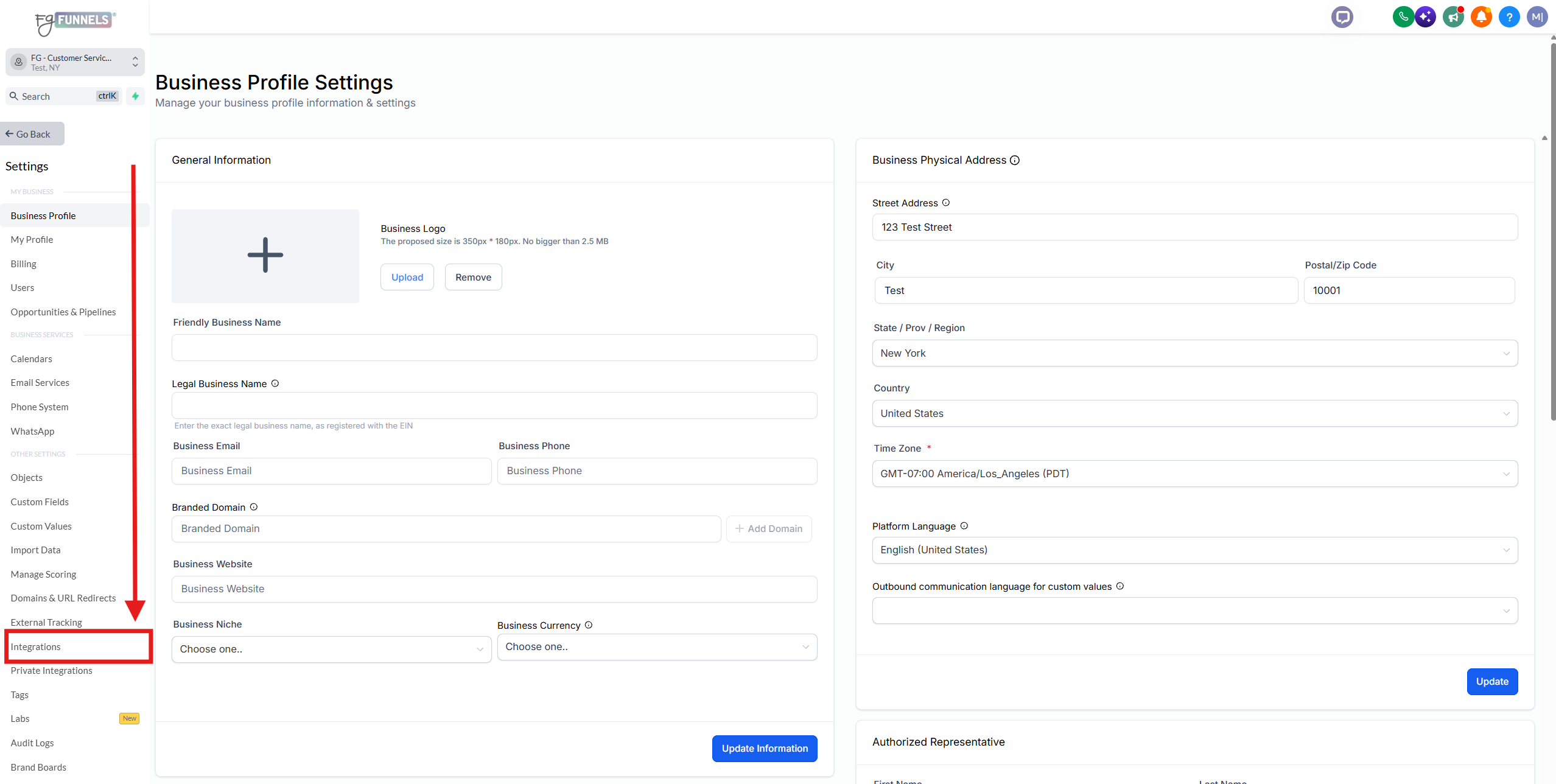
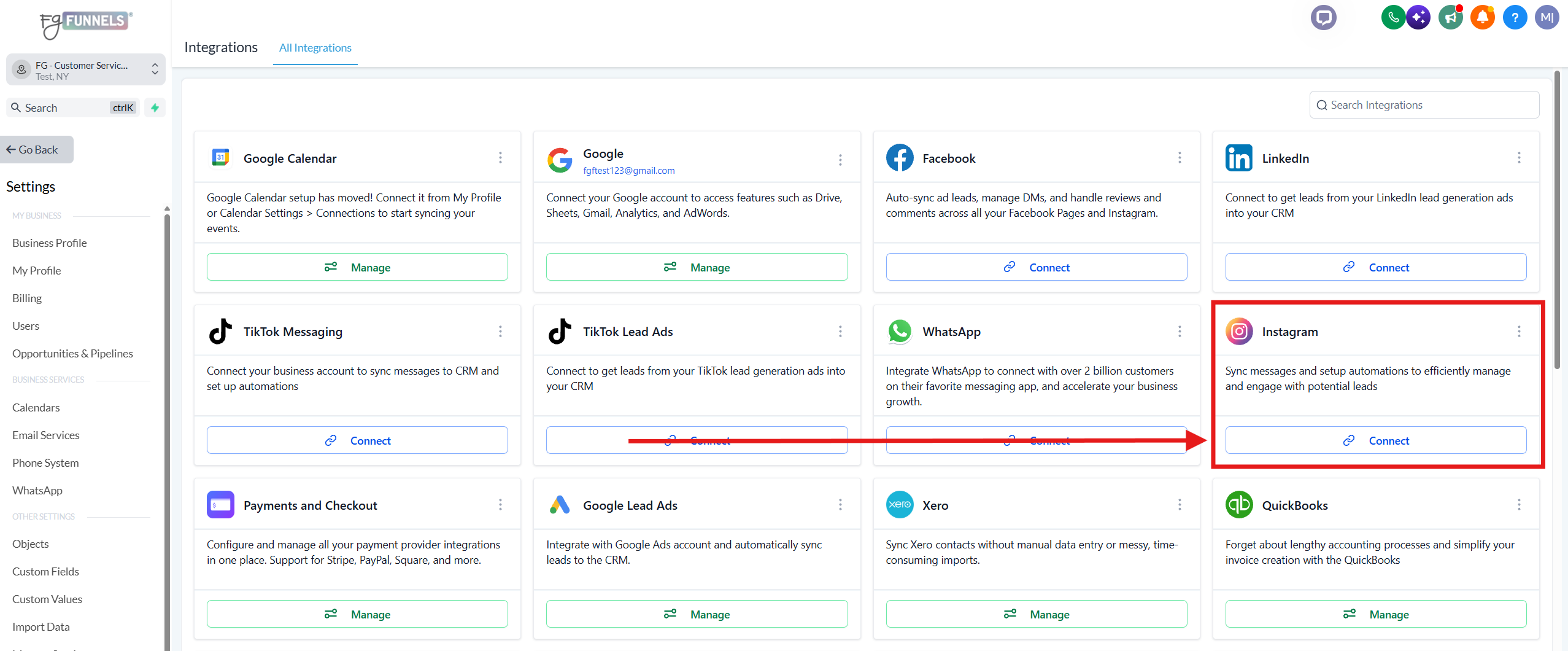
- Locate the Instagram integration card.
- Click Connect.
- Complete the Instagram OAuth authorization flow.
- ⚠️ Grant all requested permissions. Declining any permission may prevent DMs from syncing or automations from firing.
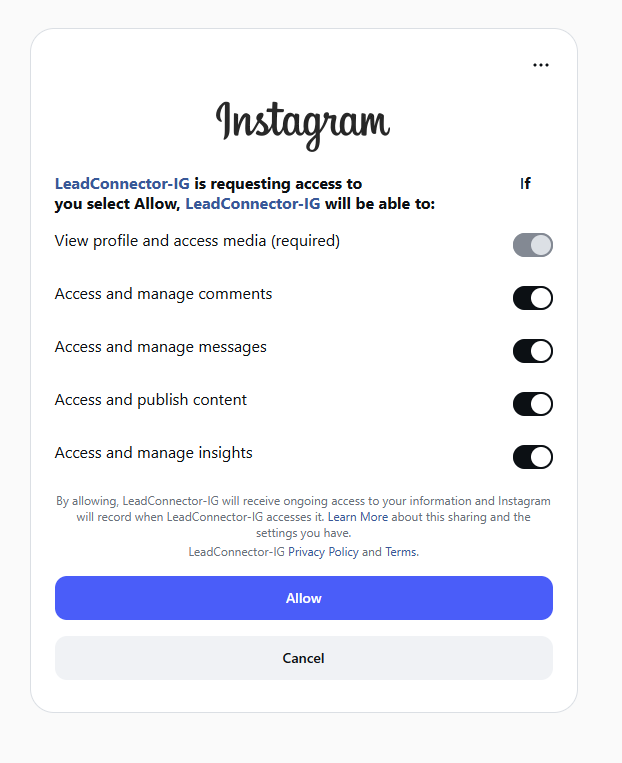
- The top permission will appear greyed out. That's normal, since it's required and can't be toggled. Just make sure the other four are switched on before clicking Allow.
- Once connected, toggle ON the Enable Messaging + Automation setting for the account you want to activate.

2. If Instagram Was Already Connected Through a Facebook Page
If your Instagram account was previously connected via a Facebook Page, you can manage or switch the connection from the Instagram integration settings.
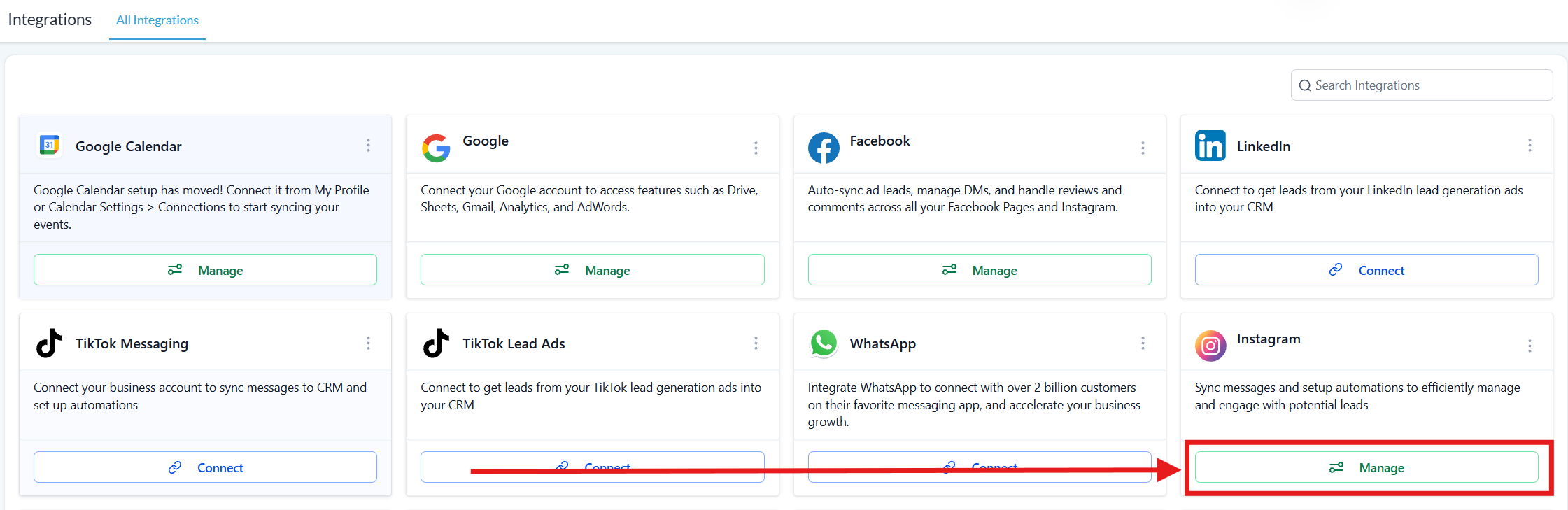
- Navigate to Settings → Integrations.
- Locate the Instagram integration card.
- Click Manage.
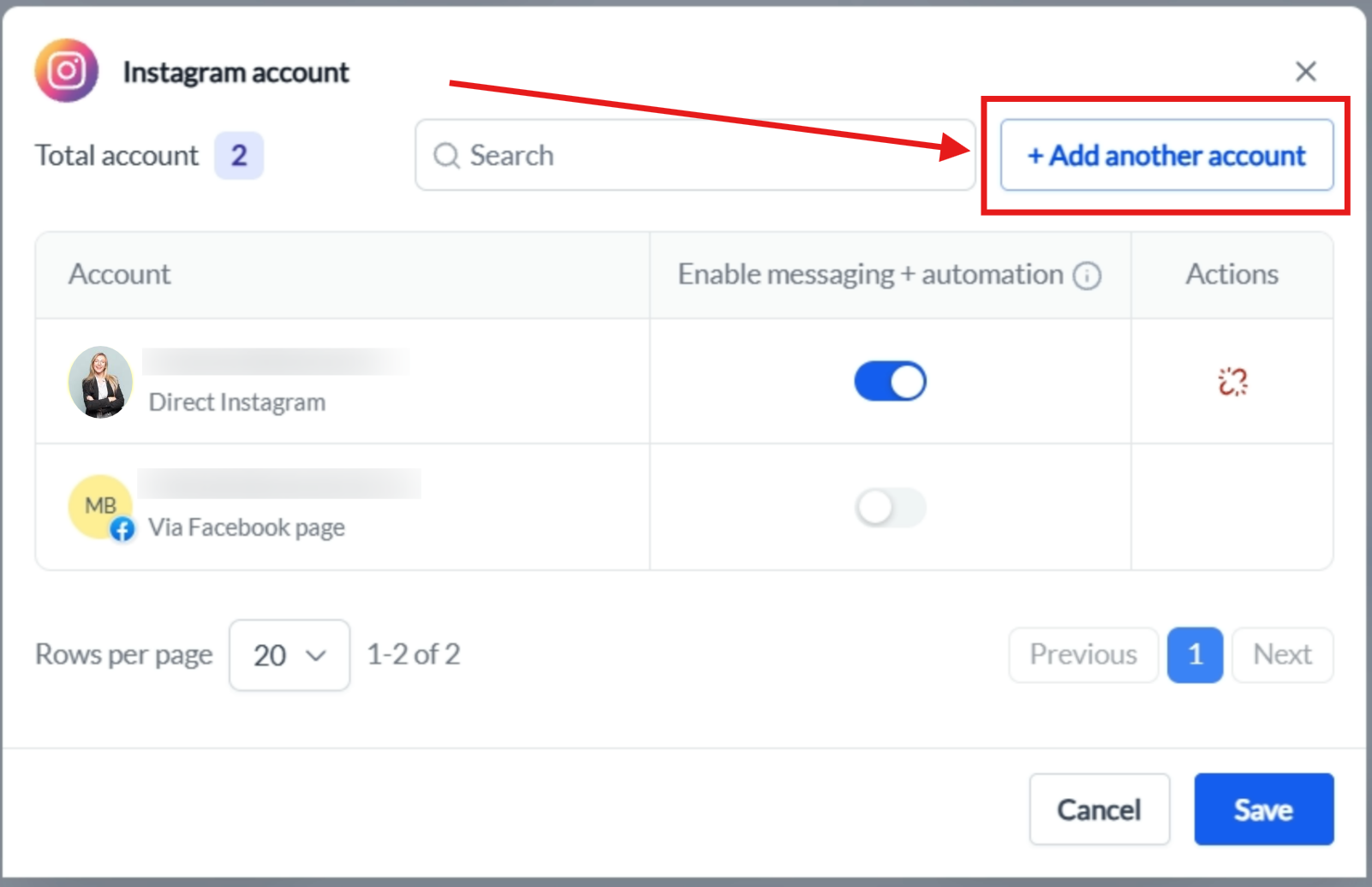
- In the modal, you'll see:
- All Instagram accounts connected through Facebook Pages
- The current messaging status for each account, shown as toggles
- Click Add Another Account to connect an Instagram account directly.
- Complete the Instagram OAuth authorization flow.
- ⚠️ Grant all requested permissions. Declining any permission may prevent DMs from syncing or automations from firing.
- The top permission will appear greyed out. That's normal, since it's required and can't be toggled. Just make sure the other four are switched on before clicking Allow.
- Toggle ON the Enable Messaging + Automation setting for the account you want to activate.
3. Switching from a Facebook-Based Connection to a Direct Connection
If the same Instagram account is connected both through a Facebook Page and directly via Instagram OAuth, both connections will appear in the Manage modal.
ℹ️ Note: Only one connection can have Enable Messaging + Automation turned on at a time. Enabling the toggle on the direct connection automatically disables it on the Facebook Page-based connection.

- Your existing setup carries over automatically. The following continue working without interruption and transition to the direct connection:
- Workflows
- Automations
- Conversation routing
- Messaging functionality
No workflow reconfiguration is required.
What Happens After You Connect
Once Enable Messaging + Automation is turned on, Instagram DMs begin syncing into the Conversations section of your FG Funnels account and also appear on the associated contact record.
ℹ️ Heads up — syncing starts from the moment you enable the toggle. Conversations that happened before you turned on Enable Messaging + Automation won't be pulled in retroactively. You'll still find that earlier history in the Instagram app or Meta Business Suite, but inside FG Funnels you'll only see messages received from this point forward.
FAQ
1) Messages aren't syncing into Conversations
Confirm the Enable Messaging + Automation toggle is ON for the correct connection, and that all permissions were granted during OAuth. If you're unsure, disconnect and reconnect the account.
2) My Instagram account doesn't appear after connecting
Verify the account is a Professional (Business or Creator) account and that you authorized with the correct Instagram login.
3) The toggle won't turn on
The same account may already have messaging enabled on another connection. Toggle it off there first.
4) How do I disconnect an account?
Go to Settings → Integrations → Instagram → Manage and remove the connection from the list.