
How to Edit Your Brand Board Design Kit in FG Funnels
Your Brand Board keeps your logos, brand colors, fonts, and typography styles together in one place. This guide shows you how to edit your Design Kit, customize your typography styles, and save your changes so your brand looks consistent everywhere you build.
In this article
What Is a Design Kit?
A Design Kit is the set of branding elements saved in a Brand Board: your logos, brand colors, fonts, and predefined typography styles.
The brand colors and fonts you save show up in supported FG Funnels builders, so your brand is always within reach while you create.
Note: Updating your Design Kit doesn't change pages or emails you've already built. Selecting predefined Typography Styles directly inside the builders is planned for a future update.
Good to know: Only your default Brand Board fills the brand color pickers in the builders. If your colors aren't showing up, check that the right board is set as default and that you've saved your changes.
Understanding Typography Styles
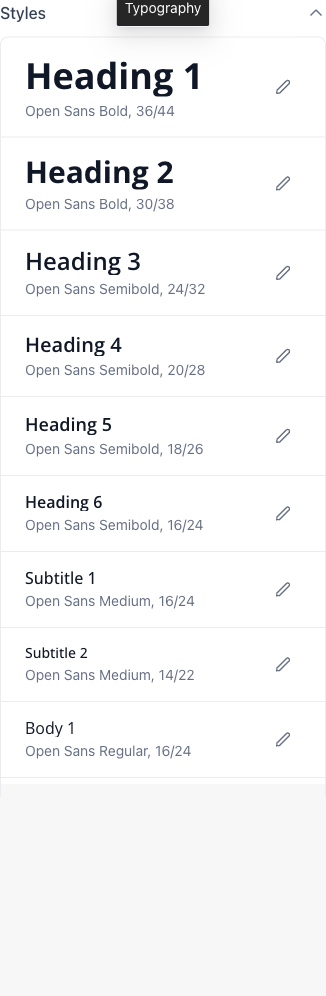
Your Design Kit includes twelve predefined typography styles. Each one has its own font, weight, size, and line height settings.
| Group | Styles |
|---|---|
| Headings | Heading 1, Heading 2, Heading 3, Heading 4, Heading 5, Heading 6 |
| Subtitles | Subtitle 1, Subtitle 2 |
| Body text | Body 1, Body 2 |
| Small text | Caption, Overline |
Every style starts with default settings, and you can edit each one independently. Each style uses one of the fonts saved in your Design Kit.
Note: Setting up a style doesn't apply it to content you've already created.
How to Edit Your Design Kit
1. Open your Brand Board
- In your sub-account, go to Marketing > Brand Boards.
- On the Design Kit tab, find the Brand Board you want to update and click its name to open it.
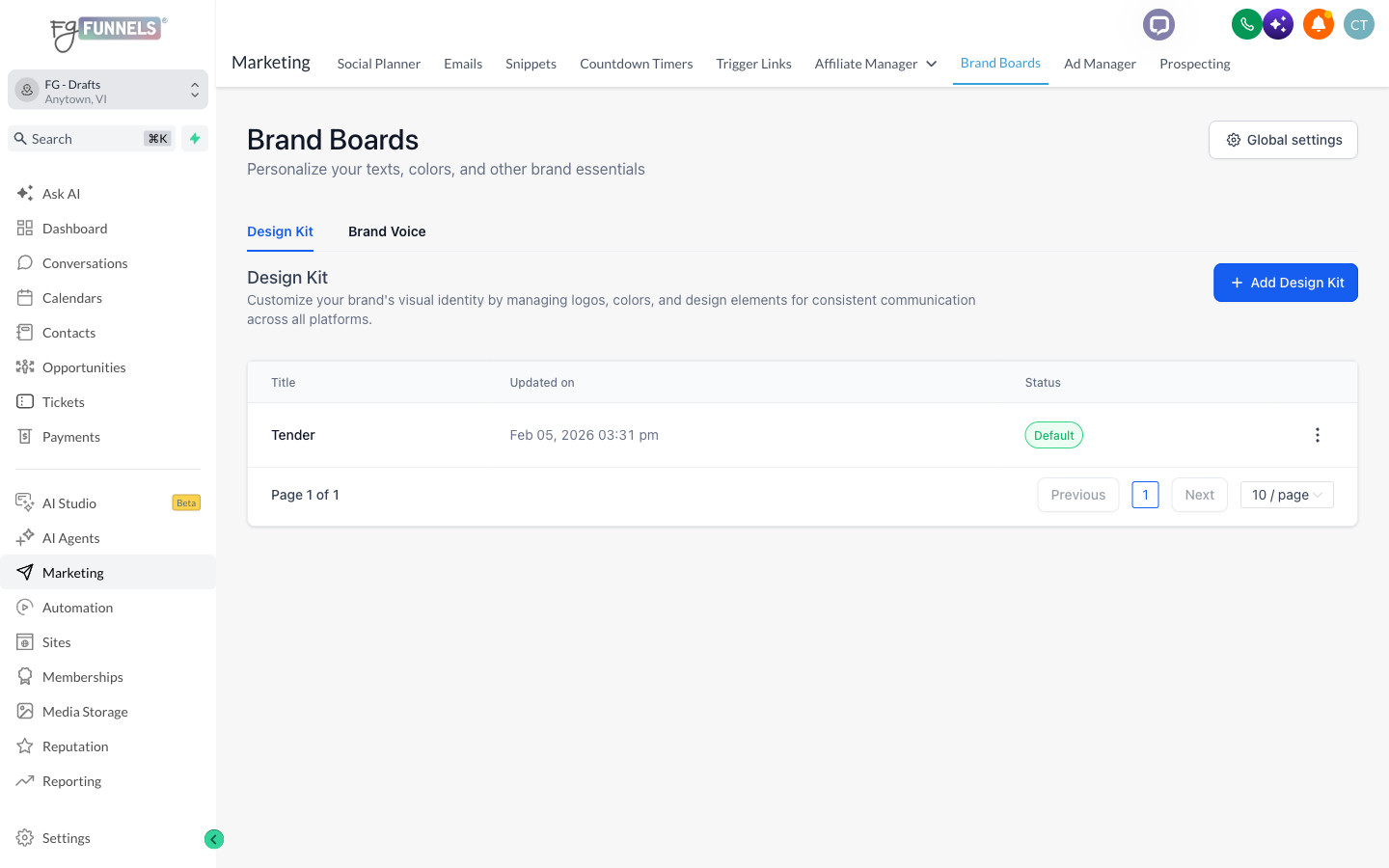
The Design Kit editor has three icon buttons on the left: Colors, Typography, and Logos. Click one to open that panel.
2. Update your logos
- Click the Logos icon on the left.
- Find the logo you want to replace.
- Click the Edit (pencil) icon next to Logo 1 or Logo 2.
- Choose an existing file or upload a new logo. Supported file types are SVG, PNG, JPG, and GIF, up to 10 MB.
Note: Replacing a logo doesn't delete the original file. To remove it for good, delete it from your Media Library.
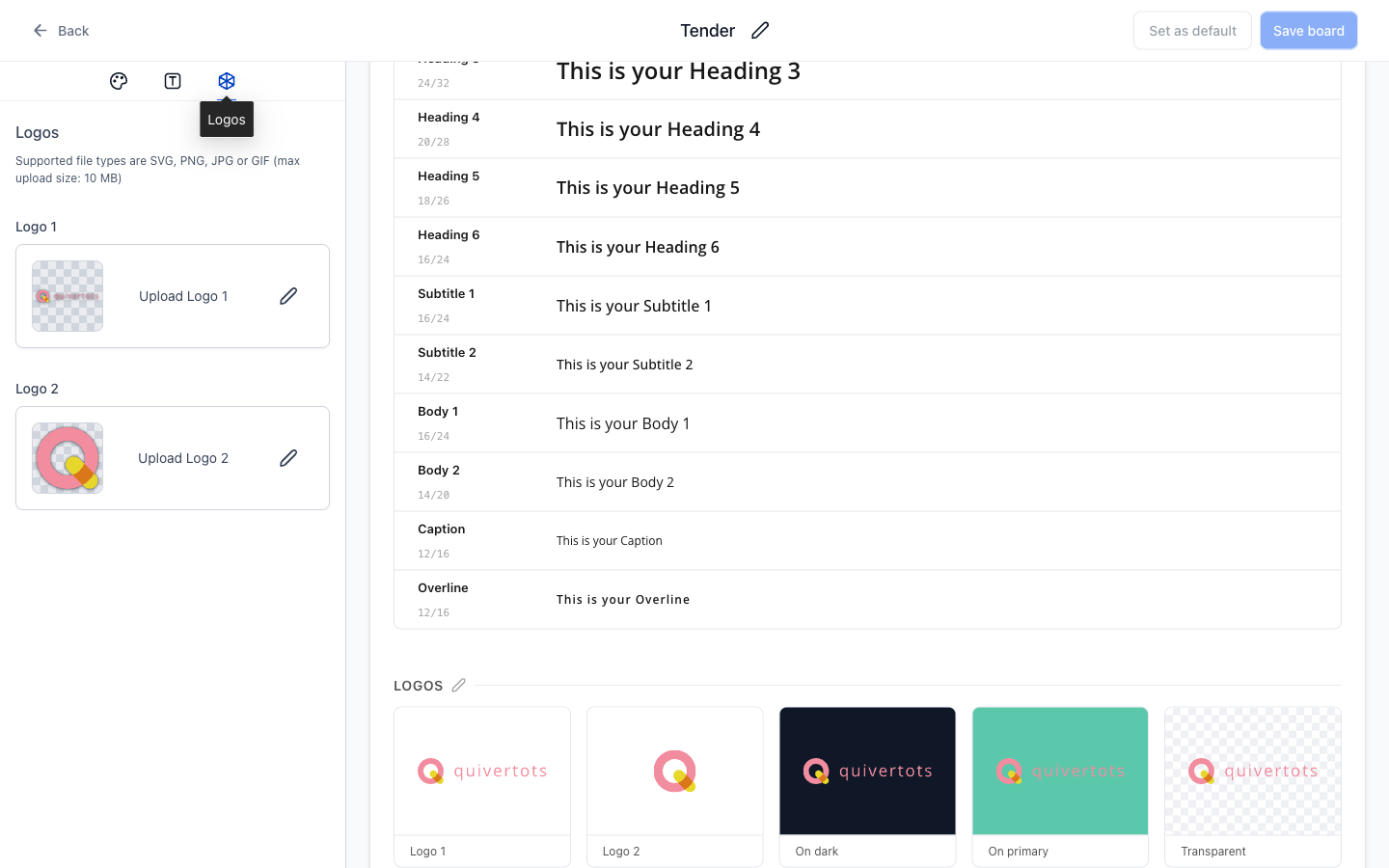
3. Manage your brand colors
- Click the Colors icon on the left.
- Choose what you'd like to do:
- Add a color: Click Add.
- Change a color: Click the color square next to a color and pick a new one.
- Rename a color: Click the color name field and type a new name.
- Remove a color: Click the trash icon next to the color.
Limits: You can save up to 10 colors, and at least 2 are required.
Note: Changing your Brand Board colors doesn't update colors already used on existing pages or emails. Global Custom Colors sync separately.
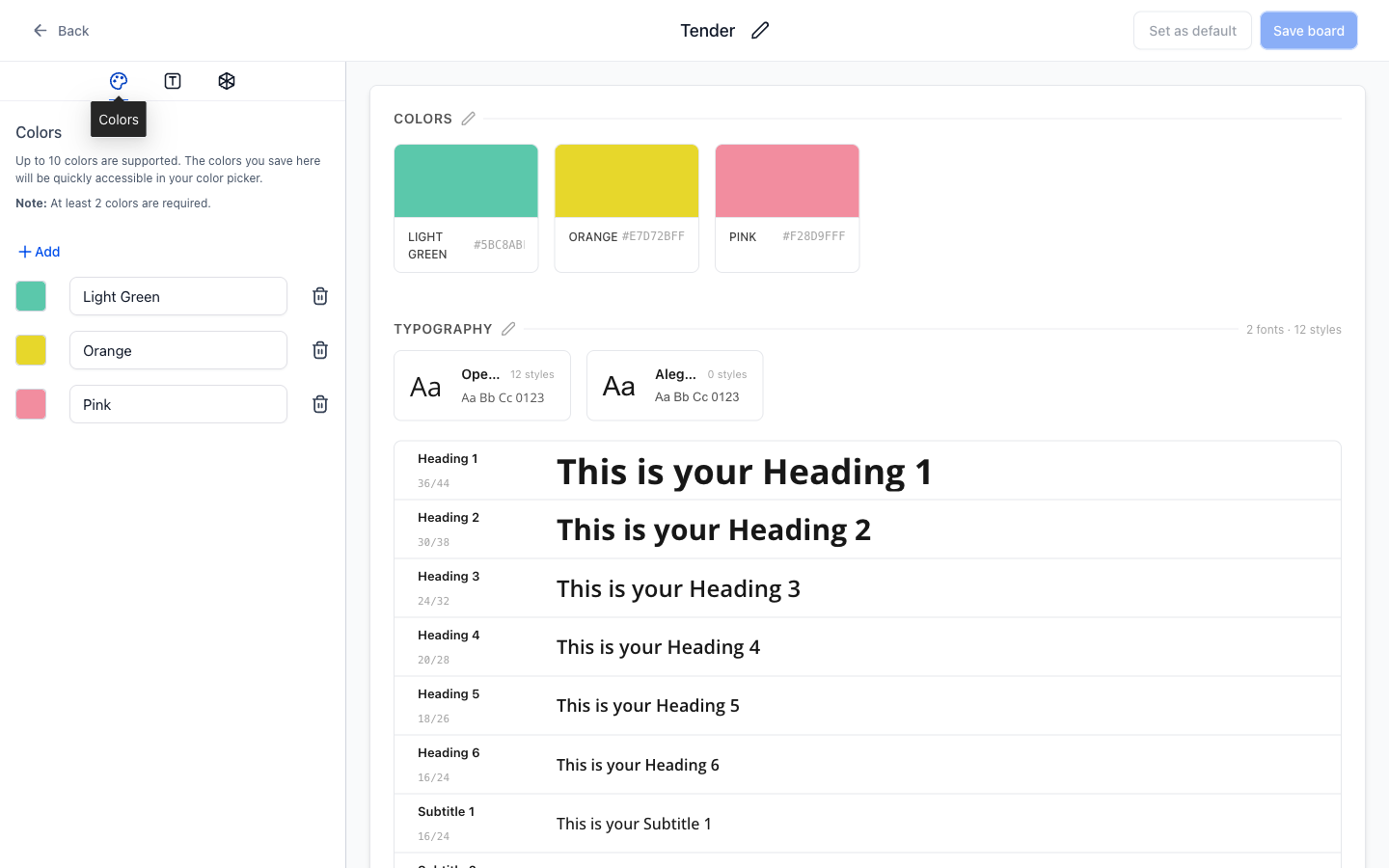
4. Add or change your fonts
- Click the Typography icon on the left.
- In the Fonts section, choose what you'd like to do:
- Add a font: Click Add and select a font.
- Change a font: Use the font dropdown to choose a different font.
- Remove a font: Click the trash icon next to the font.
Limits: Your Design Kit can hold up to five fonts, and at least one font must remain.
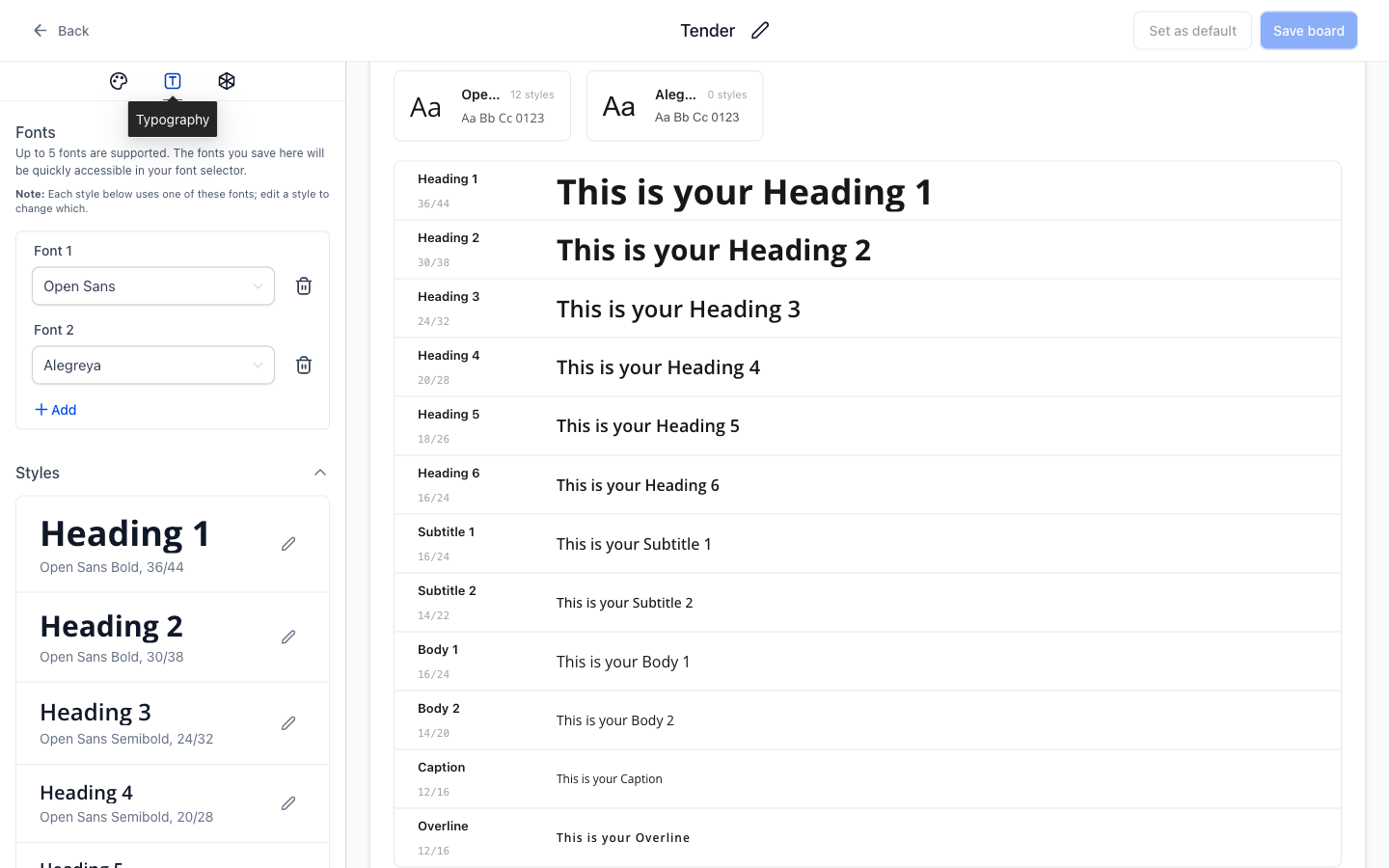
5. Customize your typography styles
- In the Typography panel, scroll to the Styles section.
- Review the twelve predefined styles. Each one shows its current font, weight, and size/line height (for example, Open Sans Bold, 36/44).
- Find the style you want to edit.
- Click the Edit icon next to it.
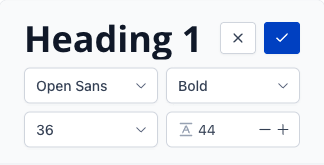
- Adjust the Font, Weight, Size, and Line Height.
- Click the checkmark to apply your changes (or the X to cancel).
- Repeat for any other styles you want to change.
Important: You can set up your styles in Brand Boards now. Applying them directly inside the builders is planned for a future update.
6. Save your changes
- Review your Design Kit settings.
- Click Save board in the upper-right corner.
Tip: Want this board to fill your builder color pickers? Click Set as default next to Save board.
Frequently Asked Questions
Do Design Kit changes automatically update my existing pages or emails?
No. Your existing content stays as it is. The updated assets are available the next time you edit in a supported builder.
Can I customize each Typography Style separately?
Yes. All twelve styles have their own font, weight, size, and line height settings.
Can I apply Typography Styles directly in the Email, Funnel, or Website Builder?
Not yet. That's planned for a future update. Your saved fonts and colors are already available in supported builders.
Why aren't my Brand Board colors showing in a builder?
Only the default Brand Board fills the brand color pickers. Make sure the correct board is set as default and that your changes are saved.
How many colors and fonts can I save?
Up to 10 colors (at least 2 required) and up to 5 fonts (at least 1 required).
Does replacing a logo delete the original from the Media Library?
No. Delete the old file from your Media Library if you want it gone.
Will updating my Brand Board affect Payment Links?
If your Payment Links use Brand Board theming, your updated brand colors can carry over to them.