How to Approve a Request to Join Your Community Group
Note: Your screen may look different from this article if your account has the new FG Funnels menu design turned on. Learn why and how to switch back.
When your community group is set to Private, people have to request to join, and you approve them. This article shows how you'll be notified and how to approve a request.
How You're Notified
When someone requests to join a private group, you'll get a notification in two places:
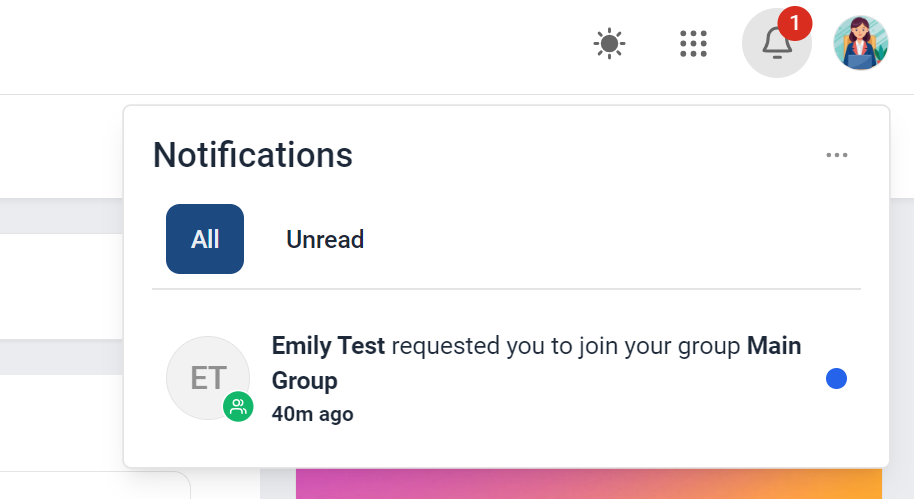
- In the client portal: a notification that the person has requested to join your group.
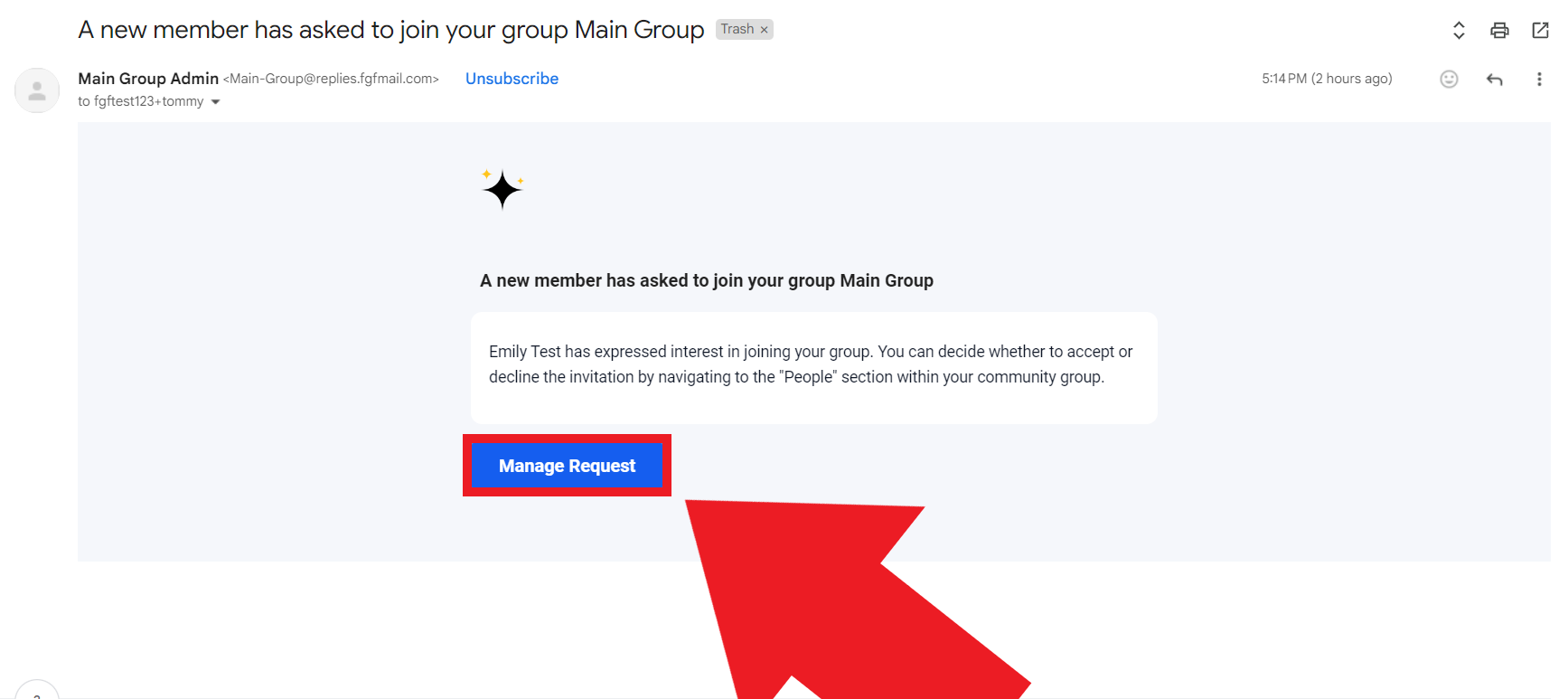
- By email: an email letting you know a new member has asked to join your group, with a button to manage the request. You can also log in to your client portal to approve it.
Approve a Request to Join
1. Open your community group
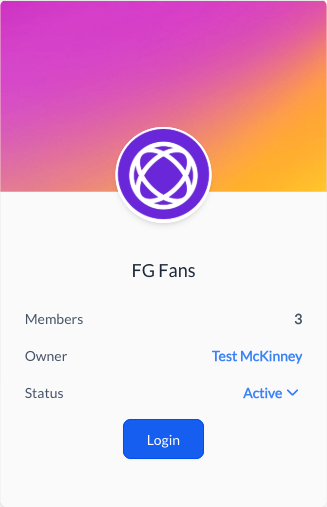
From the left-hand menu, go to Memberships. Hover over Communities at the top and click Groups. Find the group you want to manage and click its Login button.
If you're prompted to set up a password for the client portal, follow the on-screen instructions.
2. Find the request
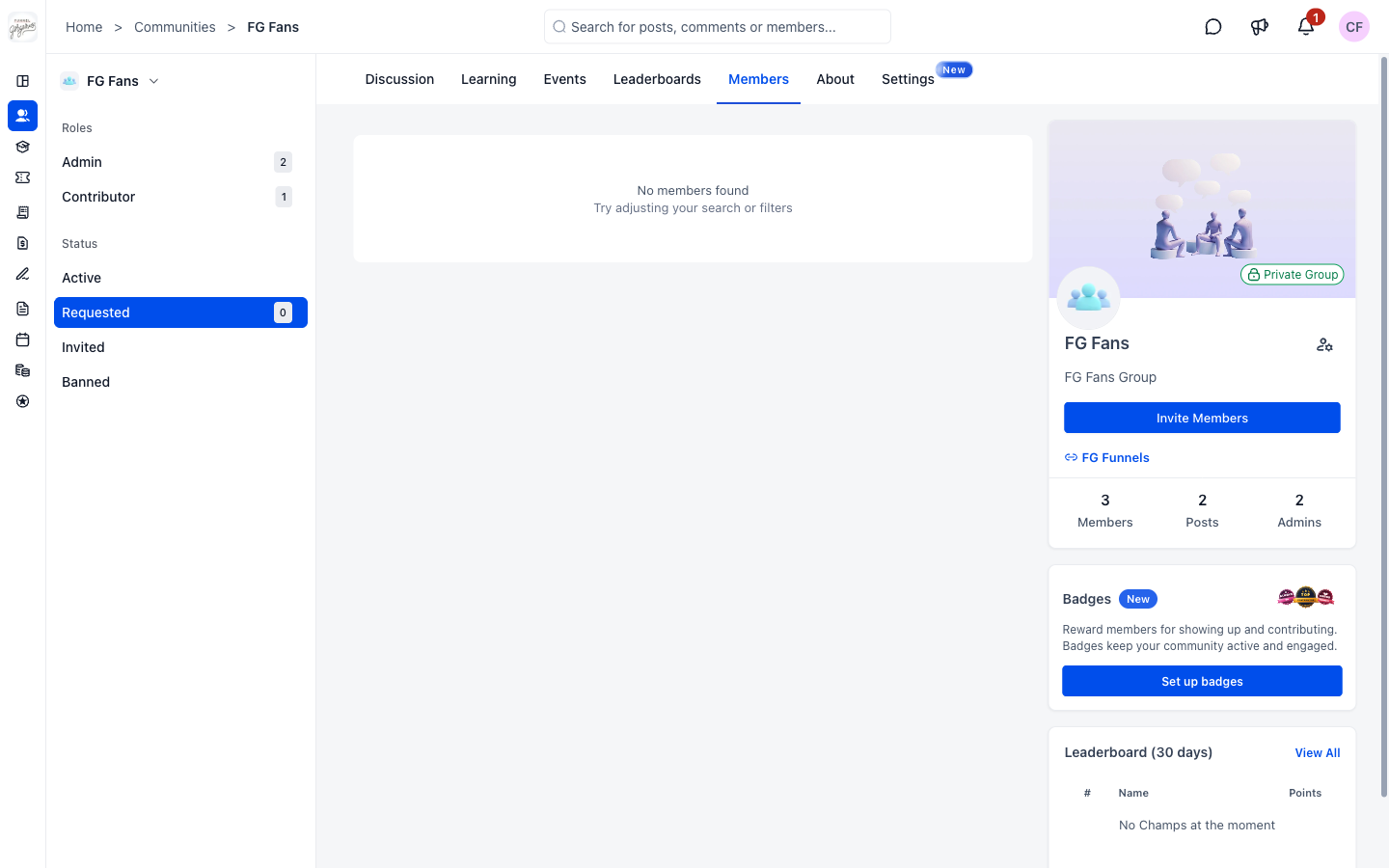
Once you're logged in as an admin, click the Members tab at the top. Under Status, click Requested to see everyone waiting to join.
3. Set their role (if needed)
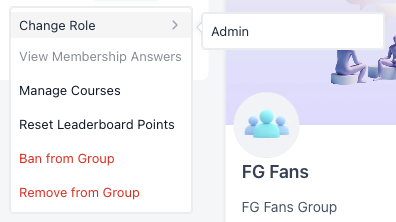
To change the person's role, click the ⋮ (three dots) to the right of their name and choose Change Role (for example, Admin or Contributor). Make sure the person is added as a Contributor.
4. Approve the request
In the Requested list, click Approve to finalize the request.
What Happens After You Approve
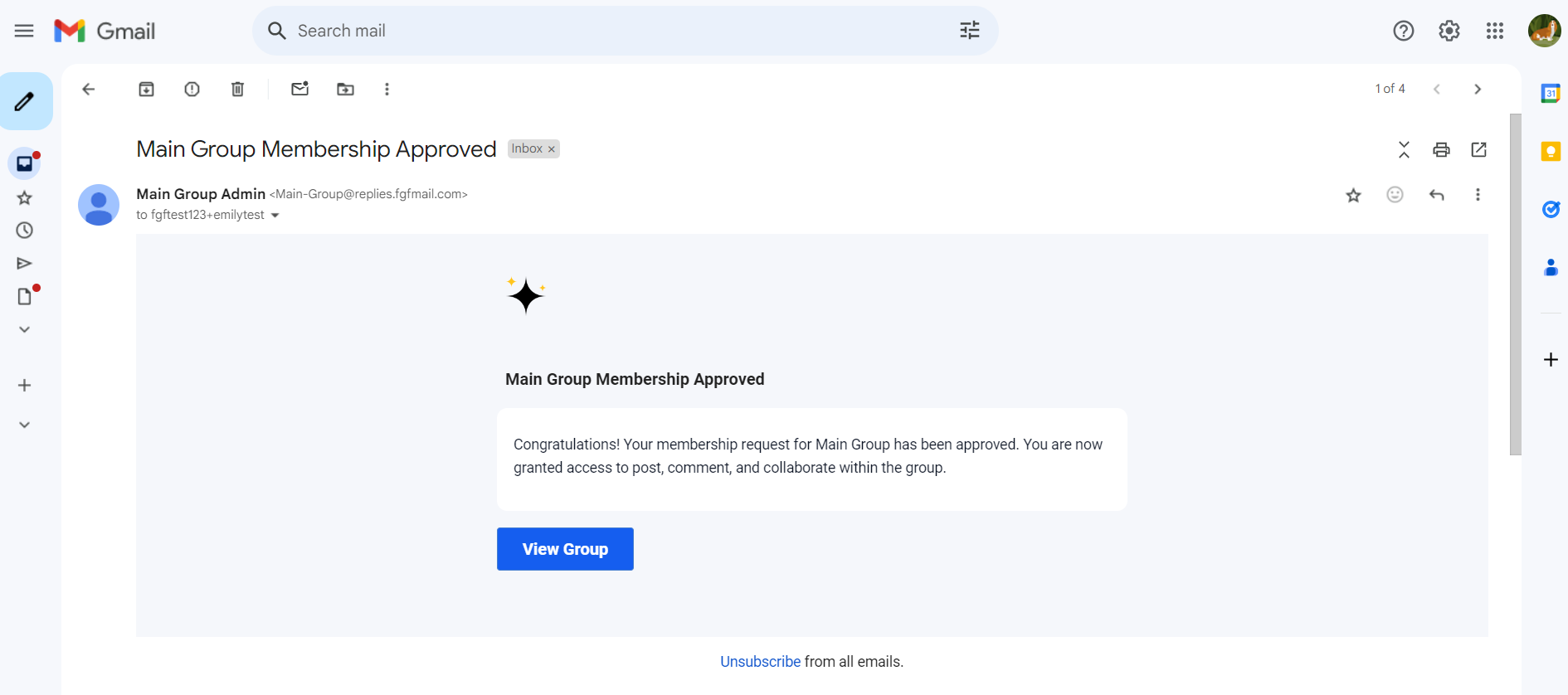
The person receives an email confirming they've been approved to join the group. When they click View Group in that email, they're automatically logged in to your community group.