How to Change the Owner of a Community Group
Note: Your screen may look different from this article if your account has the new FG Funnels menu design turned on. Learn why and how to switch back.
You can transfer ownership of a community group from yourself (the current owner) to another team member or client. Only the current owner can do this.
Before You Transfer
- Get the new owner's email address. It must be the email they currently use to log in to the community group.
- Double-check the email. Make sure you paste the correct address so ownership doesn't go to the wrong person.
- Let the new owner know. Tell them about the transfer ahead of time, along with any responsibilities that come with it.
Transfer Ownership of a Group
1. Copy the new owner's email address
Copy the email address of the person who will be the new owner. This must be the email they currently use to log in to the community group.
2. Find the group
Go to Memberships > Communities and find the community group you want to transfer.
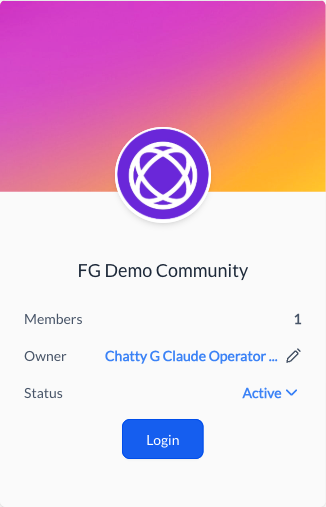
3. Click the pencil icon next to your name
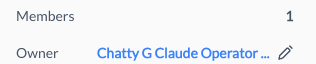
If you're the current owner, you'll see a pencil icon next to your name on the group. Click it.
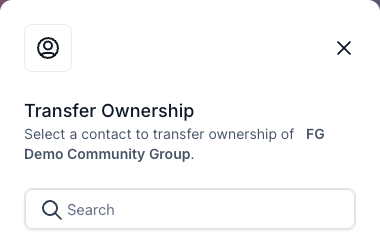
4. Search for the new owner
The Transfer Ownership pop-up opens. Paste the new owner's email address into the Search field. You'll also see a list of contacts below the search field that you can scroll through.
5. Confirm and transfer
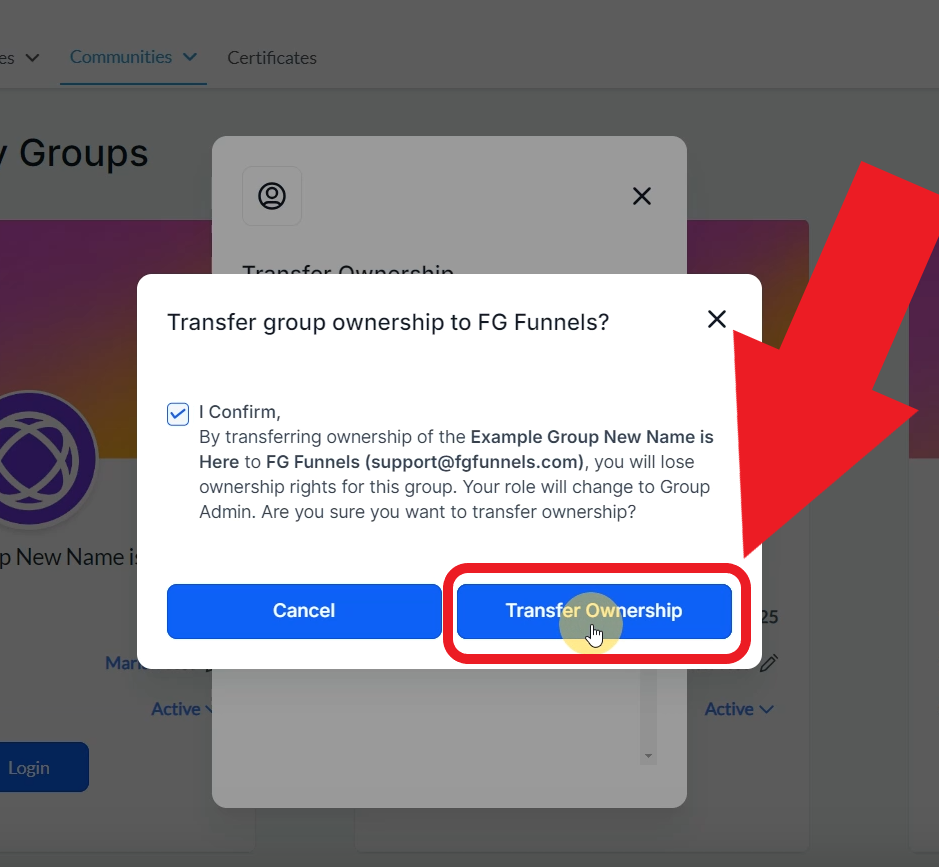
A confirmation pop-up appears. Review it, check the I Confirm box, then click Transfer Ownership.
What Happens After the Transfer
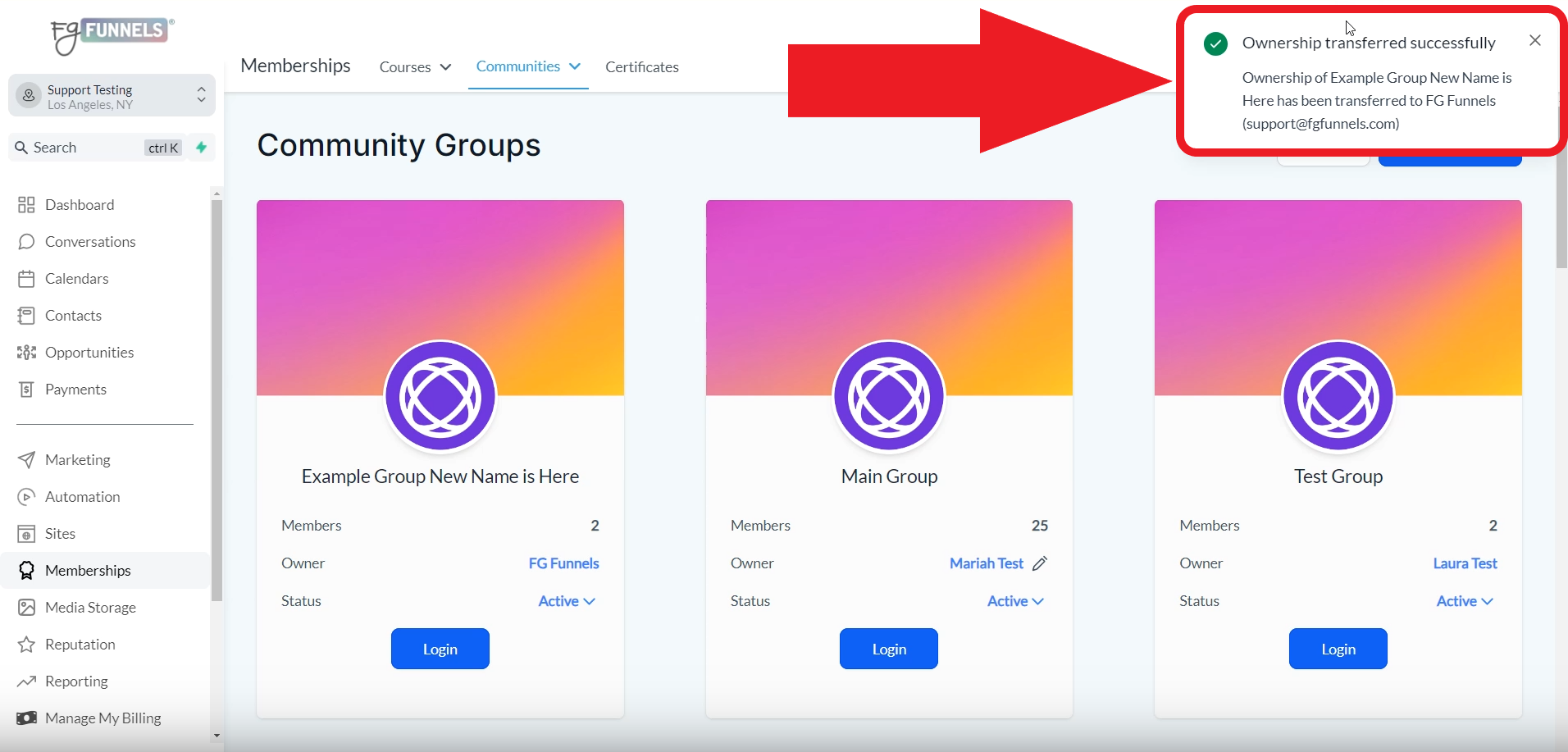
A message confirms that ownership was transferred successfully to the new owner. You'll lose ownership rights, but you'll stay in the community group as an Admin.