
How to Add Channel Managers in a Private Channel within Your Community Group
Note: Your screen may look different from this article if your account has the new FG Funnels menu design turned on. Learn why and how to switch back.
Channel managers help you run a private channel inside your community group. They can add and remove members, and add or remove other channel managers. This article shows how to manage both.
In this article
Who Can Add Channel Managers
To add new channel managers, you must be one of the following:
- The creator of the private channel.
- The assigned owner of the community group.
- An existing channel manager in that specific private channel.
Channel managers can:
- Add or remove members from the private channel.
- Add new channel managers and remove existing ones.
Add a Channel Manager
1. Open the channel's settings
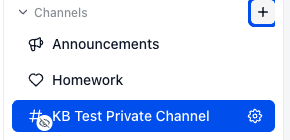
Hover over the private channel in your channel list and click the cog icon next to it.
2. Edit who manages the channel
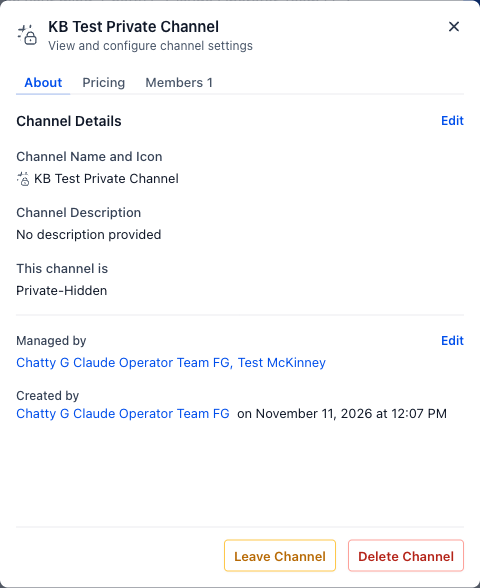
In the About tab, find the Managed by section and click Edit.
3. Click Add Managers
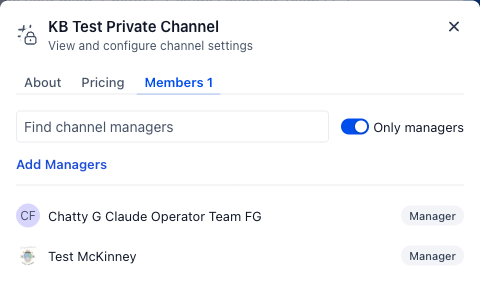
The Members tab opens, showing your current managers. Click Add Managers.
4. Choose who to add
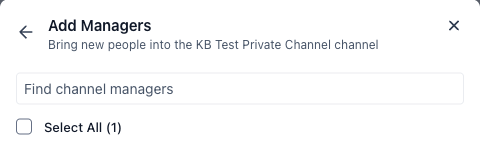
Search for the person by name (for example, Emily) and check the box next to their name. You can check more than one person, or use Select All.
5. Add them
Click Add.

Good to know:
- New channel managers can add other channel managers by following the same steps.
- You can make anyone a channel manager, whether or not they're a group admin.
- If the person is already logged in to the community group, they'll need to refresh the page (usually twice) to see that they're now a channel manager.
Make an Existing Member a Channel Manager
If the person is already a member of the private channel:
1. Open the channel's Members tab
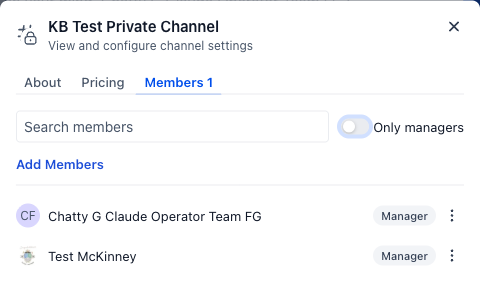
Click the cog icon next to the private channel, then open the Members tab. Make sure Only managers is switched off so you can see everyone.
2. Make them a channel manager
Click the ⋮ (three dots) to the right of the person's name, select Make Channel Manager, and confirm.
Remove a Channel Manager
1. Open the channel's Members tab
Click the cog icon next to the private channel, open the Members tab, and make sure Only managers is switched off.
2. Remove their manager role
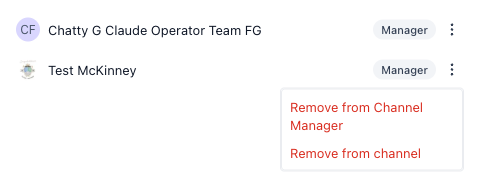
Click the ⋮ (three dots) to the right of the person's name and choose Remove from Channel Manager, then confirm.
Add Members to a Private Channel
Channel managers can add members to the private channel.
1. Open the channel's Members tab
Click the cog icon next to the private channel and open the Members tab.
2. Add members
Click Add Members, search for the person by name (for example, Jase), check the box next to their name, and click Add.
Remove a Member from a Private Channel
1. Find the member
Click the cog icon next to the private channel and open the Members tab, with Only managers switched off. Use Search members to find the person by name.
2. Remove them
Click the ⋮ (three dots) to the right of their name, select Remove from channel, and confirm.