
Meeting Room in FG Funnels: Overview
Meeting Room is FG Funnels' built-in video conferencing tool for client calls, team meetings, training sessions, and more. You can create reusable meeting links, start video calls instantly, collaborate with participants, and find recordings, transcripts, and AI-powered meeting summaries in one place.
In this article
What Is Meeting Room?
Meeting Room lets you host video meetings right inside FG Funnels, with no separate video conferencing platform needed. The Meeting Room section of your account has two main areas:
- My room: Create and manage your personal Meeting Room with a permanent, reusable link.
- Integrations: Connect Meeting Room with other FG Funnels features.
You can also generate a unique Meeting Room link for individual calendar appointments.
Key Features of Meeting Room
Video Meetings and Collaboration
- Instant meetings: Start a video call without scheduling an appointment.
- Guest access: When guest access is enabled, invite participants with a meeting link. They don't need an FG Funnels account.
- Screen sharing and chat: Share content and talk with participants during meetings.
- Interactive tools: Use reactions, hand raising, and different meeting layouts.
- Picture-in-Picture: Keep your meeting visible while you switch browser tabs.
Meeting Management and Security
- Host and co-host controls: Manage participants, meeting permissions, and host responsibilities.
- Waiting rooms and passcodes: Control who can get into your meetings.
- Video and audio settings: Configure cameras, microphones, backgrounds, lighting, and noise cancellation.
Recordings, Transcripts, and AI
- Meeting recordings: Record meetings and access the recordings afterward.
- Speaker-labeled transcripts: Review conversations with speaker names and timestamps.
- AI meeting assistance: Ask questions during a meeting, and generate summaries, key decisions, and action items from transcripts.
Multilingual Live Transcription
Meeting Room supports multilingual live transcription, so participants can speak different languages during a meeting. Live transcription uses Deepgram Nova-3 and includes nine individual transcription languages plus a Mixed Languages mode.
Mixed Languages mode
Mixed Languages mode automatically detects supported languages during live transcription, even when participants switch languages mid-conversation. It supports 10 languages, including these newly added ones:
- Dutch
- Hindi
- Russian
- Japanese
How to enable Mixed Languages
- Start a meeting in Meeting Room.
- When you start live transcription, select Mixed Languages as the transcription language.
- Start transcription.
Meeting Room automatically recognizes supported languages as the conversation goes.
Note: The existing live transcription flow hasn't changed. You can still choose a single preferred transcription language when you start transcription.
Meeting Room Integrations
Meeting Room works with several FG Funnels features:
| Integration | What You Can Do |
|---|---|
| Calendars | Use your permanent Meeting Room link, or generate a unique link for each appointment. |
| Communities | Host live discussions and Community Events. |
| Courses | Add live meeting sessions to courses. |
| Events | Use Meeting Room as an online event location. |
| Webinars | Connect live webinars to a Meeting Room. |
You'll find these options under Meeting Room > Integrations.
How to Set Up Your Personal Meeting Room
Create a personal room with a permanent link you can reuse for meetings.
1. Open My room
In your FG Funnels account, go to Meeting Room > My room.
2. Create the room
Click Create room.
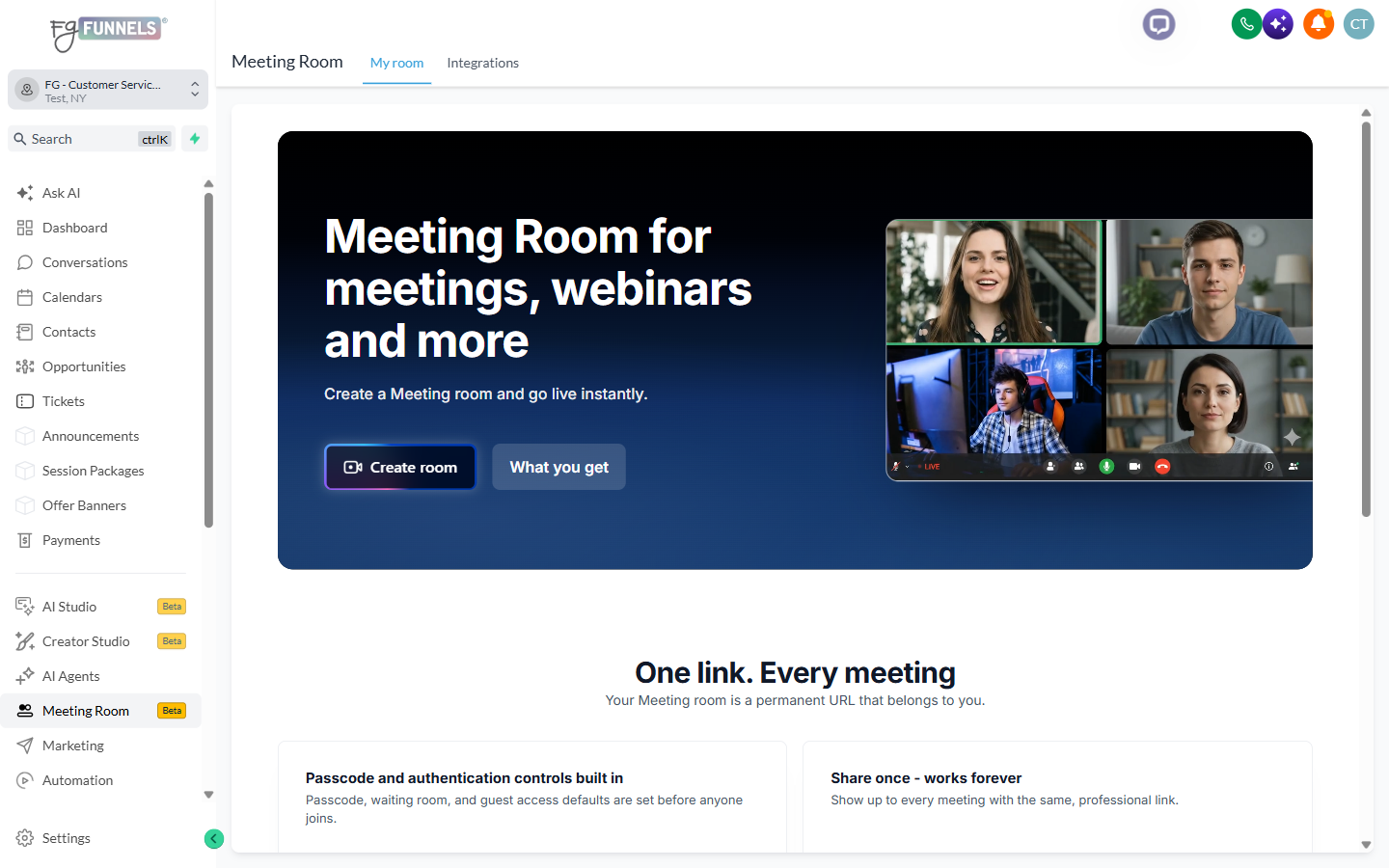
3. Add room details
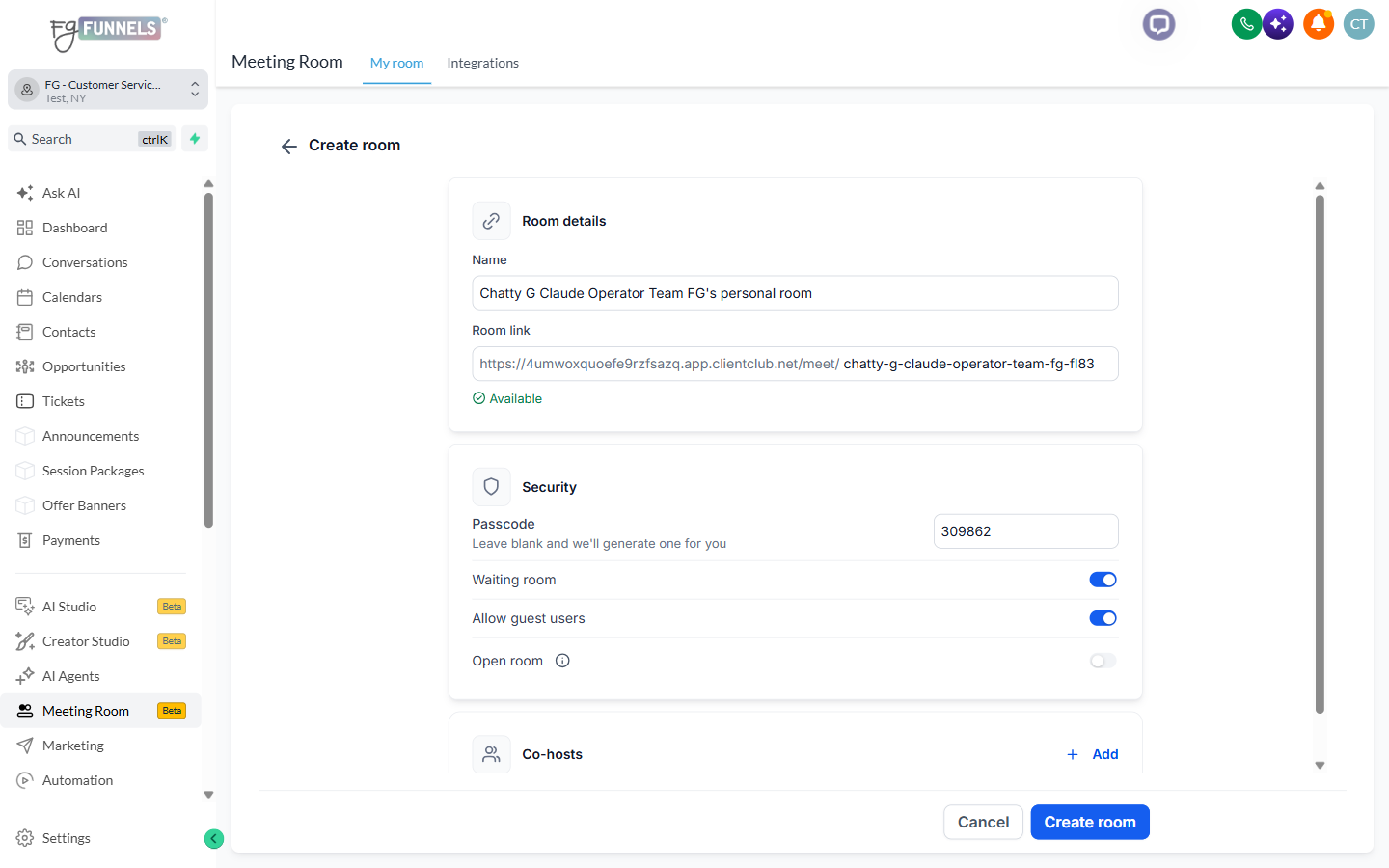
Under Room details, enter your Name and Room link.
4. Set your security options
Under Security, configure your Passcode, Waiting room, Allow guest users, and Open room settings as needed.
5. Add a co-host (optional)
If you want, add a co-host under Co-hosts.
6. Create the room
Click Create room at the bottom of the form. Your personal Meeting Room is ready to use!
How to Start an Instant Meeting
You can start a meeting anytime without scheduling an appointment.
1. Open My room
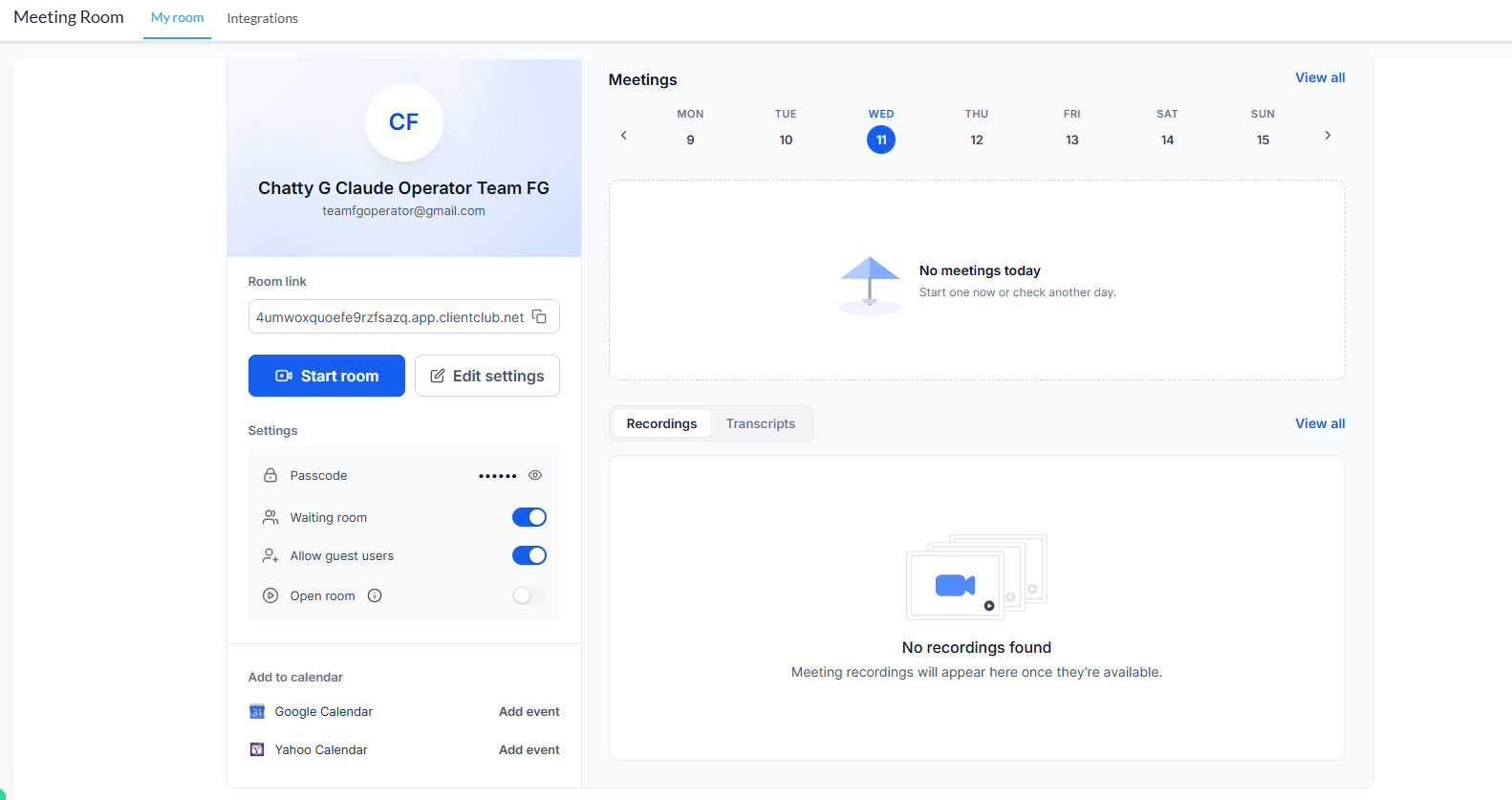
Go to Meeting Room > My room.
2. Start the room
Click Start room.
3. Check your devices
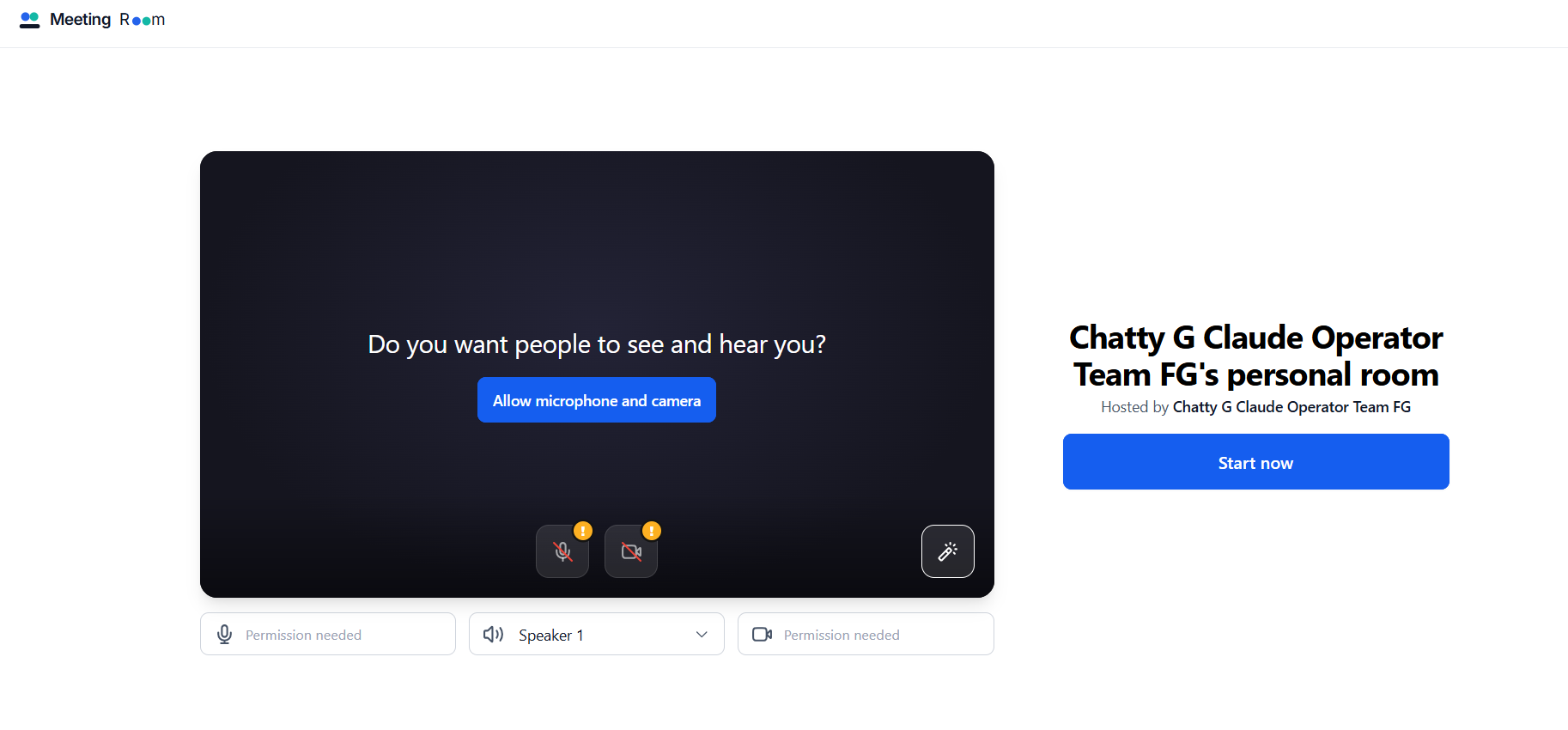
Review your microphone, speaker, and camera settings.
4. Go live
Click Start now to begin your meeting.
To invite participants, copy your Room link from My room and share it with them.
Important Notes
- Guests can join without an FG Funnels account when Allow guest users is enabled.
- Custom background uploads are available to logged-in users.
- Recording a meeting doesn't automatically create a transcript. Turn on transcription during the meeting to use transcript-based AI features.