
Notifications Inside the Client Portal
Note: Your screen may look different from this article if your account has the new FG Funnels menu design turned on. Learn why and how to switch back.
Client portal notifications bring together alerts from the client portal and its apps, like communities and courses, in one place. Members can see and manage all of their notifications from the bell icon.
In this article
How to Access Notifications
1. Click the bell icon
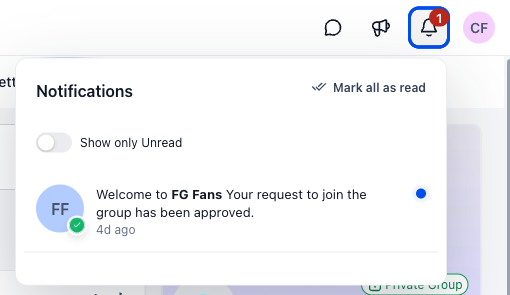
In the client portal, click the bell icon in the top-right corner.
2. Review your notifications
All notifications appear in one list, including those from courses and every community group you belong to. Click a notification to see its details or take action.
Use Show only Unread to hide notifications you've already read, or click Mark all as read to clear them.
Good to know:
- Members also get an email for in-app notifications (see the table below for exceptions).
- All notifications sent through the client portal, including communities, are charged.
Which Notifications Members Receive
| Notification | App | In-app | |
|---|---|---|---|
| Tagged in a comment | Communities | ✓ | ✓ |
| Tagged in a post | Communities | ✓ | ✓ |
| @everyone in a comment | Communities | ✓ | ✓ |
| @everyone in a post | Communities | ✓ | ✓ |
| Request to join (member) | Communities | ✓ | ✓ |
| Request to join (admin) | Communities | ✓ | ✓ |
| Membership approved | Communities | ✓ | ✓ |
| Membership declined | Communities | ✓ | ✓ |
| New course added in the Learning tab (member) | Communities | ✓ | ✓ |
| New like | Communities | ✓ | — |
| New comment | Communities | ✓ | ✓ |
| New reply on a comment | Communities | ✓ | ✓ |