
How to Use Voice Notes in Communities
Sometimes it's faster to just say it. With voice notes, you and your members can record a quick audio message right inside your community. You can add one to a post, reply in a comment, or send one in a private chat. You can also upload an audio file you already have.
In this article
What Are Voice Notes in Communities?
A voice note is a short audio message you record with the microphone button instead of typing. It's handy for quick updates, explanations, feedback, instructions, or any time talking is easier than writing. Tone and emphasis come through in a way text can't match, so conversations feel more personal.
Members listen right where the voice note was posted, so they never have to leave the conversation.
Where You Can Use Voice Notes
| Where | How you add audio | Where it works |
|---|---|---|
| Posts | Record a voice note, upload an audio file, or both | Community web view |
| Comments | Record a voice note | Community web view, when comments are turned on for the post |
| Chats (one-to-one messages) | Record a voice note | The new community experience on the web, and the Kollab app for iOS and Android |
Note: You'll only see the microphone where you can already type. If comments are turned off on a post, that post has no comment box, so there's no microphone either.
Record a Voice Note in a Post
1. Open the post composer
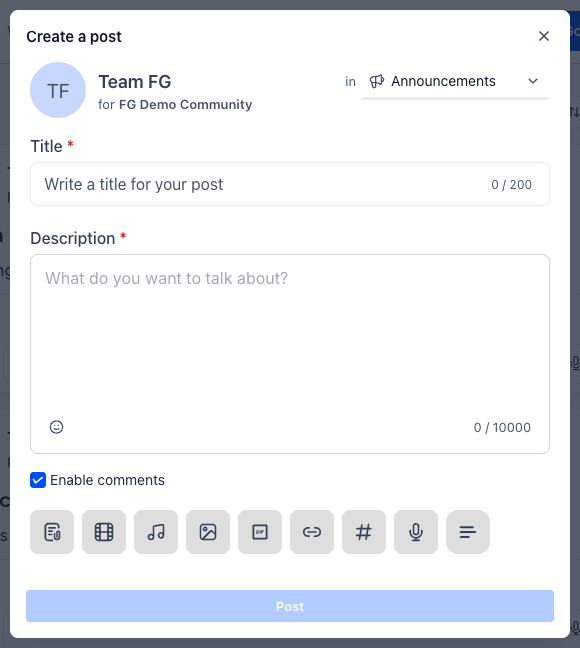
In your community, open the channel you want to post in and click What's on your mind? to open Create a post. Enter the Title and Description for your post. Both are required.
2. Select the microphone
In the row of buttons below Enable comments, click the microphone (Record a voice note).
3. Record your message
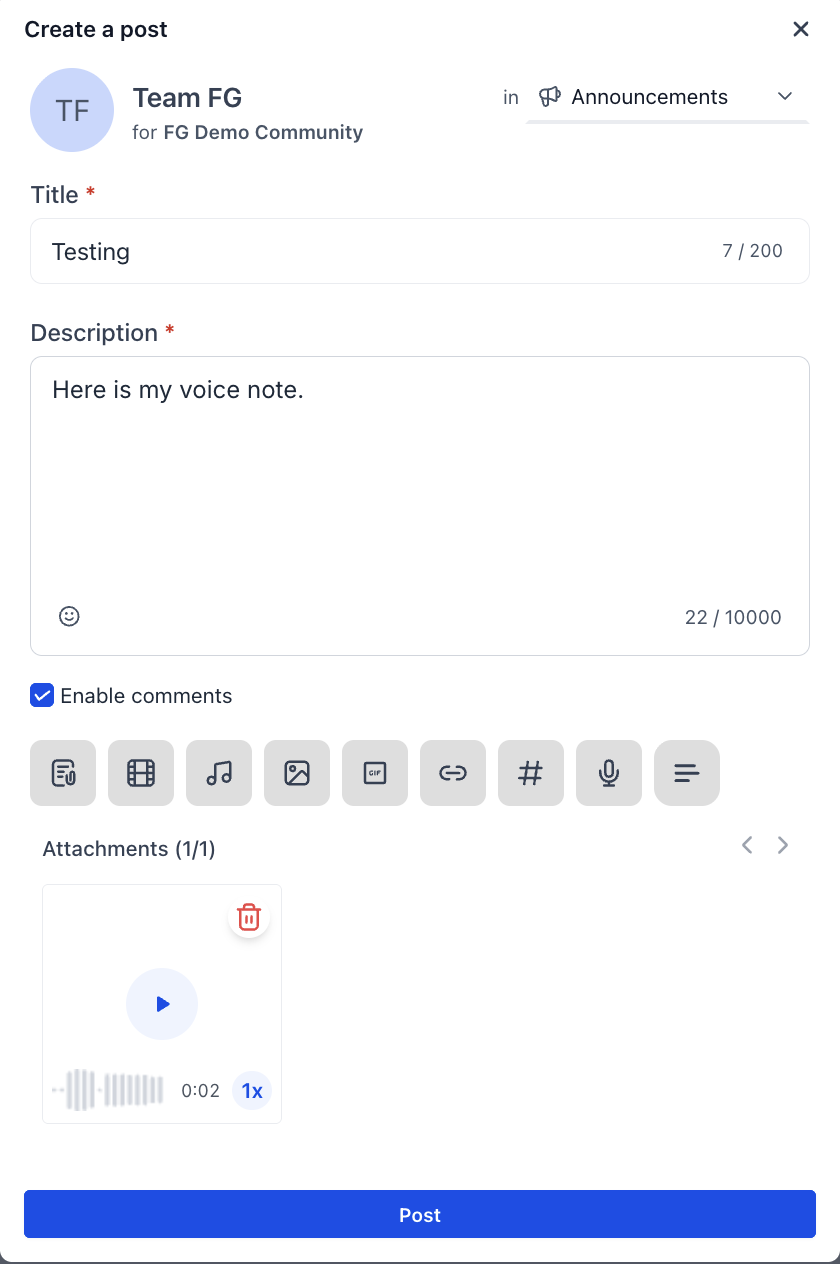
Speak your message. While you record, the composer shows an audio waveform and how long you've been recording, so you know your voice is being captured.
Manage Your Recording Before Posting
You don't have to publish a recording the moment you stop talking. While you record, you can:
- Pause — stop recording for now without ending the voice note.
- Resume — pick up recording where you paused.
- Cancel — discard the recording if you don't want to keep it.
When you finish recording, the voice note is added to your post as an audio attachment. Use the playback control to listen back before you publish, then finish the rest of your post and click Post. To start over, click the trash icon on the attachment to remove it.
Upload an Existing Audio File
Already have audio saved, like a recorded update, a lesson, or a podcast clip? Attach the file instead of recording a new one.
1. Open the audio upload
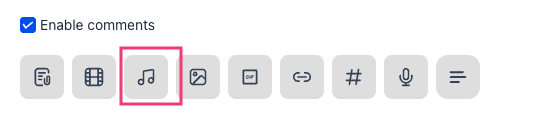
While you're creating the post, click the music note button (Upload an audio file) in the row of buttons below Enable comments.
2. Choose your audio file
Select the audio file you want to include. You can add audio alongside your post's other attachments.
3. Review the attachment
The audio appears with your other attachments in the composer. A post can include both a recorded voice note and an uploaded audio file. For example, you could record a quick intro and then share a longer prepared recording.
Add a Voice Note to a Comment
You can reply out loud, too. When comments are turned on for a post, the comment box has its own microphone.
1. Open the comment box
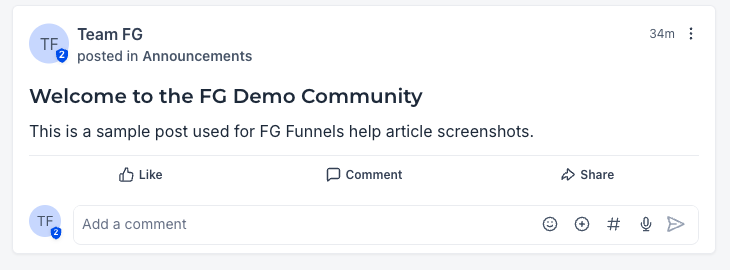
Go to the post you want to respond to and click Add a comment.
2. Select the microphone
Click the microphone (Record a voice note) in the comment box to start recording your response.
3. Send the voice note
Finish recording and send the comment. Your voice note appears in the comment thread with its own playback controls.
Send a Voice Note in a Chat
Voice notes also work in one-to-one community chats. They're a great way to talk through an idea, follow up after a discussion, or check in on someone's progress without scheduling a call. Voice notes in chats are available in the new community experience on the web and in the Kollab app for iOS and Android.
Before you start: Your browser or device has to have permission to use your microphone. If you're asked for microphone access, choose Allow.
On the web
1. Open a chat with a member
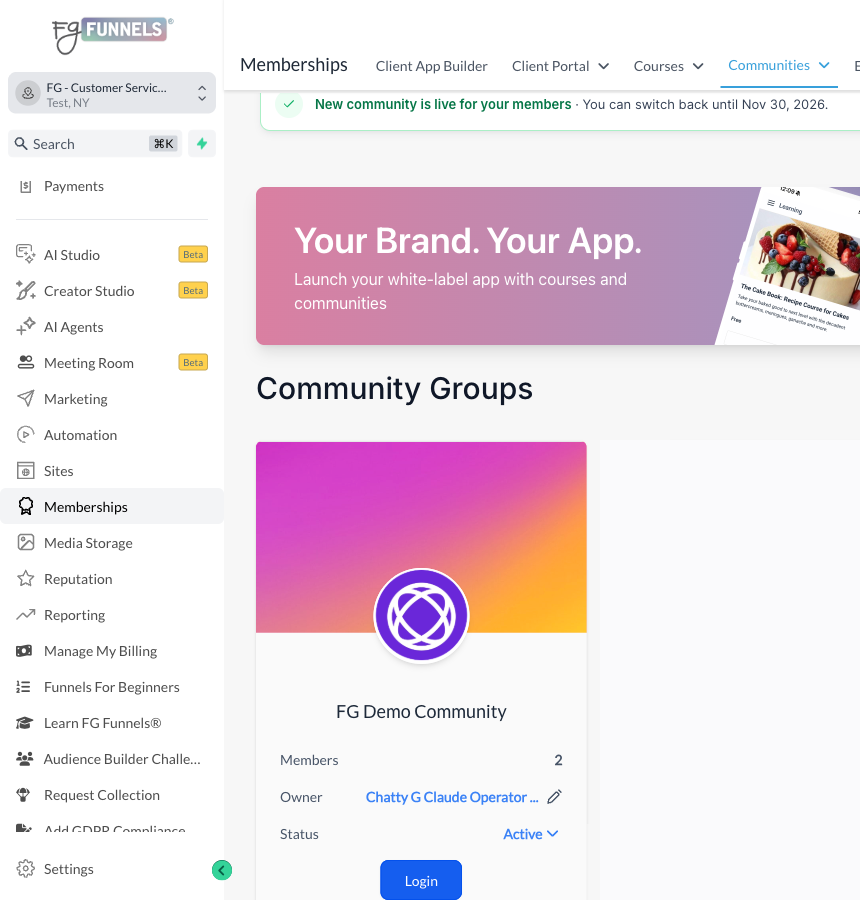
From the left-hand menu, go to Memberships, click the Communities tab, then click Login on your group.
In your group, open the Members tab and click Chat next to the member you want to message.
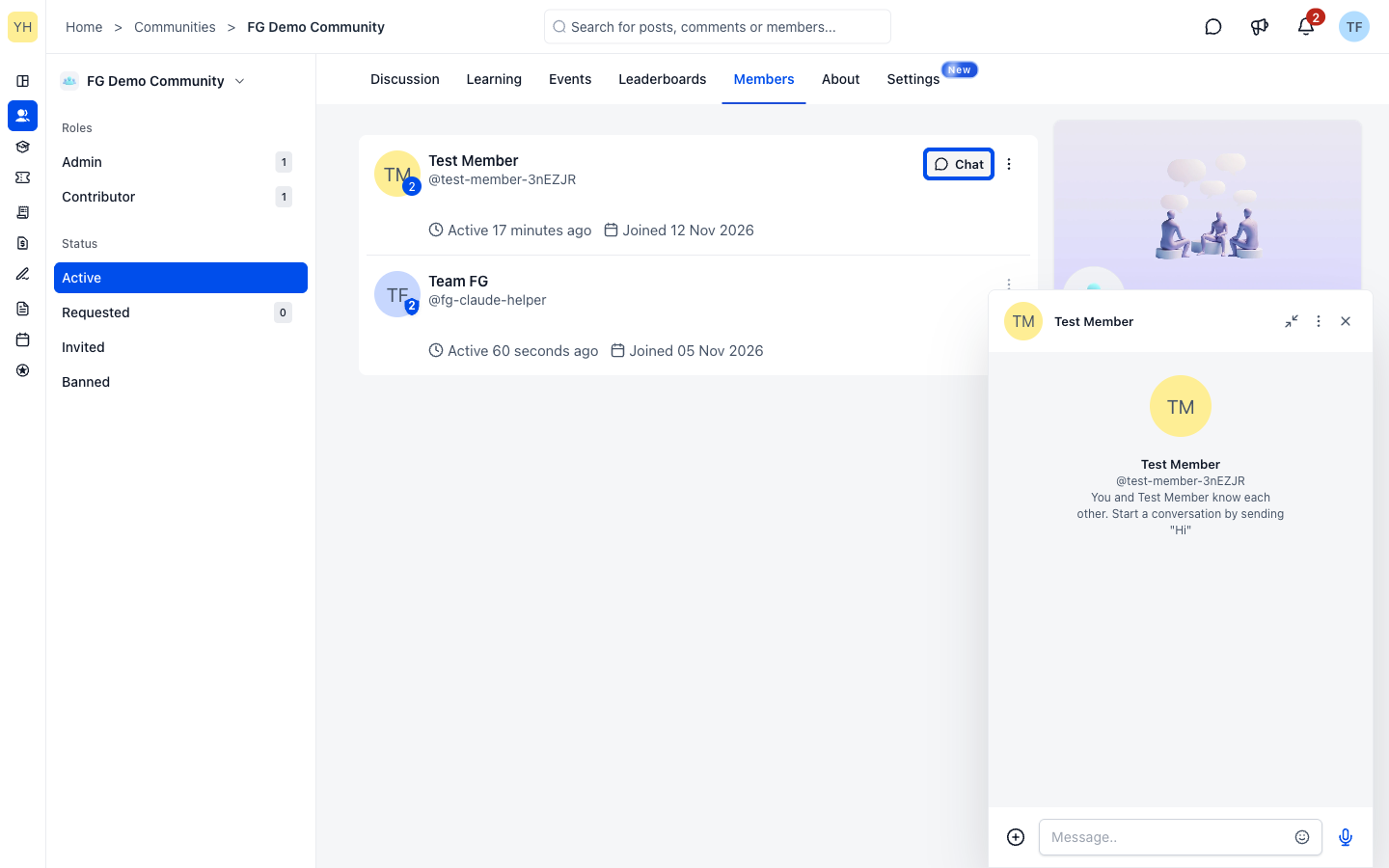
2. Start recording
At the bottom of the chat, click and hold the microphone (Record voice message) next to the message box. An animated waveform appears so you know audio is being captured.
3. Record and send
Speak clearly into your micro
phone, then click Send to send the voice note.
In the Kollab app (iOS and Android)
1. Open a chat
Open the Kollab app and sign in. Go to the community you want, then open an existing chat or start a new direct message with another member.
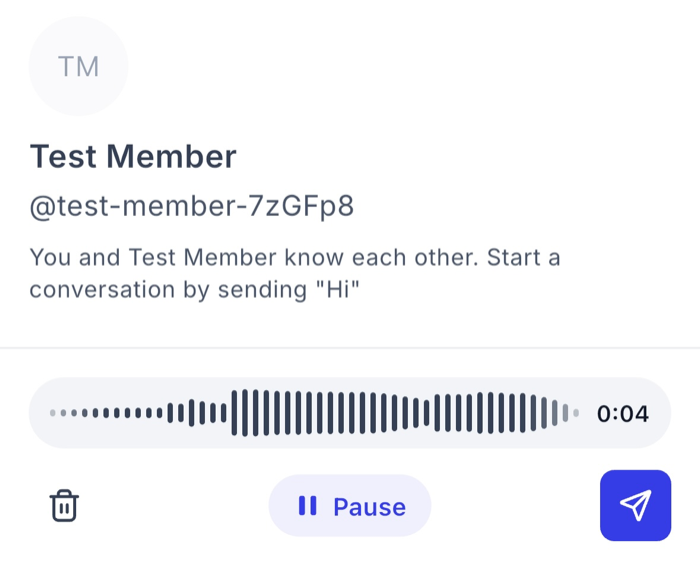
2. Record your voice note
In the chat input bar, press and hold the microphone. Watch the animated waveform as you speak to confirm your audio is being captured.
3. Send the voice note
Release the microphone to send.
Play Voice Notes and Audio Files
Each voice note and audio file has its own playback controls. Members can listen right in the post, comment thread, or chat without opening anything else. In chats, the player includes play/pause and a seek bar, so you can jump to a specific part or replay it.
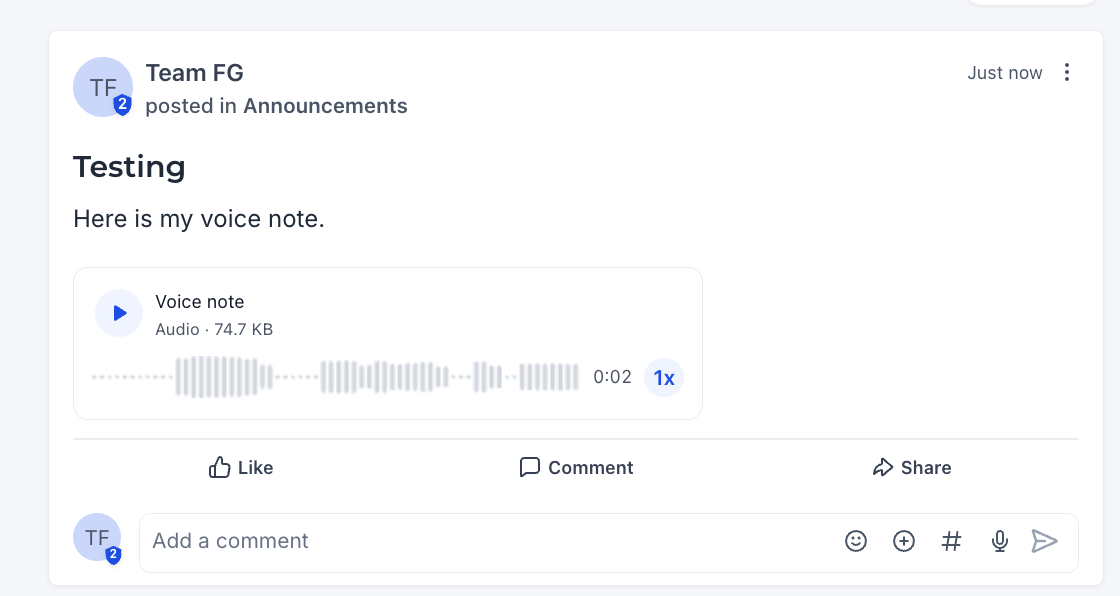
How to tell them apart:
- Recorded voice notes show a waveform player labeled Voice note.
- Uploaded audio files show a timeline-style player that tracks your progress through the file.
Playback speed: Click the speed control on the player to switch between 1x (normal speed), 1.5x, and 2x.
Continuous listening: When one audio item finishes, the next voice note or audio item plays automatically, so members can listen through several without starting each one.
Frequently Asked Questions
Q: Can I record a voice note directly in a post?
Yes. Click the microphone (Record a voice note) in the post composer to record before you publish.
Q: Can I pause a recording and keep going later?
Yes. While recording, you can pause and then resume before you finish.
Q: Can I cancel a voice note before publishing it?
Yes. Cancel the recording if you don't want to keep it, then start again if you need to.
Q: Can I upload an audio file instead of recording?
Yes. Use the Upload an audio file button in the post composer. Audio files can be added alongside your post's other attachments.
Q: Can a post have both a voice note and an uploaded audio file?
Yes. Both can appear together in the same post.
Q: Why don't I see a microphone in the comments?
That post has comments turned off. When comments are off, the comment box (and its microphone) is hidden.
Q: Why does some audio show a waveform and some show a timeline?
Voice notes recorded in the composer use a waveform. Audio files you upload use a timeline-style player.
Q: What playback speeds are available?
1x, 1.5x, and 2x.
Q: I see "Microphone access is unavailable." What do I do?
Your browser or device is blocking the microphone, or can't find one. Check that a microphone is connected, then allow microphone access for your community site in your browser or device settings and try again.
Q: Do voice notes in chats send notifications?
Yes. A voice note in a chat shows up as a new message and follows the same in-app notifications as a text message.
Q: Can I listen on my computer to a voice note recorded on my phone (or the other way around)?
Yes. Voice notes are saved with the chat conversation, so you can record in the Kollab app and listen on the web, or the reverse, as long as your account has access to that conversation.
Q: Are voice notes transcribed?
No. Voice notes in chats are simple audio messages from one person to another. They aren't transcribed automatically and aren't connected to Voice AI.
Q: Is there a time limit on voice notes?
No maximum length is documented.