
Using SendGrid As The SMTP Provider
This article goes over the steps for connecting your SendGrid account with your Active Funnels account.
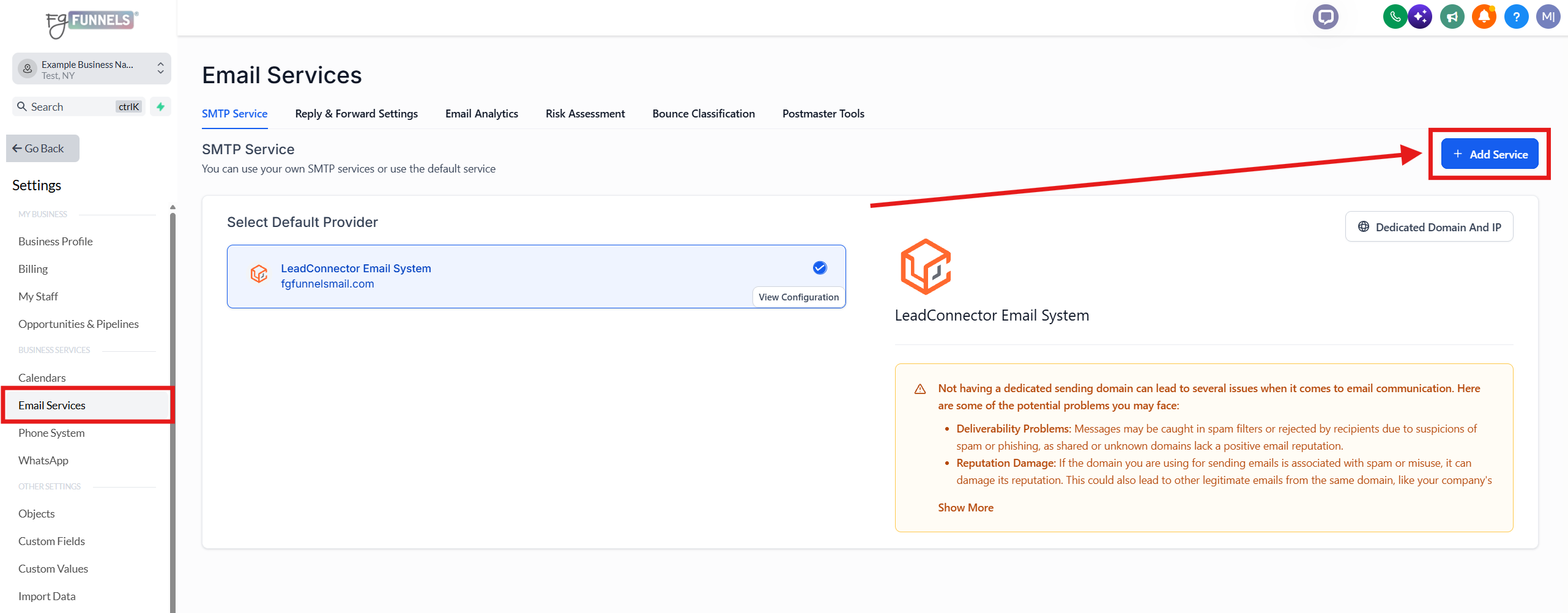
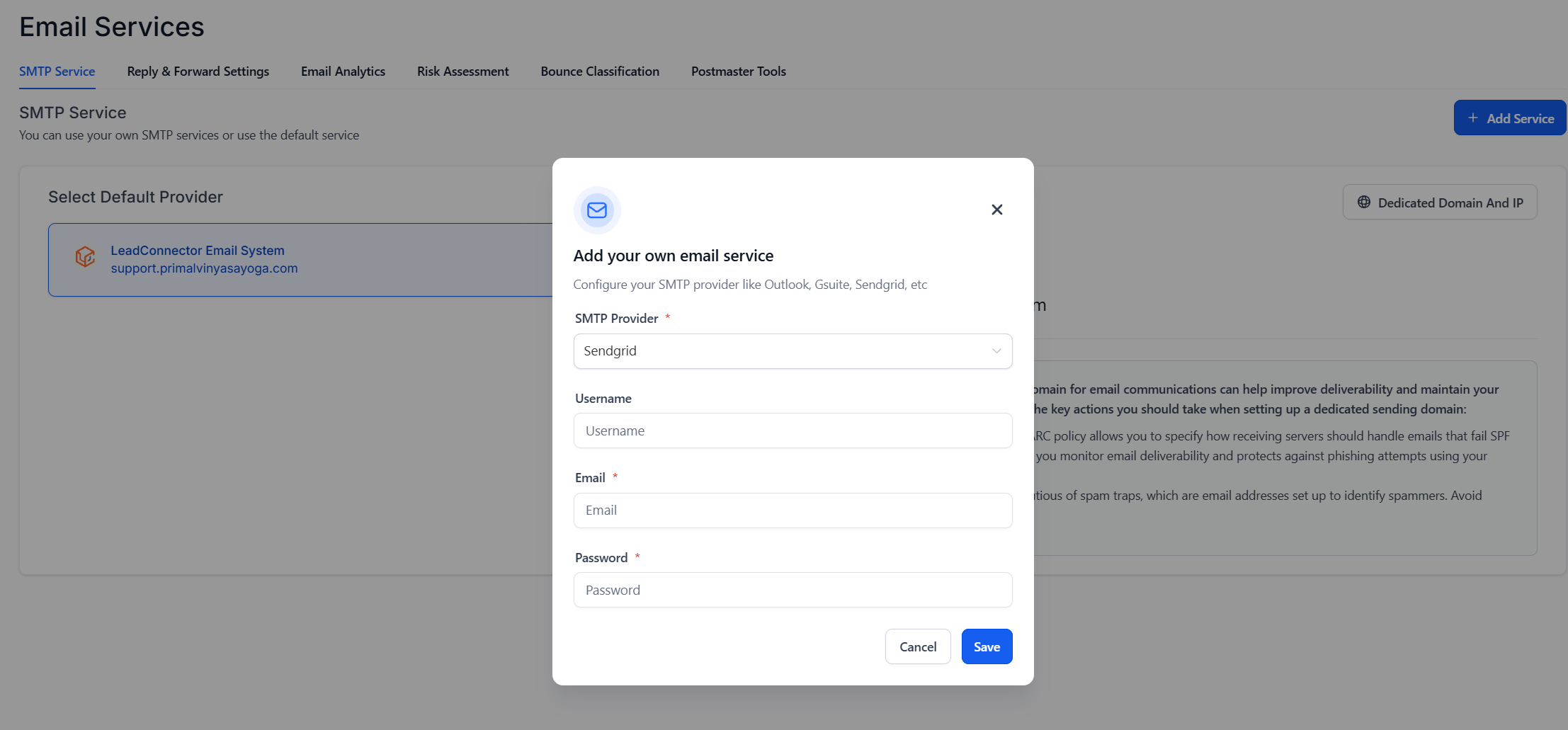
1. Click on Settings > Email Services > Add Service > Select Sendgrid from the dropdown
3. Head back to Sendgrid:
Click on Settings > API keys > create API Key

4. Type an API Key Name
Make sure API Key Permissions is Full Access
Click Create & View

5. Copy the highlighted API Key Created

6. Head back to FG Funnels Email Service tab
Username: apikey
Email: Your Sendgrid Login Email
[ This is the email address that you will need to use as your from email address on all emails sent through your ClickFunnels account. If you use any other email address, the emails you send will fail. ]
Password: Paste the highlighted copied API Key here
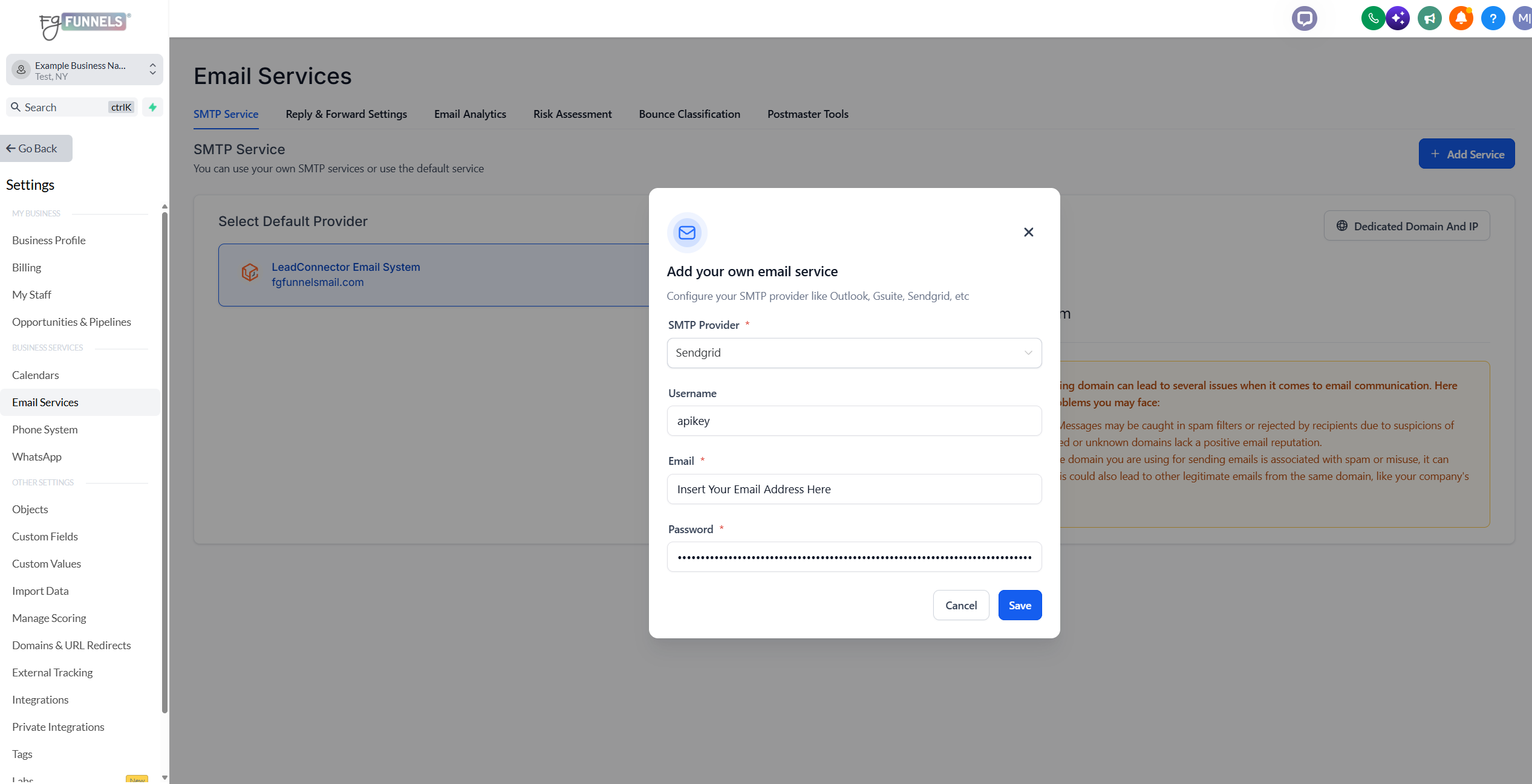
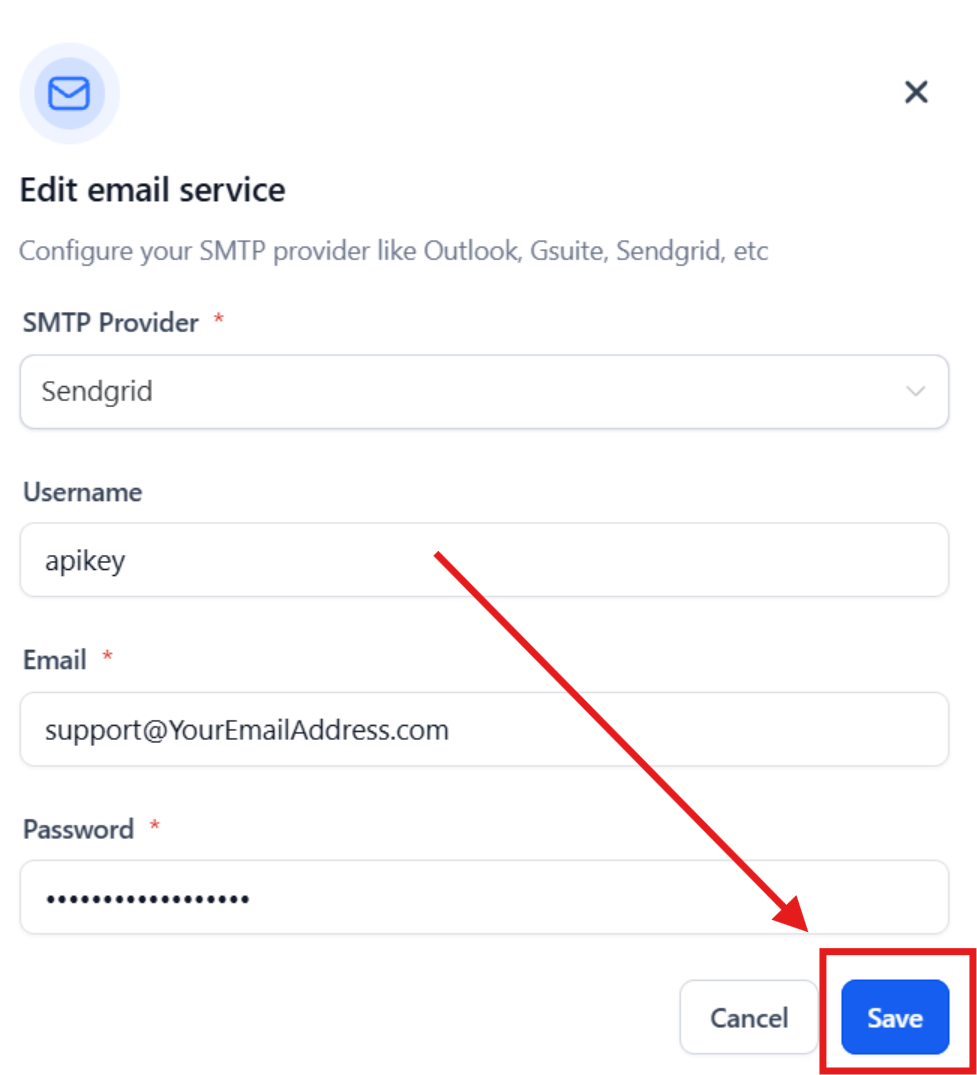
Click Save
If you see this error
"https://sendgrid.com/docs/for-developers/sending-email/sender-identity/"
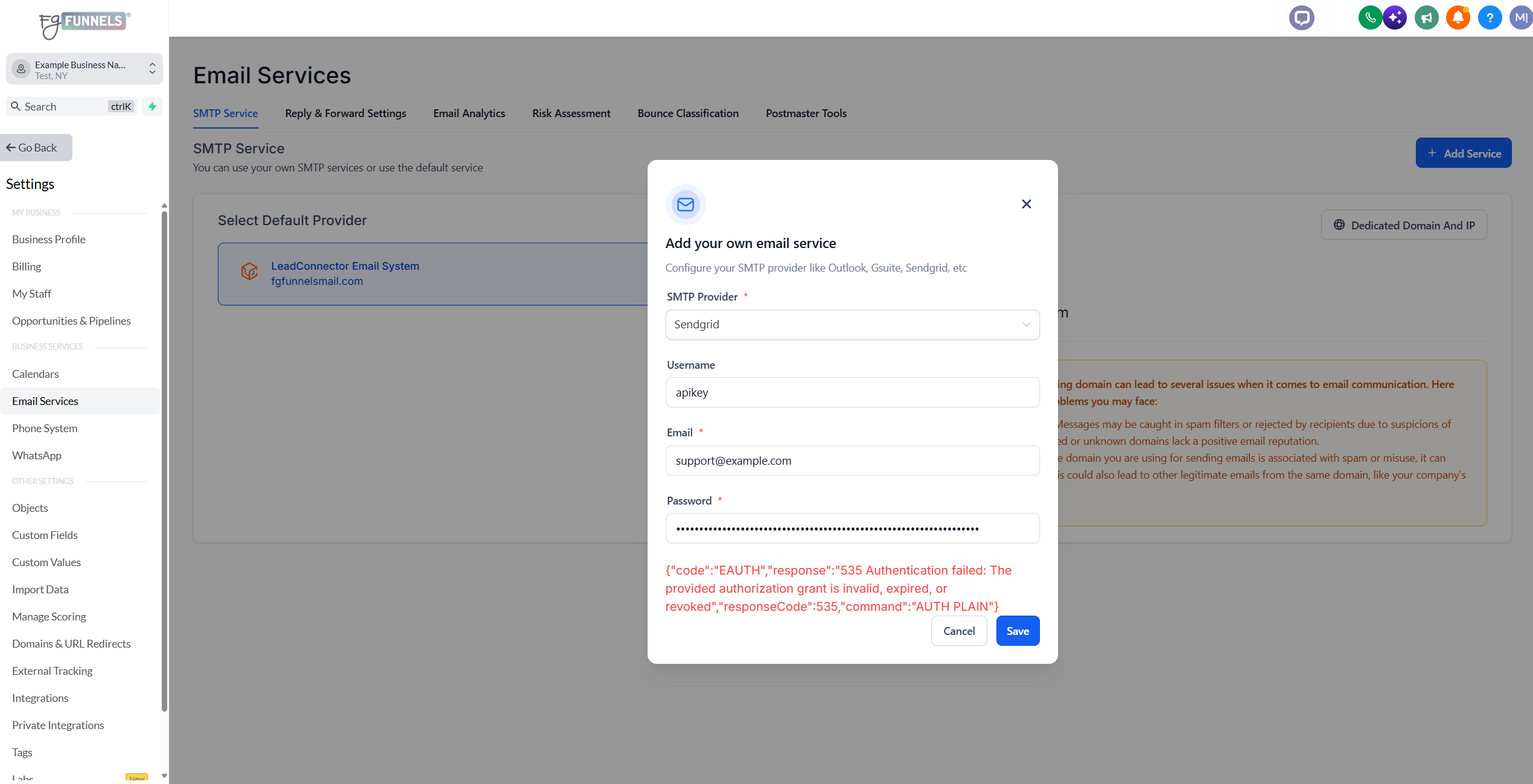
1. Head back to Sendgrid, make sure 2FA is setup

2. make sure your SendGrid Login email is verified as a single sender here

Create a sender here with your Sendgrid Login Email

Once it's verified, try integration again by clicking Save again in FG Funnels:
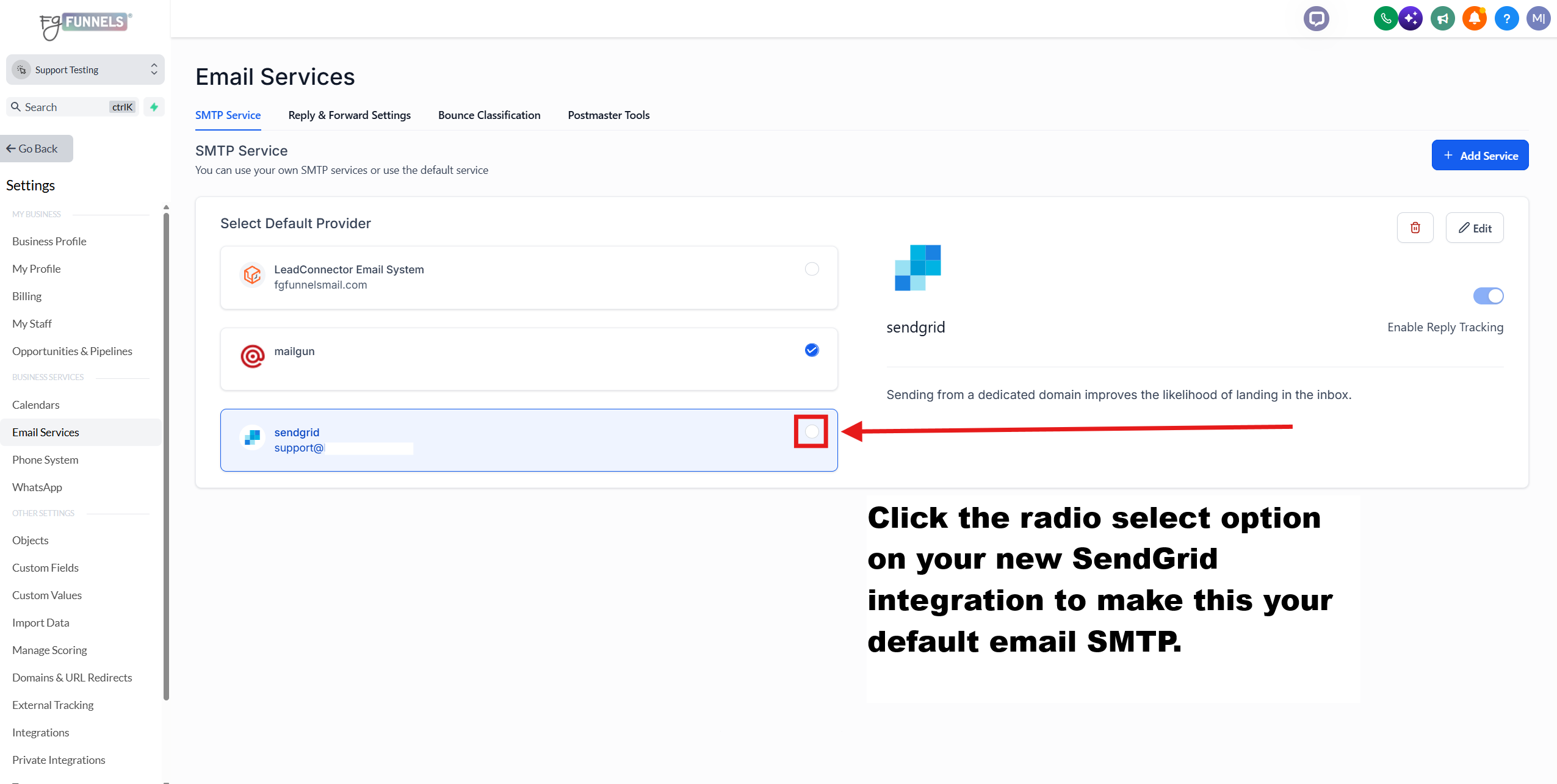
Make sure to click the radio select option on your new SendGrid integration to make this your default email SMTP.
Troubleshooting
If you are getting an error when you send a test email from your FG Funnels account, please click the ⚠️(red triangle) icon to view more details about the error.
550 The from address does not match a verified Sender Identity. Mail cannot be sent until this error is resolved. Visit https://sendgrid.com/docs/for-developers/sending-email/sender-identity to see the Sender Identity requirements.
Make sure the sender email matches with the SMTP integrated email, or make sure the sender email is verified with Sendgrid: https://docs.sendgrid.com/ui/sending-email/senders