
Migrate a WordPress Site Using the LC Migrator Plugin
Important Note: This option is only for WordPress websites that ate hosted outside of the Highlevel system. If you are migrating form a different Highlevel agency the "LC Migrator Plugin" cannot be used. You'll need to use the "All-In-One Migration Plugin" instead.
Previously, migrating a WordPress site meant installing third-party plugins like All-in-One Migrator, creating backups, downloading massive files, and then uploading them again to FG Funnels. For larger sites.
Now the migration process has been streamlined with the brand-new LC Migrator plugin. Just log in, select your site, click a few buttons, and the migration will start processing.
Key Features
- One-Click Migration: Start the migration directly from the LeadConnector plugin.
- Zero Downtime: Your original site stays live while we handle things in the background.
- Clear Progress Updates: Stay updated every step of the way, from backup to verification.
Step 1: Navigate to Your Site Settings
First things first, go ahead and click on the WordPress option on the left side menu. This will get us on the right path to creating your new home for your existing site.

Step 2: Activate WordPress
Look for and click on Activate WordPress. Just like switching on the lights in a new house, we're getting things ready for your arrival.

Step 3: Set Up Your Site
Click on the WordPress site card, select From blank, then choose a template. Select From blank again, click Create, fill out your site's details, and finally hit Create WordPress site.


Step 4: Download the LC Migrator Plugin
You'll be on the "Info" tab by default —> Scroll down to the section labeled "Import Your Existing Website"
- Click Download Plugin to download a ZIP file.
- This ZIP file will be used to migrate the site.


Step 2: Upload the Plugin to the WordPress Site You Want to Migrate
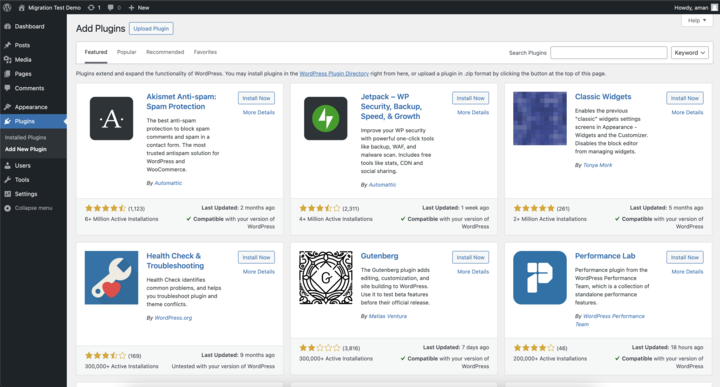
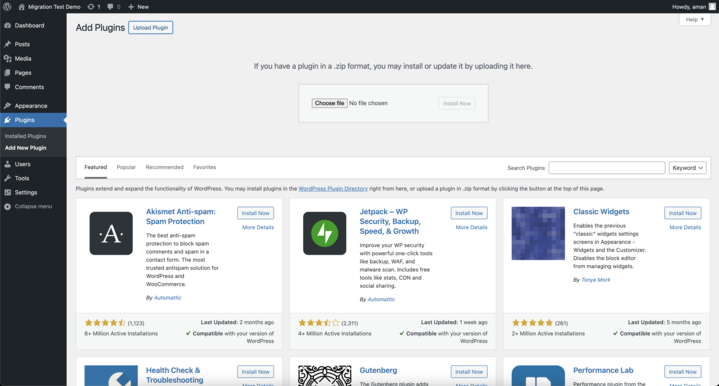
- Log in to the WordPress dashboard of the site you want to migrate.
- Go to Plugins → Add New.
- Click on Upload Plugin at the top.
- Upload the ZIP file you downloaded earlier and click Install Now.
-
Step 3: Activate the Plugin
- After installation, click Activate Plugin.
- This will activate the LC Migrator plugin and get you ready for the next steps.

-
Step 5: Open the LC Migrator Plugin
- In the sidebar, find and click on LC Migrator (scroll down if you don't see it immediately).
- You will be asked to log in — use your FG Funnels credentials.
- Select the subaccount that has the destination WordPress instance.


Step 6: Start the Migration
- After selecting the subaccount, you will be redirected back to the plugin.
- Click Continue.
- Select the destination website (e.g., Migration Demo).
- Check the confirmation box that notifies you that all content on the destination WordPress site will be removed.
- Click Start Migration.

Step 7: Monitor the Migration
- The migration process will begin and typically takes 10–15 minutes for large sites.
- You can cancel the migration anytime before the final step by clicking Cancel Migration (note: cancellation is not possible at the very last step).
Step 8: Migration Complete
- Once completed, you'll see a Migration Completed message.
- You can now visit the migrated website.
