
How to Generate & Edit Images with Ask AI
Table of Contents
- What is Generating & Editing Images with Ask AI
- How to Generate and Edit Images with Ask AI
- Frequently Asked Questions
What is Generating & Editing Images with Ask AI?
This innovative features enable users to create and refine images through language prompts. By leveraging AI, the user is able to incorporate their own ideas into their visual content.
How to Generate and Edit Images with Ask AI
Follow these step-by-step instructions to begin:
Note: You will need to make sure your account has either the $97/month AI employee subscription or Content AI pay-per-use enabled.
1. Generate & Edit Images in the Ask AI Modal
- Log into your sub-account.
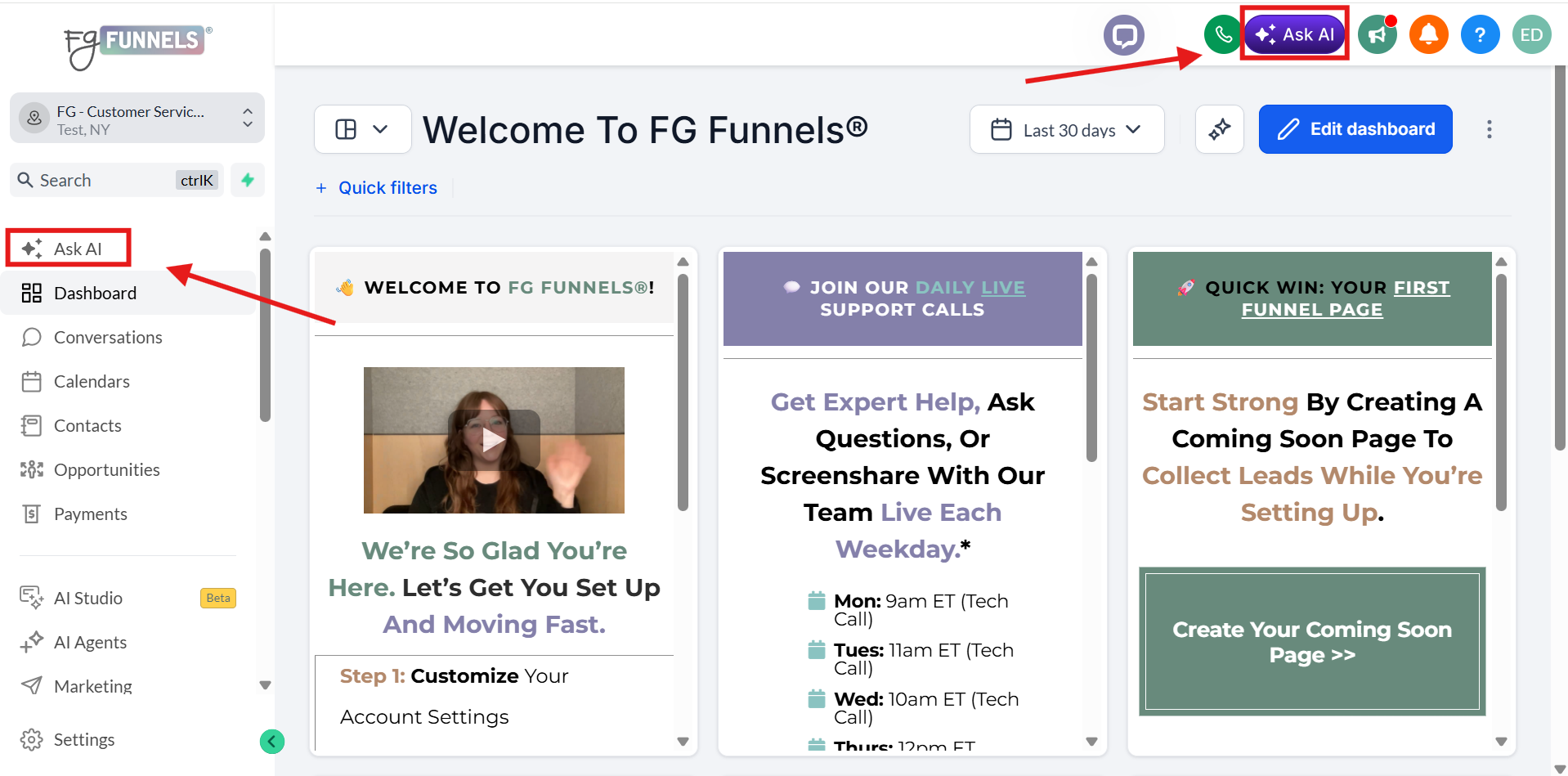
- Click the Ask AI button in the top right of your navigation bar or in the navigation bar on the left.
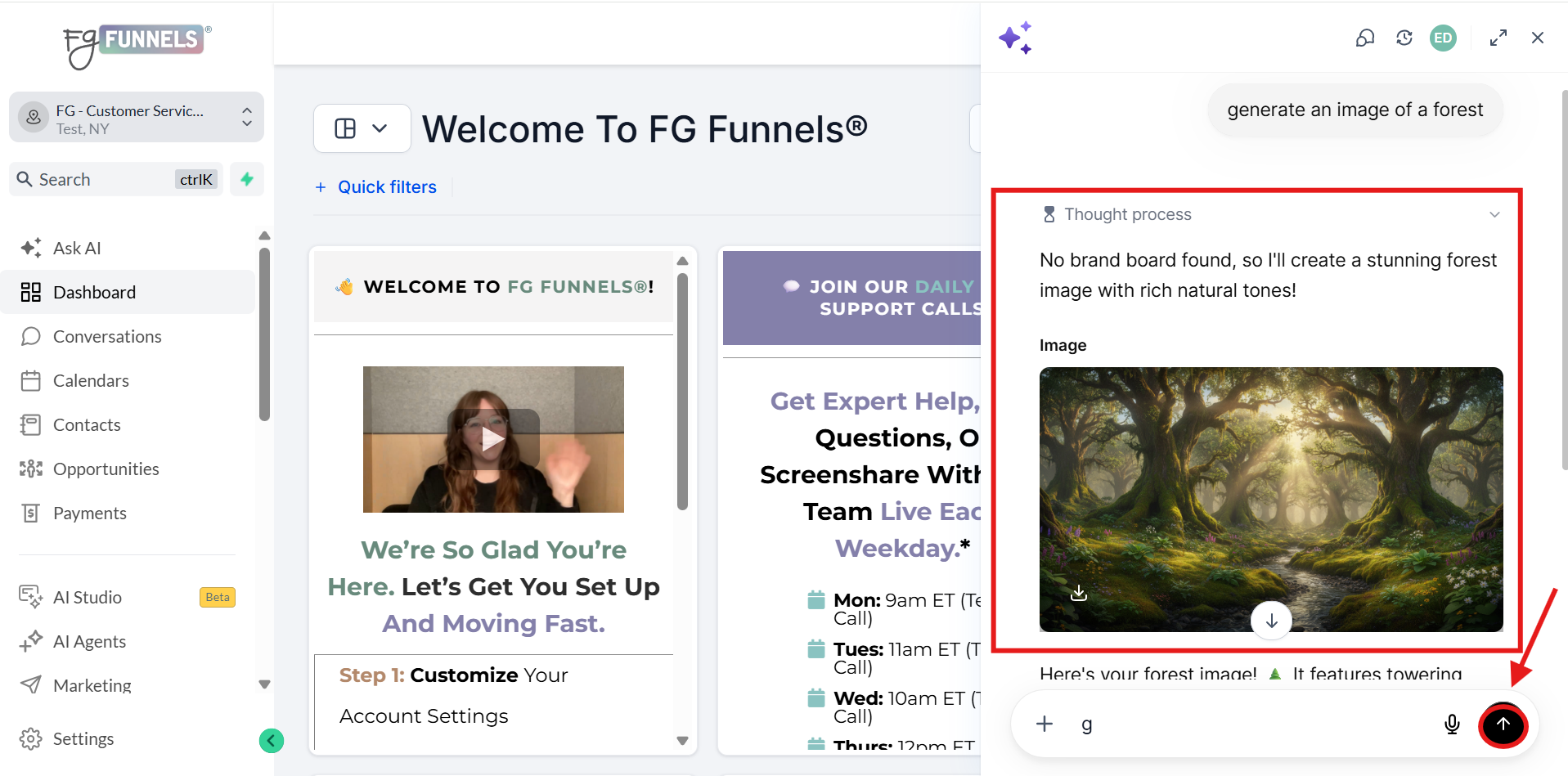
- Enter your prompt into the text field - example: "Generate an image of a forest".
- Submit the prompt by pressing enter or the arrow button on the right of the text field box.
- Wait a few seconds for the image to generate.
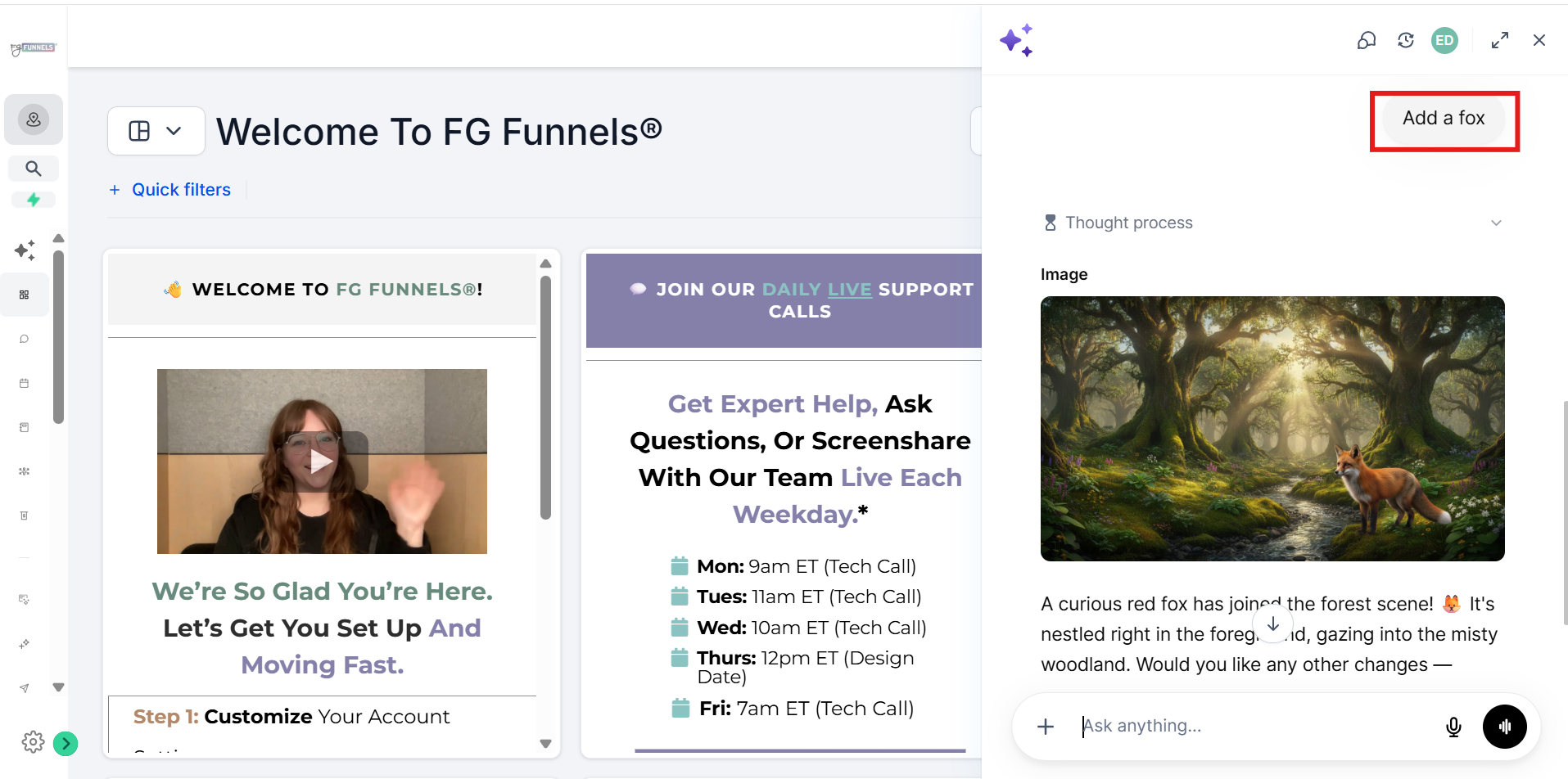
- You can further focus the prompt be giving an edit-style instruction - example: "Add a fox".
- Submit the edit prompt.
- Wait a few seconds for the image to generate.
2. Edit Images Generated via Content AI
Another option is to use Content AI to edit any AI-generated image.
-
Navigate to a Content AI workflow—e.g., Marketing > Social Planner.
-
Create a new post and generate an image with AI or open an existing Content AI–generated post.
-
Click the Edit with AskAI button.
- Enter your edit prompt (e.g., “Change the fox to a bear”).
- Submit and wait for the image to generate.
3. Save or Copy Images
On any generated image or edit:
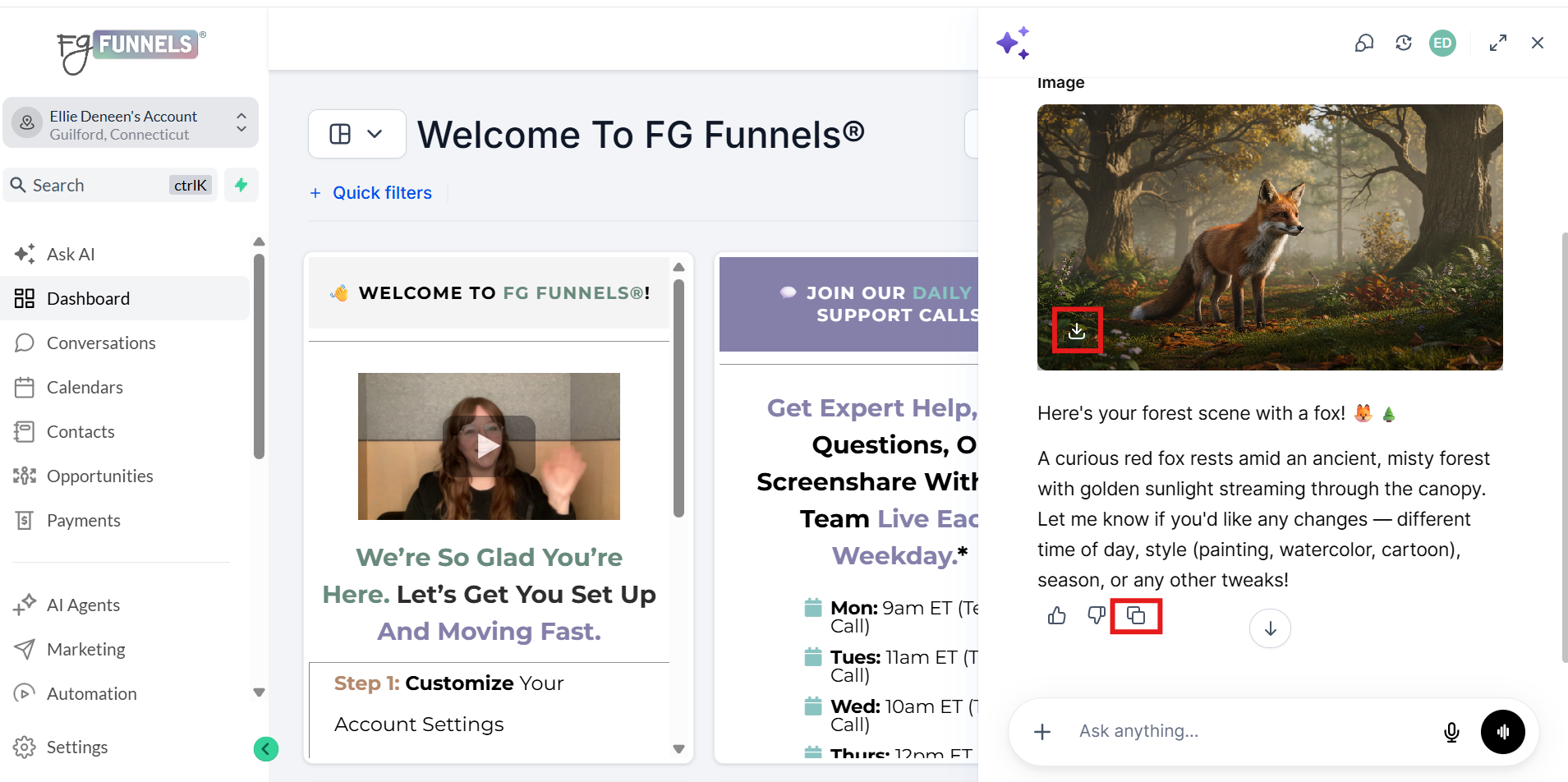
- Hover over the image and a download button will appear.
- Click the Copy button to place it on your clipboard for pasting elsewhere.
- If you don’t save an image, it remains accessible only within your AskAI session.
Frequently Asked Questions
Q: Can I specify a particular style for the generated images?
Yes, you can include details like “cartoon,” “realistic,” or “3D” in your prompt to tailor the visual style.
Q: Where are the generated images stored?
Images are initially saved within your Ask AI session. Click “Save” to transfer an image to your Media Library.
Q: Do edits made through Ask AI appear in the Content AI history?
No, currently, these edits are contained within Ask AI’s session history only.
Q: Is there an extra charge for these features?
No additional billing applies; these capabilities are included for accounts with AI Employee access and when using Pay Per Use for Content AI.
Q: Can I keep editing an image indefinitely?
Yes! You can refine an image as many times as you like in your Ask AI session.
Q: Do I need design skills to use this?
No! You only need to describe your idea clearly — Ask AI handles the design.