
How to Set Up Click & Open Tracking for Mailgun
Configure Mailgun webhooks and domain tracking so you see accurate click and open rate statistics in FG Funnels.
What You'll Learn
This guide walks you through two configuration steps required to track email engagement from Mailgun inside FG Funnels: adding a webhook that forwards all email events back to FG Funnels, and enabling click & open tracking on your Mailgun domain.
Once both steps are complete, your FG Funnels dashboards will display accurate click rates, open rates, unsubscribes, bounces, and spam complaints for all emails sent through Mailgun.
In this article
Prerequisites
Before you begin, make sure you have the following in place:
- An active Mailgun account with at least one verified sending domain.
- Admin access to your Mailgun account (required to manage webhooks and domain settings).
- Your sending domain already connected and sending through FG Funnels.
Add the Webhook in Mailgun
Mailgun webhooks push real-time email event data back to FG Funnels. You need to add a domain-level webhook for all event types on each sending domain you use.
1. Navigate to webhooks in Mailgun
Log in to your Mailgun account. In the left sidebar, go to Send → Webhooks. Then click the Domain-level tab and select your sending domain from the dropdown.
2. Add a new webhook
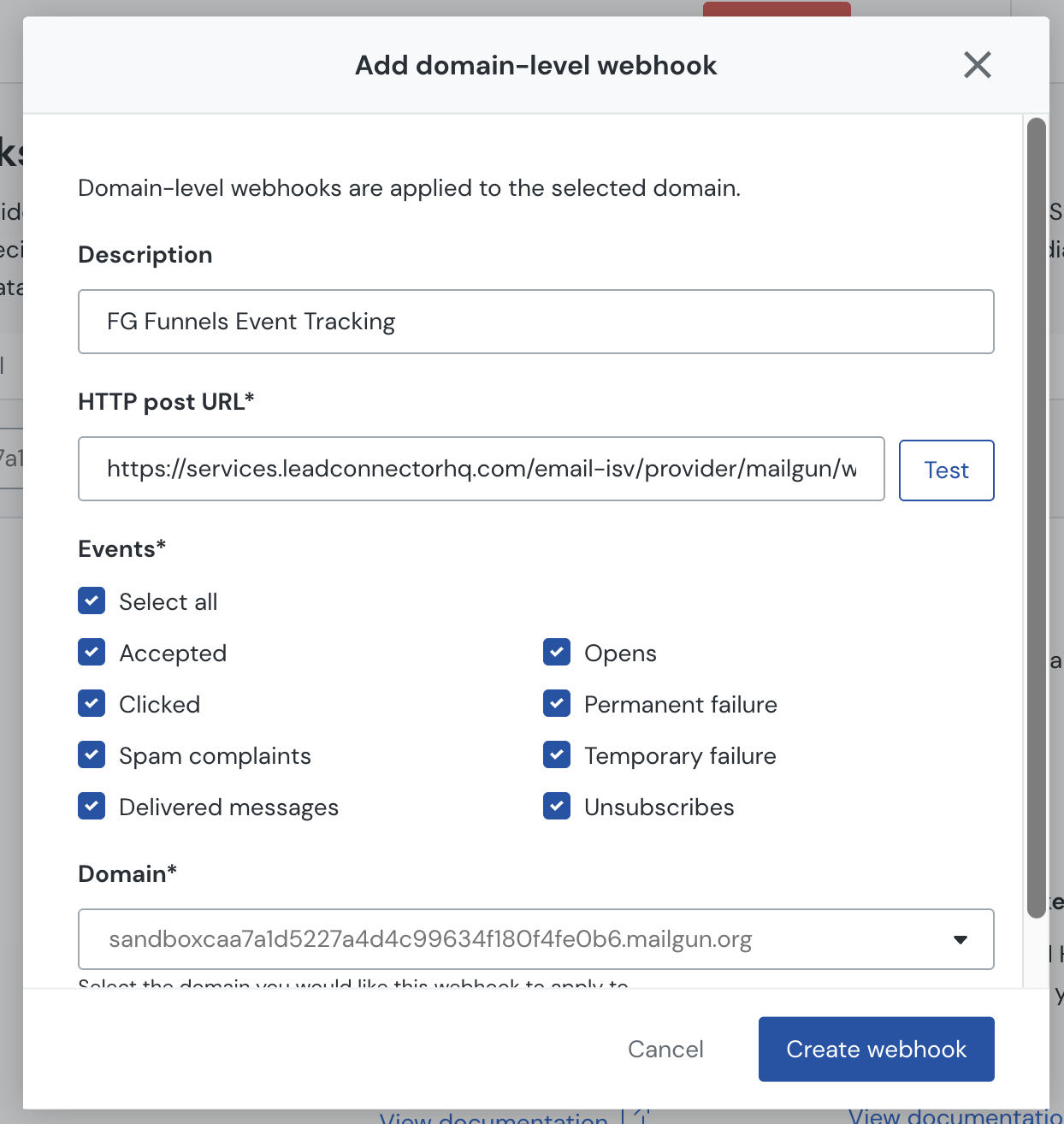
Click Add webhook (top-right). In the dialog that appears, fill in the following:
- Description — enter a recognizable name, e.g. FG Funnels Event Tracking.
- HTTP post URL — paste the URL below exactly as shown.
- Domain — select your sending domain from the dropdown.
Webhook URL:
https://services.leadconnectorhq.com/email-isv/provider/mailgun/webhook/event
3. Select all events
Under Events, check Select all to enable every event type. This ensures FG Funnels receives data for all of the following: Accepted, Delivered, Opens, Clicked, Permanent failure, Temporary failure, Spam complaints, Unsubscribes.
4. Save
Click Save. The webhook will appear in the domain-level webhook list.
Note: Repeat this process for each sending domain you have in Mailgun. Webhooks are domain-scoped, so a webhook added to one domain does not automatically apply to others.
Enable Click & Open Tracking on the Domain
In addition to the webhook, Mailgun must be configured to instrument your emails with tracking links and open-tracking pixels. This is done in Domain Settings.
1. Open domain settings
In Mailgun, go to Send → Domains. Click on your sending domain, then select the Settings tab.
2. Enable click tracking
Scroll to the Tracking section. Next to Click tracking, click Edit and toggle the setting to On. Save the change.
3. Enable open tracking
Still in the Tracking section, click Edit next to Open tracking and toggle it to On. Save the change.
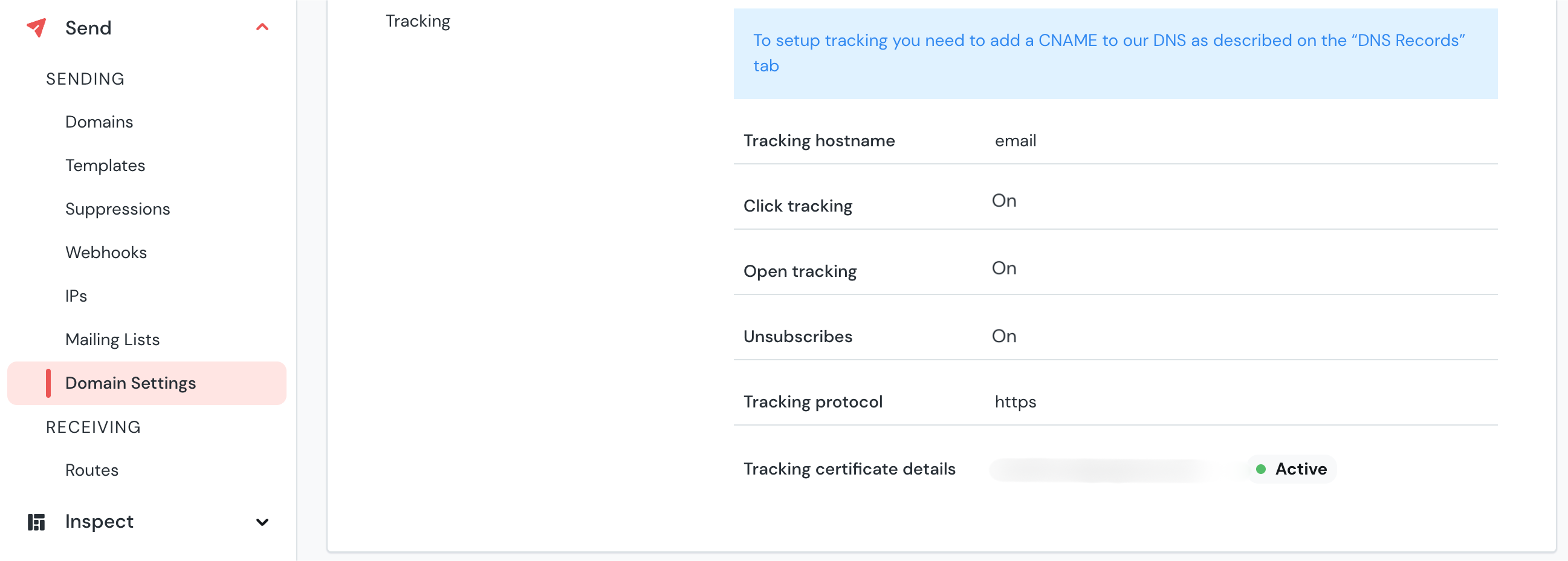
After enabling both settings, your domain tracking configuration should look like this:
| Setting | Required Value |
|---|---|
| Click tracking | On |
| Open tracking | On |
| Tracking protocol | https |
| Tracking certificate | Active |
Note: For click tracking to work correctly, a tracking CNAME record must be added to your domain's DNS. Mailgun will show the required CNAME under Domain Settings → DNS Records. If the tracking certificate shows as inactive, the CNAME is either missing or hasn't propagated yet.
You're All Set
Once the webhook is saved and tracking is enabled, FG Funnels will start receiving click events, open events, bounces, unsubscribes, and spam complaints in real time. Email analytics dashboards will reflect accurate engagement data for all emails sent through this Mailgun domain.
Frequently Asked Questions
Q: Why am I not seeing any click or open data in FG Funnels even after adding the webhook?
The two most common causes are: (1) click or open tracking is not enabled in Domain Settings → Tracking, or (2) the webhook was added at the account level instead of the domain level. Verify both, then send a test email to confirm events start appearing.
Q: Do I need to add the webhook to every domain, or just once?
You need to add the webhook to every sending domain separately. Mailgun domain-level webhooks are scoped to a single domain and are not inherited by other domains on your account.
Q: Will enabling click tracking affect my email deliverability?
Minimal impact when configured correctly. Click tracking wraps your links through a tracking subdomain (e.g. email.yourdomain.com). Using your own tracking CNAME (rather than Mailgun's shared one) keeps the redirects on your domain and avoids shared-reputation issues. Ensure the tracking certificate is active to avoid broken links.
Q: The Test button on the webhook returned an error. What should I check?
Confirm the webhook URL is entered exactly as https://services.leadconnectorhq.com/email-isv/provider/mailgun/webhook/event with no trailing slash or extra characters. Also verify your account's network access settings allow outbound calls to external endpoints. Check the Failure logs tab in Mailgun Webhooks for detailed error responses.
Q: I already had a domain-level webhook. Should I update it or create a new one?
If your existing webhook points to the correct URL and has all events selected, no changes are needed. If the URL differs or some events are missing, click the three-dot menu next to the webhook and select Edit to update it rather than creating a duplicate.
Q: Does this setup track emails sent from all campaigns, or only specific ones?
All emails sent through the configured Mailgun domain will have events forwarded. FG Funnels then associates each event with the corresponding contact and campaign based on metadata embedded in the email headers at send time.
Q: What happens if the tracking CNAME record is missing?
Without the CNAME, the tracking certificate will show as inactive and click-tracked links in your emails will be broken or redirect incorrectly. Open tracking pixels may also fail to load. Add the CNAME record provided under Domain Settings → DNS Records in Mailgun and wait for DNS propagation (up to 48 hours).