
Workflow Action: A/B Test
The A/B Test action compares 2–10 workflow paths against a shared conversion goal. It splits contacts evenly, tracks conversions, identifies a winner, and can route future contacts to that winner or keep splitting them.
Before you start: The A/B Test action is a Labs feature. Turn on A/B Test action in Workflows under Settings > Labs. Until you do, you'll only see the regular Split action.
In this article
What Is the A/B Test Action?
- Compares 2–10 paths with one conversion goal and distributes contacts evenly.
- Unlike the standard Split action, it adds conversion tracking, winner selection, and post-test routing.
A/B Test Settings
| Setting | Description |
|---|---|
| Action Name | Names the test in the workflow. |
| Paths | 2–10 paths; contacts split evenly. |
| Winning Criteria | Conversion goal used to evaluate paths. |
| Test Length | Ends the test by contacts entered, goal completions, or date and time. |
| After the Test Ends | Winner routing or continued even splitting. |
Winning Criteria
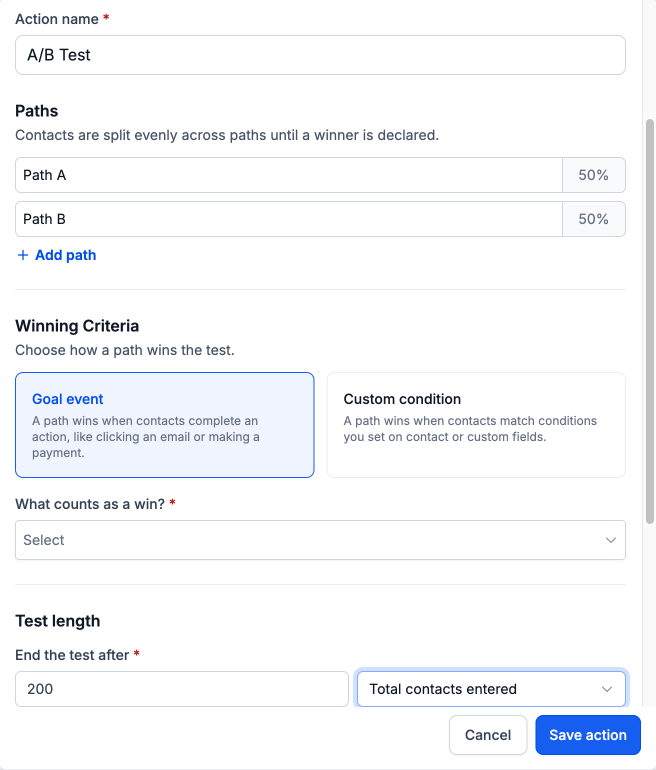
- Goal event: A path wins when contacts complete an action. Under What counts as a win?, choose Email activity, Clicked a trigger link, Appointment status, Form submitted, Payment received, Invoice paid, Review request clicked, Document status, Task status, or Added a contact tag. Then pick the specific item, for example the form under Select form.
- Custom condition: Defines conversion using contact fields or custom field conditions, such as lead qualification status.
Important: Winning criteria measure conversion only. They do not decide which path a contact enters.
Test Length
- Total Contacts Entered: Ends after a set number of contacts enter the action.
- Goal Completions: Ends after a set number of goal completions.
- A date: Ends on a date you choose.
For example, you can end the test after 200 contacts enter.
After the Test Ends
- Send New Contacts to the Winning Path: New contacts follow the highest-converting path. Contacts already in other paths finish their sequences.
- Keep Splitting and Show the Result: New contacts keep splitting evenly, and the winner appears in Statistics.
With winner routing, the winning path shows a Winner badge on the canvas, and the other paths appear muted.
How to Set Up an A/B Test
- Go to Automation > Workflows, then open or create a workflow.
- Click the + icon to add an action, search for A/B Test, and select it.
- Enter an Action name, then add 2–10 paths using Add path. Rename paths as needed.
- Under Winning Criteria, choose Goal event or Custom condition. For a goal event, choose an option under What counts as a win? and pick the specific item.
- Under Test length, set End the test after: enter a number and choose Total contacts entered or Goal completions, or choose A date.
- Under After the test ends, choose Send new contacts to the winning path or Keep splitting and show the result.
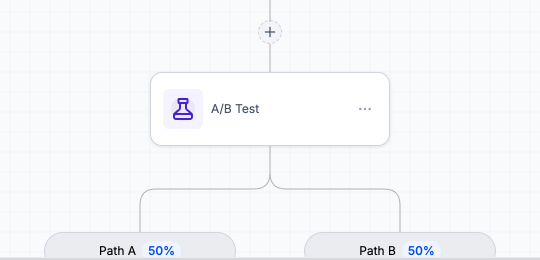
- Click Save action. Your paths appear on the canvas, each with its share of contacts. Add actions to each path, then save or publish the workflow.
A/B Test Statistics and Winner Selection
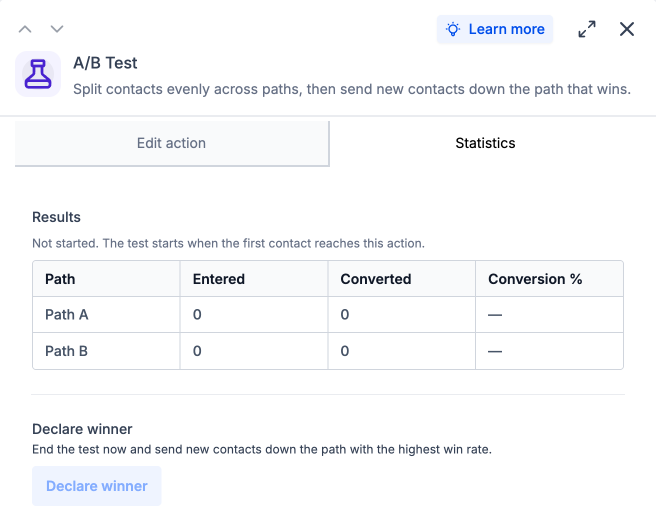
Click the A/B Test action and open the Statistics tab. Until the first contact reaches the action, it says Not started. The results table shows:
- Path: Tested path name.
- Entered: Contacts who entered the path.
- Converted: Contacts who completed the goal.
- Conversion %: Converted ÷ Entered × 100.
- Winner: Marks the top path once a winner is selected.
Declaring a winner: A winner is declared when the test-ending condition is met, or early with Declare winner in the Statistics tab. The path with the highest conversion percentage wins. If paths tie, the first tied path wins.
Resetting an A/B Test
Use Reset test within the A/B Test action to prepare a new comparison, such as after updating messages or sequences.
Warning: Saving after a reset clears previous results. Returning contacts may enter a different path than before.
FAQs
Can I compare email and SMS sequences?
Yes. Paths can mix emails, SMS, and waits. Use one goal that measures the outcome across all paths.
Do all paths use the same winning criteria?
Yes. Each test uses one consistent goal.
Why do path counts differ?
Distribution is intended to be even, but counts can vary, especially with few entrants.
Can I measure lead qualification with custom fields?
Yes. Use Custom condition under Winning Criteria.
Related Articles
- Workflow Builder Walkthrough
- If Else New Features
- About FGF Automation
- Split Testing in Funnels (for testing funnel pages instead of workflow paths)