
How to Customize Your Community Group Invite Link
Note: Your screen may look different from this article if your account has the new FG Funnels menu design turned on. Learn why and how to switch back.
Every community group has its own invite link. You can change the end of that link to something short and memorable that matches your group, then copy it and share it with members.
Change the Group's Invite Link
1. Open your community group
From the left-hand menu, go to Memberships, then click Communities at the top. Find the group you want to update and click its Login button.
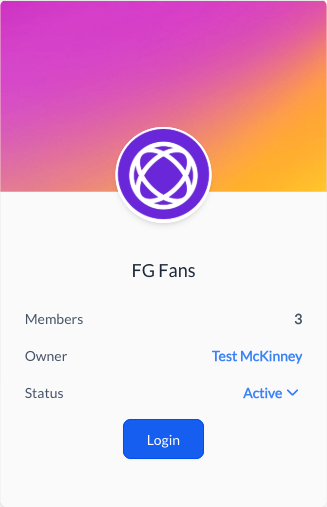
2. Open the group's settings
In the group, click the Settings tab, then Details.
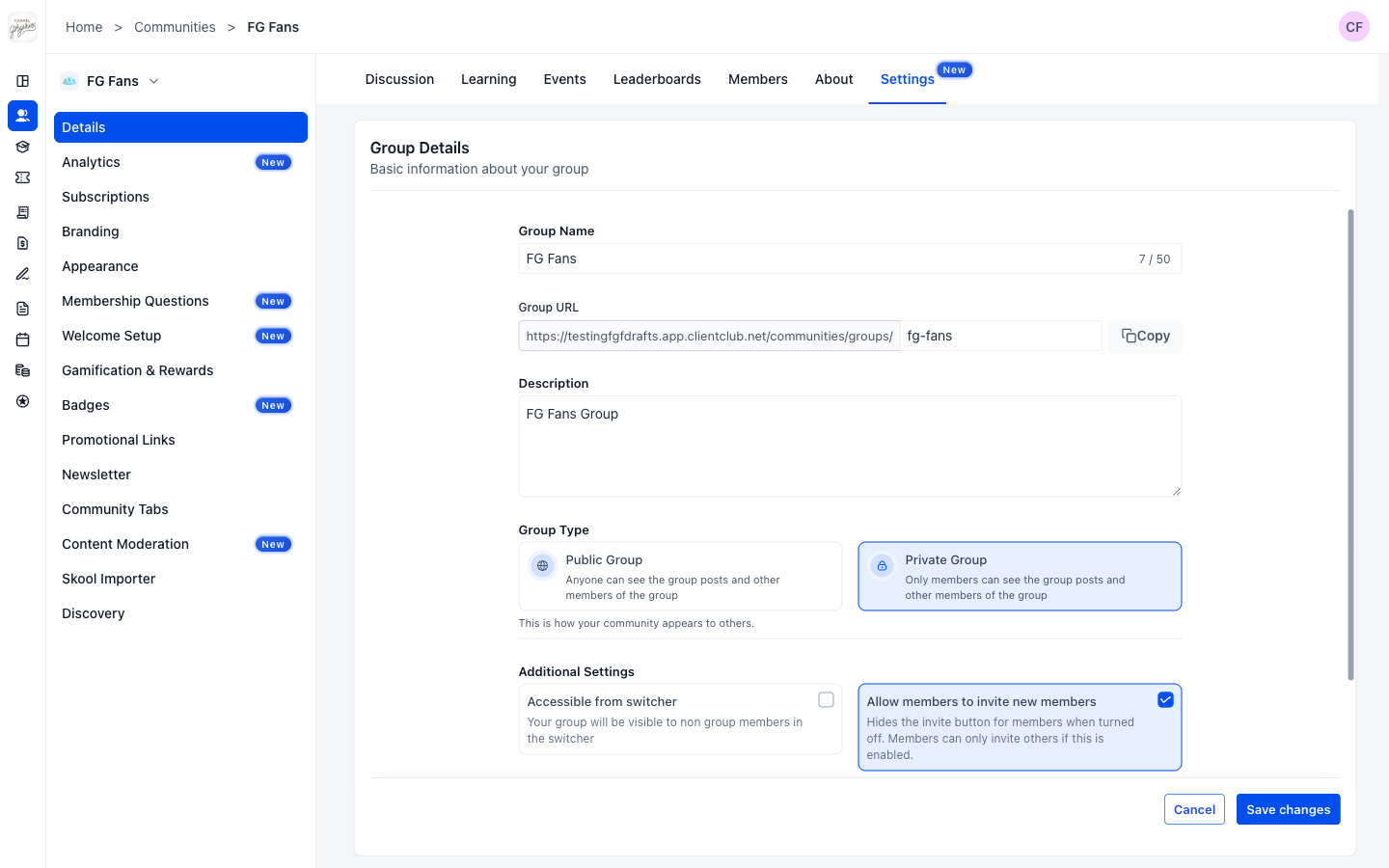
3. Edit the end of the Group URL
The Group URL has two parts: the domain at the start (which you can't change here) and the text at the end. Click into the text at the end and replace it with what you'd like, such as your group's name.

4. Save and copy your new link
Click Save changes to update the invite link. Then click Copy next to the Group URL to copy the new link and share it with members.
Change the Domain at the Start of the Link
To use your own domain or subdomain at the start of the link, follow the steps in Client Portal | How to Connect Your Custom Domain / Subdomain.