
Paid Groups
Note: Your screen may look different from this article if your account has the new FG Funnels menu design turned on. Learn why and how to switch back.
Charge members to join your community group with a one-time payment or a recurring subscription. You can sell access to the whole group or to specific channels, courses, and events.
In this article
Private and Public Groups
Owners and admins can set a group to Public or Private from the group's Settings tab > Details > Group Type. This affects how paying members get in (see Group Access). For the full steps, see How to Make Your Groups Private / Public in Communities.
Create a Pricing Plan
1. Open Subscriptions
Log in to the community group, click the Settings tab, then click Subscriptions.
The Manage community subscription page lists your plans. Until you activate a plan, Make this community free stays on and members join for free. Use Preview member view to see what members will see.
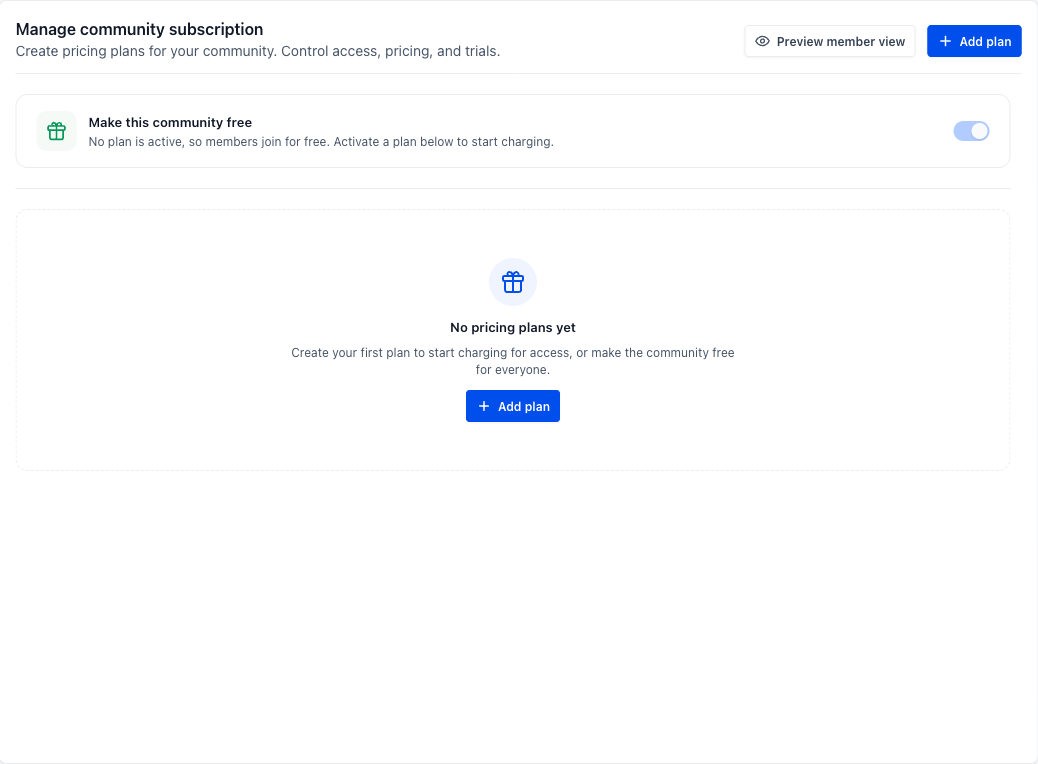
2. Choose what the plan unlocks
Click Add plan. On the Access step, choose Full access to unlock everything, or pick the specific channels, courses, and events this plan includes. Click Next.
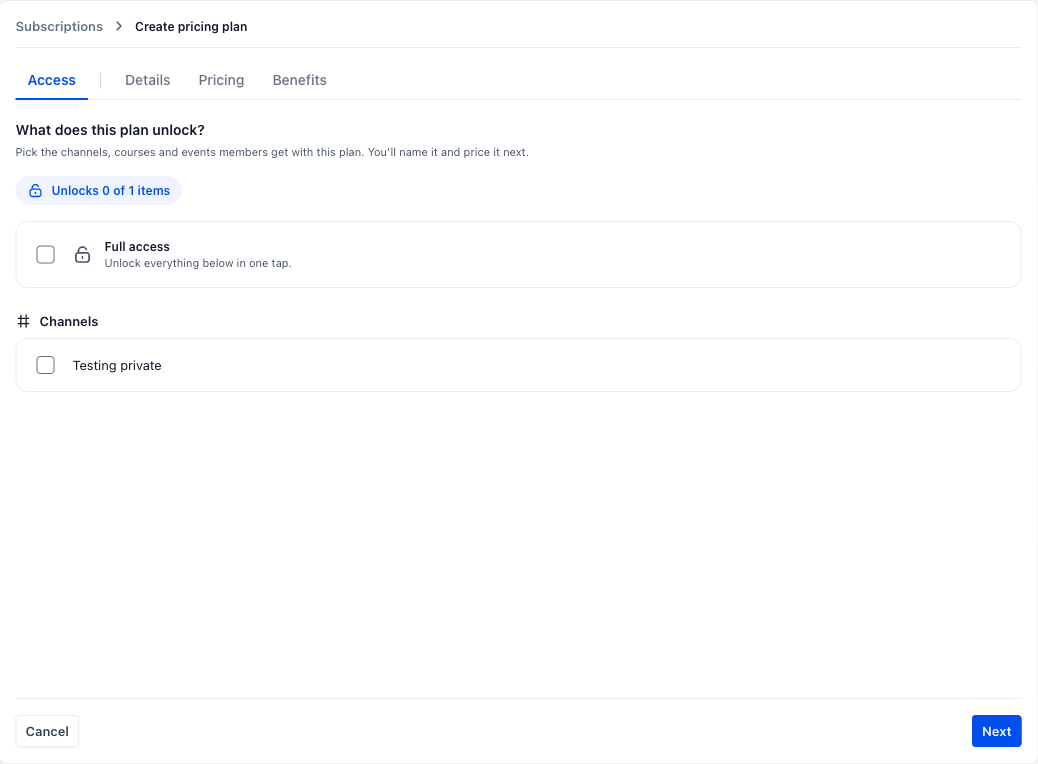
3. Name the plan
On the Details step, enter a Plan name (for example, Founding Member, VIP, or Annual) and a Description of what the plan includes and who it's for. The Preview on the right shows how it will look to members. Click Next.
4. Set the price
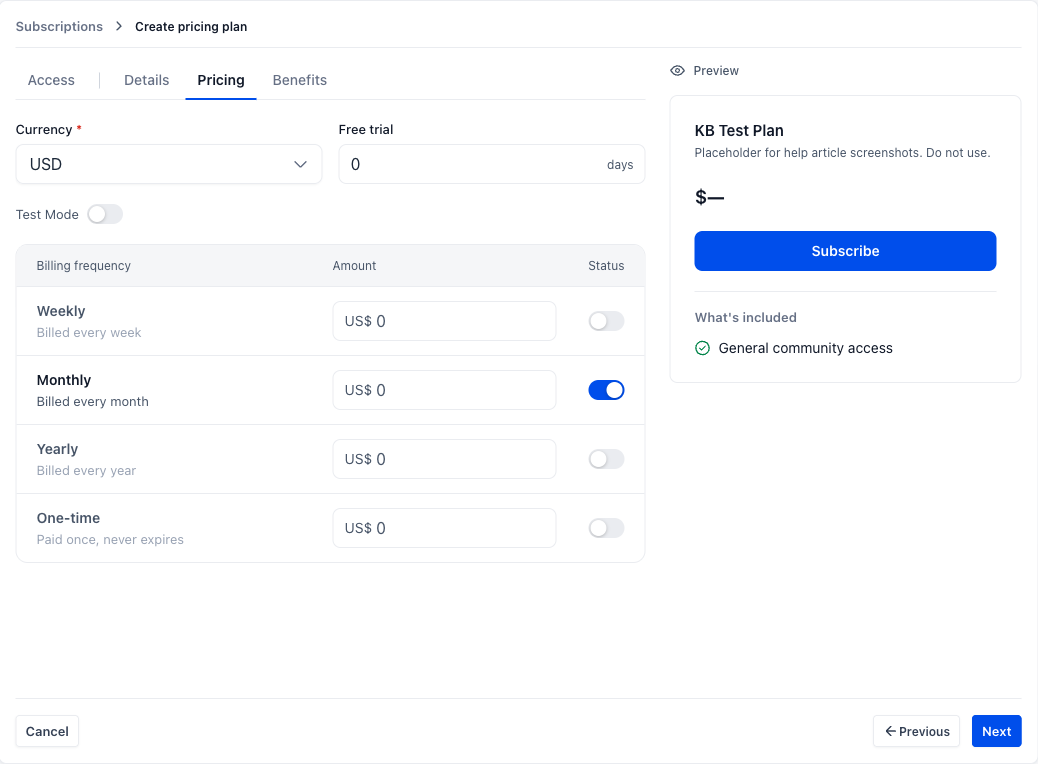
On the Pricing step:
- Choose the Currency.
- Enter the number of Free trial days, if any.
- Turn on Test Mode if you want to test a payment first.
- Turn on each billing option you want to offer and enter its amount:
- Weekly, Monthly, or Yearly for a recurring subscription.
- One-time for a single payment that never expires.
Click Next.
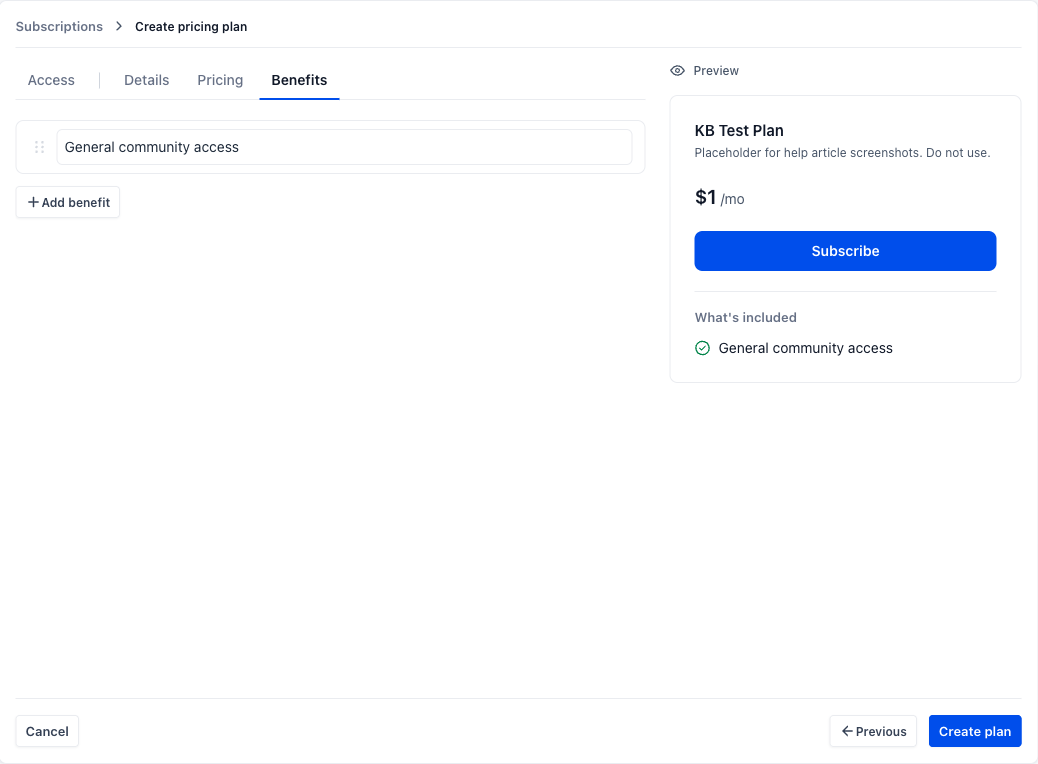
5. List the benefits and create the plan
On the Benefits step, list what members get. Click Add benefit to add more. These show under What's included on the plan card. Then click Create plan.
Group Access
After a member pays:
- Private groups: an owner or admin needs to approve their request to join. See How to Approve a Request to Join Your Community Group.
- Public groups: the member signs up and becomes an active member right away.
Notifications
All owners and admins get an email when a member pays, with the details they need. For a private group, that includes approving the member's request to join. For a public group, the member is approved and added automatically.
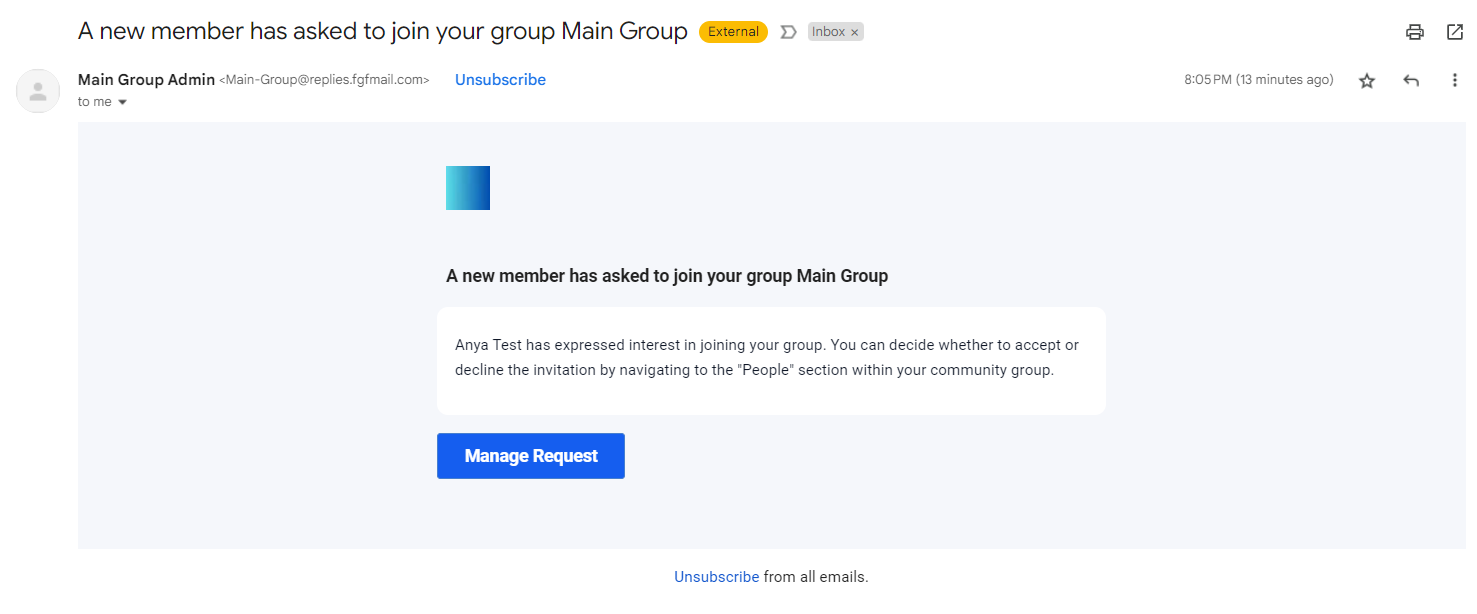
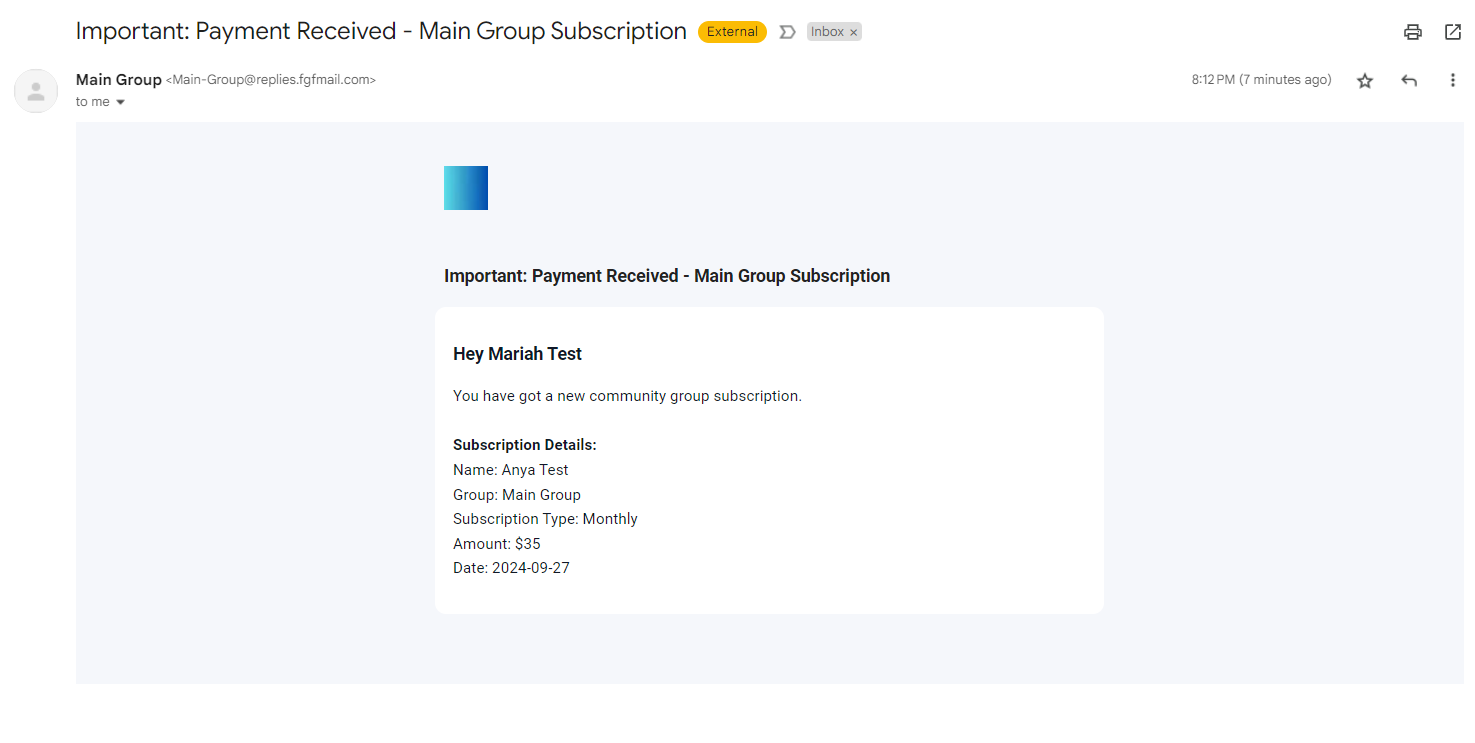
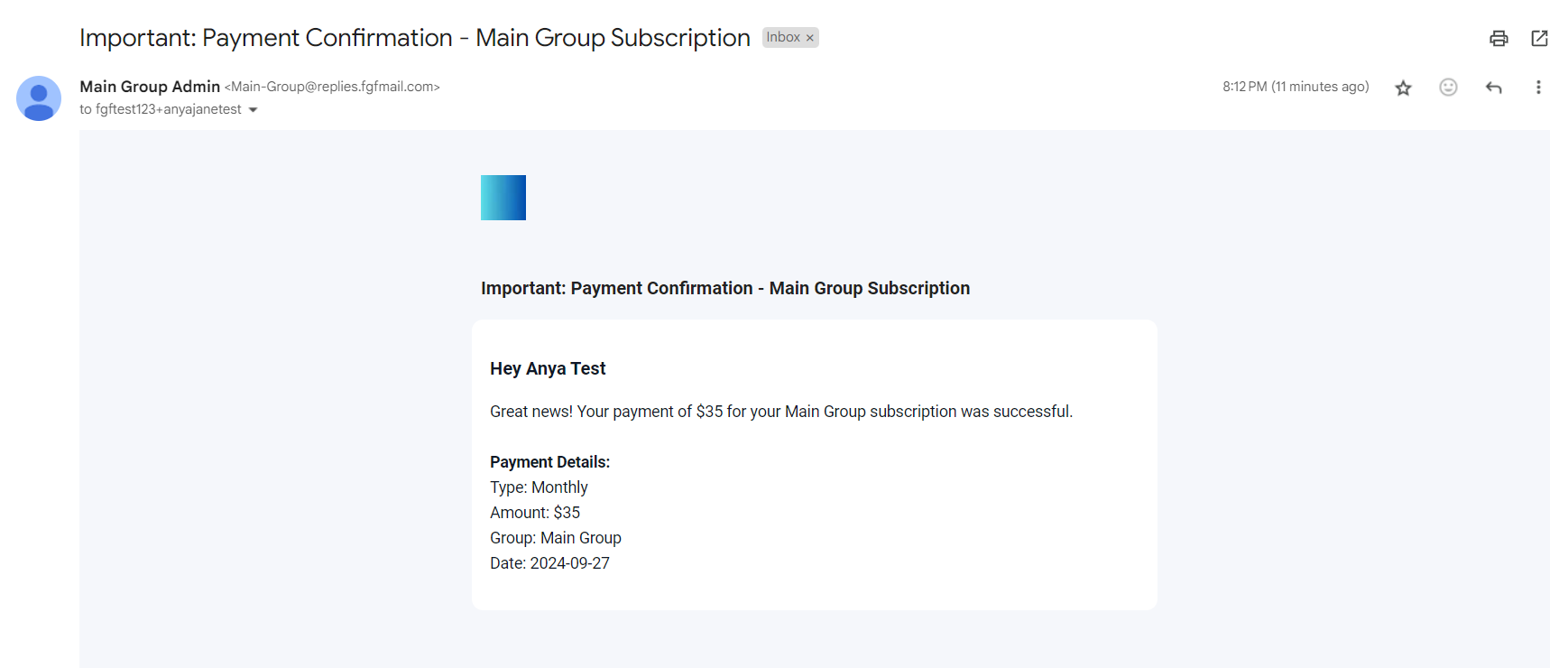
The member also gets a payment confirmation with their payment details.
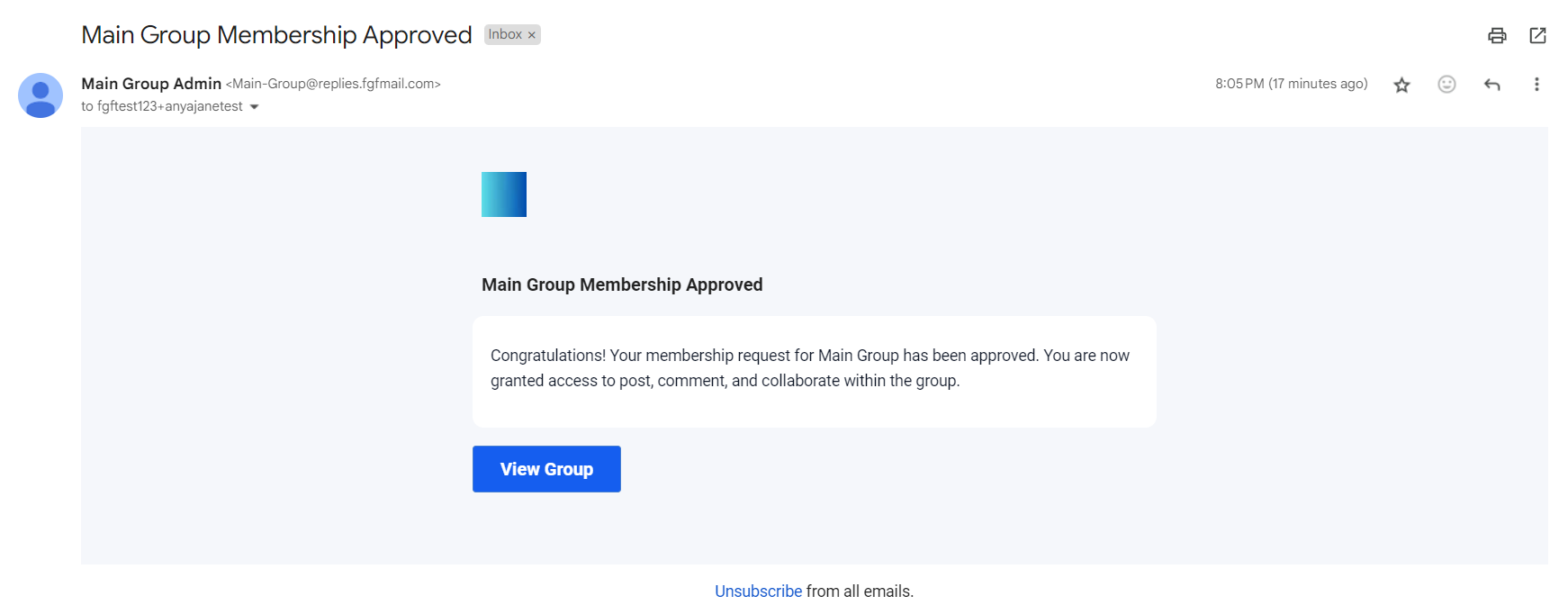
For a private group, the member is notified again once an owner or admin approves their membership.
Cancellations and Refunds
What happens when you cancel a member's subscription from the Payments section of your FG Funnels account?
- The member gets a cancellation confirmation email.
- Owners and admins of the group get a cancellation email.
- The member is automatically removed from the group.
What happens when a member cancels their subscription from the Stripe screen?
- The member gets a cancellation confirmation email.
- Owners and admins of the group get a cancellation email.
- The member is automatically removed from the group.
How can members be refunded?
You can refund a payment from your FG Funnels account or your Stripe account:
- FG Funnels: go to Payments > Transactions, click the ⋮ (three dots) on the right of the transaction, and click Refund.
- Stripe: refunds can also be issued in Stripe. See Stripe's refunds guide.
If a member's contact is deleted and later restored, do they need to pay again?
No. If a contact is accidentally deleted and then restored, the member should be reinstated in the group without paying again.
What are the minimum and maximum charge amounts for each currency?