
How to Moderate Your Community: Ban Members, Review Flagged Content, and Manage Comments
Keep your community a place people want to be. FG Funnels gives group admins and moderators a set of tools for this. You can automatically hold posts that contain words you don't want, review posts and comments that members report, ban members who break the rules, and choose which posts are open for discussion.
In this article
Moderation Tools at a Glance
- Ban members: remove a member from the group and stop them from joining again. You can ban someone from the Members tab or straight from one of their posts. When you ban from a post, you can also delete everything they've posted.
- Reported content: any member can report a post or comment. Group admins get notified and decide whether to keep or remove it.
- Flagged keywords: posts and comments that contain a keyword or phrase you've flagged are held back from the feed until you review them.
- Manage commenting: turn comments on or off for any post, either when you create it or any time after it's published.
All of the moderation settings are in your community under Settings → Content Moderation.
Open Your Community
1. Go to your community groups
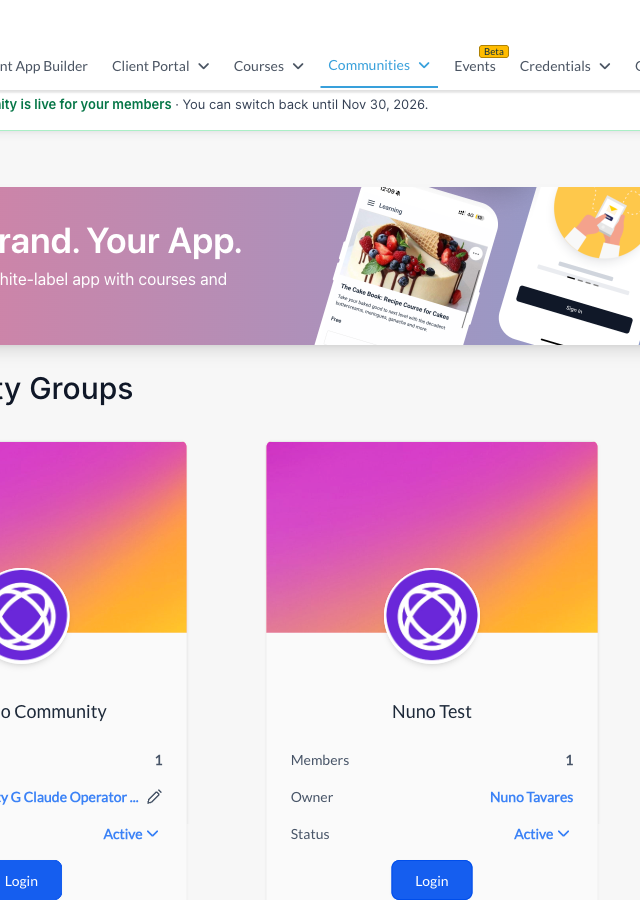
From the left-hand menu, go to Memberships, then click the Communities tab at the top.

2. Enter the community
Under Community Groups, find the community you want to manage and click Login to open it.
Ban a Member
A banned member is removed from the group and can't join it again. They lose everything a regular member can do in the group. Group admins and owners can ban members from the Members tab. Moderators can also ban someone directly from one of their posts without leaving the feed.
Option A: Ban from the Members tab (web)
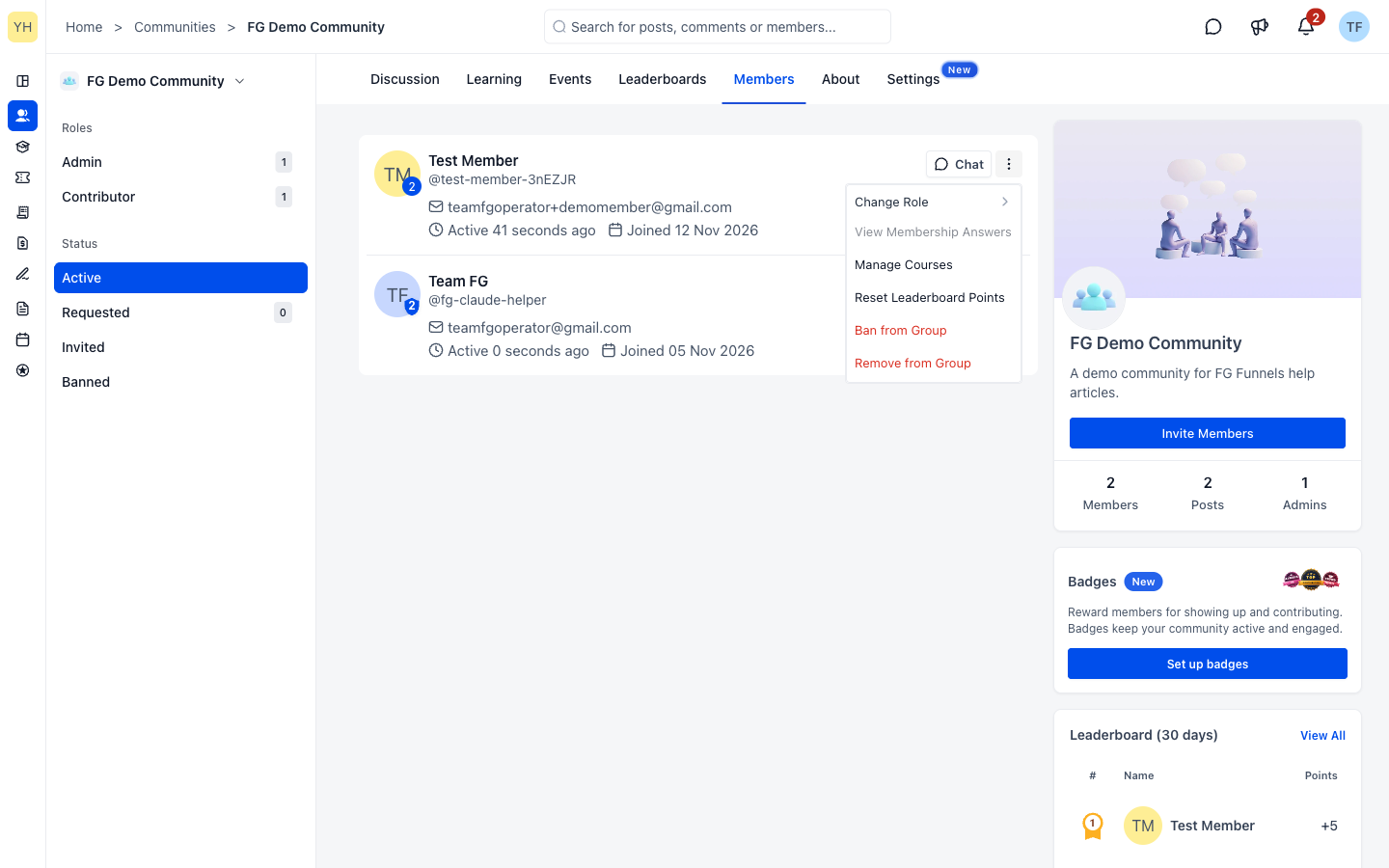
- In your community, open the Members tab.
- Click the three-dot menu (⋮) next to the member you want to ban.
- Click Ban from Group.
Option B: Ban from a post
This is the fastest way to deal with spam, because you can remove the member and their content in one step.
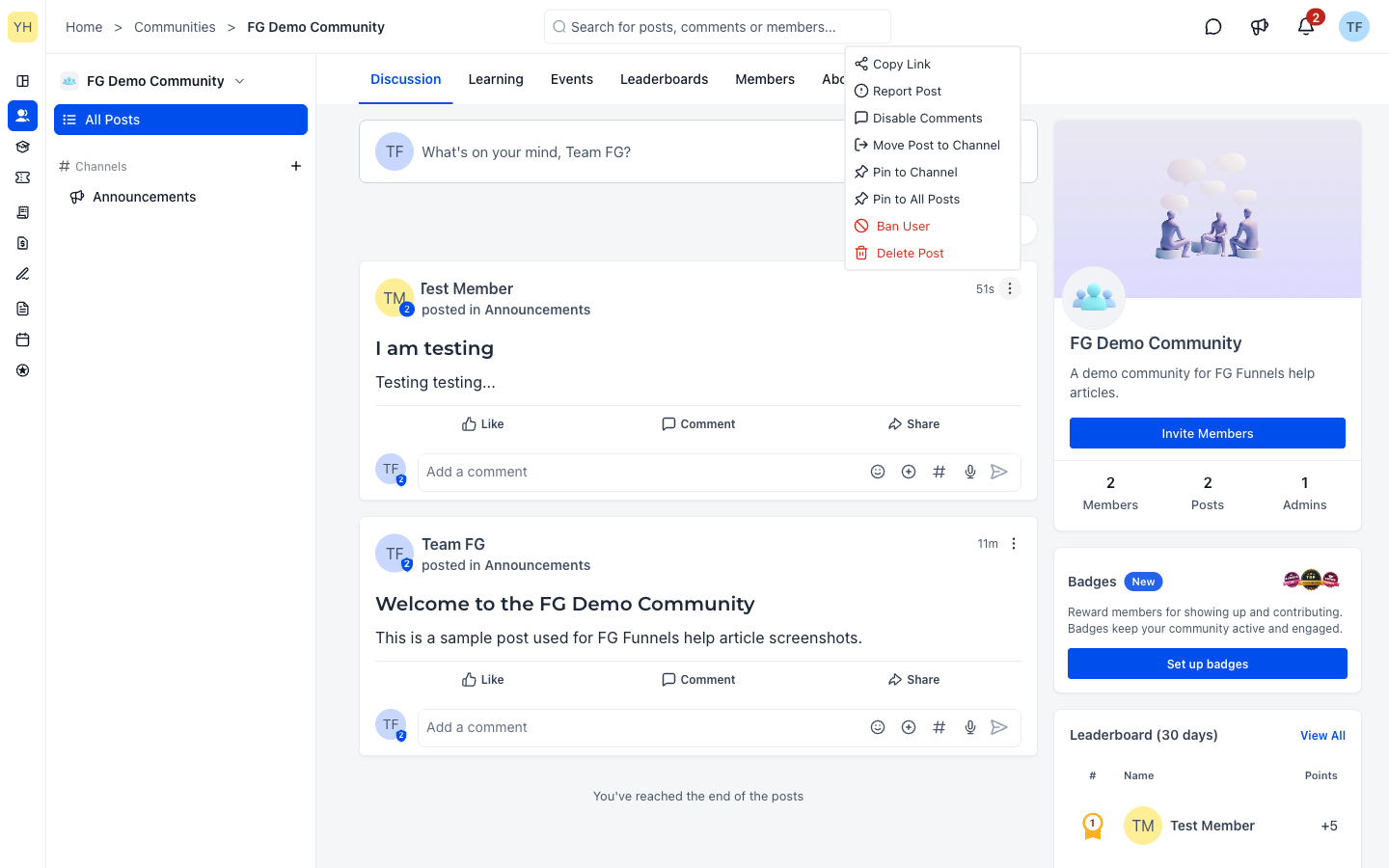
- Find a post from the member you want to ban and click the three-dot menu (⋮) in the top-right corner of the post.
- Choose Ban User. The Ban Member? dialog opens, showing the member's name and username.
- Decide what happens to their content. Delete all content created by this user is checked by default:
- Leave it checked to remove all of their posts, comments, and recordings.
- Uncheck it to keep their content visible in the community.
- Click Yes, Ban.
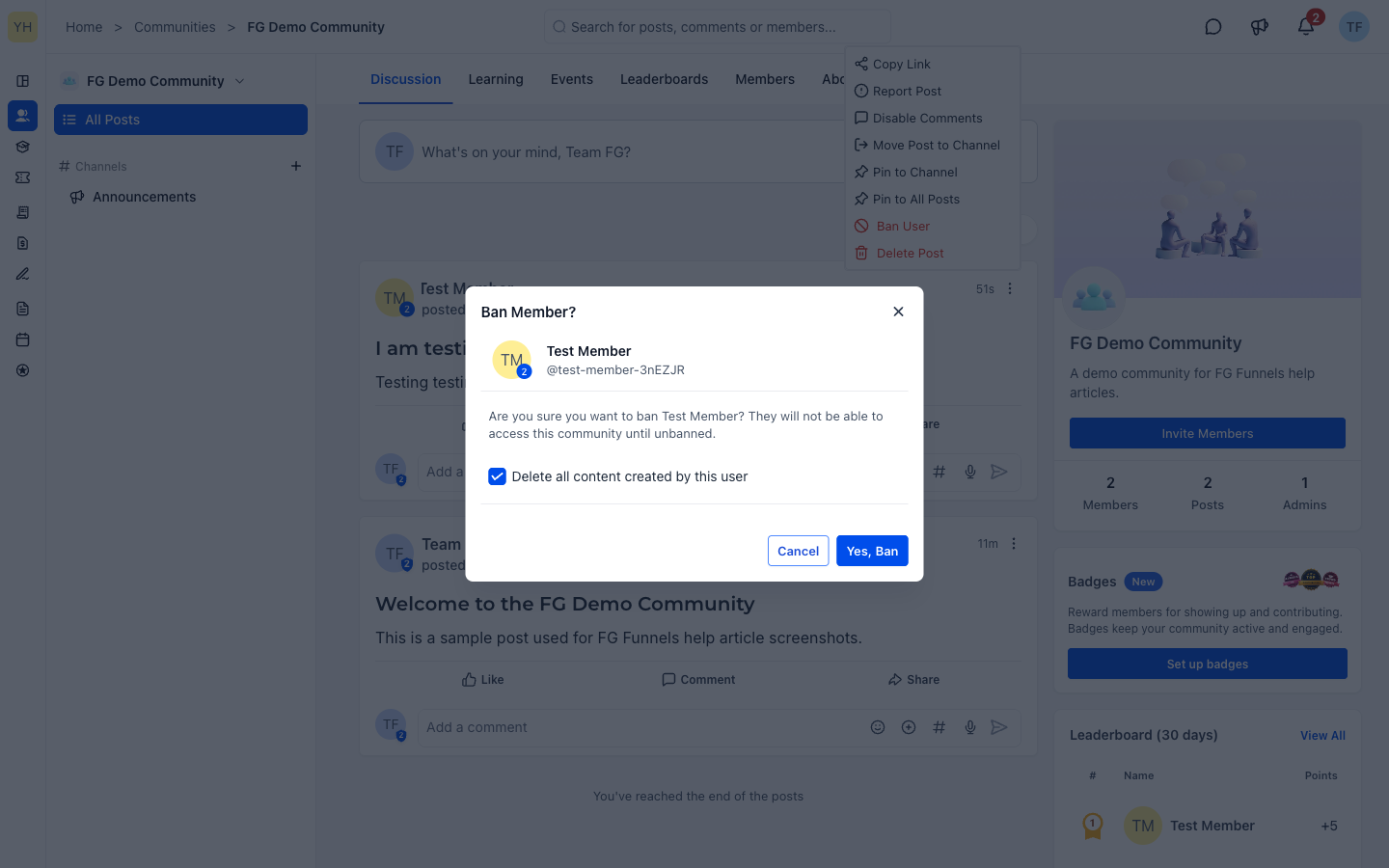
Warning: Delete all content created by this user is checked by default, and the deletion is permanent. Deleted content can't be restored, even if you unban the member later. If you only want to ban them, uncheck the box before you click Yes, Ban.
Option C: Ban on mobile
- On the Communities homepage, tap Manage. (You'll only see this button if you're an admin.)
- Tap Members on the community settings page.
- Tap the More options icon next to the member, then tap Ban from group.
Unban a Member
- Open the Members tab, then select Banned under Status to see everyone who's been banned.
- From the member's profile menu, select Unban User.
The member can access the community again. If you deleted their content when you banned them, it doesn't come back.
Report a Post or Comment
Any member can flag a post or comment for an admin to review.
- Click the three-dot menu (⋮) on the post or comment.
- Click Report Post (on a post) or Report (on a comment).
- Click Confirm to send the report.
The member sees a confirmation that the content has been reported.
Note: You can't report or ban yourself, so these options only appear on other people's posts.
Review Reported Content
Group admins are notified by email, in-app notification, and push notification whenever content is reported.
On web
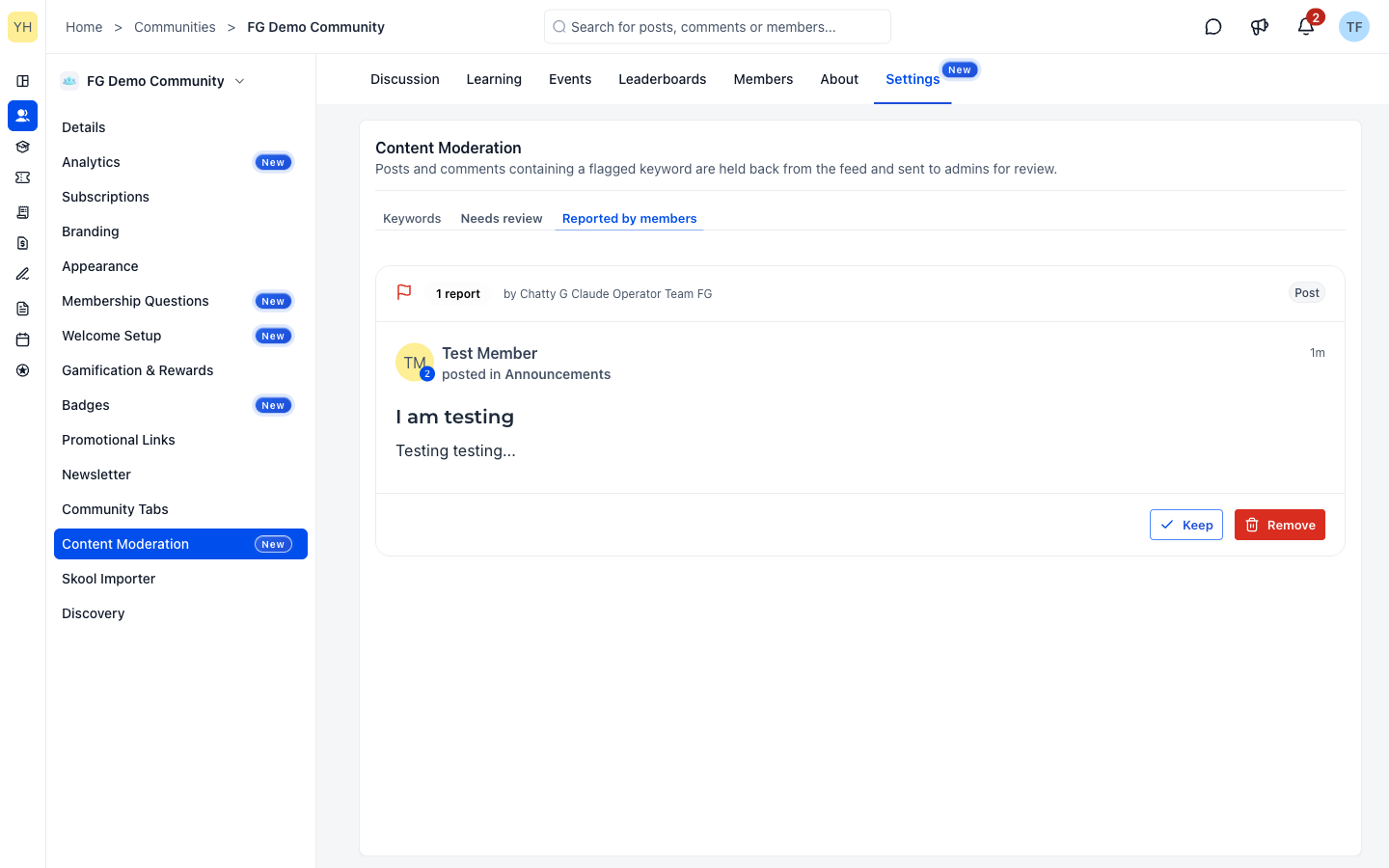
- In your community, click the Settings tab, then choose Content Moderation from the settings menu.
- Open the Reported by members tab.
- Each reported item shows how many reports it has and who reported it. Click Keep to leave it up or Remove to take it down. Either way, it's cleared from the list.
On mobile
- On the Communities homepage, tap Manage. (Admins only.)
- Tap To Review on the community settings page.
- Choose Keep or Remove for each item.
Automatically Hold Posts With Flagged Keywords
Reported content depends on members noticing a problem and flagging it. Flagged keywords catch it before anyone sees it. When a post or comment contains a keyword or phrase on your list, it's held back from the feed and sent to admins for review. It stays hidden from members until you approve it.
1. Add your flagged keywords
- In your community, click the Settings tab, then choose Content Moderation.
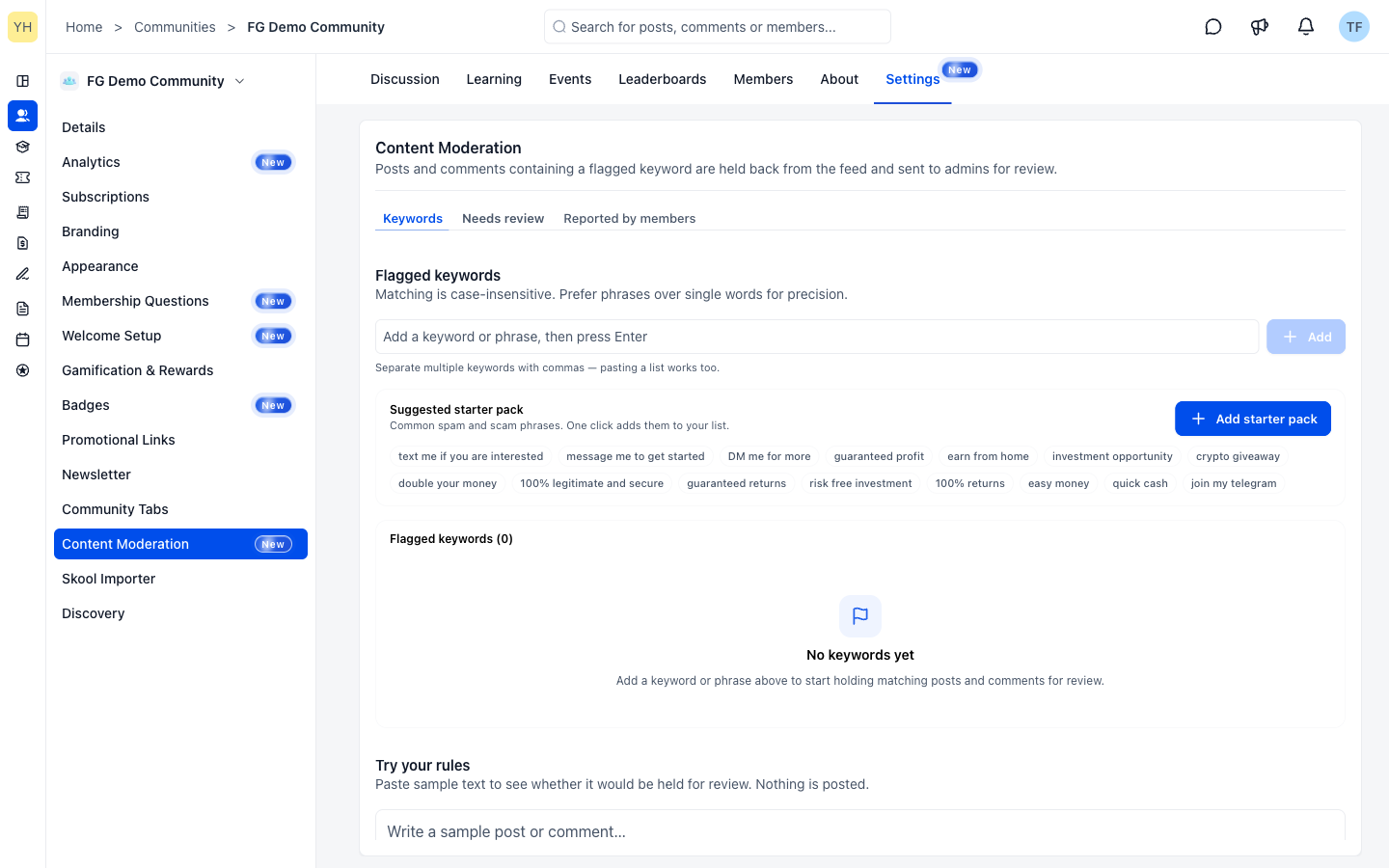
- On the Keywords tab, type a keyword or phrase in the box, then press Enter or click Add.
To add several at once, separate them with commas. Pasting a list works too. Matching isn't case-sensitive, so "Easy Money" and "easy money" are treated the same.
Tip: Phrases are more precise than single words. A single word like "money" could hold back a lot of perfectly normal posts.
To get started quickly, click Add starter pack under Suggested starter pack. It adds a set of common spam and scam phrases to your list in one click.
Everything on your list appears under Flagged keywords.
2. Test your rules
Under Try your rules, paste some sample text to see whether it would be held for review. Nothing is posted, so you can test freely.
3. Review held posts and comments
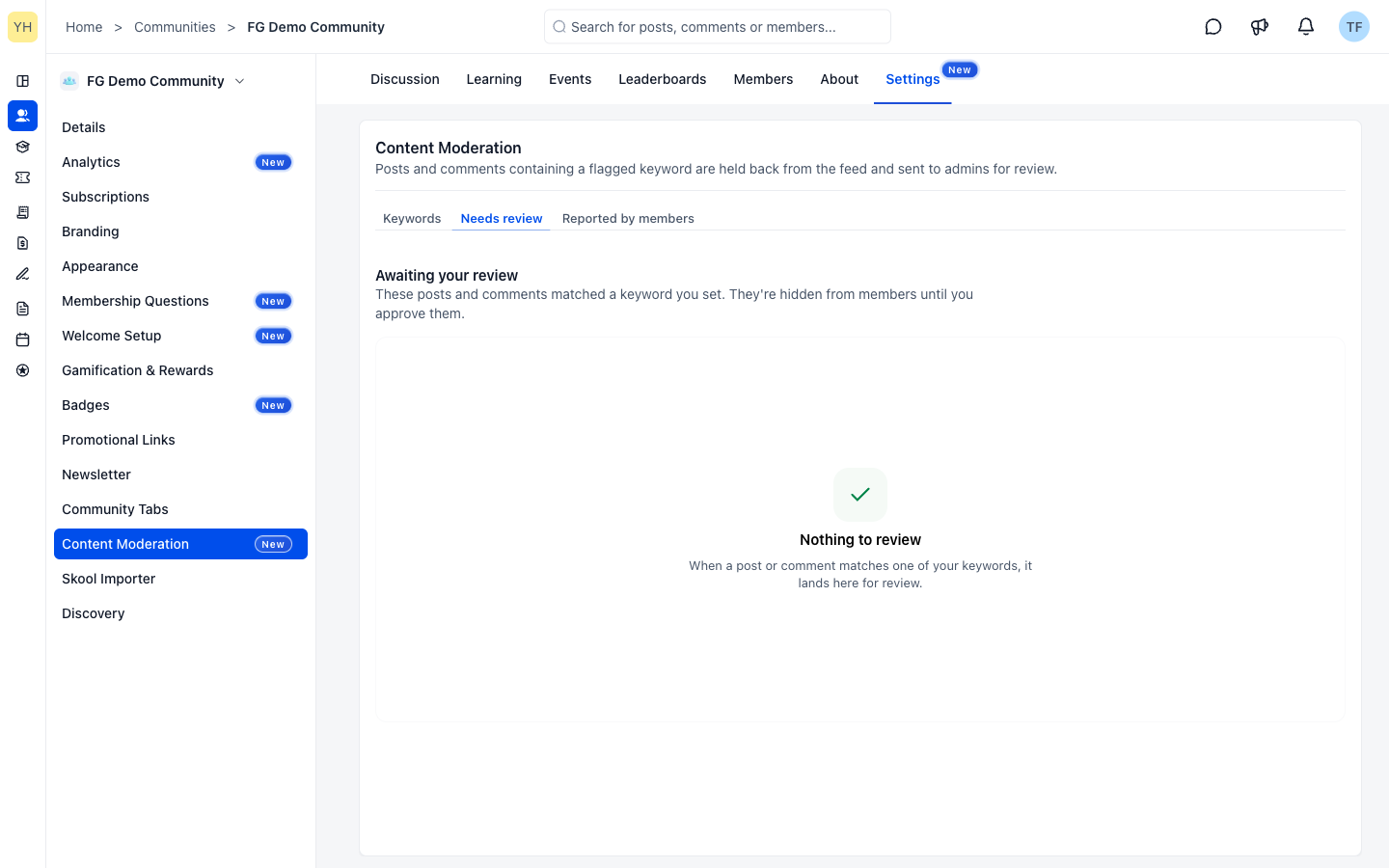
Open the Needs review tab. Everything that matched one of your keywords waits here, hidden from members until you approve it.
Turn Comments On or Off
Make a post read-only when it's an announcement, a policy update, or anything else that doesn't need a discussion. Then reopen comments whenever you're ready. This works for updates, discussions, resources, and posts in announcement channels.
Who can change comment settings: the post author, channel managers, and workspace admins.
1. Set comments while creating a post
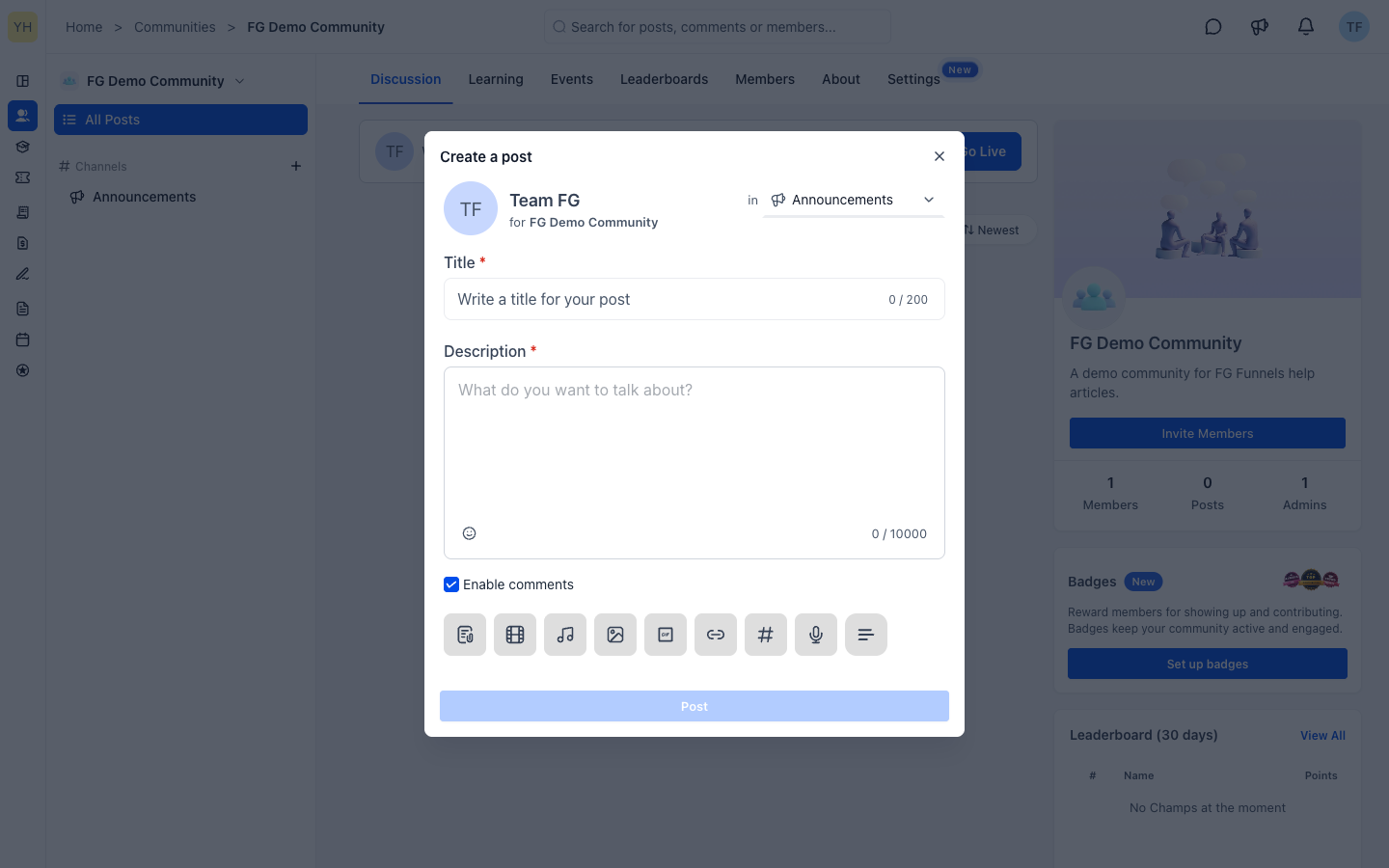
On the Discussion tab, click the post box ("What's on your mind?") to open Create a post. Below the description, the Enable comments checkbox is checked by default:
- Checked: members can reply to your post.
- Unchecked: the post is published read-only, with no comment bar.
2. Turn comments off on a published post
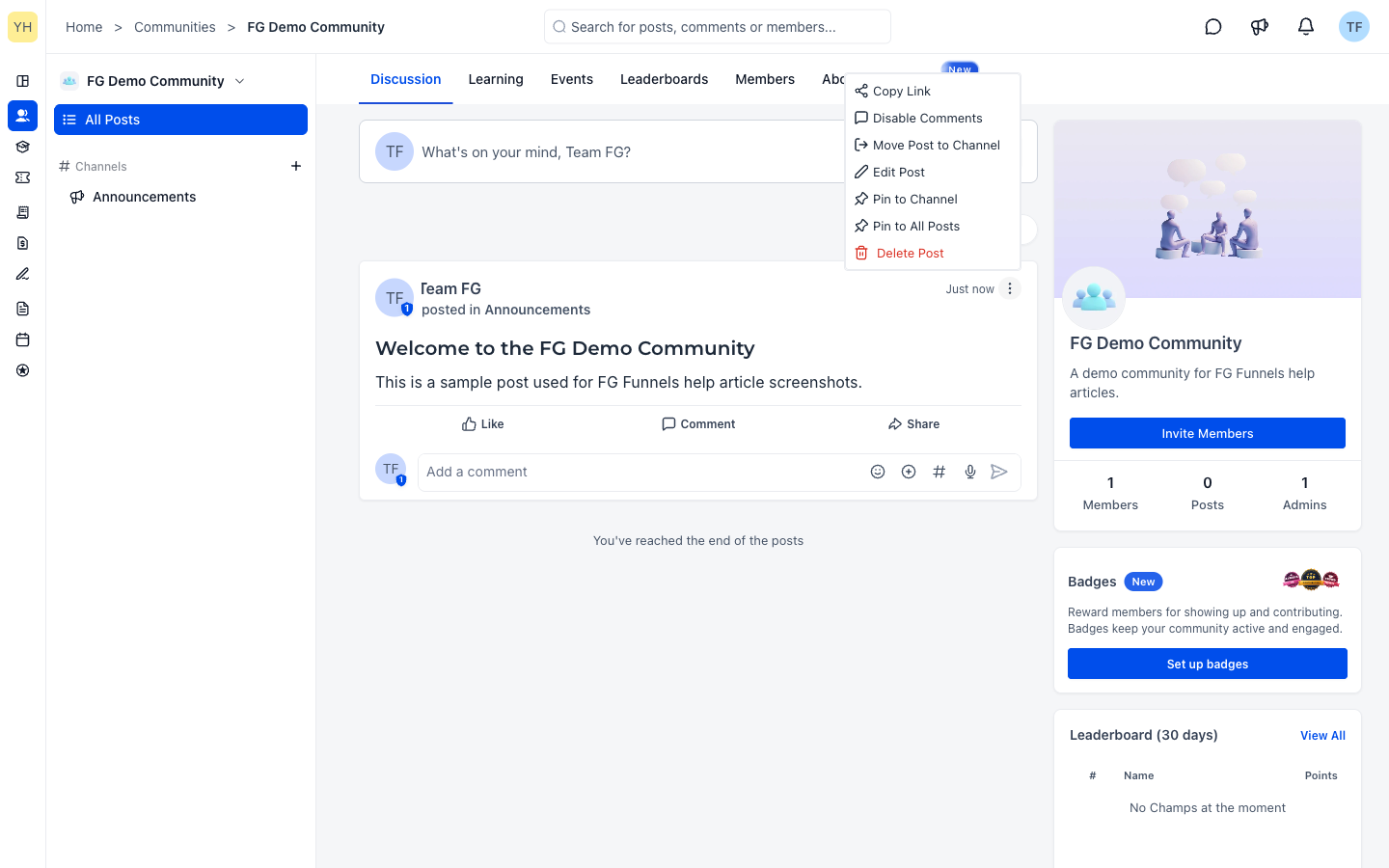
Click the ⋮ menu in the top-right corner of the post and select Disable Comments. The comment box disappears for all members right away, and you'll see a confirmation that comments are disabled for the post.
3. Turn comments back on
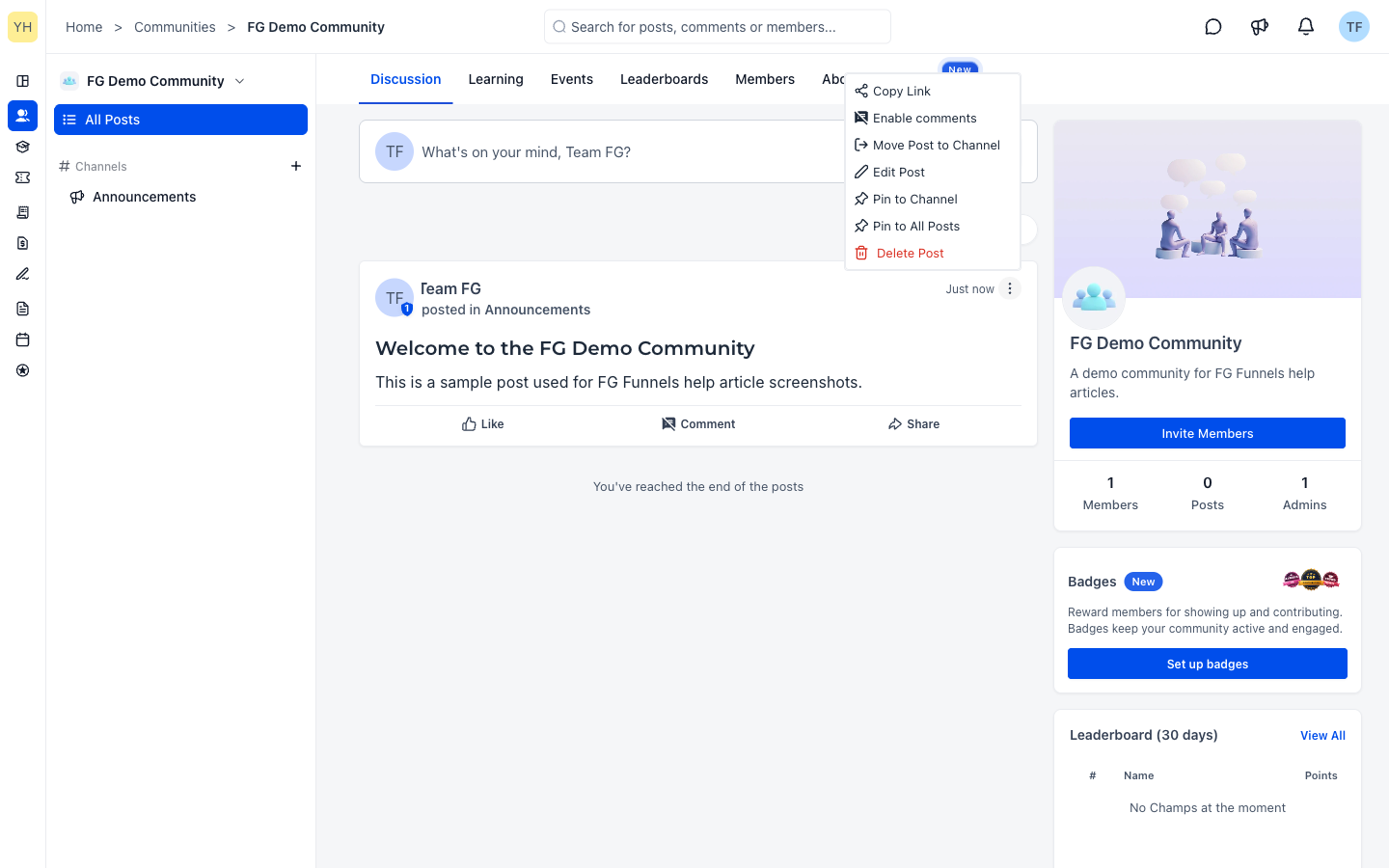
Click the ⋮ menu on the same post and select Enable comments. Any comments that were hidden come back automatically.
Good to know:
- Turning comments off hides existing replies. It doesn't delete them.
- Members can still react to a post when comments are off.
- Changing comment settings doesn't send any notifications.
- Announcement channels: new announcement posts allow comments unless you turn them off. Announcement posts created before this feature have comments turned off by default, so review them and decide whether to open comments.
Frequently Asked Questions
Q: What's the difference between "Needs review" and "Reported by members"?
Needs review holds posts and comments that matched one of your flagged keywords. Members never see them unless you approve them. Reported by members lists content that's already live, which a member flagged by hand.
Q: What happens to a member's content when I ban them?
That depends on the Delete all content created by this user checkbox, which is checked by default when you ban from a post. If you leave it checked, all of their posts, comments, and recordings are permanently removed. If you uncheck it, their content stays visible.
Q: Can I unban someone?
Yes. Go to the Members tab, select Banned under Status, and choose Unban User from the member's profile menu. Content you deleted during the ban can't be restored.
Q: Can a banned member rejoin on their own?
No. A banned member can't join the group again until an admin unbans them.
Q: How will I know when something is reported?
Group admins get an email, an in-app notification, and a push notification for every report.
Q: Does disabling comments delete existing replies?
No. Replies are only hidden. When you turn comments back on, they all return.
Q: Can I change comment settings on mobile?
Yes. The mobile post editor and the mobile menu have the same comment options.
Q: Will members get a notification when comments are turned back on?
No. Changing comment settings doesn't send notifications.
Q: Does this affect comments on posts published through Social Planner?
No. Comment controls only apply to Communities posts.