
How to Preview and Create Branded Email Templates
Preview email templates in your saved brand colors and fonts before you pick one. Choose a brand design kit from the preview sidebar to see it across the template right away, so you start every email already on-brand.
In this article
What Is Brand Design Kit Preview for Email Templates?
When you browse the Template Library, you can apply a saved brand design kit to a template before you select it. That way you can see how the template will look in your brand colors and fonts, compare a few kits side by side, and only then create your email.
Key Benefits of Brand Design Kit Preview
- Consistent branding: See templates in your brand colors before you commit to one.
- Faster email creation: Start from a template that already uses your colors, so there's less restyling afterward.
- Easy style comparison: Switch between kits in the preview to find the best fit.
- Ready-to-customize templates: Your selected kit's colors are applied when you create the email, ready for your content.
Brand Design Kit Options
The Brand design kit sidebar in the template preview shows these options:
- Original: Shows the template with its original styling.
- Saved brand design kits: Applies the selected kit to the template preview. Your default kit is marked Default.
- Colors and Typography: Shows each kit's color palette and its heading and body fonts.
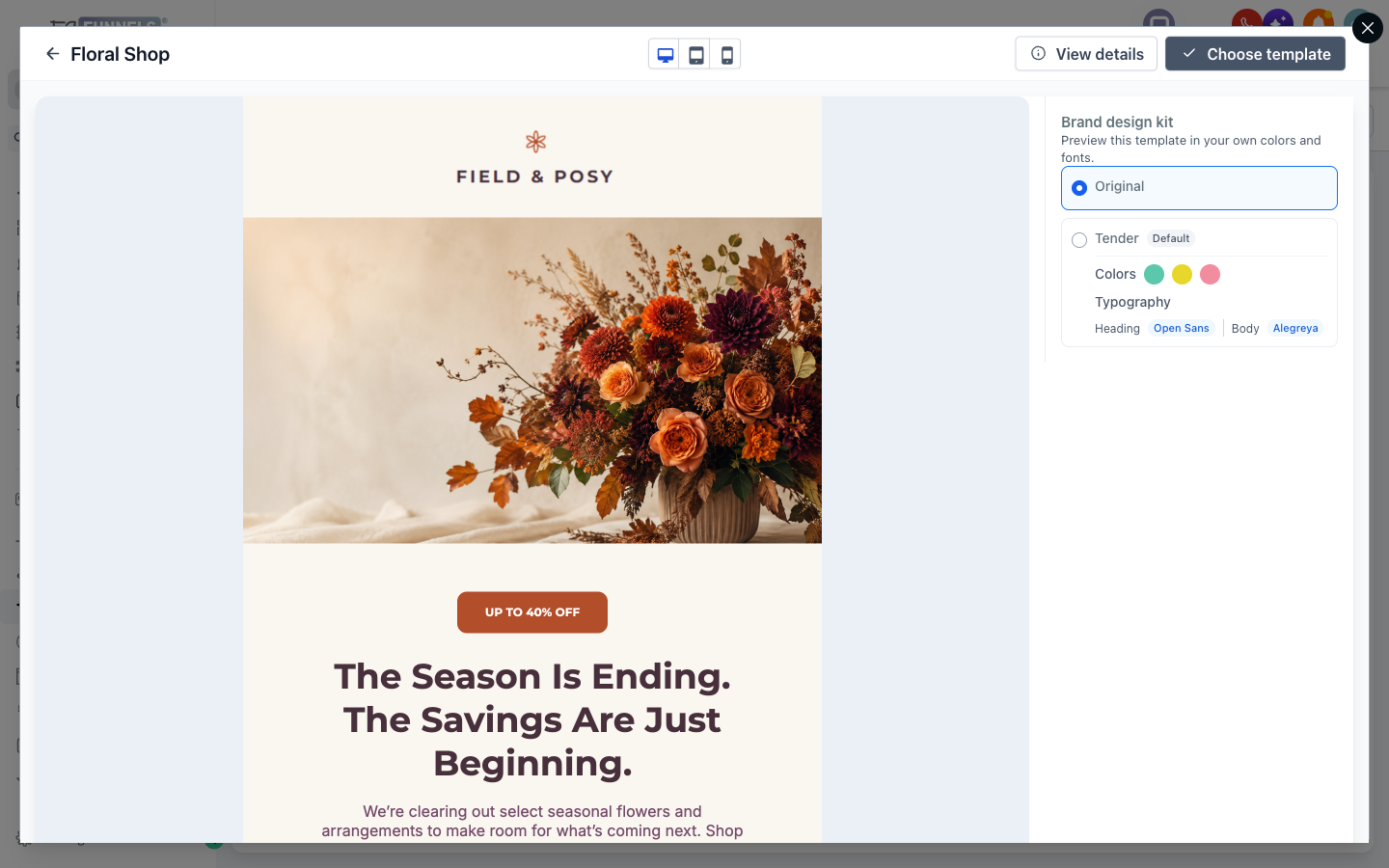
How to Preview Email Templates with Brand Design Kits
1. Open the Template Library
Go to Marketing > Emails and open the Templates tab. Click + New, then choose Email marketing templates to open the template library.
2. Preview a template
Hover over the email template you want and click Preview.
3. Select a brand design kit
In the Brand design kit sidebar, select one of your saved kits. Its colors and fonts are applied to the preview. Switch between kits to compare how each one looks on the template.
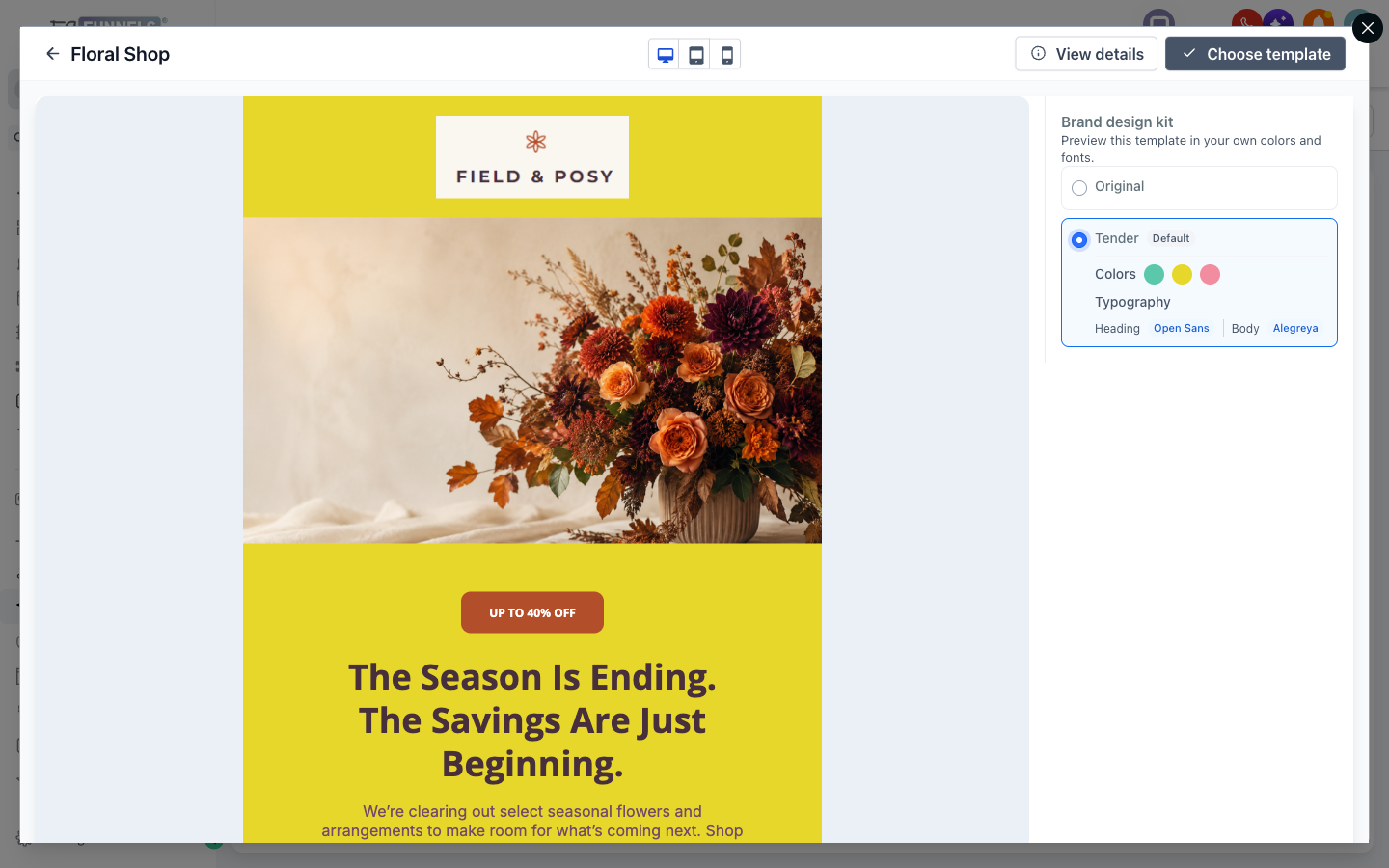
4. Create your email
Click Choose template. Your email is created with the selected kit applied.

FG Tip: Most of your list reads on a phone. Check the mobile view before every send. See How to Edit Your Email Format for Mobile for how to switch views and adjust what shows on mobile.
Frequently Asked Questions
Can I preview a template without a brand design kit?
Yes. Select Original to see the template with its original styling.
Why isn't a brand design kit I want showing up?
The kit must be saved in the sub-account where you're creating the email.
Can I compare more than one brand design kit?
Yes. Select different kits in the sidebar before you click Choose template.
If I change a saved brand design kit, do my existing emails update?
No. Changes to a saved kit don't restyle emails you've already created.