
Customize the Product Detail Page Layout
FG Funnels gives you more control over your store's Product Details Page. The page is built from individual elements that you can arrange and style separately.
In this article
Customize the Product Detail Page Layout
The Product Detail Page is built from separate product elements instead of one fixed block, so you control where each piece of product information appears and how it's styled.
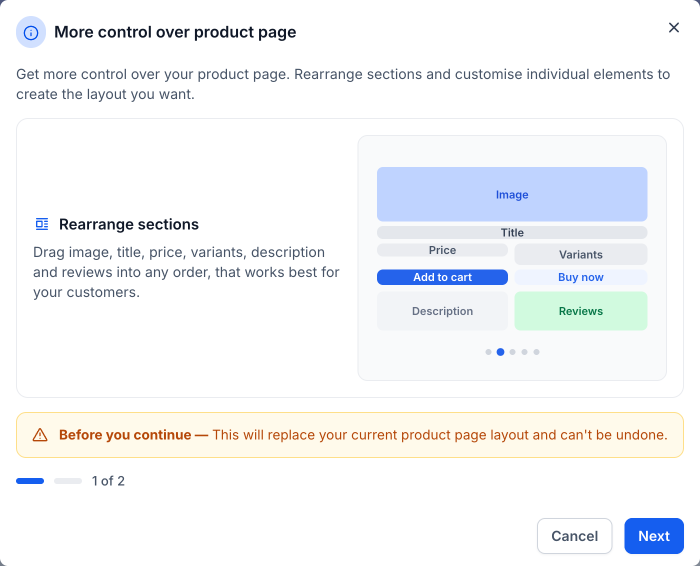
You can arrange elements such as product images, title, reviews, price, variants, quantity, Add to Cart, Buy Now, description and related products in the layout that works best for your store. For example, you can put the title above the product image, move reviews higher on the page, or place product details side by side.
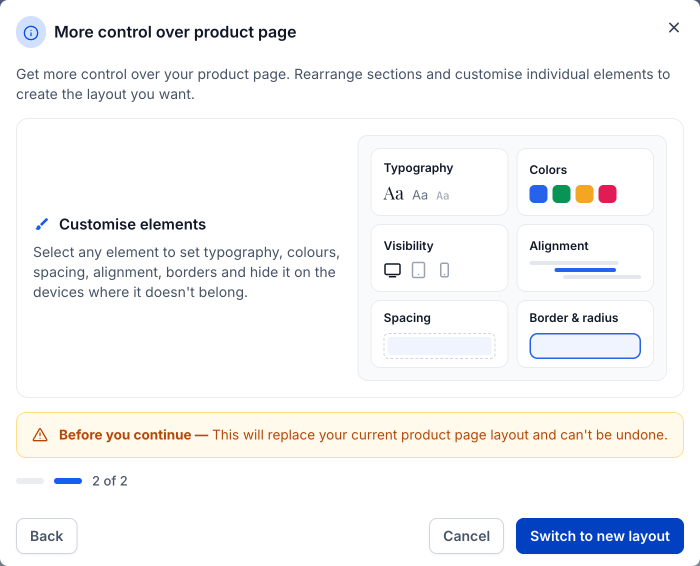
Each element has its own settings, so you can set typography, colors, spacing, alignment, backgrounds, borders, corner radius, shadows and device visibility independently.
Existing stores keep the classic Product Detail layout until you choose to upgrade. When you switch to the new layout, FG Funnels carries over your existing styling where supported.
Switch an Existing Store to the New Layout
Note: The upgrade is one-way. You can't switch back from the upgrade control. If you need to, you can restore an older saved version of the page using Version History.
1. Open the Product Details Page
Open your store's Product Details Page in the builder.
2. Select the Product Detail element
Click the Product Detail element on the page.
3. Switch to the new layout
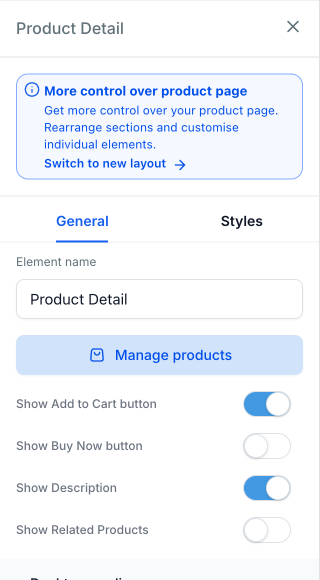
In the right panel, click Switch to new layout.
4. Confirm the switch
A More control over product page prompt opens and walks you through what the new layout lets you do. Click Next, then click Switch to new layout to confirm. To keep the classic layout for now, click Cancel.
Custom CSS classes from the classic layout aren't carried over during the upgrade. You can add custom classes to the individual elements after you switch.
Update a Saved Store Template
If you want new stores created from a saved template to use the new layout, first upgrade the Product Details Page in the store the template was created from.
After you upgrade that page, refresh the saved template from the template library so it includes the updated layout.
New stores created from the refreshed template use the new Product Details Page layout. Existing stores created from that template aren't updated automatically and must be upgraded separately.