
Live Data Preview in the Store Builder
Live Preview lets you test your online store with your real product data right inside the Store Builder, before you publish. You can browse products, pick variants, add items to the cart, change quantities, and move between store pages, just like a customer would. Turn it off any time to go back to sample product data.
In this article
How Live Preview Works
- If your account has products, Live Preview is on by default.
- If your account has no products yet, Live Preview is off by default and the builder shows sample products.
How to Use Live Preview
1. Open your store
From your sub-account, go to Sites, then select Stores.
2. Open the store page you want to review
Open the online store you want to edit, then open the store page you want to check.
3. Turn on Live Preview
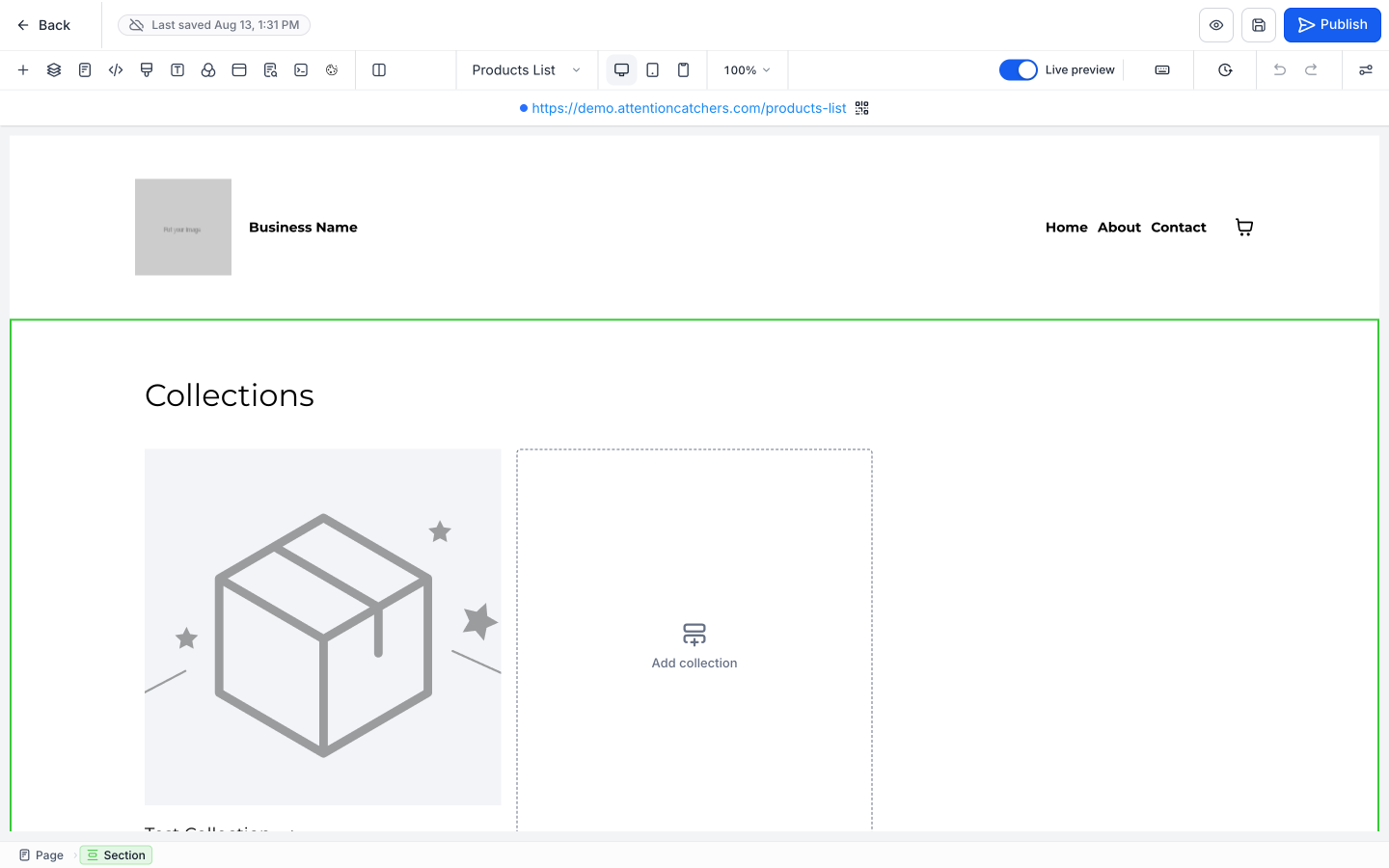
Find the Live preview toggle in the top toolbar of the Store Builder and turn it on to use your real product data.
4. Test your store
Click through products, variants, page navigation and cart actions to check how everything looks and works.
5. Turn Live Preview off when you're done
Turn Live preview off to go back to sample product data.
What You'll See on Each Page
Product list and product details pages
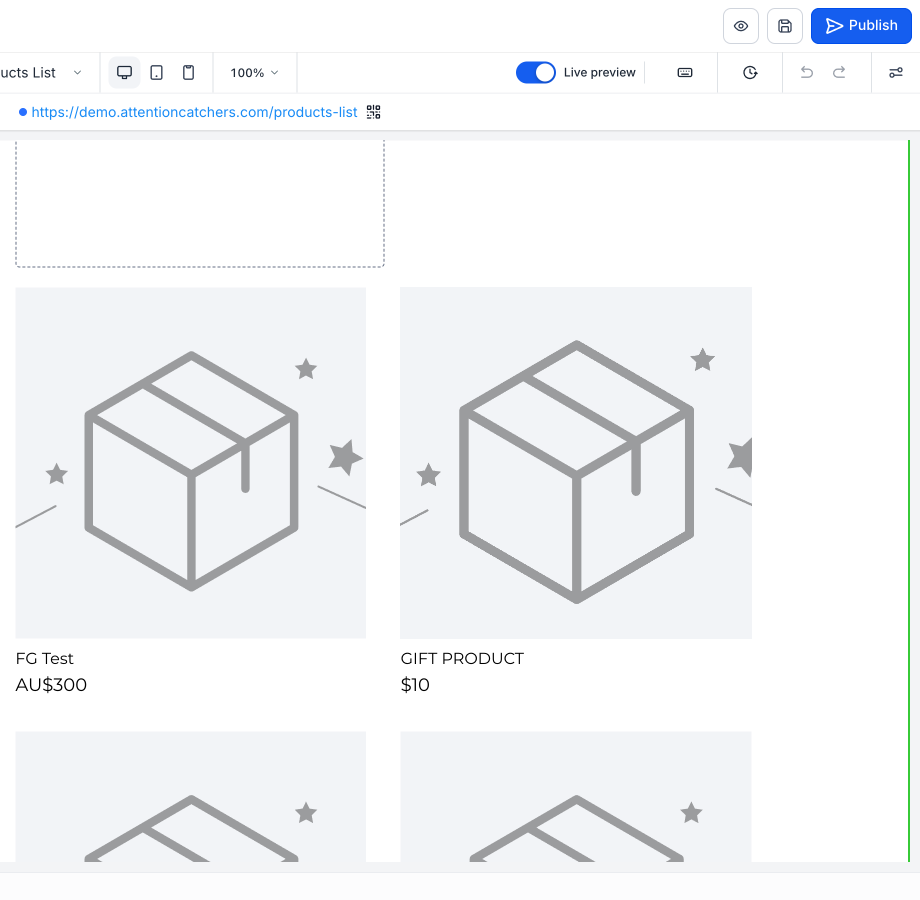
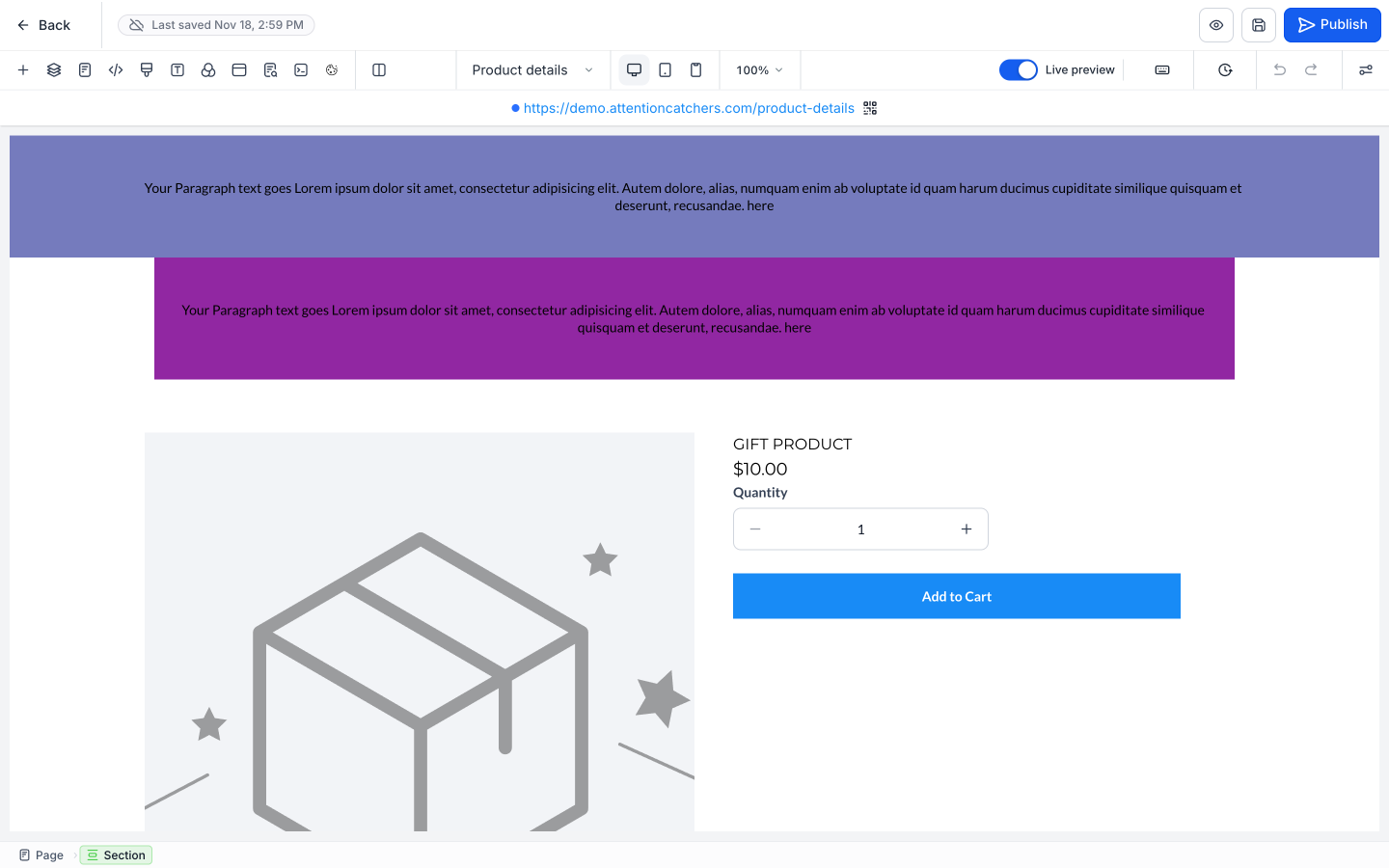
With Live Preview on, you can open products from the product list page, review real product details, select variants, use Add to Cart, and move between supported pages.
If you open the default product details page directly in the builder, it shows one random real product from your account.
Product elements
The Featured Product, Featured Products and Upsell elements keep the actions you've set up. Whether they show sample or real data depends on whether Live Preview is on and which products you've assigned to each element.
Cart, checkout and thank you pages
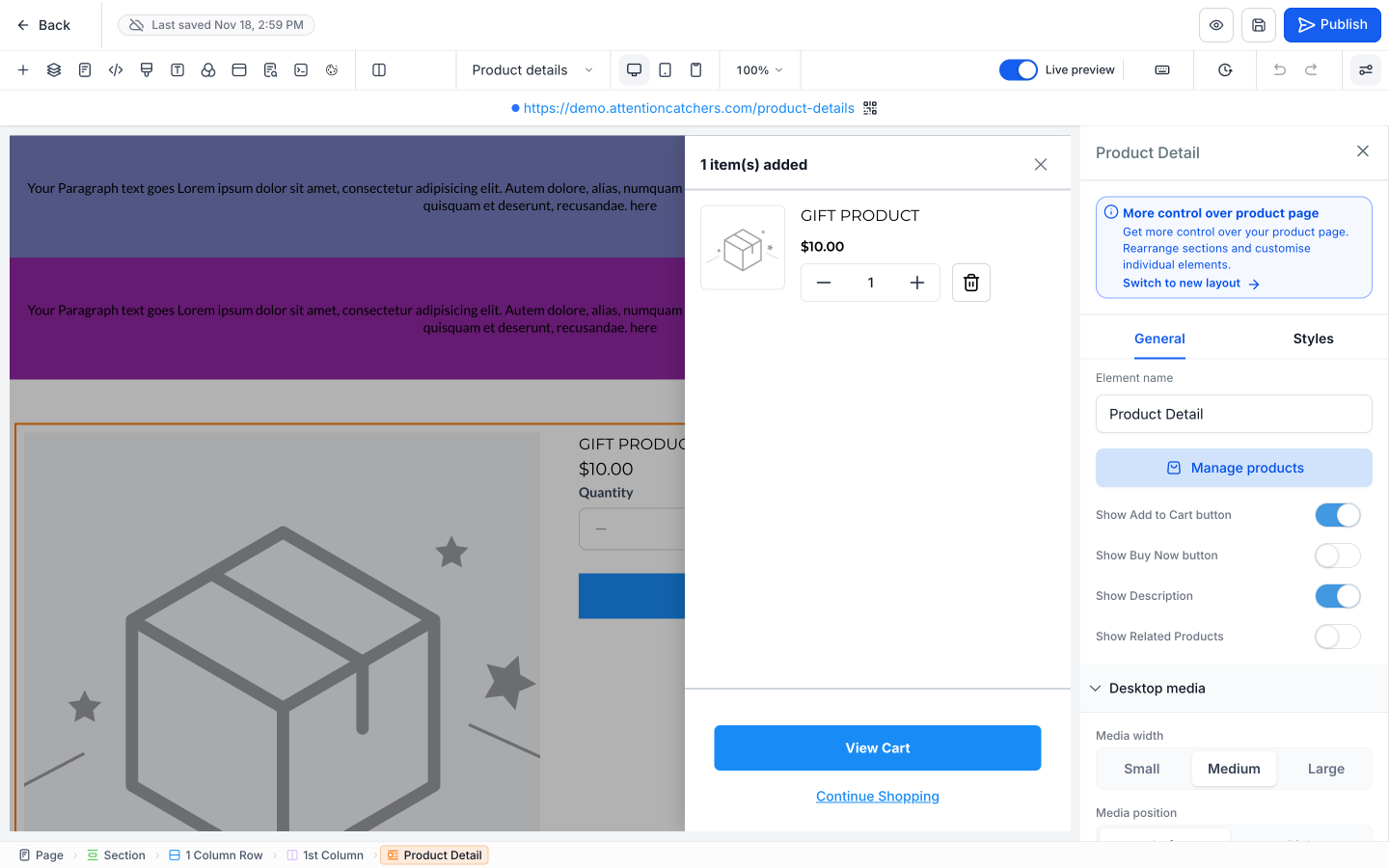
- Add products, update quantities, remove items, and review the cart page.
- Whatever is in the cart carries through to the checkout and thank you pages.
- If the preview cart is empty, the checkout and thank you pages show one or two products from your account so you can still review the design.
Note: Checkout in the builder is for preview only. Real-time shipping rates, taxes, multiple payment methods and working checkout fields aren't available there.
Clicking sections in the builder
- Your first click on a section selects it for editing.
- Once it's selected, clickable elements (product links, redirects, Add to Cart) work the way they would for a customer.
Limitations
- Custom product details pages don't support Live Preview. They keep using sample data and don't have the Live Preview toggle.
- The checkout limits above apply only to the Store Builder preview. Your published store's checkout works normally.
Frequently Asked Questions
What happens when I turn on Live Preview?
Supported store pages and product elements use your real product data instead of sample data.
Is Live Preview turned on automatically?
Yes, if your account has products. If you don't have any products, Live Preview is off and sample products appear.
Can I switch back to sample product data?
Yes. Turn Live Preview off at any time.
Does Live Preview work with custom product details pages?
No. Custom product details pages keep using sample data and don't have the Live Preview toggle.
What happens when I open the default product details page directly?
With Live Preview on, the builder shows one random real product from your account.
What happens when the preview cart is empty?
The checkout and thank you pages still show one or two products from your account so you can review their design.
Can I complete a real checkout in Live Preview?
No. Checkout in Live Preview is only for reviewing your store. Working checkout fields, real-time shipping rates, taxes and multiple payment methods aren't supported there.