
How to Use Brand Board Colors in QR Codes
Note: Your screen may look different from this article if your account has the new FG Funnels menu design turned on. Learn why and how to switch back.
Your brand board colors are available right in the QR code builder, so you can make every QR code match your brand without typing in color codes.
In this article
How Brand Colors Work in QR Codes
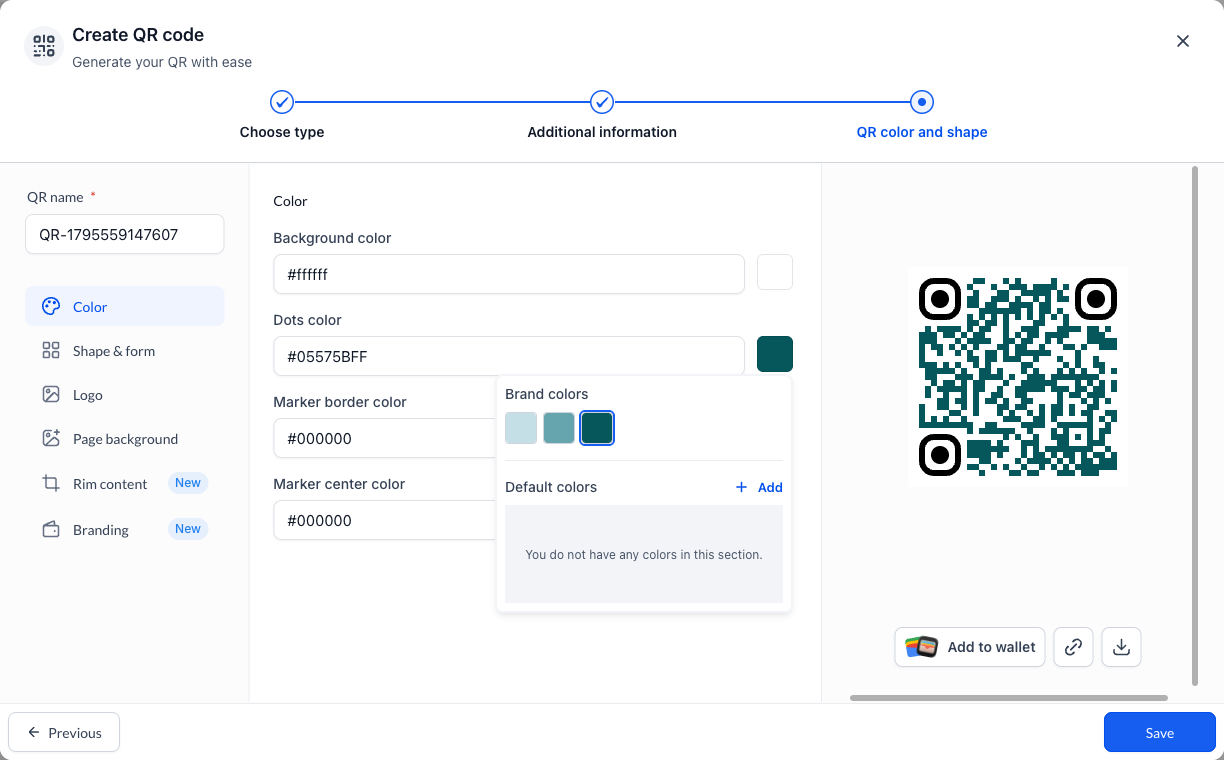
When you create or edit a QR code, the color picker shows two sets of saved colors:
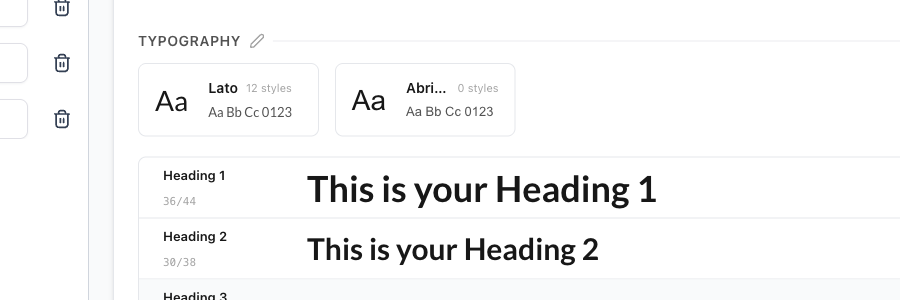
- Brand colors: the colors saved in your brand board (design kit).
- Default colors: reusable colors you've saved for your account.
You can use them for the QR code's Background, Dots, Marker border, and Marker center colors, and for rim content. The preview updates as soon as you pick a color.
Note: Brand colors only show up after you've saved a brand board with colors. If you don't have one yet, see Creating a Brand Board in FG Funnels.
How to Use Brand Colors in a QR Code
1. Open the QR code builder
In your account, go to Sites > QR Codes. Click Create QR code, or open an existing QR code to edit it.
2. Go to QR color and shape
For a new code, choose the QR type, enter the details, and click Next until you reach QR color and shape.
3. Open the color picker
Under Color, click the color square next to the element you want to change, such as Background color, Dots color, Marker border color, or Marker center color.
4. Pick a saved color
Choose a color under Brand colors or Default colors. The color code fills in for you, and the preview updates.
5. Repeat and save
Pick colors for the other elements, including Rim content if you use it. Check the preview, then click Save.