
How to Create and Manage Rental Add-ons
Note: Your screen may look different from this article if your account has the new FG Funnels menu design turned on. Learn why and how to switch back.
Rental add-ons let you offer optional extras with your rentals, such as a pet fee, equipment, or insurance. Create each add-on once, set its price and taxes, and attach it to as many listings as you like. Customers choose the extras they want when they book, and the total updates as they go.
In this article
What Are Rental Add-ons?
Add-ons are optional products or services customers can add to a rental booking. They live in one shared catalog, so you can reuse them across listings without creating separate listings or adding charges by hand.
For example, a vacation rental might offer a BBQ station or a heated pool, and a vehicle rental might offer GPS or insurance.
Note: Add-ons are always optional. For required charges, use Additional fees instead.
Key Benefits
- One place to manage extras: create reusable add-ons and attach them to many listings.
- Flexible pricing: charge a flat amount or a percentage, with a maximum quantity.
- More revenue: offer extra equipment and services alongside your rentals.
- Clear booking experience: customers see the extras, totals update right away, and each add-on shows on the invoice.
Pricing and Settings
Pricing options
| Pricing type | How it's charged | Example |
|---|---|---|
| Flat amount – Per booking | A fixed charge per booking, no matter how long the rental is | BBQ station: $150 per booking |
| Flat amount – Per booking unit | Charged per rental period (hour, day, week, or month) | Heated pool: $299 per month |
| Percentage | A percentage of the rental subtotal before taxes | Insurance: 10% of $1,000 = $100 |
⚠️ Important: Percentage add-ons don't stack on top of other add-ons or fees. Maximum quantity is a cap for the whole booking, no matter how many rental units are booked.
Add-on settings
| Setting | What it does |
|---|---|
| Add-on image | Optional. Shown on the booking page. |
| Name | Required. Shown to customers and on invoices. |
| Description | Optional. Shown on the booking page. |
| Status | Active or Inactive. |
| Price | Flat amount or Percentage, plus the amount. |
| Pricing unit | Per booking or Per booking unit (flat amount only). |
| Maximum quantity | The most a customer can choose per booking. This doesn't track inventory. |
| Assigned listing(s) | The listings this add-on is offered on. |
| Hide this add-on from booking page | Keeps it available to your team but hidden from customers. |
| Tax | Set up after you save the add-on. |
Status and visibility:
- Active: available for new bookings (unless hidden from the booking page).
- Hidden: customers can't see it, but your team can add it to bookings.
- Inactive: can't be added to new bookings. Bookings that already include it keep it.
How to Create and Manage Add-ons
Create an add-on
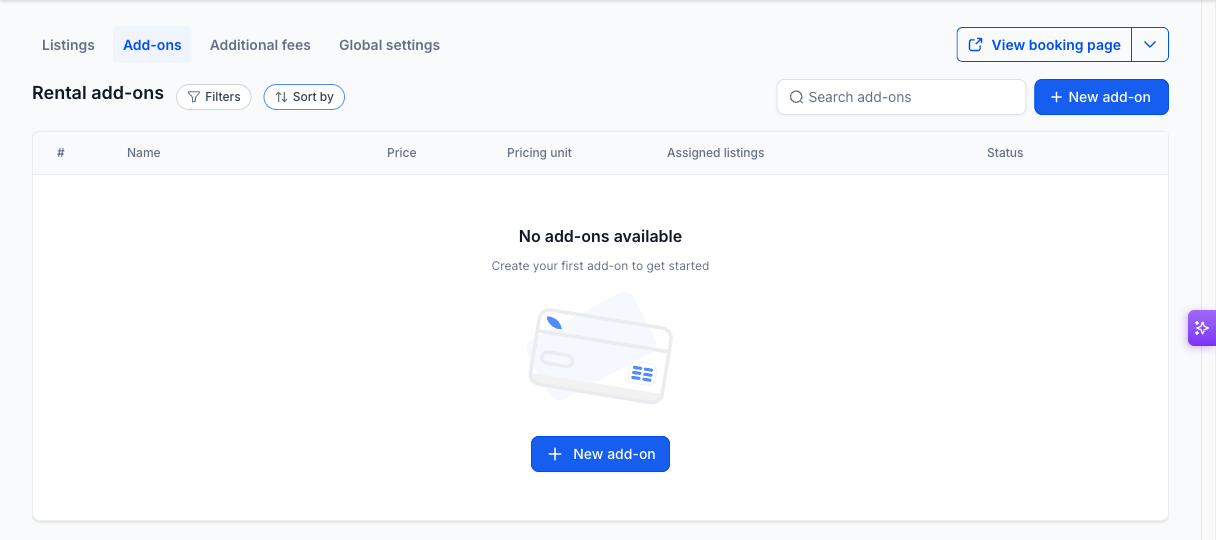
- In your account, go to Calendars > Calendar settings > Rentals > Add-ons.
- Click + New add-on.
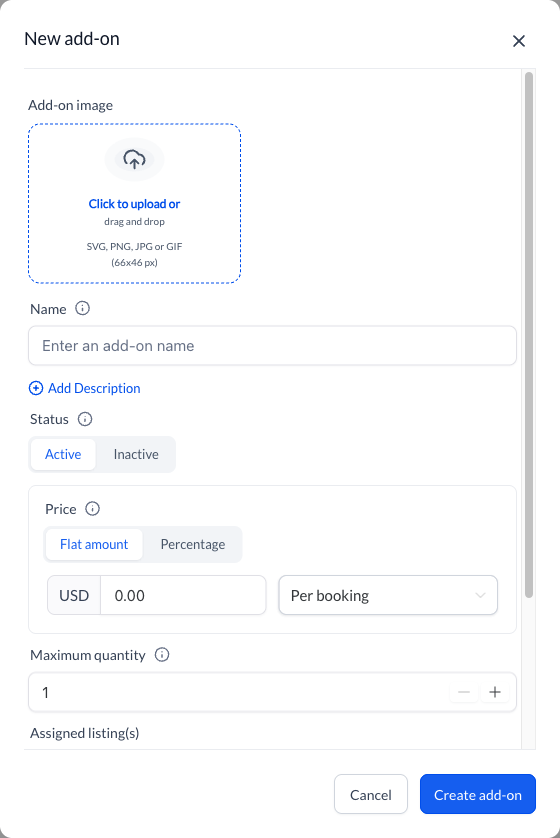
- Add an image if you like (SVG, PNG, JPG, or GIF, 66 × 46 px), and enter a Name. Click Add Description to add one.
- Choose Active or Inactive.
- Under Price, choose Flat amount or Percentage and enter the amount. For a flat amount, choose Per booking or Per booking unit.
- Set the Maximum quantity, choose the Assigned listing(s), and tick Hide this add-on from booking page if only your team should use it.
- Click Create add-on.
Manage your add-ons
Your add-ons are listed with their name, price, pricing unit, assigned listings, and status. Use Search add-ons to find one by name, or Filters to narrow the list. Edit or delete an add-on from the list.
⚠️ Important: Editing an add-on updates it on every listing it's attached to. Deleting it removes it from those listings, but past bookings keep their add-on details.
Attach Add-ons to Listings
You can attach add-ons in two places. Both use the same add-on, so its settings stay the same everywhere.
- From the add-on: go to Rentals > Add-ons, create or edit an add-on, choose listings under Assigned listing(s), and save.
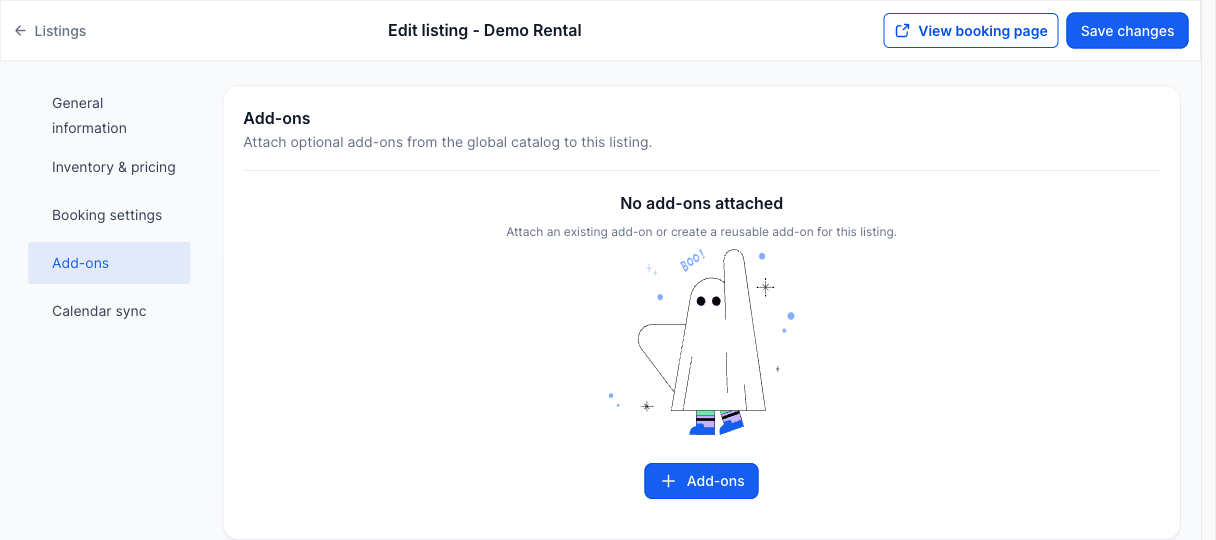
- From the listing: go to Rentals > Listings, edit a listing, open Add-ons, and click + Add-ons to attach an existing add-on or create a new one. Click Save changes.
A listing can have several add-ons. Removing an add-on from a listing doesn't delete it from your catalog.
⚠️ Important: If different listings need different prices for the same extra, create a separate add-on for each.
Add-ons During Booking
On the booking page
After choosing dates and quantities, customers see the active add-ons for that listing, with the image, name, description, and price. As they add or remove extras, the total updates. A quantity selector only shows when the maximum quantity is more than 1. Hidden and inactive add-ons don't appear.
In bookings you create
Your team can add extras when creating a rental booking, including ones hidden from customers:
- Start a new rental booking and click Add new listing.
- Choose the listing, dates, times, and quantities.
- Expand Select add-ons, choose the extras, and set their quantities.
- Check the charges and click Add listing.
Change add-ons on a booking
Selected add-ons show under Booking details > Rental details. To change them, open the booking, click Edit Booking, add or remove extras or change quantities, check the new total, and click Save (or Discard to undo).
⚠️ Important: Changing add-ons changes the booking total. Paid bookings may need a payment adjustment.
Add-on Taxes
- Go to Calendars > Calendar settings > Rentals > Add-ons.
- Edit the add-on and choose Configure tax.
- Pick the tax rate and save.
Tax is calculated on each add-on's line total and shows separately on the invoice.
Frequently Asked Questions
Can the same add-on have different prices on different listings?
No. Create a separate add-on for each price.
Is the maximum quantity per rental unit?
No. It's for the whole booking. A maximum of 2 means 2 in total, no matter how many units are booked.
Can my team change add-ons after a booking is paid?
Yes, but the total may need a payment adjustment, and it can't go below what's already been paid.
Do add-ons show on invoices?
Yes. Each add-on is its own line item, and any tax appears in the tax breakdown.