
Client Portal Dashboard
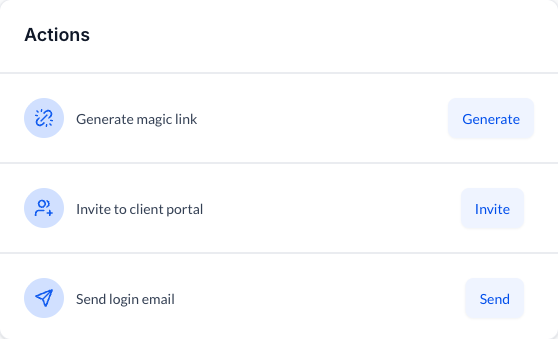
The Client Portal Dashboard shows how many people you've invited to your client portal and how many have joined. From here you can copy your portal URL, generate a magic link, invite users, and email login information.
Still on the classic look? See Moving to the New Client Portal Experience.
In this article:
Try the New Portal
Every account moves to the new client portal permanently on Dec 31, 2026. If you switch before then, you can switch back until Nov 30, 2026. To switch sooner, an admin on your account can turn it on from Memberships > Client Portal > Dashboard (look for Try the new client portal) or from See what's new > Turn on for everyone in the notice at the top of a community. You'll also find it under Settings > Labs as New Unified Client Portal Experience.
- Everything switches together: Your client portal and every community on your account move to the new experience at the same time.
- Give it a few minutes: If things still look the same after a few minutes, click Turn on for everyone again.
- Check your branding: The new portal uses its own default colors, so review your portal's look after you switch.
- Using custom CSS or JS? Use Preview to check your code before you turn the new portal on for everyone.
- No new logins: Your members don't need to sign in again.
After you switch, a banner at the top of your Client Portal pages says New client portal is live for your members. It also shows the date you can switch back until, with a Switch back button.
Duplicate contacts: Members with more than one portal account under the same email see all their resources together under one login. Duplicate contact records in your CRM aren't merged for you. See Merging Contacts.

Client Portal URL
Copy your client portal URL from the dashboard and send it to your clients. The URL updates based on your custom domain selection.

Invited Users vs. Joined Users
- Invited: The number of users you've invited using the invite option in the Actions box.
- Users: The number of users who have joined your client portal.

Action 1: Magic Link
A magic link lets a contact log in to your client portal without entering their credentials. It works well in an email or message.
- Go to Memberships > Client Portal > Dashboard. In the Actions box, find Generate magic link and click Generate.
- Choose Contact (a link for a specific customer) or Custom Menu (a link for a custom menu or section).
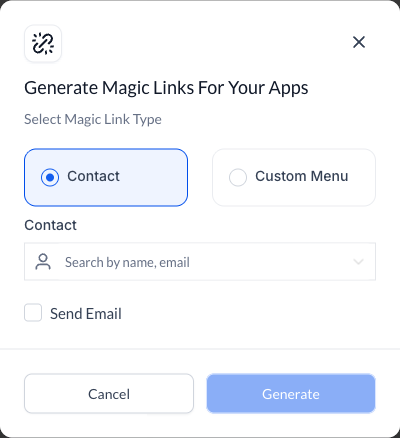
- For Contact, search for the contact by name or email. For Custom Menu, choose the menu.
- Check Send Email if you want to email the link when you create it. Then click Generate.
Note: Magic links generated from the dashboard expire after 15 minutes. If a client says their link no longer works, generate and send a new one. See Client Portal - Temporary Magic Links.
Note: Magic links are generated for one contact at a time. For emails sent by a workflow, use custom values so the link is built for each contact automatically.
Action 2: Invite to Client Portal
Use Invite to client portal to invite new users. In the box that opens, choose a contact or enter an email address, then click Send Invite.

Action 3: Send Login Email
Send login email sends an automatic email with a quick login button, so clients can log in without entering a password. Click Send, search for a contact by name, and click Send Email.

FAQs
Q: I switched to the new portal. Do my members need to sign in again or be invited again?
A: No. Your members keep their existing logins.
Q: Can I go back to the classic portal?
A: Yes, for a limited time. You can switch back from the banner on your dashboard until Nov 30, 2026.
Q: A client says their magic link doesn't work. What should I do?
A: Dashboard magic links expire after 15 minutes. Generate a new one and send it again.
Q: My custom CSS or JS looks wrong after I switched. What should I do?
A: Older custom code often needs updating for the new portal. Use Preview to check it and update your code before you turn the new portal on for everyone.
Q: I have duplicate contacts. Will they be merged?
A: No. Members with more than one portal account under the same email see all their resources under one login, but the contact records in your CRM stay separate. Merge them manually.