
How to Use Column Layout Settings
In the FG Funnels funnel and website builder, every column has a Column Layout group of settings that controls how the elements inside it are arranged and spaced. These settings are easy to miss, but they're often the answer when elements won't sit side by side, won't line up, or won't land where you want them in a column.
Where to Find Column Layout Settings
Click any element inside the column, then click the column (for example, 1st Column) in the breadcrumb along the bottom of the builder. The column gets a purple outline and its settings open in the side panel. The Column Layout group is in the General tab.
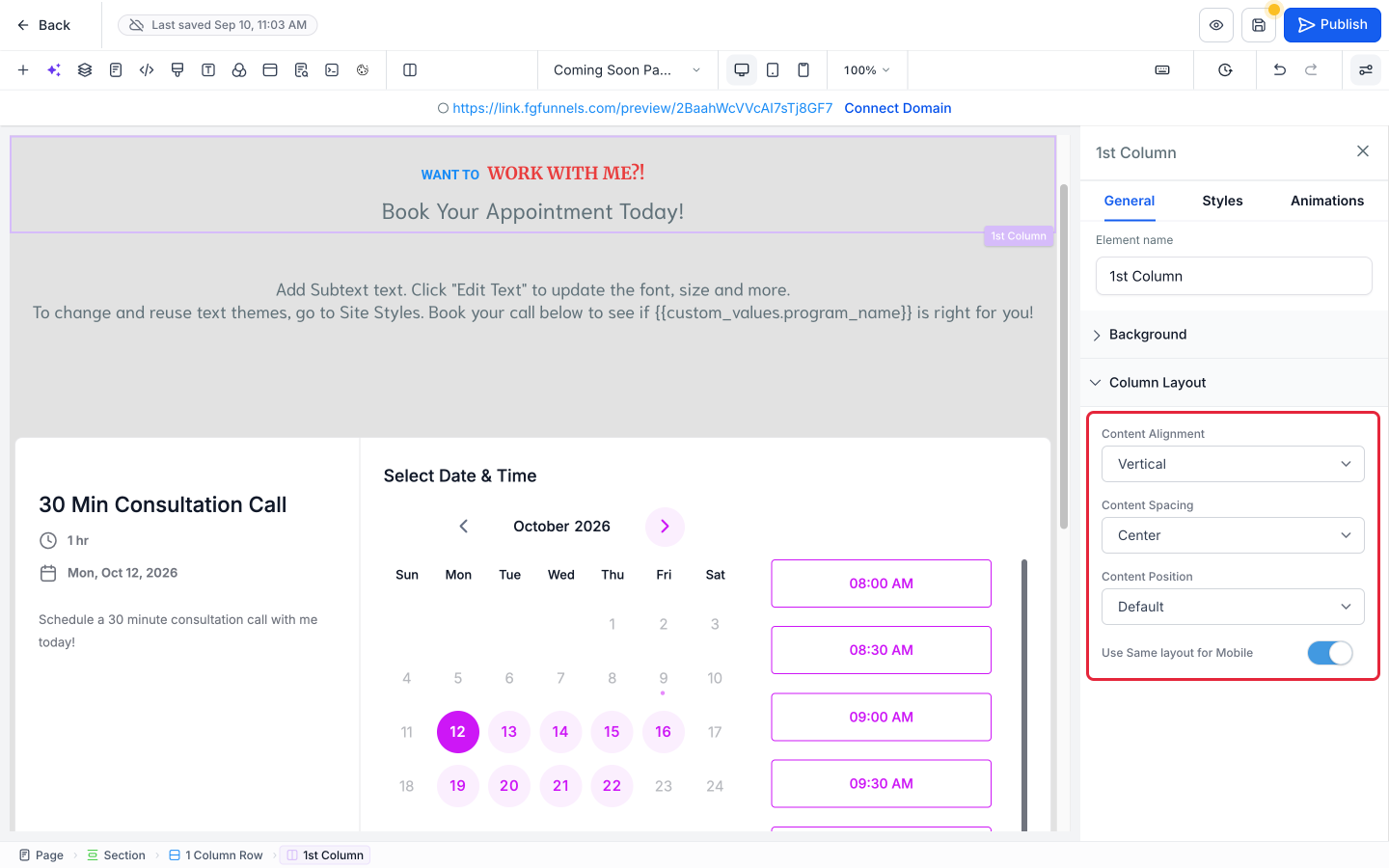
What Each Setting Does
Content Alignment
Sets the direction elements flow in the column.
- Vertical (the default): stacks elements on top of each other.
- Horizontal: places elements side by side.
If you're trying to get two elements next to each other in the same column (like a button and an image), switching the column to Horizontal is often the answer.
Content Spacing
Sets how elements are spread out along that direction. Options are Center (the default), Left, Right, Space Around, Space Evenly, and Space Between.
These labels come from web-design (CSS) terms that were written with side-by-side layouts in mind. In a Horizontal column they mean exactly what they say. In a Vertical column, think of Left as "start at the top" and Right as "push to the bottom."
Content Position
Fine-tunes where the content sits in the column. Options are Default, Start, End, and Center.
Use Same layout for Mobile
When this is on, phones use the same column layout as desktop. Turn it off if you want a different layout on mobile.
Common Fixes
- Elements in side-by-side columns don't line up: set Content Spacing to Left on every column in the row. See How to Line Up Elements Across Columns.
- Elements won't sit next to each other: set Content Alignment to Horizontal.
After changing column settings, click the Save icon (the disk icon at the top right of the builder) and check the page in Desktop, Tablet, and Mobile Mode.