
Getting Started with the Funnel and Website Builder
New to the FG Funnels page editor (the funnel and website builder), especially coming from a tool like Canva or Wix? It works a little differently. The builder gives you more control, and once you know how a page is put together, editing gets fast. This guide covers the essentials: how pages are structured, how to recolor and re-font a whole page in a couple of clicks, and how to save and preview your work.
In this article
How the Page Editor Is Built
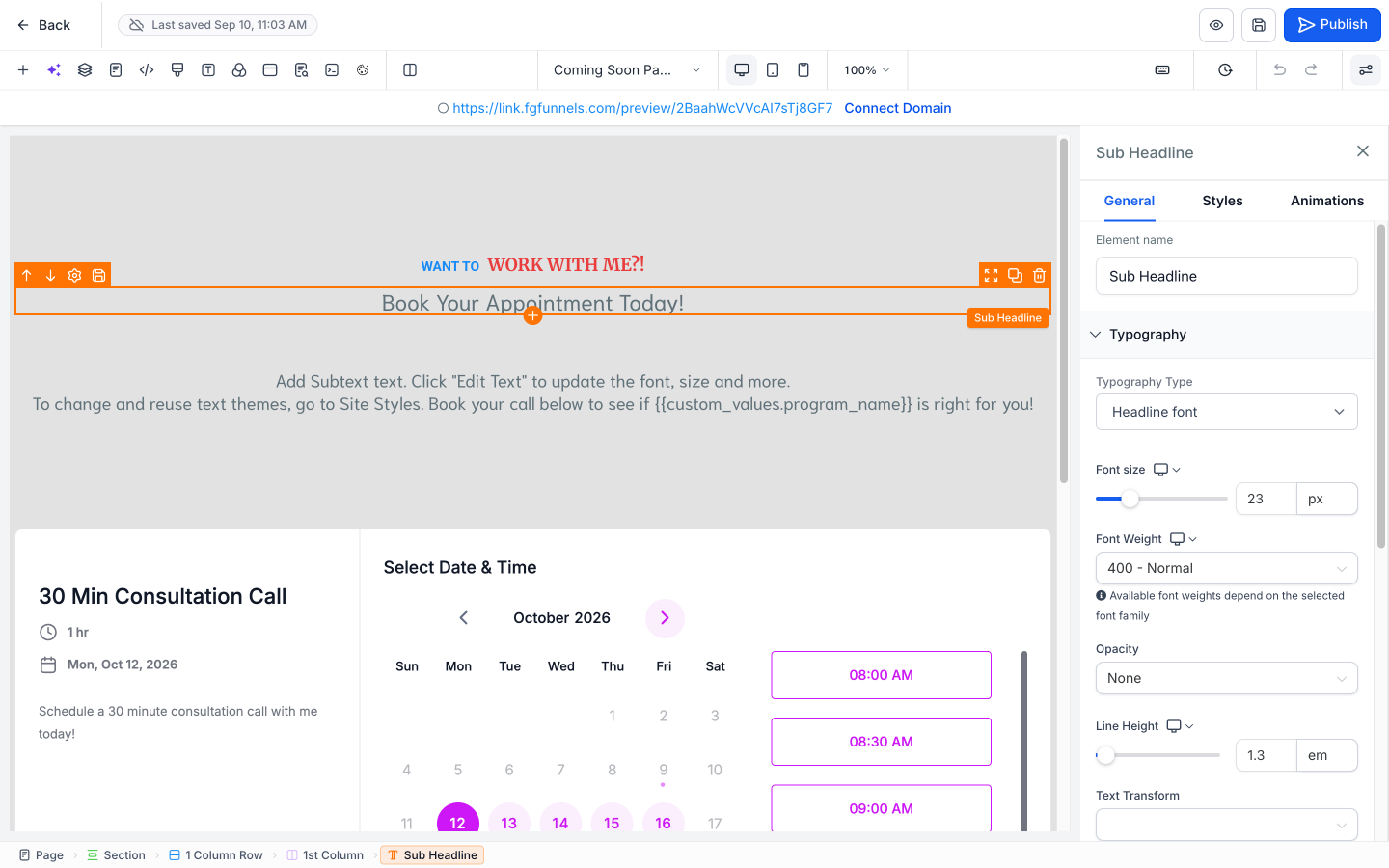
Every page is made of nested building blocks:
- Sections are the base containers that everything else sits in.
- Rows sit inside sections and hold columns.
- Columns hold your elements: headlines, text, buttons, images, and so on.
Click any item once to select it. Its settings open in the side panel, and that is where you edit that specific element. The breadcrumb along the bottom of the builder shows exactly what you have selected and what it sits inside.
The big shift from Canva or Wix: you place and edit content inside this structure instead of dragging it anywhere on a blank canvas. Working with the structure instead of against it is most of the learning curve. Once it clicks, the rest comes quickly.
Common Stumbling Blocks
Each building block has one setting that commonly trips people up. Knowing these up front saves a lot of trial and error.
- Sections don't have to be full width. Each section has a Width setting (Full, Wide, Mid Wide, or Small). See How to Change a Section's Width.
- Rows at 100% width aren't always full width. A row only stretches to the edges of its section when that section's Allow Rows to take entire width setting is on, and it's off by default. See Why Isn't My Row Full Width?
- Columns have layout controls most people miss. The Column Layout settings control whether elements stack or sit side by side, and how they're spaced. See How to Use Column Layout Settings.
- Elements in side-by-side columns won't line up? Set Content Spacing to Left on every column in the row. See How to Line Up Elements Across Columns.
For a deeper look at each building block, see Page Structure within the Funnel and Website Builder.
Recolor the Whole Page Fast (Global Colors)
You do not have to recolor elements one at a time. Each page has a global color palette. Change a color once and it updates everywhere that color is used on the page.
1. Open the page in the builder
Go to the page you want to edit and click Edit to open the builder.
2. Open the color palette
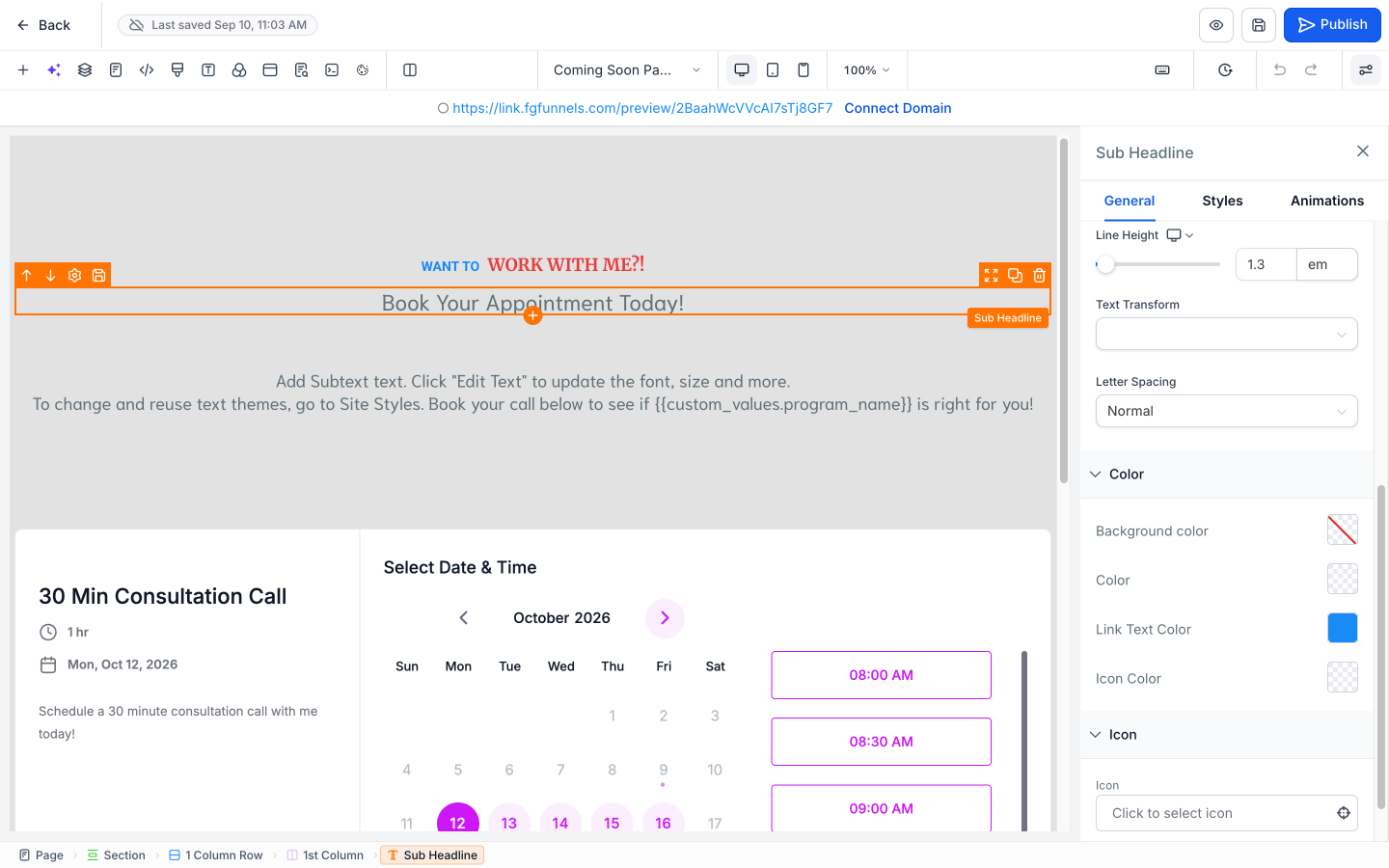
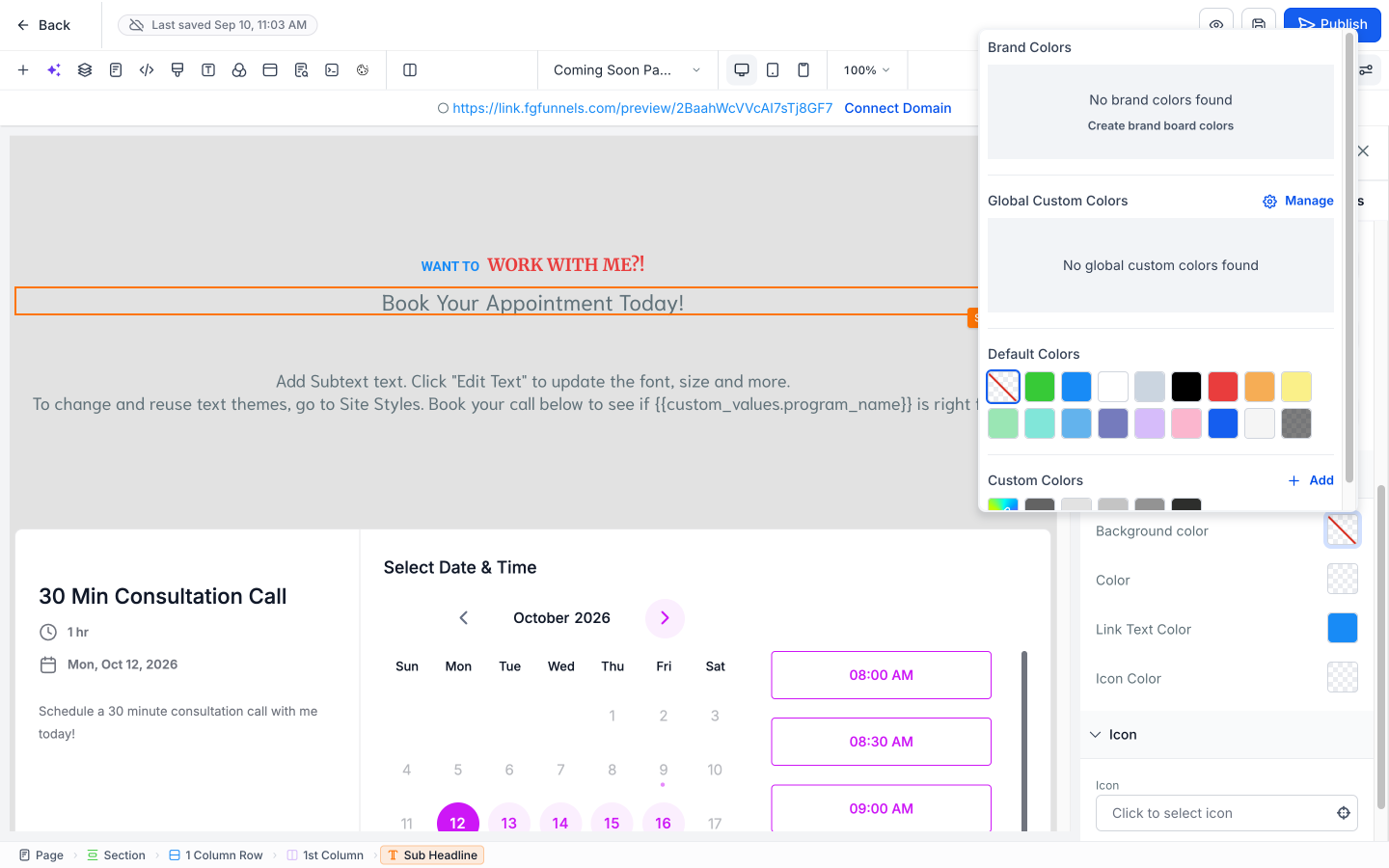
Click any element. In the side panel, scroll down to the Color settings and click the square swatch next to Background color. This opens the color palette, grouped into Brand Colors, Global Custom Colors, Default Colors, and Custom Colors.
3. Edit the color's hex code
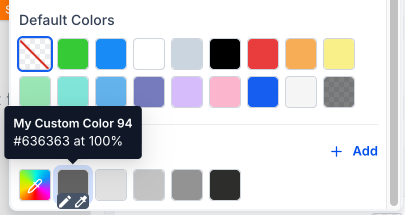
Hover the color you want to change. Two small icons appear along the bottom of the swatch. Click the pencil icon on the left to edit the color, then enter your brand hex code (or pick a color with the picker). The eyedropper icon on the right is for picking a color, not editing this one, so skip it here.
4. Save and check the page
Click the Save icon (the disk icon at the top right of the builder), then scroll the page to confirm the new color applied everywhere the old one was used.
For a full walkthrough with video and screenshots, see Customizing Global Page Colors.
Change Your Fonts Fast (Typography)
Set your fonts once for the whole page instead of element by element.
1. Open the Typography settings
In the toolbar at the top-left of the builder, click the T icon. Hover it and you will see the label Typography.
2. Set your headline and content fonts
Choose your Headline font and your Content font. Everything on the page using those two types updates at once. You are not limited to the fonts shown — use the dropdown to pick any available Google font.
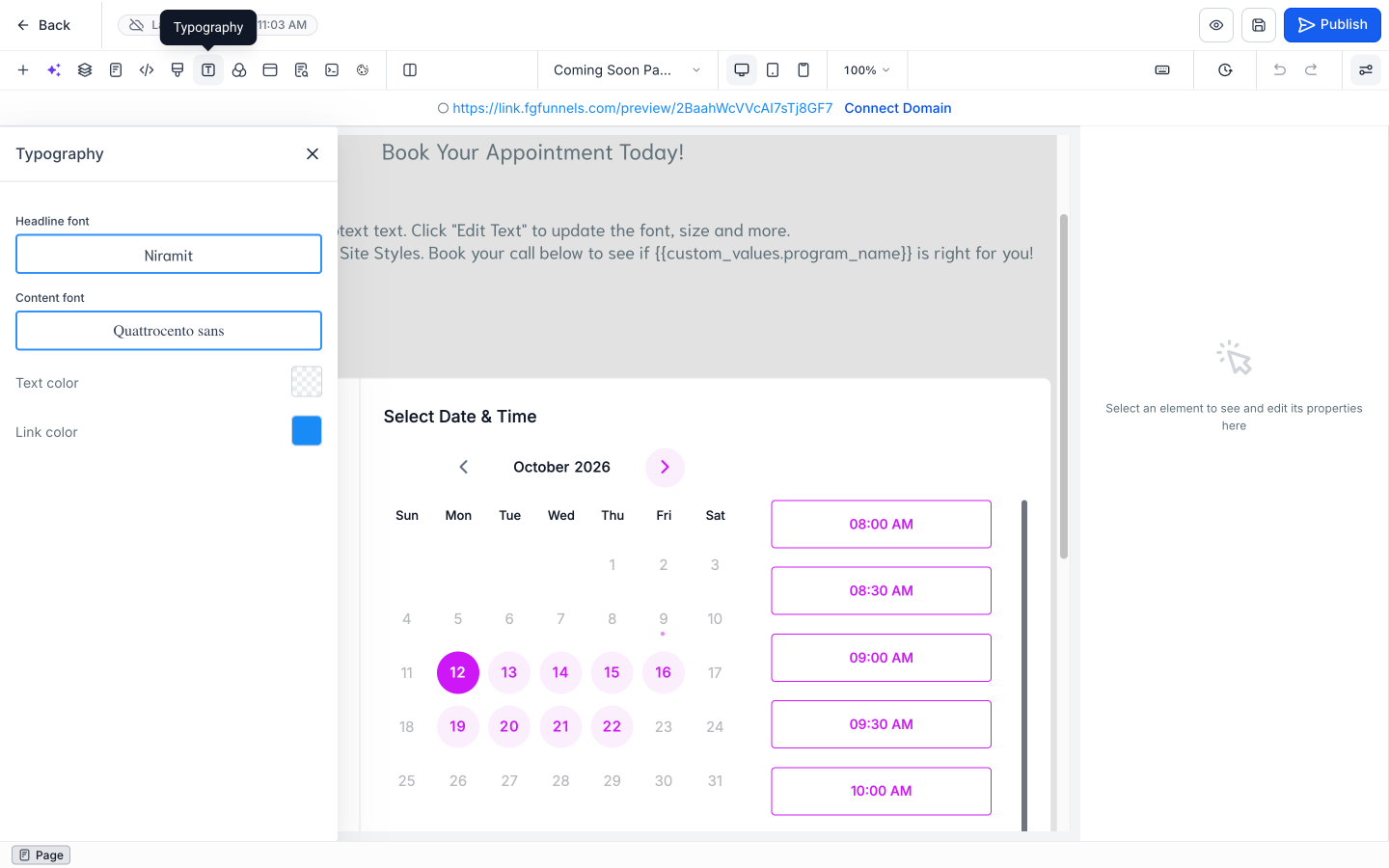
3. Change one spot differently (optional)
To give a single element a different font, select it, scroll to Typography Type in the side panel, and choose Headline, Content, or Custom.
Save, Preview, and Check Mobile
The controls you need sit along the top of the builder:
- Save: the disk icon at the top right. Click it often as you work so you do not lose changes.
- Preview: the eye icon, just left of Save. Use it to see the page the way visitors will.
- Publish: the blue button at the top right. Saving keeps your work; publishing pushes your changes live.
- Desktop, Tablet, and Mobile Mode: the three screen icons in the middle of the second toolbar row. Switch between them to check how the page looks on each screen size. Most visitors are on mobile, so this is worth a look on every page.

Colors and Fonts Apply Per Page
Global colors and fonts apply to the page you are on, not the whole funnel or website. Repeat the color and font steps on each page (sales page, order form, thank-you page, and so on). Jotting down your color and font choices as you go keeps everything consistent from page to page.
Where to Get Help
- When you get stuck mid-build, visit the FG Funnels Help page. It has:
- Live support Zoom calls: the days and times for our live weekday support calls, including Thursday Design Dates (live sessions where we work through real editing problems together), plus a button to join.
- Live chat: chat with our support team during business hours. Use the chat in FG Funnels, or the chat window on the Help page if you don’t see it in the app.