
How to Line Up Elements Across Columns
In the FG Funnels funnel and website builder, when a row has two or more columns, the elements inside them often don't line up with each other. A headline in one column sits lower than the headline next to it, or buttons end up at different heights. The fix is one column setting, applied to every column in the row.
Why This Happens
By default, each column's Content Spacing is set to Center, so each column centers its own content. When the columns hold different amounts of content (say, a short paragraph in one and a long one in the other), the columns center differently, and the elements end up at different heights.
How to Line Up Elements Across Columns
1. Select the first column
Click any element in the first column, then click the column (for example, 1st Column) in the breadcrumb along the bottom of the builder. The column gets a purple outline and its settings open in the side panel.
2. Set Content Spacing to Left
In the column's General tab, find the Column Layout group and set Content Spacing to Left.
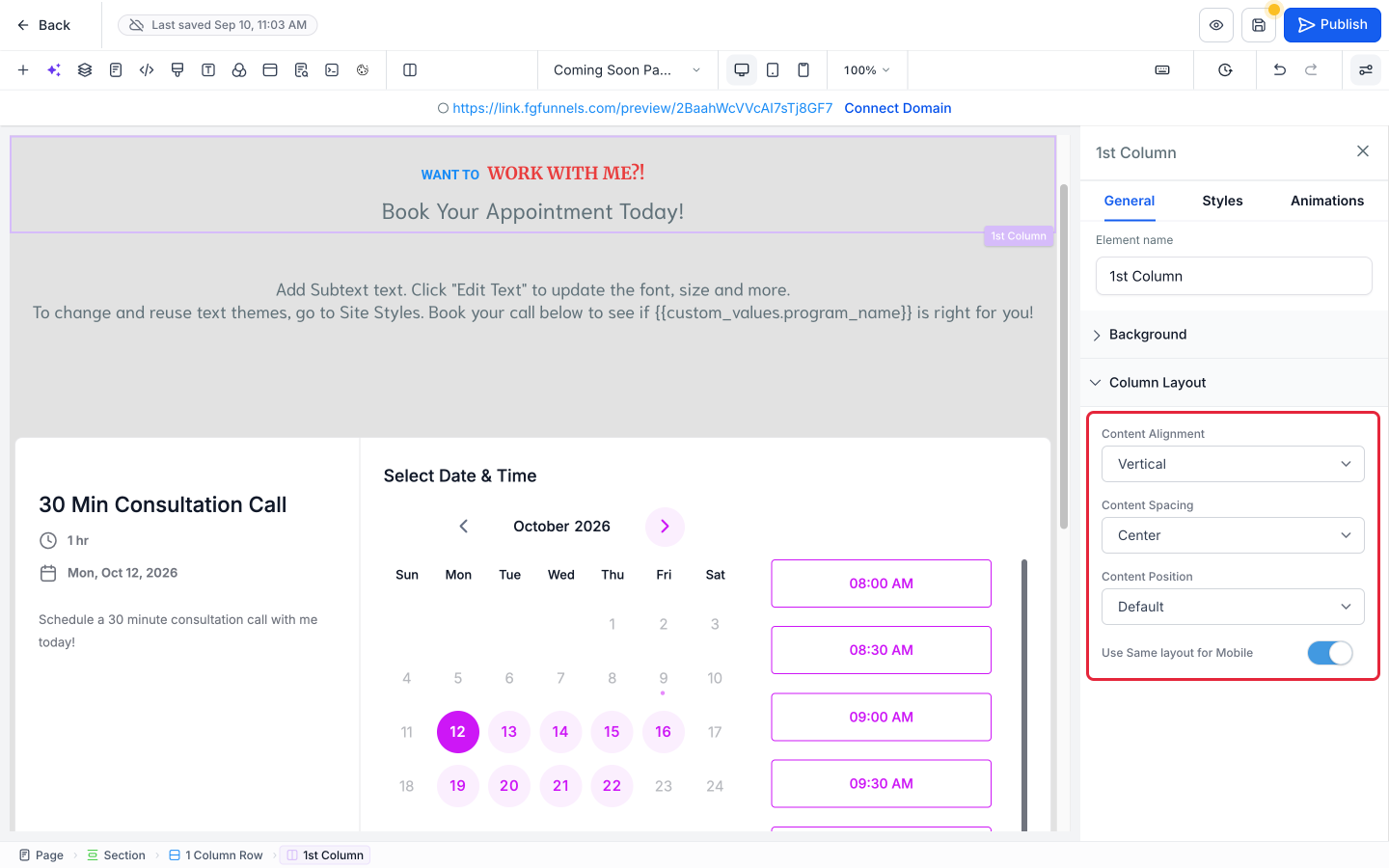
3. Repeat for every column in the row
Do the same for each of the other columns in that row. The elements only line up once every column uses the same setting.
4. Save and check
Click the Save icon (the disk icon at the top right of the builder), then check the row in Desktop, Tablet, and Mobile Mode.
Why "Left" When the Content Is Stacked Vertically?
Yes, Left feels like the wrong word when your column is stacking things on top of each other. These labels come from web-design (CSS) terms that were written with side-by-side layouts in mind, so "Left" really means "start at the beginning." In a vertical column, the beginning is the top, so every column starts its content at the top and the elements line up.