
Using CRM Data and Custom Objects in Client App Builder
Your Client App Builder app can do more than display pages. It can use the FG Funnels features you already have, and it can store and show your members' own information using Custom Objects in your CRM.
This article covers which features your app can connect to, how Custom Objects work in an app, and how to control what each member sees. If you haven't built an app yet, start with Getting Started with Client App Builder.
In this article
Connecting FG Funnels Features
Your app runs on your existing FG Funnels Client Portal, so you don't need to rebuild your membership setup or manage separate member accounts. Supported features include:
- Courses: Members can browse courses, purchase available content, access lessons, track their progress, and join supported live sessions.
- Communities: Access to community groups, feeds, invitations, and supported discovery experiences.
- Appointments: Appointment-related experiences through supported Client Portal functionality.
- Shared Files: Resources and files you make available to members.
- Member Accounts: Your existing Client Portal sign-in, including sign-up and password recovery.
- CRM Data: Supported CRM information and Custom Objects for interactive, data-driven member experiences.
You choose which of these your app includes during setup, in the Here's what your app will include checklist. You can add more later by asking AI in the builder. For ready-made prompts, open the Prompt guide (the book icon at the top right of the builder) and choose Show your CRM data.
Using Custom Objects in Your App
Custom Objects let members submit and interact with records stored in your FG Funnels CRM. For example, you could build a portal where members submit coaching applications, property inquiries, or service requests, or see announcements and offers you manage from your CRM.
These are the same Custom Objects you'll find under Settings > Objects. Client App Builder creates them for you and connects them to your app. They count toward the same limit, and you manage their records in your CRM like any other Custom Object.
Before you say yes to Custom Objects: Not everything needs one. Information about a single member, like how many sessions they have left, usually works better as a contact custom field. Contact fields are easier to update with workflows, filter in smart lists, and use in emails. Save Custom Objects for things a member can have many of, like submitted requests or project files. To use a field you already have, name it in your request, for example: "Show each member's sessions remaining using the existing contact field Sessions Remaining. Don't create or change any record types." For help deciding, see Getting Started With Custom Objects.
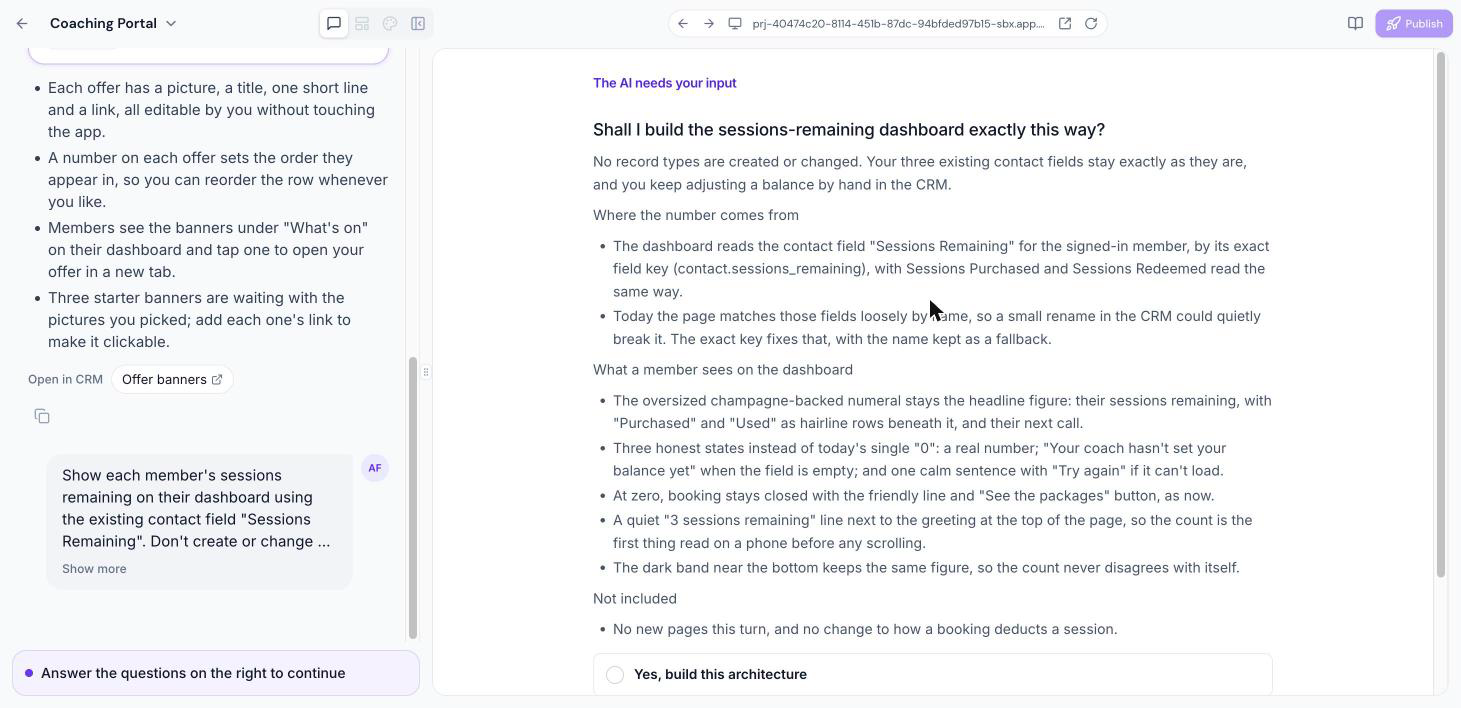
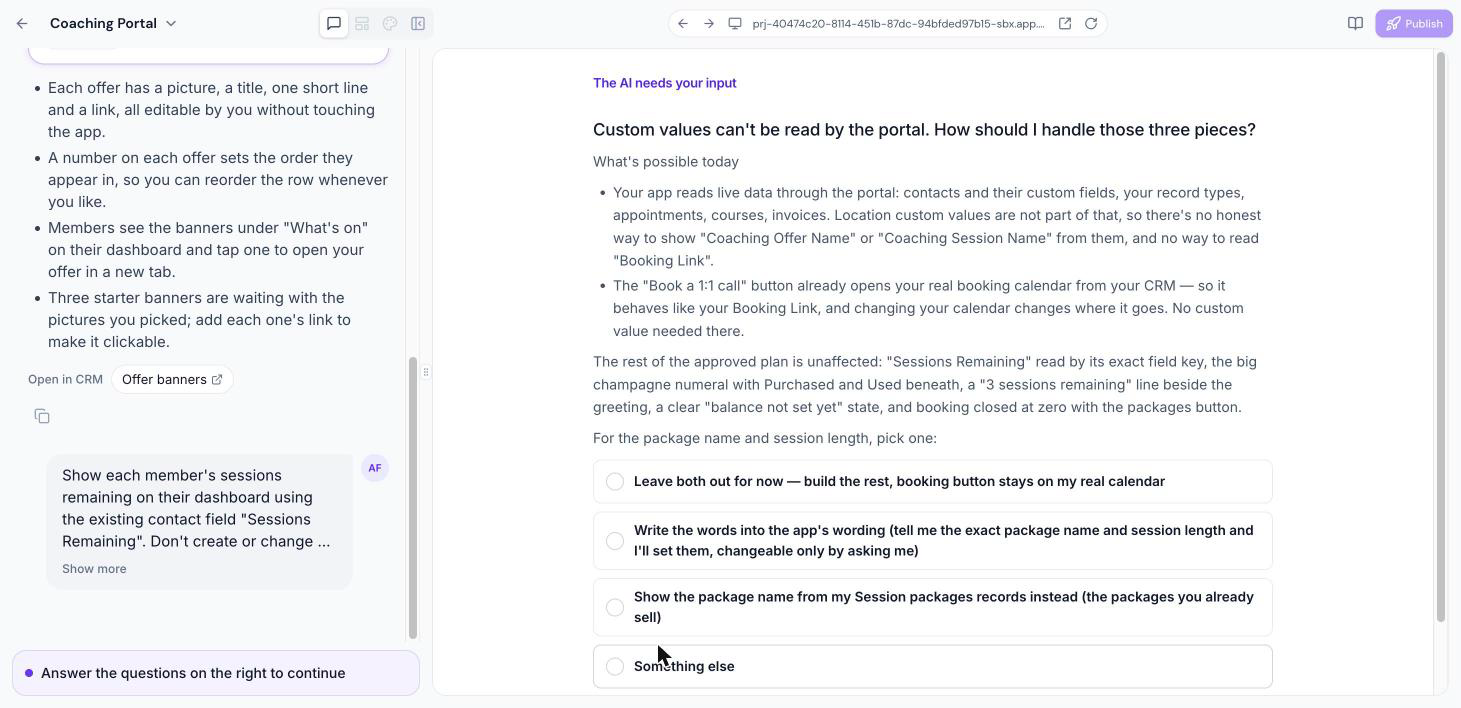
Note: Your app can't read your account's custom values. If you ask it to show a custom value, such as an offer name or a booking link, AI will offer to type the text into the app instead, or to use a record type. Text typed into the app only changes when you ask AI to change it, so keep anything you update often in a contact field or a record type.
How Custom Objects work
- Describe the information you want members to submit, see, or manage.
- If your app needs stored CRM data, AI asks Use custom objects in your CRM for this? during setup. Choose Yes, use custom objects.
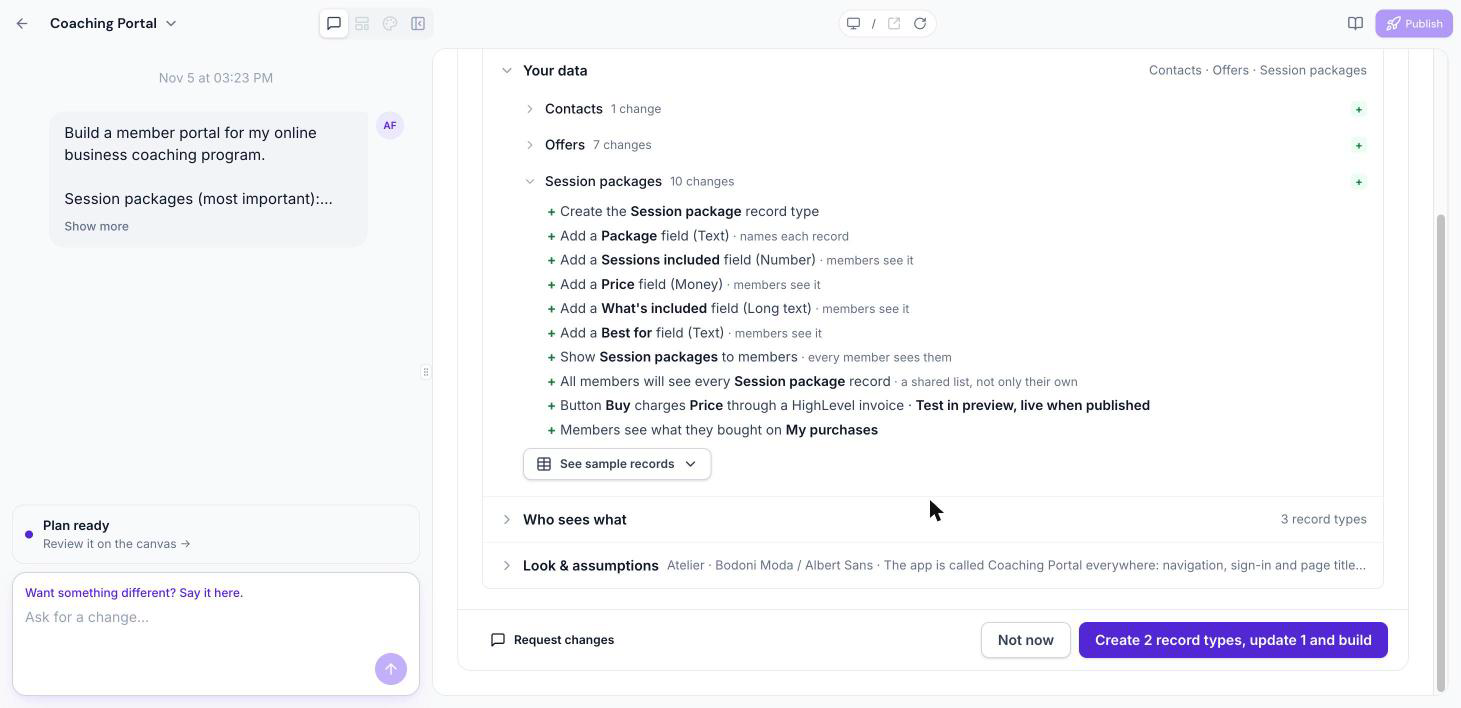
- After you click Build my app, AI proposes a data structure in the plan, under Your data. Expand each record type to see the fields it will add.
- Review the proposed fields, See sample records, and Who sees what.
- Build the plan, or click Request changes.
- AI creates the approved record types in your CRM and connects them to your app.

Add sample records
If the plan creates new record types, AI may offer to add a few sample records (for example, three starter announcements) so your app isn't empty when you preview it. You can add an image to each, then click Add records, or choose Not now.

When the build finishes, the chat panel links to the new record types (Open in CRM), so you can edit or add records there.
Choosing What Members Can See
The plan's Who sees what section shows what members can see for each record type. Depending on your setup, members can see:
- Their own records (for example, "each member sees their own details").
- Records associated with their company.
- All records, as a shared list (for example, "every member sees them").
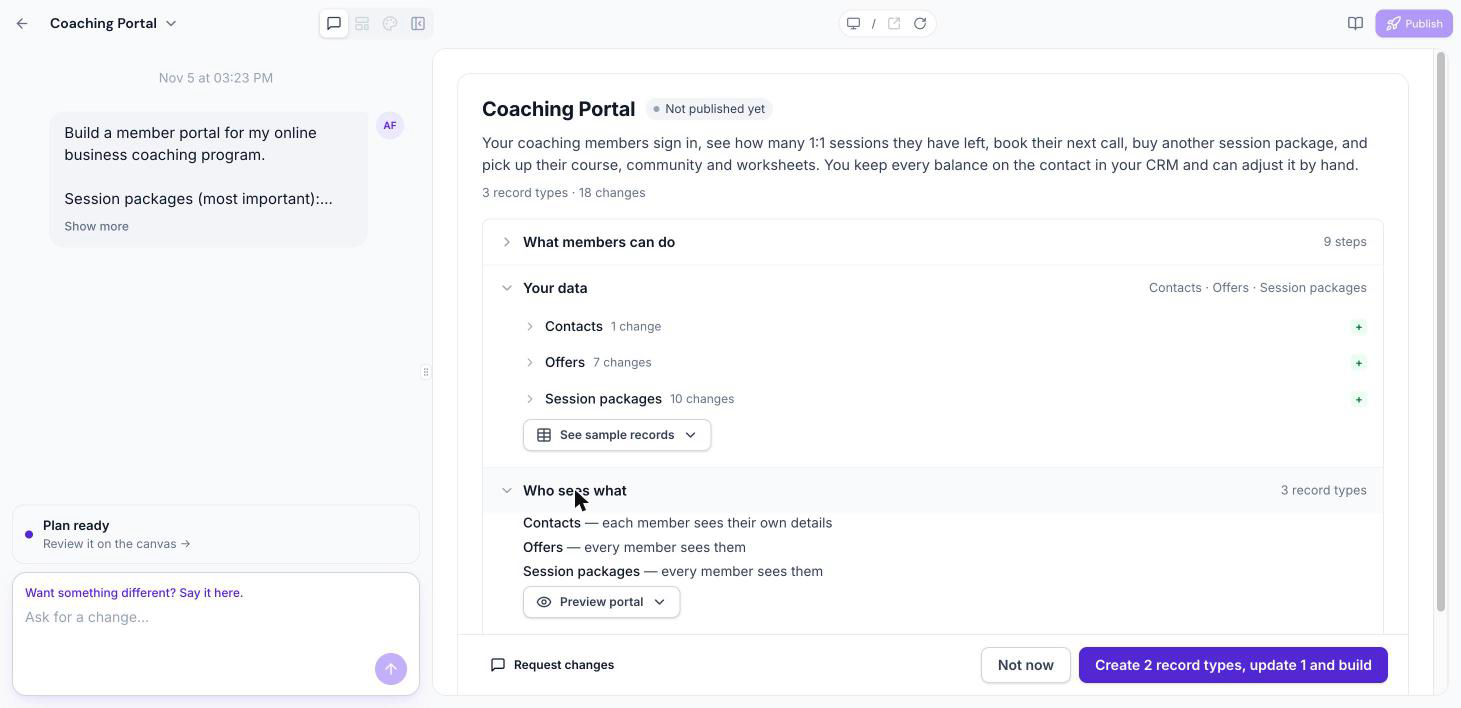
If a record type should be private to each member, check this section before you build. To change it, click Request changes and describe who should see what.
Payments and Limits
Supported web experiences can include payment actions using FG Funnels invoices when a payment provider is connected. Custom shopping carts, coupons, and separate checkout systems aren't currently supported.
Keep these limits in mind:
- Up to three Custom Objects per change. If a plan needs more, AI leaves some out and flags them under Needs your attention. Add them afterward with a follow-up request.
- Ten Custom Objects per account. This is the CRM's overall limit and includes Custom Objects you created outside Client App Builder.
- Some features are web-only. Custom Objects work in both web and mobile apps, but record-based payments and media attachments are currently web-only.
Pairing Your App with Workflows
Your app can show members information from your CRM and react to it, but it can't run automations of its own.
For example, if you sell packages of coaching sessions, your app can show each member how many sessions they have left and offer a new package when they run out. It can't add sessions after a purchase or subtract one after a booking. Use a workflow to keep that number up to date.
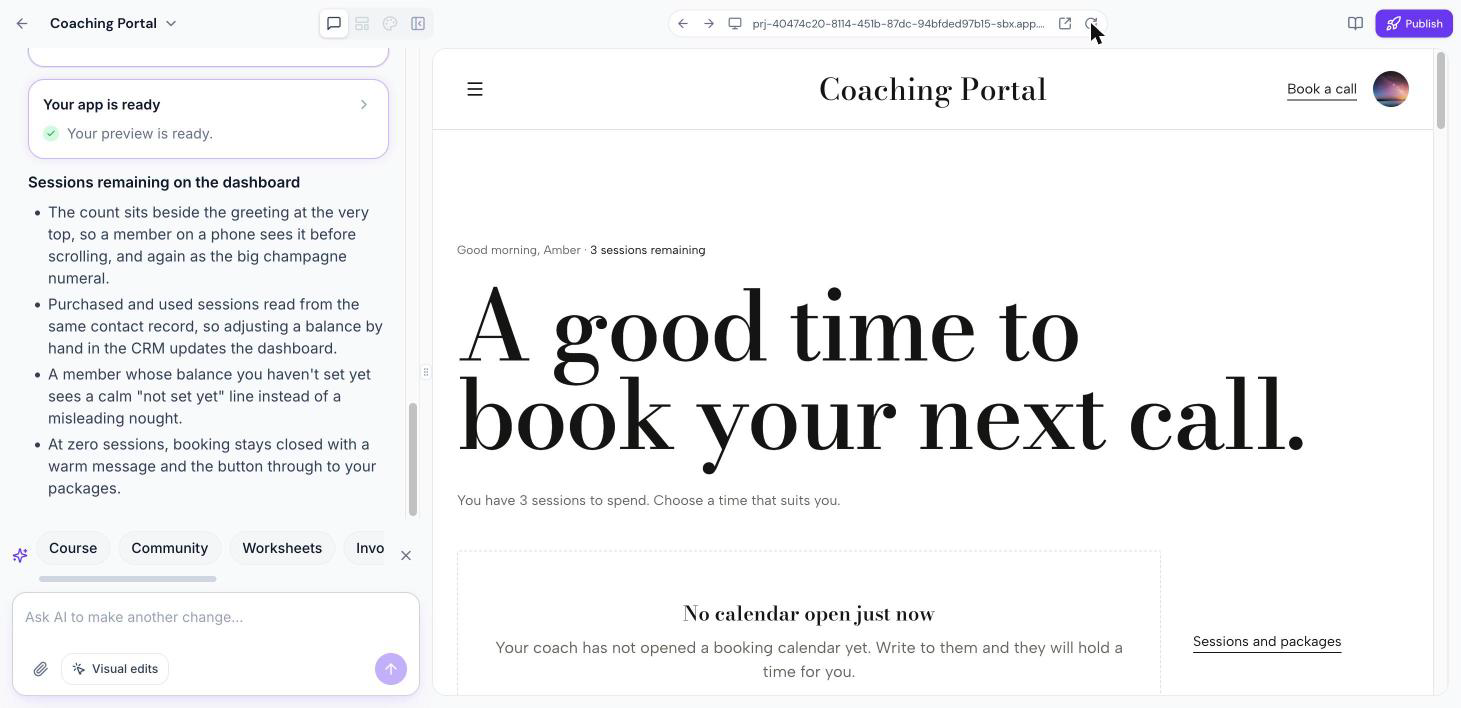
Advanced tip: Coaching Package Automation shows one way to track session packages with a workflow. Make sure your app reads the same contact field your workflow updates. Name the field in your request so AI uses it exactly.
Tip: Read the plan carefully when you ask for something that changes over time, like a balance or a count. AI may leave out the parts it can't automate without telling you.
Frequently Asked Questions
Can members submit information through my app?
Yes. Custom Objects let you create supported forms and record-based experiences that store information in your FG Funnels CRM.
Can I add payments to my app?
Supported web experiences can use FG Funnels invoice-based payment actions. Custom shopping carts, coupons, and separate checkout systems aren't currently supported.
Will my app use the Custom Objects I already have?
You can ask AI to use an existing record type or field by name. Check the plan's Your data section to confirm whether it will create new record types or update existing ones.
Can my app show my custom values?
Not currently. Apps can read contact fields, record types, appointments, courses, and invoices, but not your account's custom values.
Can my app update records automatically, like after a purchase?
Not on its own. Use a workflow to update the record, and have your app display it.