
Building Client Apps with Your Own AI (MCP)
You can build and edit Client App Builder apps from the AI tool you already use, such as Claude, ChatGPT, or Cursor. Your AI tool connects to your FG Funnels account through the Model Context Protocol (MCP) and does the building, so it doesn't use AI credits in your account.
This is a good fit if you already pay for an AI tool, want to make lots of changes without watching your credits, or want to work on your app's files directly.
If you haven't used Client App Builder before, start with Getting Started with Client App Builder.
In this article
Supported AI Tools
To find the setup steps, go to Memberships > Client App Builder and click Build unlimited apps with your own AI below the prompt box. The panel has a tab for each tool:
- Claude Code
- Claude (web or desktop)
- ChatGPT
- Codex
- Cursor
- VS Code
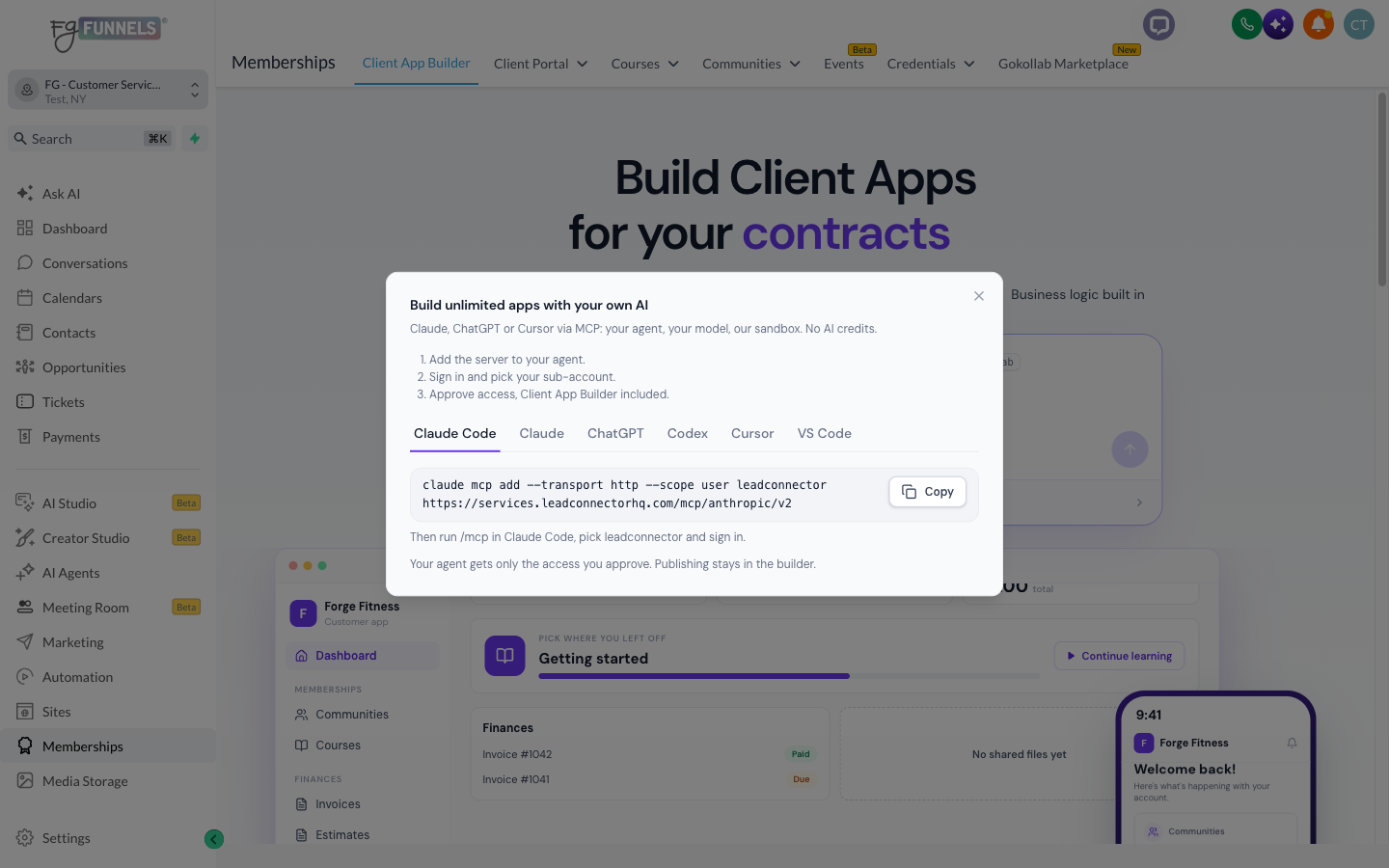
You'll need an account with one of these tools. Some tools only support connections like this on paid plans. ChatGPT, for example, needs a paid plan and Developer mode.
Connecting Claude
These steps use Claude on the web or desktop app. For other tools, see Connecting Other AI Tools.
- In Client App Builder, open Build unlimited apps with your own AI, choose the Claude tab, and click Copy to copy the connection URL.
- In Claude, go to Customize > Connectors.
- Click Add, then Add custom connector.
- Enter a name you'll recognize, such as "FG Funnels MCP," and paste the URL. Click Continue.
- Keep the authentication settings Claude detects and click Add.
- Click Connect.
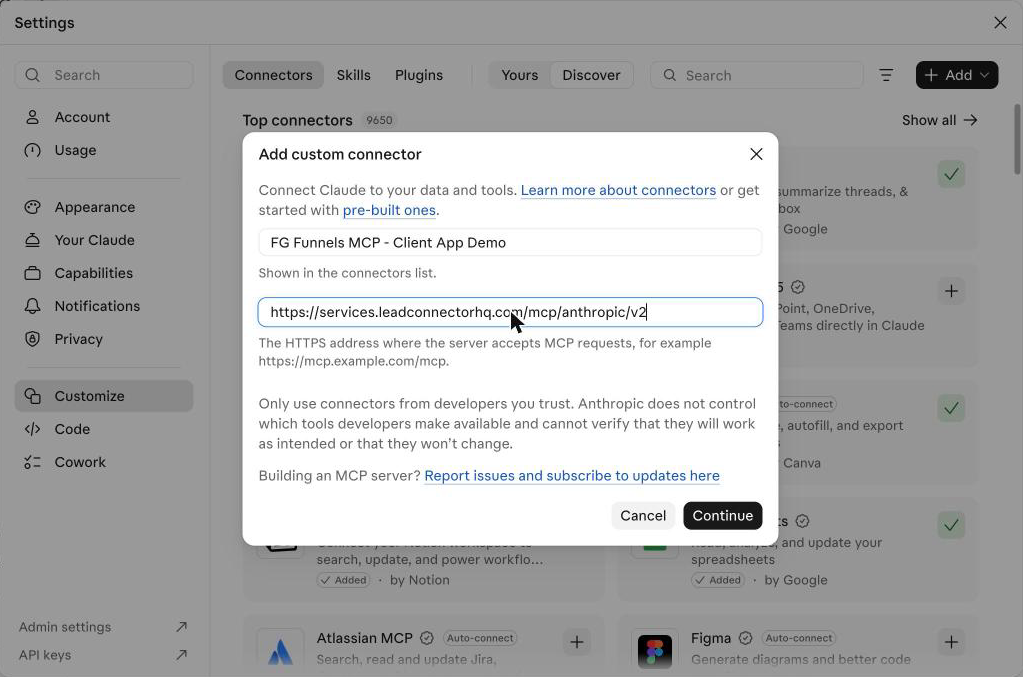
Note: On a Claude Team or Enterprise plan, only an owner can add custom connectors, and they're added for the whole organization. Each member then clicks Connect and signs in with their own FG Funnels login. If you don't see Add custom connector, ask your Claude owner to add it.
Next, sign in to your FG Funnels account:
- Enter your FG Funnels email and password, then click Sign in. You may be asked for a code sent to your email.
- Select your account, then click Continue.
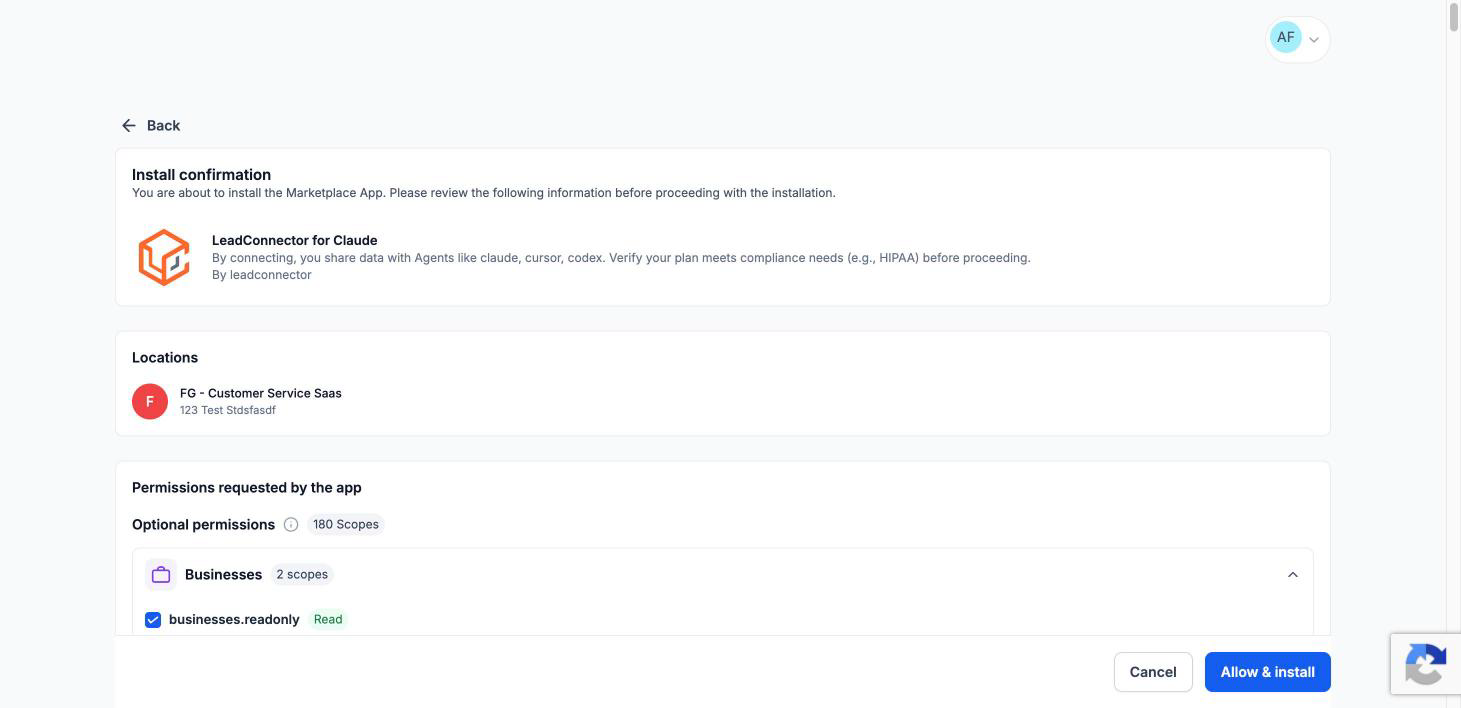
- Review the permissions (see the next section), then click Allow & install.
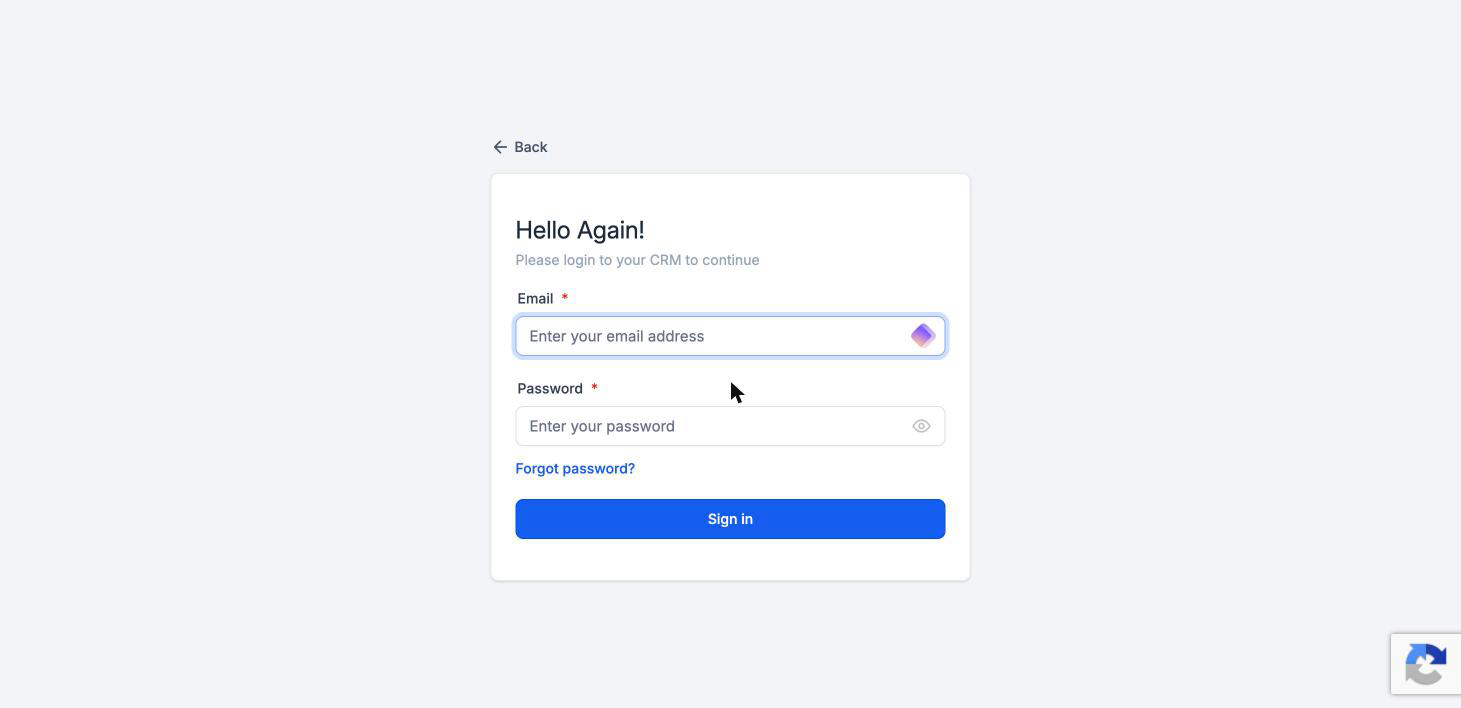
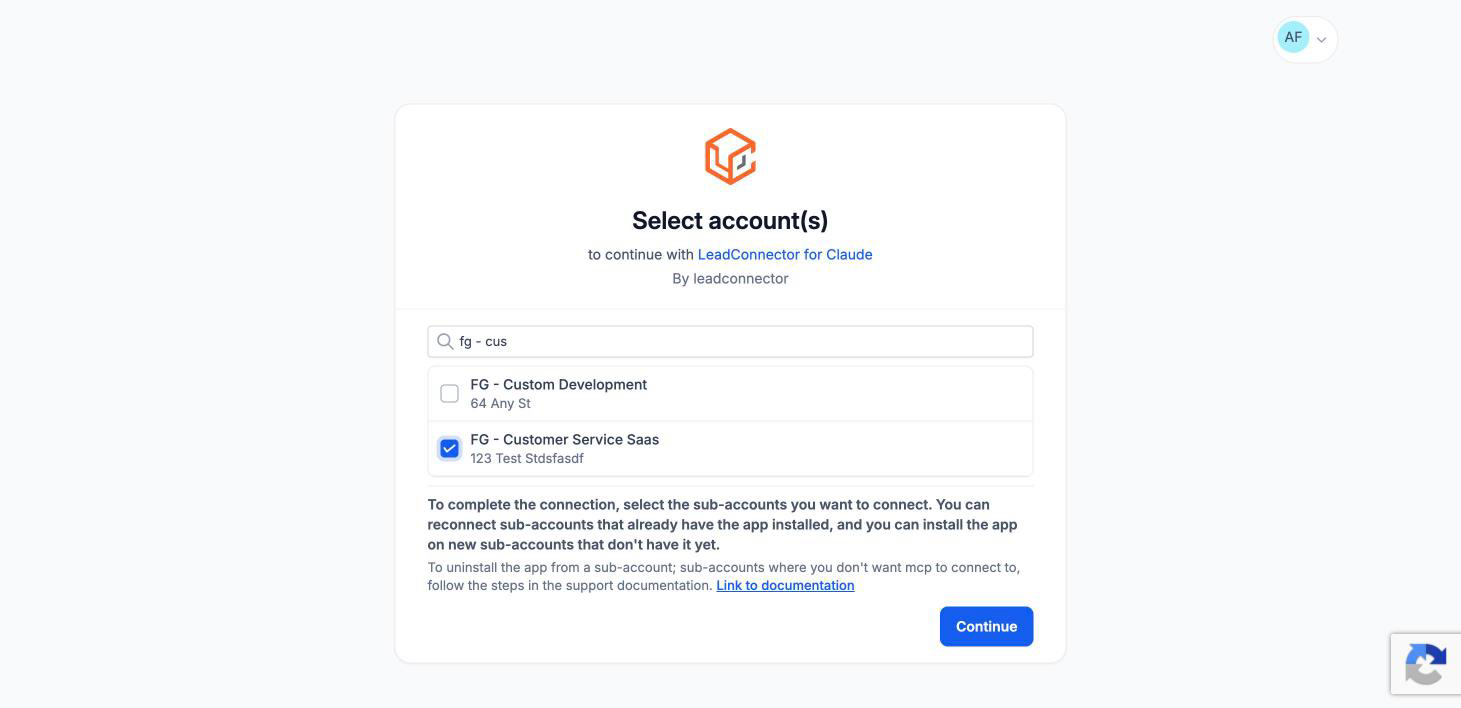
Note: The sign-in and permission screens are branded LeadConnector. That's expected: it's the technology behind FG Funnels.
After you approve, you're sent back to Claude, and your connector shows as connected with its tools listed.
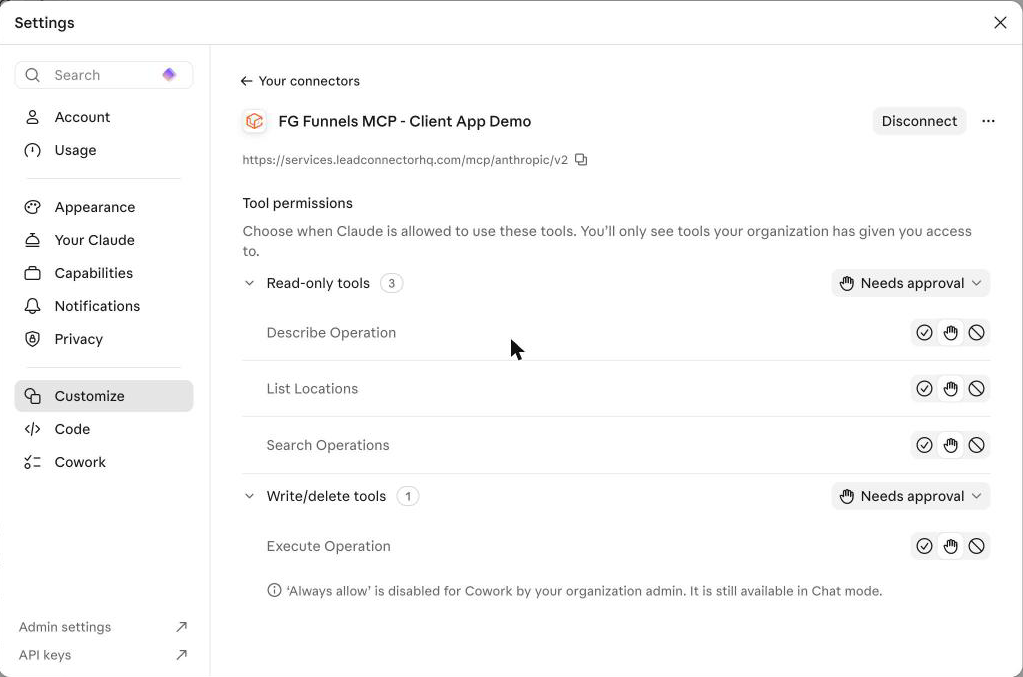
You only need to connect once per tool. After that, you can ask Claude to work on your apps in any conversation.
Choosing Permissions
The connection URL works with more than Client App Builder, so the permission screen lists permissions for many parts of your account, such as contacts, conversations, calendars, and invoices. All of them are checked by default, and all of them are optional.
To build apps, you only need the Client App Builder group:
- clientportal-ai.readonly: view your apps, their builds, and publish status.
- clientportal-ai.write: create, change, and publish your apps.
Uncheck the other groups, leave Client App Builder checked, and click Allow & install.
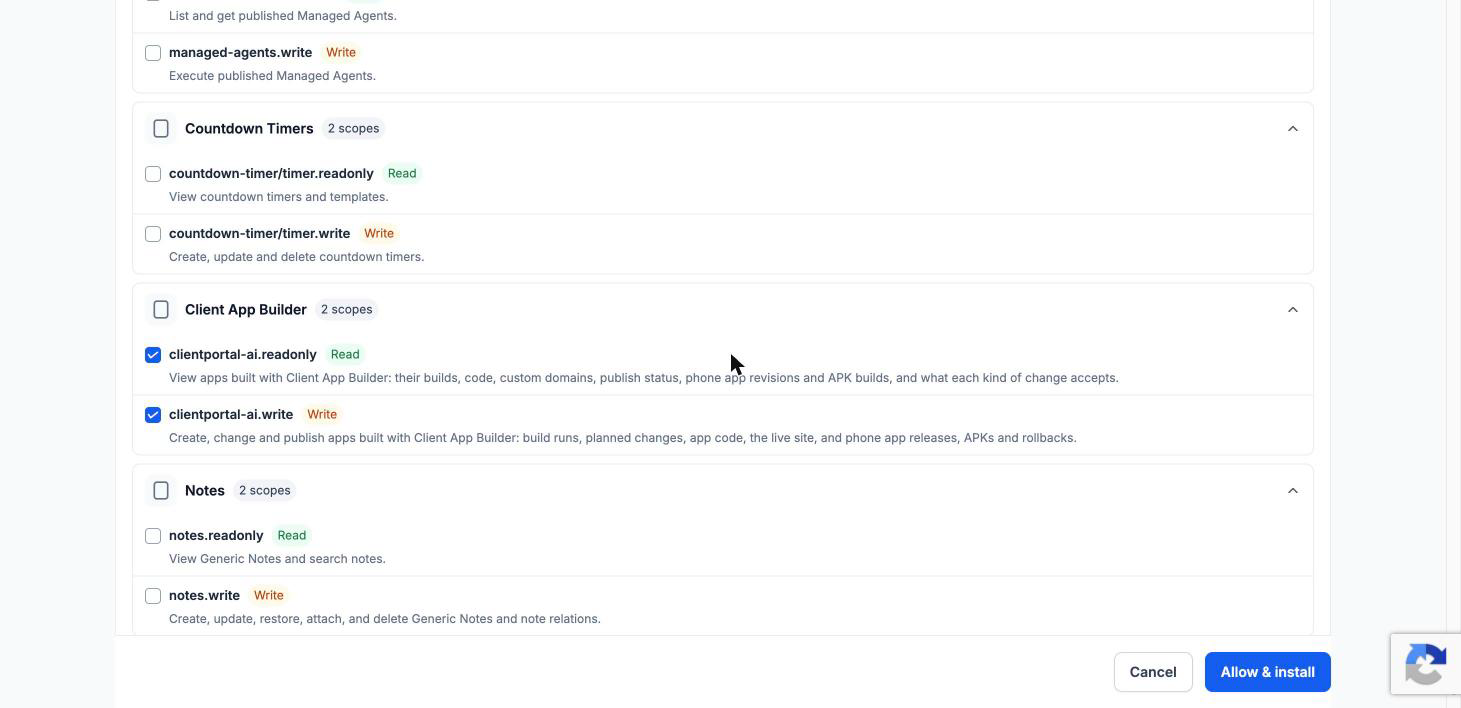
Tip: Approving only what you need keeps your AI tool out of the rest of your account. If you want your AI tool to help with other things later, like contacts or calendars, you can reconnect and approve more.
The permission screen also reminds you that connecting shares data with your AI tool. If your business has compliance needs, such as HIPAA, check that your AI tool's plan meets them before you connect.
Connecting Other AI Tools
The panel in Client App Builder has the exact setup for each tool. In short:
- Claude Code: run the command from the panel, then run `/mcp`, choose the server, and sign in.
- ChatGPT: go to Settings > Apps > Advanced settings, turn on Developer mode, then Create app. Paste the URL and choose OAuth. Needs a paid plan.
- Codex: run the command from the panel, then the login command it shows.
- Cursor and VS Code: add the settings from the panel to your tool's MCP settings file. Your tool asks you to sign in when it connects.
You'll see the same sign-in and permission screens as above. Approve only the Client App Builder permissions.
Building and Editing Your App
Once connected, ask your AI tool to work on your apps in plain language. It can:
- List your apps and check their status.
- Create new apps.
- Edit your app's pages and files.
- Build a preview so you can see the change.
For example:
"Using my FG Funnels MCP connector, list my Client App Builder apps."
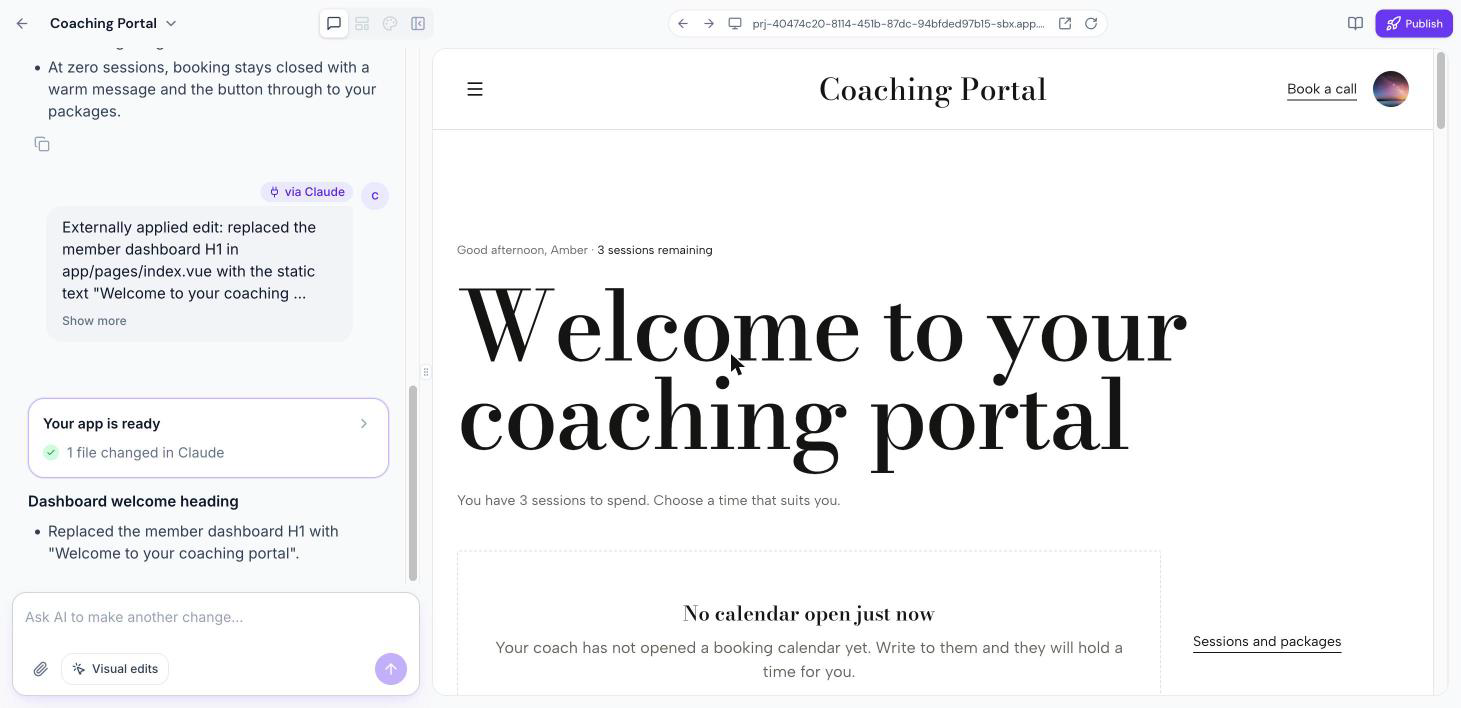
"In my Coaching Portal app, change the dashboard heading to 'Welcome to your coaching portal'. Build the preview, but don't publish."
If your request is unclear, your AI tool may ask which part of the app you mean before it changes anything.
Approving each step
By default, Claude asks before each action. You'll see requests for tools like Search Operations, Describe Operation, and Execute Operation. Click Allow once to let it continue.
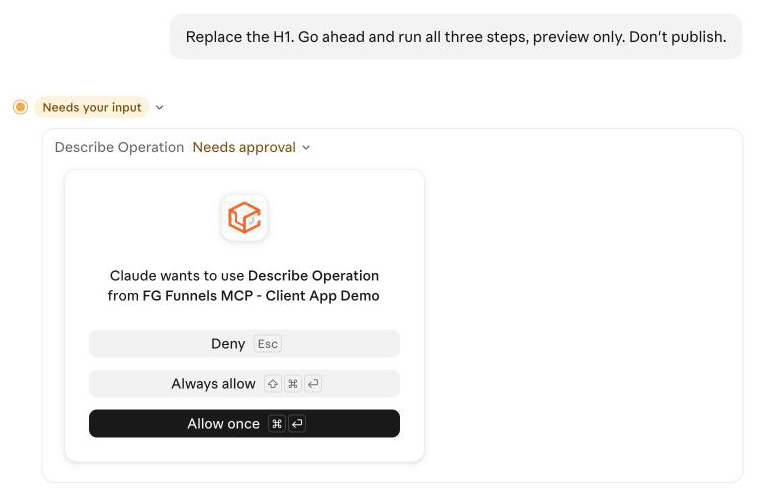
Note: Claude uses Execute Operation for almost everything, including simply reading your app list. Read what Claude says it's about to do just before the request, rather than assuming "Execute" means a change.
Seeing changes in Client App Builder
Changes your AI tool makes show up in Client App Builder. Open the app to preview it. The builder's chat shows the change as a message marked via Claude, so you can tell which changes came from your AI tool.
Reviewing and Publishing
Your AI tool may be able to publish your app if you ask it to. We recommend reviewing the preview in Client App Builder and publishing from there, so you see exactly what goes live. When you ask your AI tool for changes, add "don't publish" to be safe.
Your app also follows the same rules as apps built in Client App Builder, including your account's app limit.
Frequently Asked Questions
Does building through my own AI tool use AI credits?
No. Your AI tool does the work, so it doesn't use AI credits in your FG Funnels account. Your AI tool's own plan limits still apply.
Do I need to know how to code?
No. You describe what you want in plain language, just like in the builder. Setup involves copying a URL or command from the panel into your AI tool.
Why does the permission screen ask for so much access?
The same connection works across your whole FG Funnels account. Every permission is optional. For Client App Builder, keep only the Client App Builder permissions checked.
Why does the sign-in screen say LeadConnector?
LeadConnector is the technology behind FG Funnels. Sign in with your normal FG Funnels email and password.
Can I switch between my AI tool and the builder?
Yes. Apps you work on through your AI tool appear in Client App Builder under My projects, where you can preview, keep editing, and publish them.
How do I disconnect?
In Claude, go to Customize > Connectors, open your connector, and click Disconnect. In other tools, remove the server from the tool's MCP settings.