
How to Fix Errors and Use Recommendations in Forms, Surveys & Quizzes
Saving a form, survey, or quiz now flags setup errors and common slip-ups, like placeholder links or a payment left in test mode. A new Insights tab sums up its logic and notifications, so you can check everything in one place before you go live.
In this article
What Are Recommendations and Error Detection?
Forms, surveys, and quizzes can contain setup mistakes that are easy to miss until you save. The builder now helps you find configuration errors, review suggested improvements, and see how your asset is set up. It has three parts:
- Error Detection: Flags validation errors when you save. Each error names the affected element and offers an action to fix it.
- Recommendations: Suggests optional improvements, such as replacing placeholder URLs, renaming default field names, checking payment test mode, adding bot protection, and collecting consent.
- Insights: Shows configuration details: conditional logic, custom fields, payment mode, email notifications, and auto responder status.
Resolved errors are marked as resolved in the error list automatically.
Prerequisites and Limitations
- Supported products: Forms, Surveys, and Quizzes.
- Existing and new assets: Works with both.
- When errors appear: Error Detection runs when you try to save.
- What it checks: Custom field creation, duplicate custom fields, and form, survey, or quiz elements.
- No new validation rules: This improves how existing errors are shown and fixed. It doesn't add new rules.
- Errors block saving: You must fix blocking errors before the asset can be saved.
- Recommendations are optional: They're tips, separate from blocking errors.
How to Use Recommendations and Error Detection
1. Open the form, survey, or quiz builder
From the left-hand menu, select Sites, then choose Forms, Surveys, or Quizzes. Find your form, survey, or quiz in the list and click its name. The builder opens on the Edit tab.
These steps use an existing asset, but new assets work the same way.
2. Identify and fix save errors
- Open the asset's builder and select the Edit tab.
- Click Save in the upper-right corner.
- If errors exist, review the Action required list.
- Select an error or its action link to jump to the affected element.
- Read the error message beside the element.
- Fix it using that element's controls.
- Check the list. Fixed items are crossed off automatically, with a checkmark and strikethrough.
- Repeat for any remaining errors.
- Click Save again.
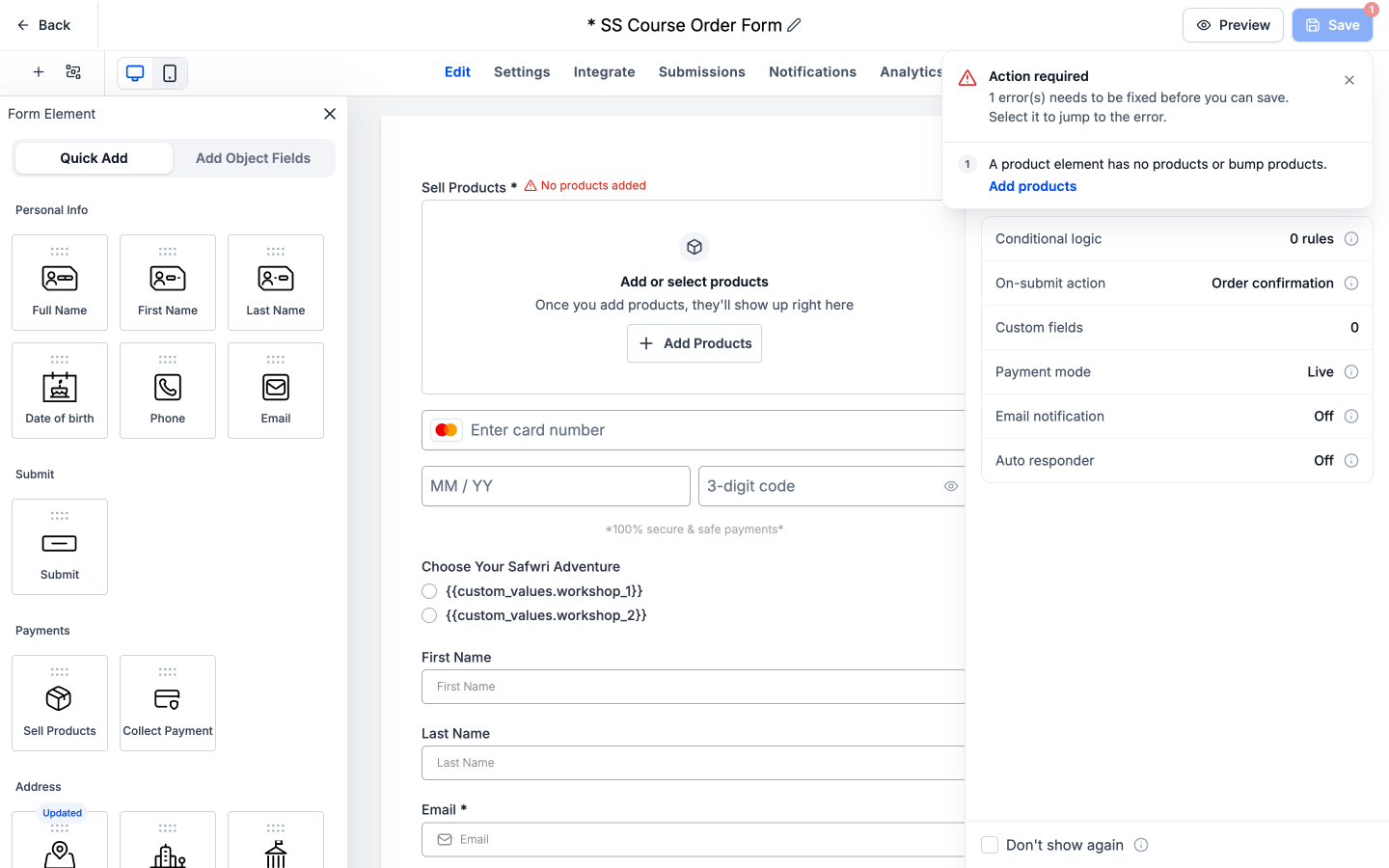
Here are the errors you may see and how to fix them:
| Error | What triggers it | How to fix it | Message beside the element |
|---|---|---|---|
| Duplicate custom field name | Another field already uses that name | Rename the field | "Name already used" |
| Missing field name | A custom field has no name | Name the field | "Name required" |
| Missing product | A product element has no products or bump products | Add products | "No products added" |
| Missing image | An image element has no image | Add image | "No image added" |
These apply to forms, surveys, and quizzes alike.
3. Review recommendations
- Open the asset's builder and select the Edit tab.
- Click Recommendations in the upper-right toolbar.
- Select the Recommendations tab.
- Expand a category: Fields, Payments, or Settings.
- Review each recommendation and its suggested action.
- Use the action link to open the relevant setting.
- Make your changes, then click Save.
Recommendations are optional tips, and the panel says Save anytime.
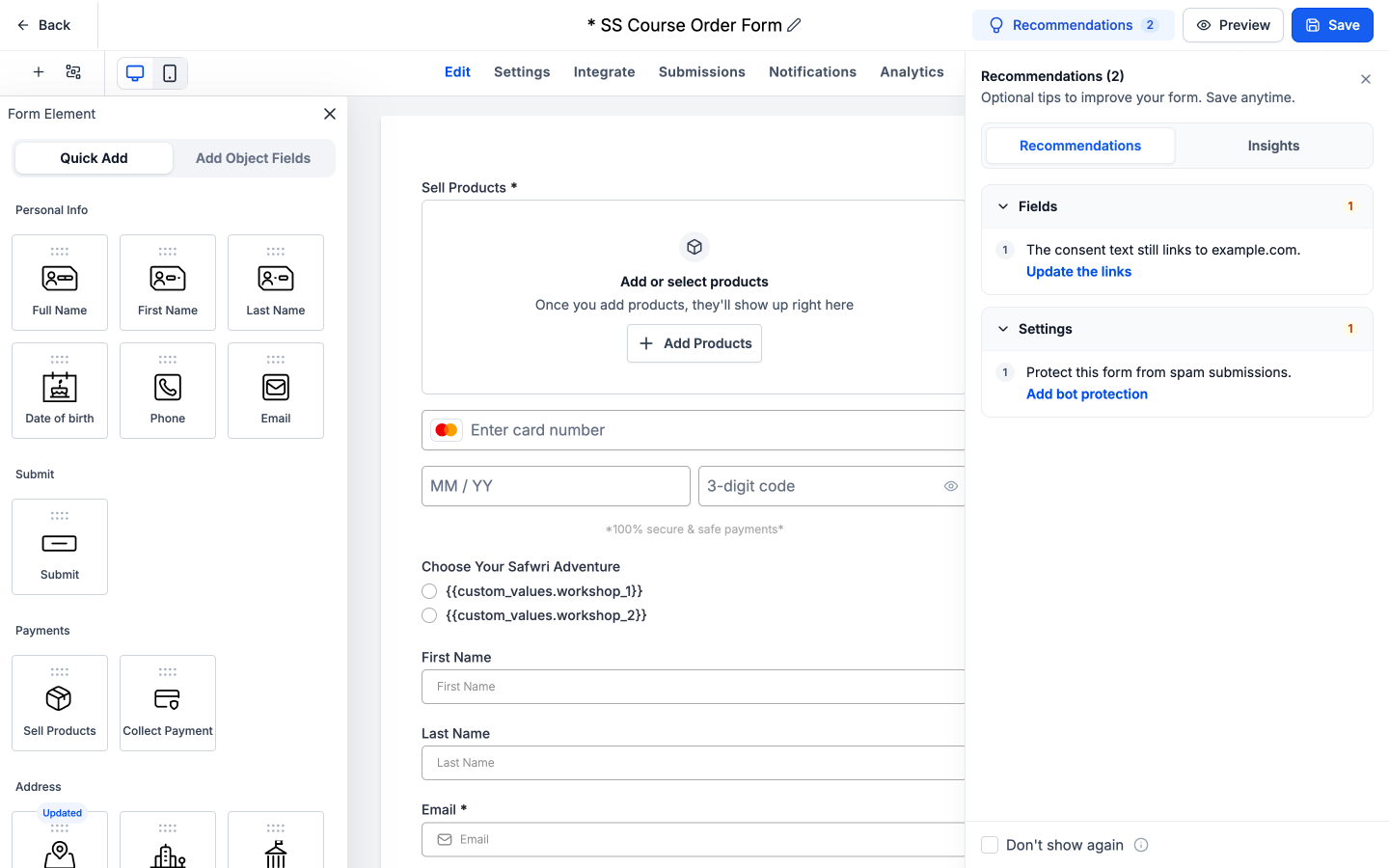
Common recommendations include:
- Placeholder URLs: Links still pointing to example addresses such as example.com. Replace them with real destinations.
- Default custom field names: New fields with default or placeholder names. Rename them to something meaningful.
- Missing answer labels: Choice options with no label text. Add the text.
- Payment test mode: A payment element still in test mode. No money is collected in test mode, so check this before you accept live payments.
- Bot protection: "Protect this form from spam submissions." Click Add bot protection to add it.
- Consent: "Collect consent before you store visitor data." Click Add terms and conditions field to add a consent checkbox.
Pay special attention to payment mode on order forms and quizzes copied from a template, where a payment left in test mode is easy to miss.
4. Review insights
- Open the asset's builder and select the Edit tab.
- Click Recommendations in the upper-right toolbar.
- Select the Insights tab.
- Review the configuration shown.
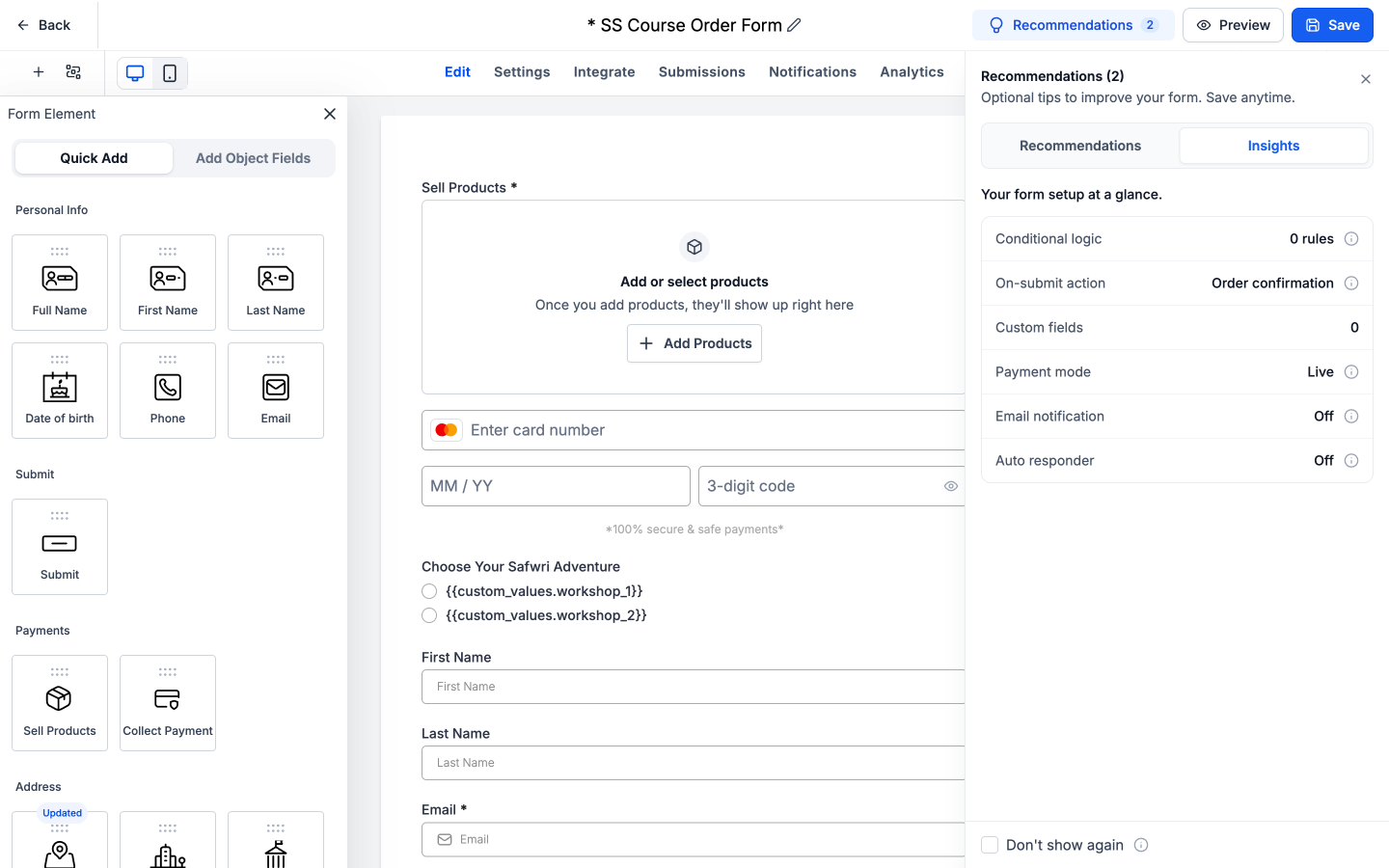
Insights shows:
- Conditional logic: The number of logic rules set up.
- On-submit action: What happens after someone submits.
- Custom fields: The number of custom fields used.
- Payment mode: Test or Live.
- Email notification: On or off.
- Auto responder: On or off.
FAQs
Can I save while recommendations remain?
Yes. Recommendations are optional. Blocking errors must be fixed first.
Does Error Detection check visitor answers on a published form?
No. It covers configuration errors in the builder when you save. Validation shown to respondents for missing or invalid answers works separately.
Why does Insights show payment mode as Test?
The asset is currently set up in test mode, and no money is collected in that mode. Recommendations may also warn you about it. Check this before you accept live payments.
What if I fix one error but others remain?
The fixed error is crossed off the list. Any remaining errors must still be fixed before you can save.