
How to Set Up Welcome DMs and Onboarding Steps in Communities
Welcome new members to your FG Funnels Community with automated direct messages (DMs) and customizable onboarding steps. Admins and owners can personalize welcome messages, guide members through important activities, and help them get involved. A Get Started checklist also helps new members track their onboarding progress.
Note: Welcome Setup is part of the new community experience. If your community still has the classic look, see Moving to the New Client Portal Experience.
In this article
What Are Welcome DMs and Onboarding Steps in Communities?
Welcome DMs and onboarding steps help admins and owners create an engaging experience for new members. Together, they pair a personal welcome message with guided activities that encourage members to explore and take part in the community.
Welcome DMs are automatic messages sent to new members when they join. Admins and owners can customize the message and choose who sends it.
Onboarding steps are up to five configurable activities that guide members through actions like updating their profiles, engaging with posts, RSVPing to events, and watching introductory videos.
Eligible new members see these activities in a Get Started checklist on their community home/feed, where they can complete tasks and track their progress.
Automated Welcome DMs
Automated welcome DMs let admins and owners greet new members without starting each conversation by hand. Use them to introduce the community, share resources, and encourage members to jump in.
Welcome messages support:
- Text formatting and personalized content
- Links and mentions
- Member-name tokens
- Media attachments
- Choosing the admin or owner who sends the DM
Customizable Onboarding Steps
Onboarding steps give new members clear actions to follow when they join. Admins and owners can configure up to five steps and arrange them in any order.
You can choose from these steps:
- Auto-tracked (checked off automatically when the member does it): Add a bio & a latest profile picture, Like & comment on a post, Write a post & introduce yourself, and RSVP to an event.
- Video-tracked: Watch the introductory video.
- Self-tracked (the member checks it off): Create a custom step, with your own step title and an optional link.
Steps marked Setup (RSVP to an event, Watch the introductory video, and custom steps) need a few details from you when you add them.
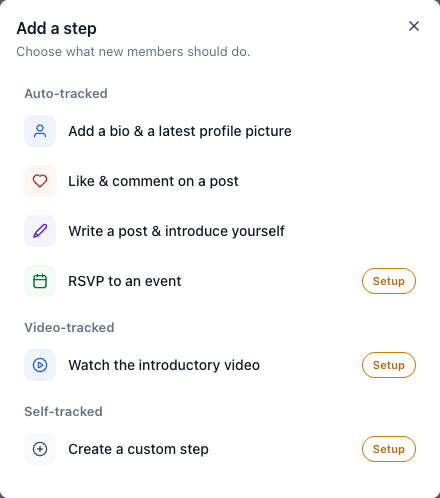
You can customize and reorder steps to match your community's onboarding goals.
Get Started Checklist for New Members
The Get Started checklist lets eligible new members follow their onboarding activities right from the community home/feed, with a clear view of their tasks and progress.
Members can:
- View their assigned onboarding activities
- Complete onboarding steps
- Track their progress
- Dismiss the checklist after completing their onboarding
Tip: Point the checklist at one quick win. Members who get an early result are the ones who stay.
How to Set Up Welcome DMs and Onboarding Steps
1. Access Welcome Setup
- Log in to your FG Funnels account.
- Go to Memberships > Communities.
- In the Community Groups list, click Login next to the community you want to configure. The community opens in a new tab.
- Click the Settings tab, then select Welcome Setup from the settings menu.
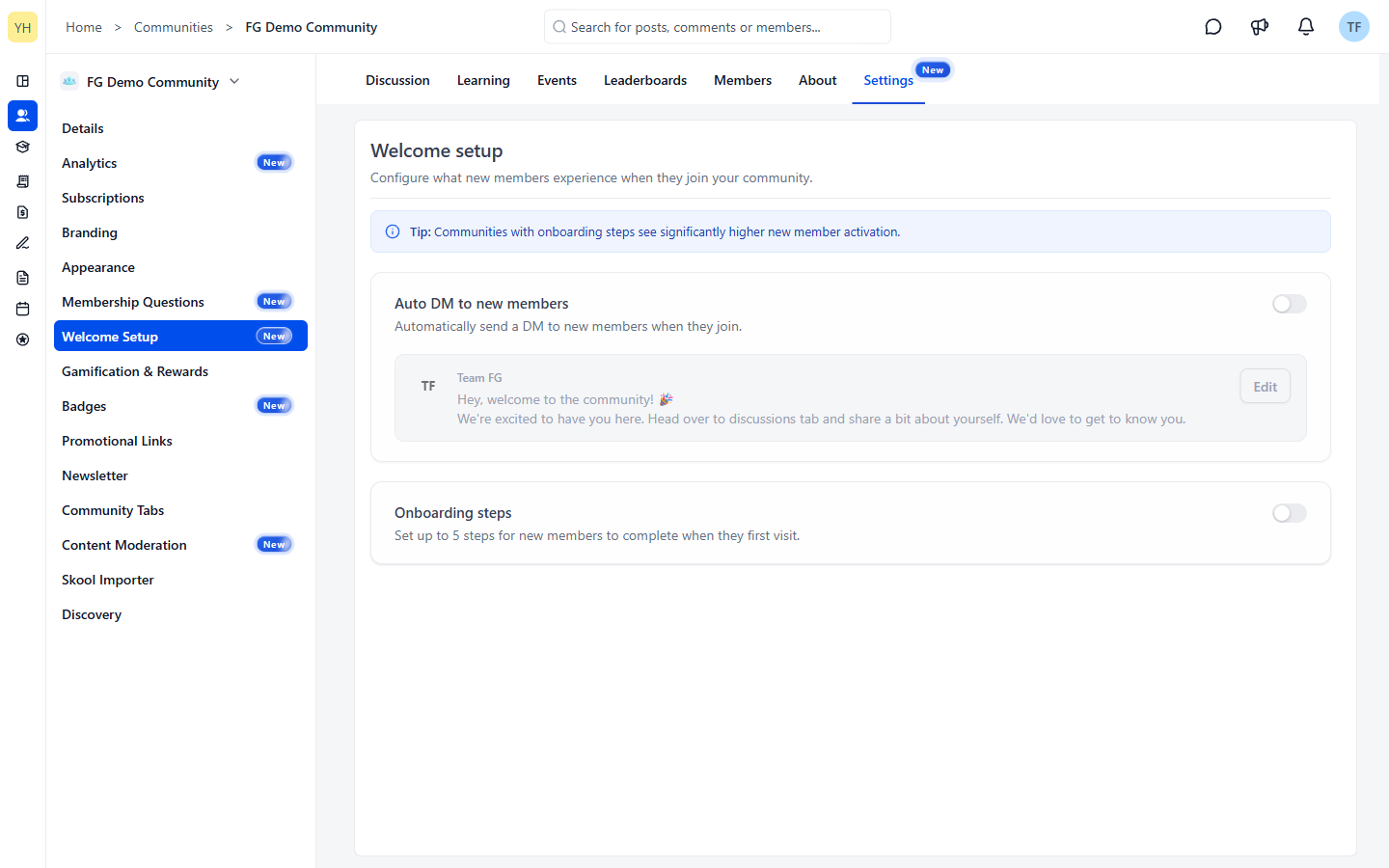
2. Configure automated welcome DMs
- Find the Auto DM to new members card.
- Turn on the toggle to enable the welcome message. The message editor opens.
- Enter and customize your message using formatting, links, tokens, mentions, or attachments. Type @ to insert the member's name.
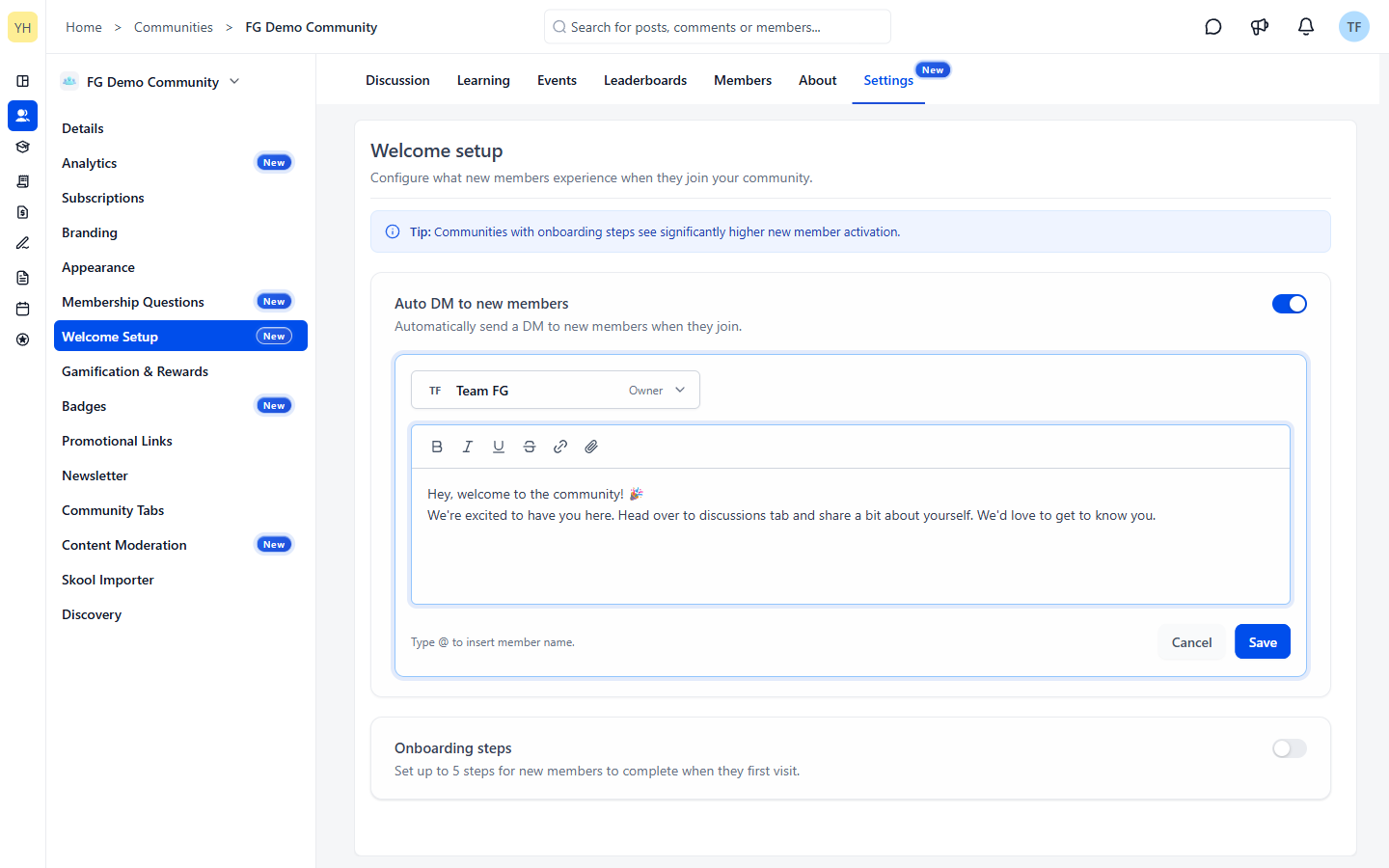
- Use the sender picker at the top of the editor to select the admin or owner who will send the message.
- Click Save.
3. Configure onboarding steps
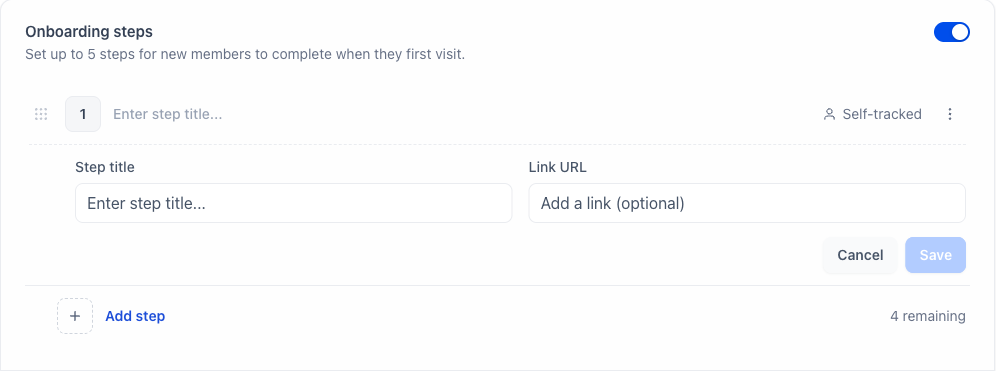
- Find the Onboarding steps card in Welcome Setup and turn on its toggle.
- Click Add your first step and choose a step from the Add a step menu.
- For a step marked Setup, fill in its details. A custom step needs a Step title, and you can add a Link URL (optional).
- Click Add step to add more. The counter shows how many of your five steps are left.
- Drag a step by its handle to change the order, then click Save.
4. Review the onboarding experience
Review your welcome message, selected sender, onboarding activities, and any links to make sure everything is set up correctly. When possible, check the experience using an eligible new member account.
Frequently Asked Questions
Q: Who can configure welcome DMs and onboarding steps?
Community admins and owners can configure these features.
Q: Can I choose who sends the automated welcome DM?
Yes. You can select a community admin or owner as the sender.
Q: How many onboarding steps can I add?
You can configure up to five onboarding steps.
Q: Can I create custom onboarding steps?
Yes. Custom steps can include optional links to relevant resources.
Q: Can I change the order of onboarding steps?
Yes. Admins and owners can reorder onboarding activities.
Q: Can members dismiss the Get Started checklist?
Yes. Members can dismiss the checklist after completing their onboarding activities.