
Community Chat Feature
Still on the classic look? If your community hasn't moved to the new experience yet, see Moving to the New Client Portal Experience.
Community Chats let your members send private, one-to-one messages to other members they share a community with. Instead of moving the conversation to email or another app, members can connect, ask a question, or follow up after a discussion right inside your community.
Chats are one-to-one only. There are no group chats. For a private conversation with a small group, use a private channel instead.
In this article
Who Can You Chat With?
Members can message anyone they share a community with. Chats stay tied to your community, so people can't message members of communities they don't belong to.
If a member can't be messaged, it's usually because of one of these:
- You don't share a community with them.
- Their group membership or community access has changed.
- They've turned off chat for that group in their own chat settings.
Admins can check access in the group's Members tab.
Chats vs. Posts and Private Channels
Pick the right place for the conversation:
- Chats: private, one-to-one conversations between two members.
- Posts, channels, and announcements: for anything the whole group, or everyone in a channel, should see.
- Private channels: for members-only discussion within a channel, with a group of people you choose.
How to Start a Chat
1. Open the community
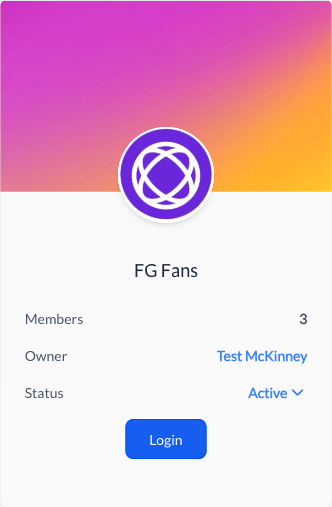
As an admin, go to Memberships in the left menu, open the Communities tab, then click Login on the group's card. The group opens in a new tab. Members just log in to your community as usual.
2. Choose who to message
There are two ways to start a chat:
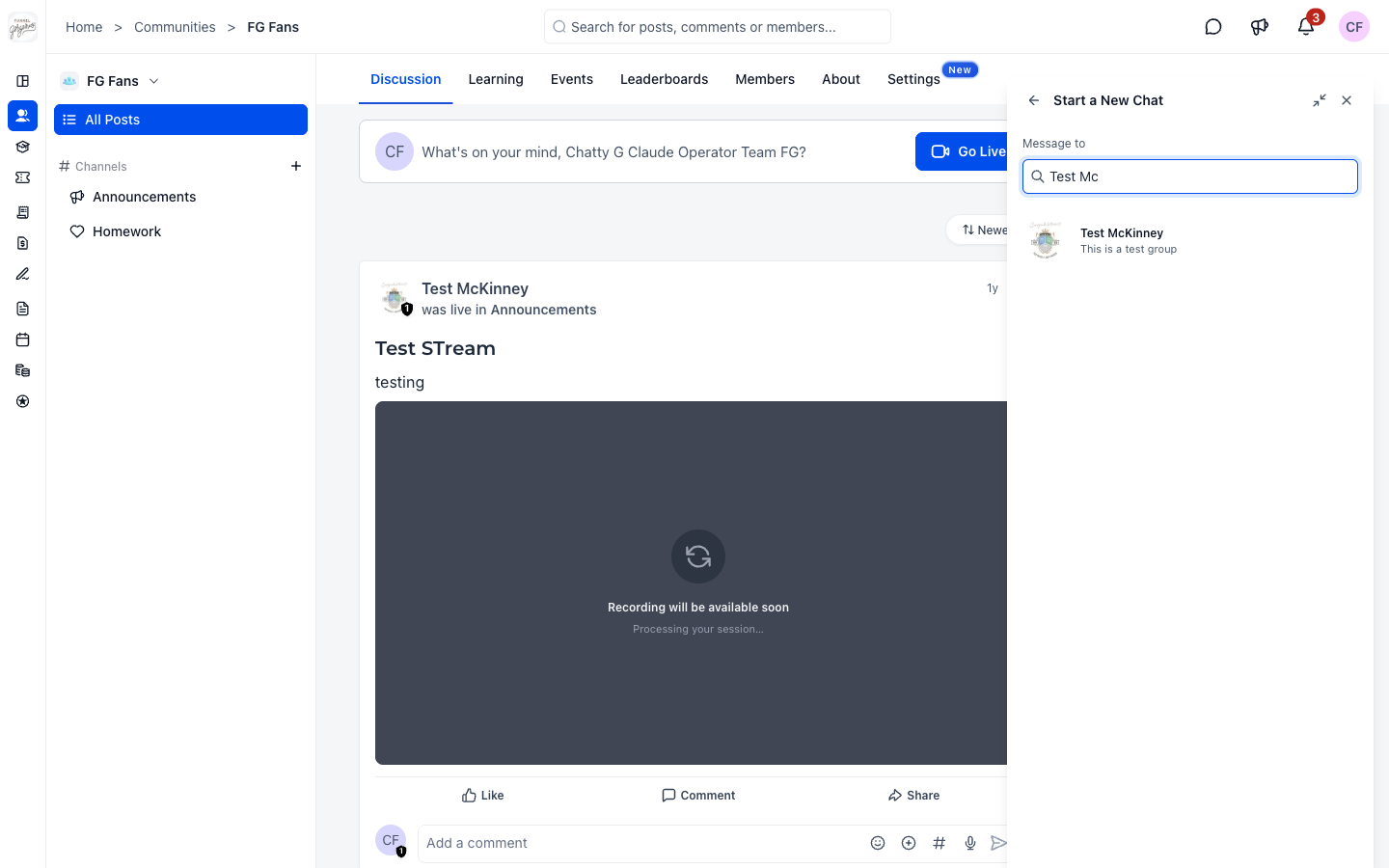
- From the chat icon: click the speech-bubble icon in the top bar, then click Start Chatting. Under Message to, search for the member and click their name.
- From the Members tab: open the group's Members tab and click Chat beside the member's name.

3. Type and send your message
A chat window opens. Type in the Message box, then click the send arrow to start the conversation.

Find Your Chats
All your conversations live together in one place, so you can pick up where you left off.
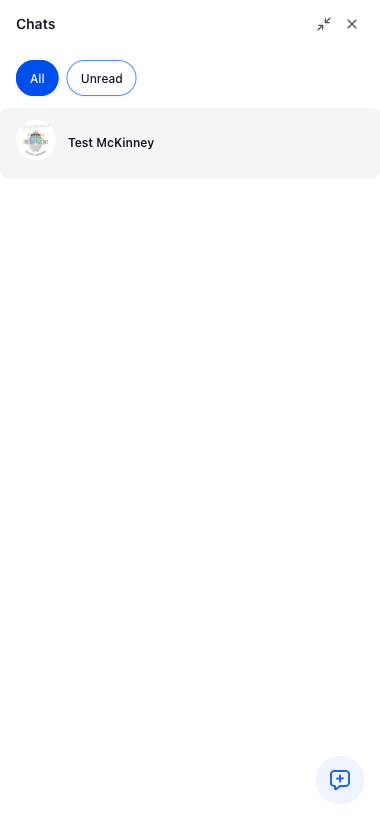
- Click the speech-bubble icon in the top bar to open Chats.
- Use All or Unread to filter your conversations.
- Click a conversation to reopen it.
What You Can Do in Chats
- Private messaging: have one-to-one conversations with members you share a community with.
- Share media and files: click ⊕ to attach photos, videos, documents, and more.
- Use emojis and GIFs: click the emoji button in the message box.
- Send voice messages: click the microphone to record a quick voice message instead of typing. See How to Use Voice Notes in Communities.
- Get notified: you'll get an in-app notification when a new message arrives. In the Kollab app, you'll also get alerts if you've allowed notifications in your phone's settings.

Privacy & Security Features
We understand the importance of keeping your chats safe and giving you control over your experience. Here are the privacy options available to you.
Turn off chats for a specific group
If you'd rather not get messages from members of a certain group, turn chat off for that group:
- Click your profile picture in the top-right corner and choose Profile Settings.
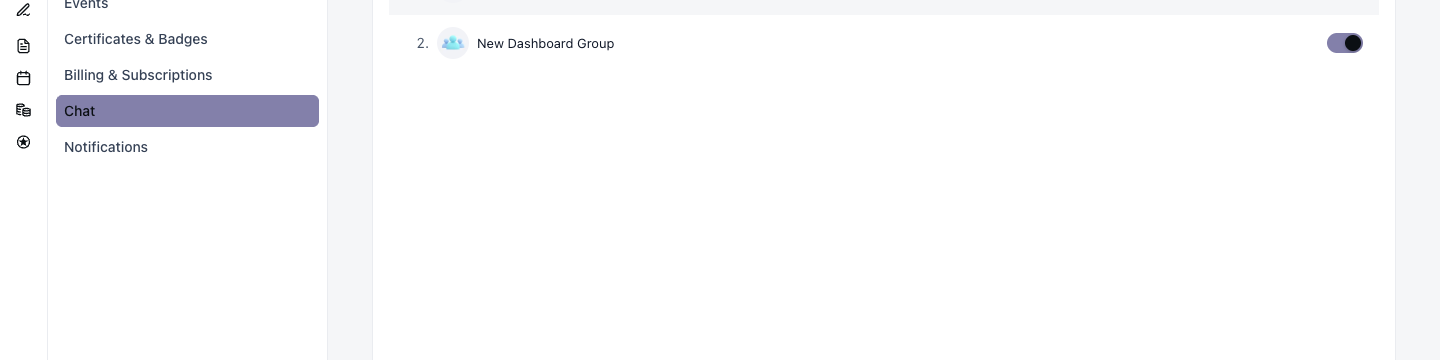
- In Account Settings, click Chat.
- On the Community Chat tab, turn off the toggle next to the group.
You can turn it back on at any time the same way.
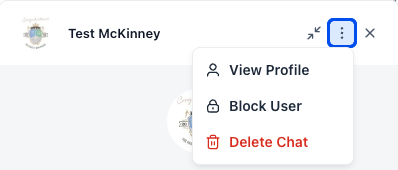
Block unwanted messages
If someone is sending you unwanted messages, you can block them:
- Open your chat with that person.
- Click the ⋮ (More options) icon at the top of the chat window.
- Select Block User.
Once blocked, they can't send you any more messages. You can see who you've blocked on the Blocked Users tab, next to Community Chat in your chat settings.
FAQs
Can I start a chat without joining a group?
No. You need to be a member of a group before you can chat. Once you're in, you can message other members you share a community with.
Can I message anyone?
No. You can only message members you share a community with.
Can I start a group chat?
No. Chats are one-to-one only. For a private conversation with several members, use a private channel.
Where can I find my existing chats?
Click the speech-bubble icon in the top bar. All your conversations are listed there.
Will members know when I send them a message?
Yes. They get an in-app notification when a new message arrives.
Why can't I message a specific member?
You may not share a community with them, or they may have turned off chat for that group. Admins can check the member in the group's Members tab.
Are chats the same as private channels?
No. Chats are private messages between two members. Private channels are spaces inside a group that only selected members can see.