
Create Content With Ask AI: Blogs, Emails, Audio, and Video
Ask AI can do more than answer questions. You can ask it to draft a full blog post, write a marketing email, create a short video or a voiceover, lay out information as a table, chart, or diagram, and organize the files in your Media Storage, all from one chat.
Availability: Ask AI is in the left menu of your account. Some of these tools use paid AI usage. See AI Feature Pricing for details.
In this article
How to Start a Chat in Ask AI
- Click Ask AI at the top of the left menu.
- Click New chat to start a fresh conversation.
- Type what you want in the Ask anything box and press Enter.
Click the + in the chat box to attach a file or image for Ask AI to work from.
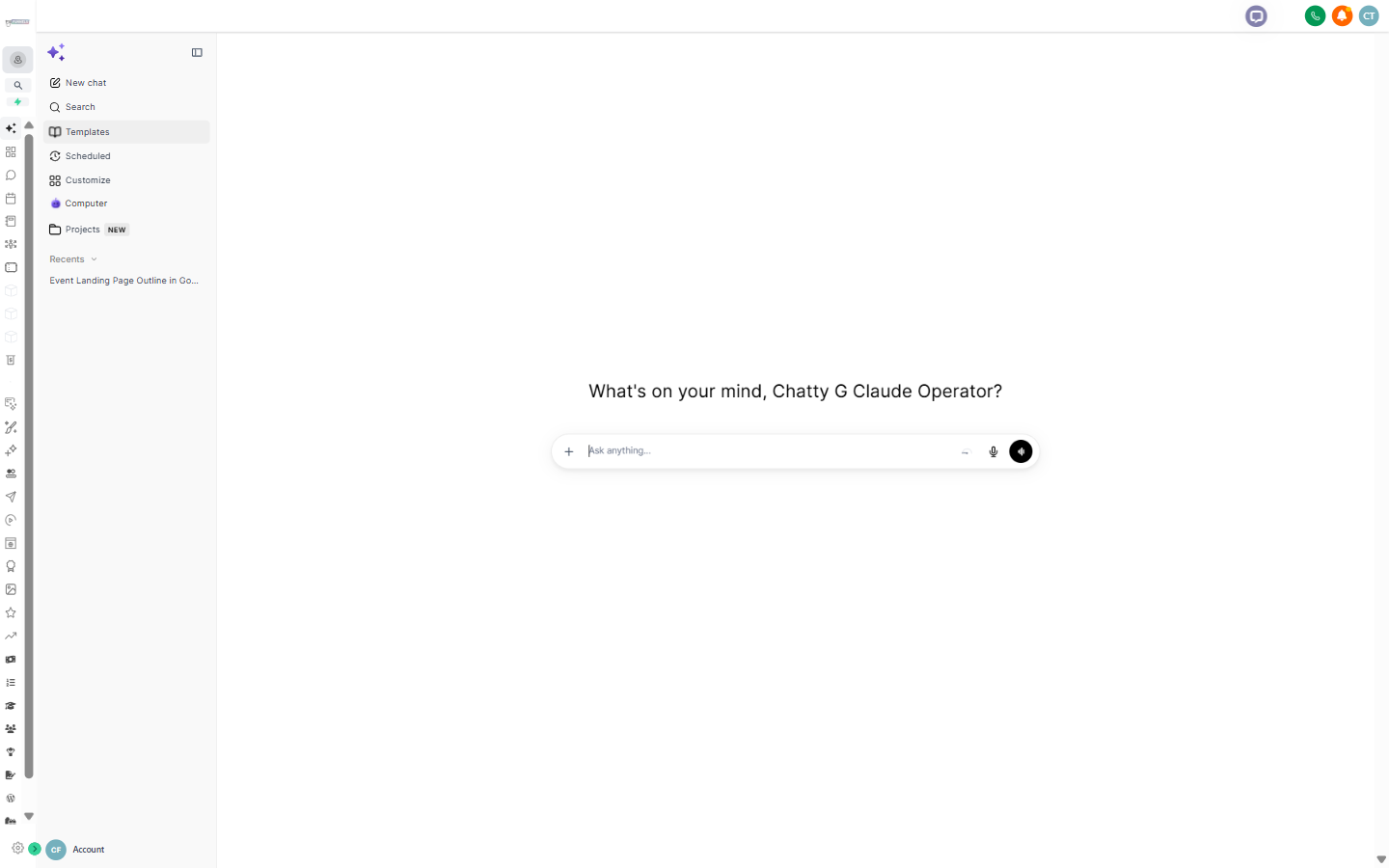
Tip: The more detail you give, the closer the first result will be. Say who it's for, how long it should be, the tone you want, and anything it must include. If Ask AI needs more information, it will ask you a few questions before it starts.
Write a Blog Post With Ask AI
Ask AI can brainstorm topics, suggest titles, and write a full blog post with headings, subheadings, short paragraphs, and lists. It can search the web for current information, write in other languages, and use a web page link or image you give it as background.
Step 1: Ask for the post
In a new chat, describe the post you want. For example:
"Write a 1,500-word blog post for small business owners on how to use SMS marketing to get more appointment bookings. Audience: local service businesses. Tone: friendly but professional. Include headings, subheadings, and a conclusion with a call to action."
Helpful details to include:
- Who the post is for and how much they already know
- About how long it should be
- The tone you want
- The main keywords you want to rank for
- Any offer, product, or call to action to mention
Step 2: Add links or images (optional)
Paste a web page link (like your product page or an older post you want to update) or attach an image, and tell Ask AI how to use it. For example: "Use this page as background on our product and keep the post in line with it." Links and images are only used as background. They aren't added to the post unless you add them yourself later.
Step 3: Review and revise
Read the draft and ask for changes in the same chat, like "shorten the intro", "rewrite this for beginners", or "write a Spanish version for a Mexico-based audience."
Step 4: Move it into your blog
Ask AI writes the post in the chat. It doesn't create the blog post for you.
- Copy the final draft from Ask AI.
- Go to Sites > Blogs, open your blog, and click New post.
- Paste the draft into the editor and fix any heading levels.
- Add images, links, and calls to action.
- Click Continue to set the SEO details (URL slug, title, description, keywords), then save it as a draft, publish it, or schedule it.
To keep polishing inside the editor, use the editor's own AI tools.
Note: Always check facts, numbers, and claims before you publish. Web search makes posts more current, but AI can still get things wrong.
Write an Email With Ask AI
Ask AI can write a marketing email for you, from the headline to the button, and save it in your account as a draft so you can finish it in the email editor.
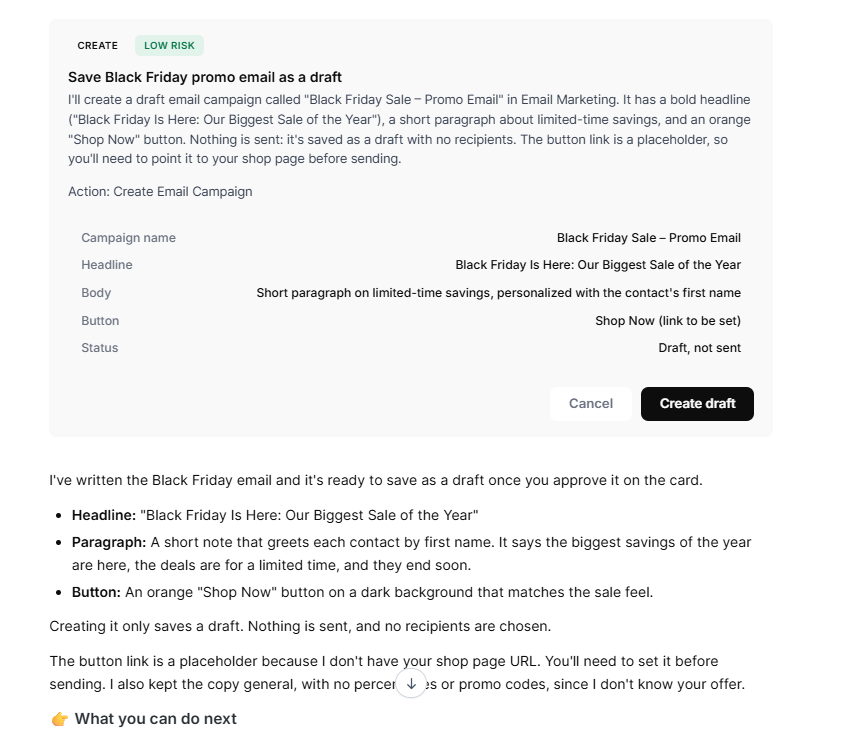
- In a new chat, describe the email. For example: "Create a promo email for a Black Friday sale with a headline, a short paragraph, and a Shop Now button."
- If Ask AI needs a choice from you, like whether to use your Brand Board, it pauses and asks. Pick an option (or type your own answer) and submit it.
- Ask AI writes the email and shows a card with what it will save: the name, headline, body, button, and status.
- Read the summary under the card. Ask for changes in the chat if anything needs fixing, like "make the headline shorter."
- Click Create draft on the card to save it, or Cancel if you don't want it saved.
Good to know:
- Saving only creates a draft. Nothing is sent, and no recipients are chosen.
- Ask AI uses a placeholder for button links it doesn't know. Set the real link in the email editor before you send.
- Give Ask AI your real offer details (discount, dates, promo code) so it doesn't have to keep the copy general.
For countdown timers in emails, see How to Use a Countdown Timer in Your Emails.
Create a Short Video
Ask AI can make short video clips for promos, product moments, and social posts. Videos play right in the chat, so you can review them before you save them.
You can choose:
- Length: 4, 6, or 8 seconds
- Shape: landscape or vertical
- Quality: up to 4K. Ask AI checks with you before making a 4K video, since it takes longer.
- Sound: videos include a matching audio track
Step 1: Describe the video
Include the length, shape, subject, exact on-screen text, and the look you want. For example:
"Make an 8-second vertical summer sale promo video for my salon. Put 'SUMMER SALE — 30% OFF' on screen and use a slow zoom out."
You can describe camera movement (slow zoom, static shot, close-up), lighting (soft studio light, golden hour), and style (cinematic, minimal, bright, luxury). You can also say what you don't want in the clip.
Step 2: Start or end on an image (optional)
To begin the clip on a certain image, end on one, or move between two images, tell Ask AI which image to use. This works well for animating a product photo into a call-to-action card. To make the image first, see How to Generate & Edit Images With Ask AI.
Step 3: Review, revise, and save
- Answer any questions Ask AI asks, and confirm 4K if you asked for it.
- Play the finished clip in the chat.
- Ask for changes to the style, shape, or other details if needed.
- To keep it, ask Ask AI to save the video to your Media Storage. Approve the save when asked.
Tip: Put the exact words you want on screen in quotes. Ask AI creates the text as an image first and then animates it, so it stays clear and readable. If the text needs to change after the video is made, ask for a new version with the updated wording.
Create a Voiceover
Ask AI can turn a script into a natural-sounding voiceover. This is different from Voice Mode, which lets you talk to Ask AI out loud.
- Ask Ask AI to make a voiceover and paste your script.
- Describe how it should sound. For example: "Record this as a warm, upbeat product demo. Keep it conversational and confident, a little faster than normal."
- Pick one of the 10 voices when Ask AI asks which one you want.
- Change the speed if needed, anywhere from 0.25x to 4x.
- Play the recording in the chat.
- Download it as an MP3, WAV, OPUS, or AAC file.
Each recording can be up to 4,000 characters. For longer scripts, split the script into sections, and each one plays as its own recording. Before you pick a file type, check what the place you'll use it accepts. See Media Library Specs & Formats.
Ways to describe the delivery include warm and upbeat, calm and reassuring, deep and authoritative, friendly and conversational, energetic, or slow and deliberate.
Create and Edit Images
Ask AI can also create images, edit them, and describe images you attach, in sizes made for social posts, banners, and more. See How to Generate & Edit Images With Ask AI for the full steps.
If you have a Brand Board set up, Ask AI can use your colors, logo, and fonts when it creates branded images and videos. You don't need one to create media. See Creating a Brand Board in FG Funnels.
Get Tables, Charts, Checklists, and Diagrams
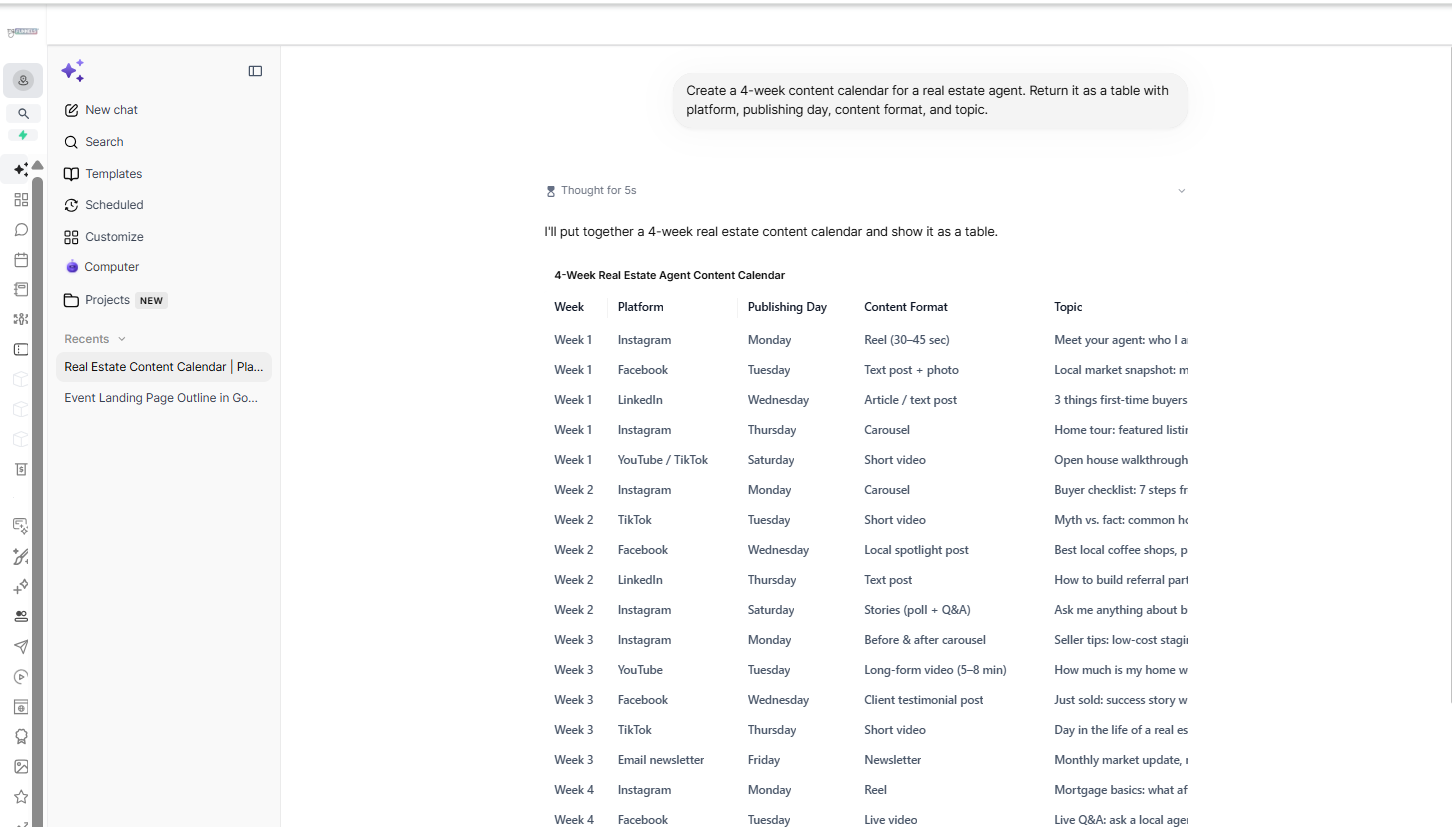
Ask AI doesn't only reply in plain text. Depending on what you ask, it can lay out its answer as one of these formats:
- Tables for content calendars, campaign reviews, lead reports, and comparisons
- Charts (bar, line, pie, funnel, and radar) for numbers and trends
- To-do lists for onboarding, launches, and step-by-step processes
- Diagrams (flowcharts) for automations, customer journeys, and decision trees. Large diagrams open full screen, and you can zoom and move around in them.
- Code in HTML, CSS, JavaScript, SQL, JSON, or Python, formatted so it's easy to copy
Ask AI also shows web search results as preview cards, asks for your approval before it takes certain actions, and explains what went wrong if it can't create something.
To get a specific format, ask for it in your request. For example:
- "Create a 4-week content calendar for a real estate agent. Return it as a table with platform, publishing day, content format, and topic."
- "Create a flowchart for a missed-call text-back automation with fallback branches."
You can change the format later in the same chat, like turning a table into a chart. These formats lay out information for you. They don't change anything in your account on their own.
Manage Your Media Storage With Ask AI
You can ask Ask AI to find, organize, and clean up files in your Media Storage, and work with Google Drive and Canva if they're connected.
In your Media Storage, Ask AI can:
- List and filter files and folders, and find a file by its link
- Create, rename, and move files and folders
- Import a file from a web link
- Move files to the trash and restore them
- Tell you how much storage you're using
- Show the background and texture images available to you
With Google Drive connected, it can check the connection, list your Drive files and folders, and create Drive folders. It can't upload files from your computer to Drive, download Drive files, or move files between Drive and Media Storage.
With Canva connected, it can list your designs, create a new design, upload a file to Canva, and export a design (for example, as a PNG).
If Google Drive or Canva isn't connected, Ask AI will tell you and ask you to connect it first.
How to do it
- Open Ask AI and describe the task. For example: "Create a folder called Q3 Creatives and move these images into it."
- Answer any follow-up questions, like which folder to use.
- Review the action Ask AI plans to take.
- Click the button on the card to approve it (for example, Create folder), or click Cancel. Ask AI does the task and confirms when it's done.
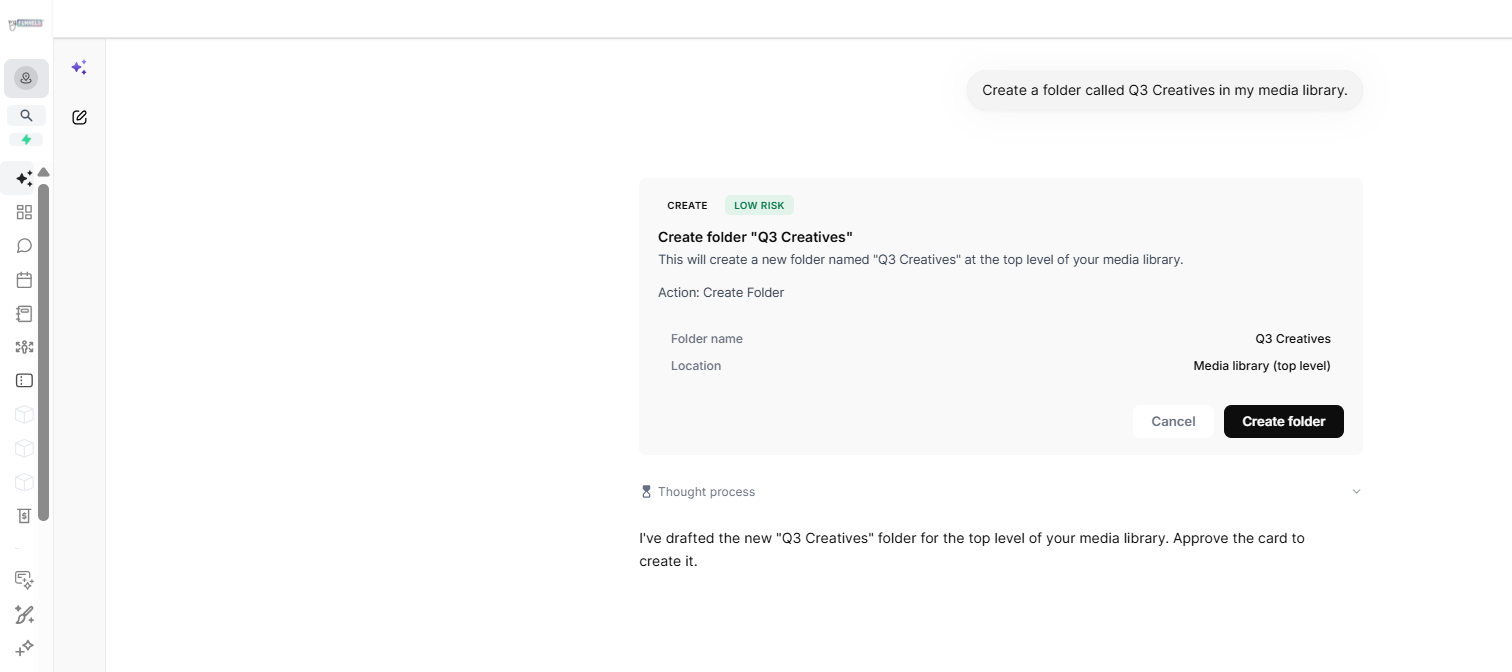
Ask AI always asks before it changes anything (creating, renaming, moving, trashing, restoring, importing, or any Canva action). Looking things up, like listing files or checking storage, happens right away because it doesn't change anything. Deleting only moves files to the trash, so you can always restore them. Ask AI can't permanently delete files.
More example requests:
- "Show me the files in my media library."
- "Import this image from a URL into my media library."
- "Restore the files I trashed."
- "How much storage am I using?"
- "Show my Canva designs."
Frequently Asked Questions
Does Ask AI publish my blog post?
No. It writes the draft in the chat. You copy it into Sites > Blogs, where you set the SEO details, author, and category and then publish.
What's the difference between writing a blog in Ask AI and using AI in the blog editor?
Ask AI is a chat where you can brainstorm, compare ideas, and get a full draft without opening the editor. The editor's AI tools work right inside the post for fine-tuning and SEO. Many people draft in Ask AI and polish in the editor.
Will Ask AI send my email?
No. It only saves a draft after you click Create draft. You choose the recipients and send it yourself.
Do I need a Brand Board to create videos or emails?
No. A Brand Board helps Ask AI match your colors and fonts, but it isn't required.
Can I change the text in a video after it's made?
Ask for a new version with the updated wording.
Can Ask AI permanently delete my files?
No. It only moves files to the trash, and you can restore them.
Do I have to name the format I want, like a table or chart?
No. Ask AI picks a format that fits, but asking for one gives you more predictable results.
Is there a cost?
Some Ask AI tools use paid AI usage, and longer tasks like full blog posts cost more than short questions. See AI Feature Pricing.